
TL;DR
- Set graphics quality to Low and disable post-processing for immediate FPS gains
- Enable AMD FSR 3 Frame Generation and use Quality preset for optimal scaling
- Update GPU drivers and Windows OS to eliminate crashes and stuttering
- Use Borderless Fullscreen mode for better alt-tab performance
- Monitor system temperatures and background applications for stability
Arc Raiders leverages Unreal Engine 5’s advanced capabilities, delivering stunning visuals that can challenge even modern gaming systems. While Embark Studios has optimized the experience remarkably well, achieving consistent high frame rates requires strategic graphics configuration. This section provides the foundational settings that deliver the biggest performance improvements across all hardware tiers.
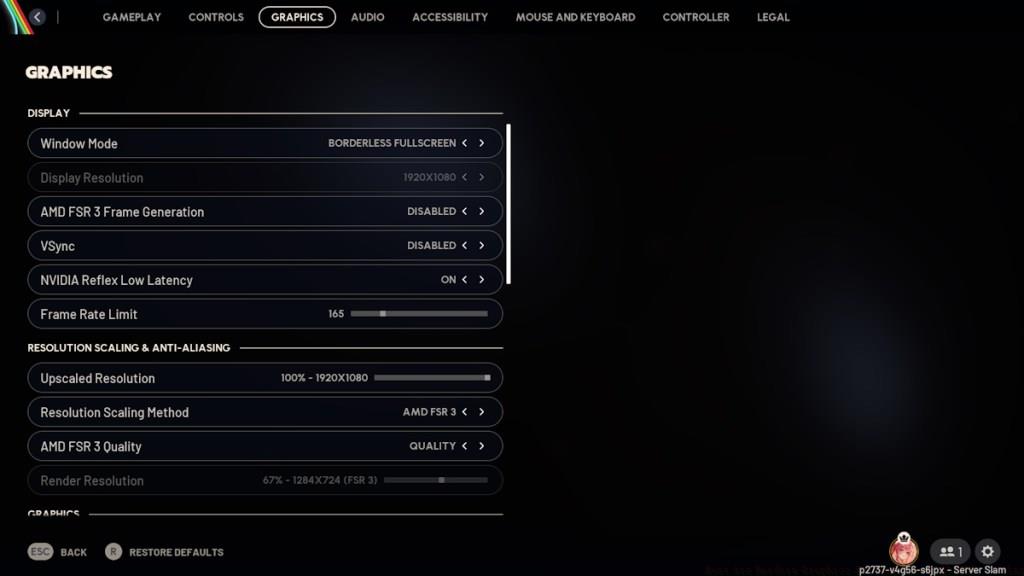
Navigate to Settings -> Graphics to access the comprehensive configuration panel. Begin with these core adjustments to establish a stable performance baseline before exploring advanced optimizations.
| Setting | Recommended Value |
|---|---|
| Screen option | Borderless Fullscreen (screen resolution) |
| AMD FSR 3 Frame Generation | Enabled |
| VSync | Disabled |
| Resolution Scaling Method | AMD FSR3 |
| AMD FSR3 Quality | Quality |
| Motion Blur | Disabled |
| Overall Quality Level | Low |
| Anti-Aliasing | Low |
| Shadows | Low |
| Post-Processing | Low |
| Texture | Low |
| Effects | Low |
| Reflections | Low |
| Foliage | Low |
| Global Illumination Resolution | Low |
Critical Performance Insight: Borderless Fullscreen mode significantly reduces input lag compared to traditional Fullscreen while maintaining excellent alt-tab functionality. Disabling VSync eliminates frame rate caps that can cause stuttering during intense combat sequences.
AMD FSR 3 technology provides substantial frame rate improvements through intelligent resolution scaling. The Quality preset offers the ideal balance between visual clarity and performance enhancement, delivering up to 40% higher FPS without noticeable image degradation.
Beyond in-game settings, several system-level optimizations can dramatically improve Arc Raiders’ performance stability. These advanced techniques address common bottlenecks that cause frame drops, crashes, and inconsistent gameplay experiences.
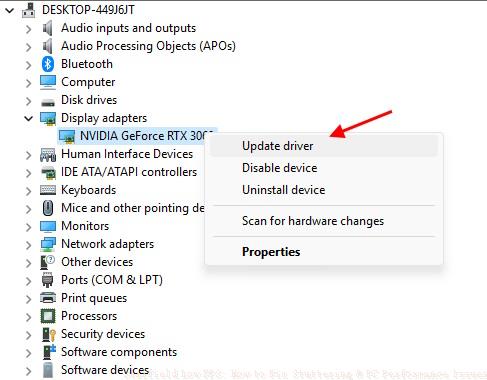
Driver Management Strategy: Outdated GPU drivers represent the most common cause of performance issues in modern games. NVIDIA graphics card users should download the latest Game Ready drivers from the manufacturer’s website, while AMD users benefit from Adrenalin software updates. Schedule driver updates monthly to maintain optimal compatibility with Arc Raiders’ frequent patches.
Windows optimization plays a crucial role in gaming performance. Ensure your operating system is fully updated, as Microsoft regularly releases gaming-focused optimizations. Disable background applications like browser tabs and streaming software that consume valuable GPU resources.
Common Mistake Alert: Many players overlook Windows Game Mode, which when enabled properly allocates system resources to prioritize gaming performance. However, incorrect configuration can sometimes cause conflicts with certain hardware setups.
For high-end system owners, selectively increasing texture quality to Medium may provide visual enhancements without significant performance costs. Monitor frame rates after each adjustment to identify your hardware’s optimal configuration sweet spot.
Advanced Tuning for Enthusiasts: Experienced users can explore GPU overclocking utilities for additional performance headroom. Begin with modest 5-10% clock speed increases and stress test stability before applying to gameplay sessions.
Temperature management proves essential for sustained performance. Ensure adequate case ventilation and consider undervolting if thermal throttling occurs during extended gaming periods on Speranza’s demanding landscapes.
After implementing these system optimizations, restart Arc Raiders and evaluate performance improvements in both menu navigation and actual gameplay scenarios. Persistent issues may require the troubleshooting methods detailed in our next section.
When optimized graphics settings and system tweaks fail to resolve performance problems, systematic troubleshooting identifies underlying causes. This methodology addresses everything from hardware limitations to software conflicts that impact Arc Raiders’ smooth operation.
System Requirements Verification: Before investing extensive time in advanced troubleshooting, confirm your PC meets Arc Raiders’ minimum specifications. Systems falling below these thresholds will inevitably experience performance constraints regardless of configuration efforts.
Performance monitoring tools provide valuable diagnostic data. Use applications like MSI Afterburner or NVIDIA FrameView to track GPU utilization, CPU load, and memory usage during gameplay. This data reveals whether bottlenecks originate from specific hardware components.
Black Screen and Crash Solutions: High-end systems encountering crashes on Ultra settings typically benefit from reducing Global Illumination Resolution and Shadow quality. These settings disproportionately impact stability while offering minimal visual improvement during fast-paced combat.
Memory management significantly affects Unreal Engine 5 titles. Ensure adequate virtual memory allocation and close memory-intensive applications before launching Arc Raiders. The engine’s advanced streaming systems require consistent memory availability for optimal performance.
Expert Tip: Players experiencing stuttering during exploration of Speranza’s open environments should prioritize Foliage and Effects reductions. These settings impact rendering load during rapid scene transitions and particle-heavy combat encounters.
If performance issues persist after exhaustive optimization, consider hardware upgrades focused on GPU VRAM capacity and CPU single-thread performance—both critical for Arc Raiders’ smooth operation.
For comprehensive gaming optimization knowledge, explore our Complete Guide to system configuration for modern titles. Understanding these fundamental principles will enhance your experience across multiple gaming platforms and engine technologies.
Action Checklist
- Set Overall Quality Level to Low and disable Motion Blur in graphics settings
- Enable AMD FSR 3 Frame Generation with Quality preset for optimal scaling
- Update GPU drivers to latest version and verify Windows updates
- Configure Borderless Fullscreen mode and disable VSync for reduced input lag
- Monitor system temperatures and close background applications before gameplay
No reproduction without permission:Tsp Game Club » Best Arc Raiders Graphics Settings for High FPS, Low Lag Expert PC optimization guide for Arc Raiders to maximize FPS and eliminate stuttering on any hardware