
TL;DR
- Windowed Fullscreen mode provides best stability with minimal performance impact
- DLSS/FSR upscaling at Quality preset dramatically improves frame rates
- Field of View between 100-110 maintains immersion without performance penalty
- Frame rate limiting prevents GPU overheating and reduces input lag
- Low-end systems benefit from 1080p resolution with optimized settings
After a lengthy seven-year development cycle, Borderlands 4 has finally arrived, bringing significant evolution to the beloved looter-shooter series. While critics have praised Gearbox’s latest installment for its engaging gameplay and artistic direction, the PC version faces substantial optimization hurdles. The game appears to struggle with Unreal Engine 5’s demanding feature set, leading to inconsistent performance across various hardware configurations. This comprehensive guide provides detailed settings recommendations to help you achieve the optimal balance between visual fidelity and smooth gameplay performance.
Many players encounter stuttering, frame rate drops, and inconsistent performance even on high-end systems. These issues stem from Unreal Engine 5’s advanced features like Lumen lighting and Nanite virtualized geometry, which demand substantial computational resources. Understanding these technical challenges is crucial for implementing effective optimization strategies.
Configuring your graphics settings correctly can dramatically improve your Borderlands 4 experience. Here are the recommended configurations for balanced performance and visual quality:
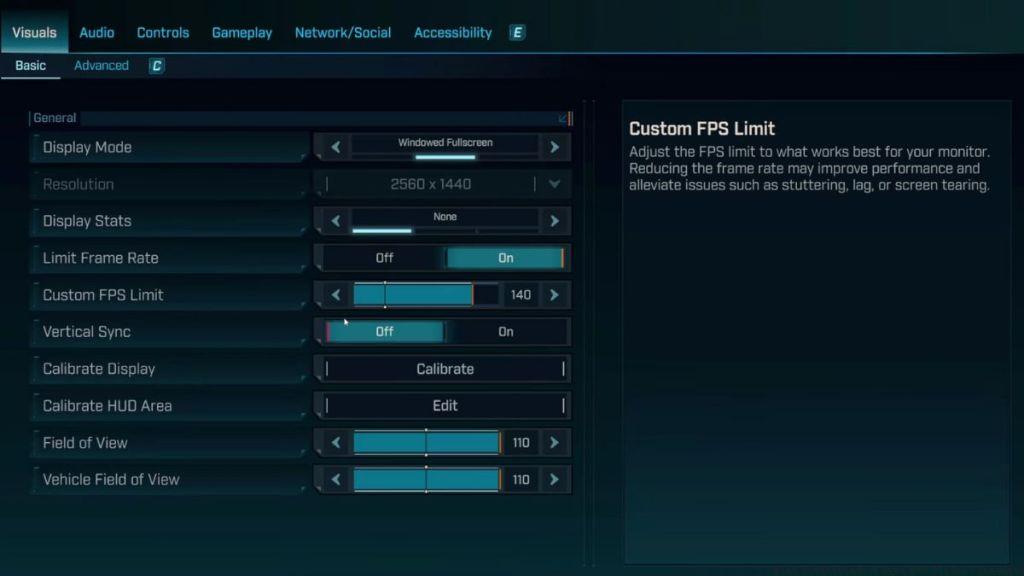
- Display Mode: Windowed Fullscreen – This setting provides the best of both worlds, offering quick alt-tab functionality while maintaining near-fullscreen performance levels. Borderless windowed mode also helps prevent game crashes when switching between applications.
- Resolution: 1920 x 1080 – While higher resolutions offer improved clarity, 1080p strikes the ideal balance between image quality and performance demands. For 1440p or 4K gaming, you’ll need to compensate with more aggressive upscaling settings.
- Limit Frame Rate: Off – Disabling frame rate limits allows your GPU to render frames as quickly as possible. However, if you experience screen tearing, consider enabling V-Sync or using your graphics driver’s frame rate cap feature instead.
- Custom FPS Limit: 120 – Setting a reasonable frame rate cap prevents GPU overheating and reduces power consumption without noticeably impacting gameplay smoothness. Match this setting to your monitor’s refresh rate for optimal results.
- Field of View: 100-110 (Adjust as per preference) – This range provides excellent situational awareness without introducing significant performance overhead. Higher FOV values increase rendering load, so adjust downward if experiencing performance issues.
- Vehicle Field of View: 100-110 (Adjust as per preference) – Maintaining consistency between on-foot and vehicle FOV prevents disorientation during transitions between gameplay modes.
- Upscaling Method: DLSS on Nvidia GPUs/FSR on AMD GPUs/TSR otherwise – These AI-powered upscaling technologies can dramatically improve performance while maintaining image quality. DLSS generally provides superior results on RTX cards, while FSR works well across all hardware.
- Upscaling Quality: Quality – This preset offers the best compromise between performance gains and visual fidelity. Avoid Performance or Ultra Performance modes unless absolutely necessary for playable frame rates.
- Spatial Upscaling Quality: Disabled – This setting typically provides minimal visual improvement while consuming significant GPU resources. Disabling it frees up performance for more impactful visual settings.
Implementing these settings should provide a solid foundation for smooth gameplay. Remember that individual results may vary based on your specific hardware configuration and driver versions.
For gamers running Borderlands 4 on budget or older hardware, additional optimization is necessary to achieve playable performance. The key is identifying which settings have the greatest performance cost and adjusting them strategically rather than simply lowering everything to minimum.
Start by ensuring your system meets the minimum requirements, then implement these targeted optimizations:
- Resolution Scaling: Reduce to 85-90% if maintaining 1080p proves too demanding. This subtle reduction dramatically improves performance while maintaining much of the visual clarity.
- Shadow Quality: Set to Medium or Low – Shadow rendering is computationally expensive, and the visual difference between High and Medium is often negligible during fast-paced combat.
- Texture Streaming: Enable and set to Medium – This prevents texture pop-in while managing VRAM usage effectively on cards with limited memory.
- Post Processing: Disable motion blur and depth of field – These effects consume significant resources while providing minimal gameplay benefit, especially on lower-end systems.
- Anti-Aliasing: Rely solely on your upscaling solution’s built-in anti-aliasing to avoid the performance hit of additional AA methods.
For systems with 8GB of RAM or less, consider closing background applications and setting the game’s process to high priority in Windows Task Manager. These system-level optimizations can provide additional performance headroom.
Many players make the mistake of lowering every setting to minimum, which often results in a poor visual experience without significant performance gains. Instead, focus on the high-impact settings mentioned above while maintaining medium or high settings on less demanding options.
Beyond the basic settings, several advanced techniques can further improve your Borderlands 4 experience. These require more technical knowledge but offer substantial benefits for dedicated optimizers.
Driver Configuration: Ensure you’re running the latest graphics drivers from NVIDIA, AMD, or Intel. Game-ready drivers often include specific optimizations for new releases like Borderlands 4. For NVIDIA users, accessing the Control Panel and setting “Power Management Mode” to “Prefer Maximum Performance” can prevent GPU downclocking during gameplay.
Common Performance Pitfalls: Many players overlook background processes that consume system resources. Applications like Discord, Chrome browsers, and streaming software can significantly impact game performance. Consider using your Complete Guide to system optimization for gaming can provide additional insights into maximizing your hardware’s potential.
System-Level Optimizations: Adjust Windows power settings to High Performance mode, disable fullscreen optimizations for the game executable, and ensure your system is free from malware and unnecessary background services.
If you’re still experiencing performance issues after implementing these settings, consider monitoring your system’s performance using tools like MSI Afterburner. This will help identify whether you’re experiencing CPU, GPU, or RAM bottlenecks. Understanding your specific performance limitation is crucial for targeted optimization, much like the approach needed for mastering Weapons Unlock systems in similar games.
Remember that optimization is an iterative process. Start with our recommended settings, then fine-tune based on your specific hardware and performance goals. The ideal configuration varies significantly between systems, so don’t hesitate to experiment within the recommended ranges. For those interested in deeper gameplay mechanics, our Class Guide provides additional insights into character optimization strategies.
Action Checklist
- Set Display Mode to Windowed Fullscreen for optimal stability
- Configure upscaling method (DLSS/FSR/TSR) based on your GPU
- Adjust Field of View to 100-110 range for balanced performance
- Update graphics drivers to latest game-ready versions
- Monitor performance metrics and fine-tune settings accordingly
No reproduction without permission:Tsp Game Club » Best Borderlands 4 PC Settings for Smoother Performance, No FPS Drops Expert PC optimization guide for Borderlands 4 with performance tweaks and advanced settings