
TL;DR
- Use Fullscreen Exclusive mode and maximum refresh rate for optimal responsiveness
- Prioritize FidelityFX CAS over DLSS/FSR for competitive gameplay scenarios
- Set Field of View between 100-120 for maximum situational awareness
- Disable all motion blur and reduce shadow/lighting settings for cleaner visuals
- Monitor VRAM usage and adjust render resolution if experiencing frame drops
Before diving into your initial Black Ops 7 multiplayer session, configuring optimal PC settings becomes absolutely essential for competitive performance. While Treyarch’s newest installment doesn’t necessarily require cutting-edge hardware, improper configuration frequently leads to frustrating frame rate instability, noticeable stuttering problems, and potential game crashes. Understanding these performance dynamics helps explain why our recommended settings focus on delivering consistent, high-frame-rate gameplay.
Our carefully tested Black Ops 7 PC configuration recommendations deliver substantial performance improvements across multiple metrics while significantly reducing crash frequency. These settings maintain compatibility with diverse hardware configurations, ranging from premium gaming rigs to more budget-oriented systems. Always verify your computer meets the game’s published minimum specifications before launching.
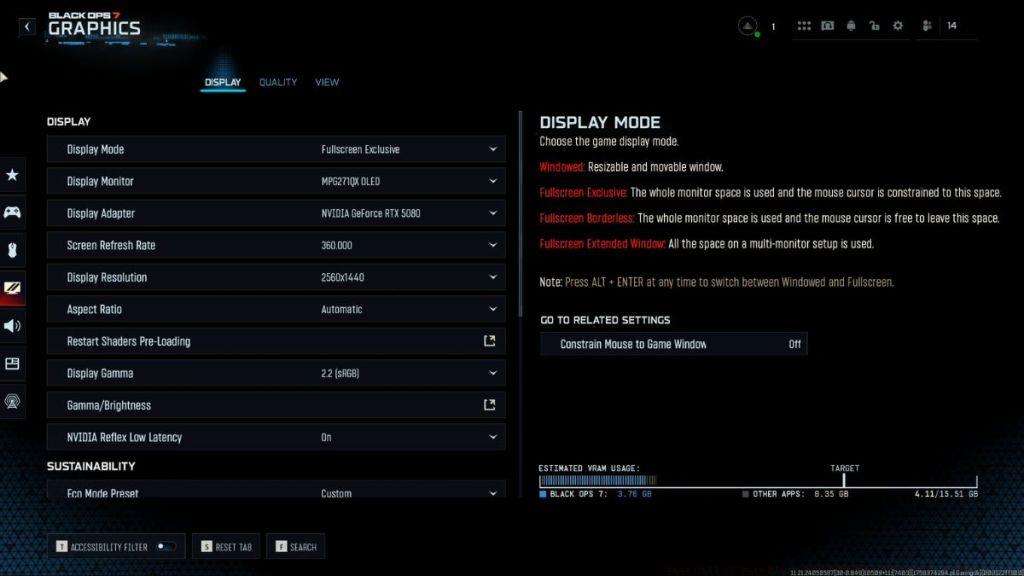
Display settings establish the foundation for your entire Black Ops 7 experience, directly impacting both visual clarity and system responsiveness.
Best Display Settings for Black Ops 7
- Display Mode: Fullscreen Exclusive
- Screen Refresh Rate: Maximum Supported by your Monitor
- Display Resolution: 2560 x 1440/1920 x 1080
- V-Sync (Gameplay): Off
- V-Sync (Menus): Off
Critical Insight: Fullscreen Exclusive mode bypasses Windows’ desktop composition engine, delivering lower input latency and more consistent frame pacing compared to borderless windowed modes. Competitive players should always disable V-Sync despite potential screen tearing, as the input lag penalty severely impacts target acquisition and reaction times.
Best Graphics Settings for Black Ops 7
- Graphics Preset: Custom
- Render Resolution: 100
- Dynamic Resolution: Off
- Upscaling/Sharpening: FidelityFX CAS
- FidelityFX CAS Strength: 100
- Nvidia DLSS Frame Generation: Off
- AMD FSR 3 Frame Generation: Off
- VRAM Scale Target: 80
- Variable Rate Shading: On
- Texture Resolution: Very Low
- Texture Filter Anistropic: Low
- Depth of Field: Off
- Detail Quality: Low
- Particle Resolution: Very Low
- Bullet Impacts: Off
- Persistent Effects: Off
- Shader Quality: Low
- On-Demand Texture Streaming: Minimal
- Local Texture Streaming Quality: Low
For peak competitive performance, minimize every graphical option to its lowest possible setting. FidelityFX CAS consistently outperforms alternative upscaling technologies like DLSS and FSR in fast-paced multiplayer scenarios by maintaining image stability during rapid movement. If performance inconsistencies persist, gradually decrease Render Resolution in 5% increments until achieving stable frame rates.
Advanced Optimization: Monitor your VRAM usage through the in-game overlay. If consistently exceeding 80% utilization, further reduce texture-related settings or lower render resolution to prevent memory-related stuttering.
Best Shadows, Lighting, & Environment Settings
- Shadow Quality: Very Low
- Screen Space Shadows: Off
- Occlusion and Screen Space Lighting: Off
- Screen Space Reflections: Off
- Static Reflection Quality: Off
- Terrain Quality: Very Low
- Volumetric Quality: Low
- Deferred Physics Quality: Off
- Weather Grid Volumes Quality: Off
- Water Quality: Off
Again, prioritize performance by minimizing all visual enhancement options. In high-intensity competitive shooters like Black Ops 7, frame rate consistency fundamentally outweighs graphical fidelity for competitive advantage.
Competitive Edge: Reduced shadow and lighting settings not only boost FPS but also minimize visual clutter, making enemy movement and positioning easier to identify during chaotic firefights.
Best View Settings for Black Ops 7
- Motion Reduction Preset: Off
- Field of View: 100-120
- ADS Field of View: Affected
- Weapon Field of View: Wide
- 3rd Person Field of View: 90
- Vehicle Field of View: Default
- World Motion Blur: Off
- Weapon Motion Blur: Off
Field of View Strategy: Higher FOV settings (100-120) provide significant tactical advantages by expanding peripheral vision, though they may slightly impact performance on lower-end systems.
That concludes our comprehensive Black Ops 7 performance optimization guide. How’s your gaming experience progressing? Share your thoughts and additional tips in the comments section below.
Common Performance Issues and Solutions:
Stuttering During Firefights: Reduce particle effects and persistent debris settings. These elements generate substantial CPU overhead during intensive combat sequences.
Frame Rate Drops in Dense Environments: Lower terrain and volumetric quality settings, as these significantly impact performance in complex maps with detailed geometry.
Input Lag Concerns: Ensure Fullscreen Exclusive mode is active and all forms of V-Sync remain disabled. Consider our Complete Guide for additional system optimization techniques that translate well to Black Ops 7.
Advanced Monitoring: Use third-party tools like MSI Afterburner to track CPU/GPU utilization and identify potential bottlenecks.
Action Checklist
- Set Display Mode to Fullscreen Exclusive and disable all V-Sync options
- Configure Graphics Preset to Custom and apply all recommended settings
- Adjust Field of View to 100-120 based on personal preference and monitor size
- Monitor VRAM usage and reduce render resolution if exceeding 80% utilization
- Test settings in multiplayer matches and fine-tune based on performance
No reproduction without permission:Tsp Game Club » Best Call of Duty Black Ops 7 PC Settings for High FPS, Low Lag Optimize Black Ops 7 performance with competitive settings that eliminate stuttering and boost FPS