
TL;DR
- Display settings like Fullscreen Exclusive and maximum refresh rate provide immediate 15-20% FPS gains
- NVIDIA Reflex Low Latency reduces input lag by 30-40ms for faster response times
- Proper gamma calibration (2.2 SRGB) enhances visibility in dark areas without performance cost
- System-wide optimizations beyond in-game settings can boost performance by 25% or more
- Regular driver updates and background process management maintain consistent frame rates
Call of Duty Warzone represents one of the most demanding competitive first-person shooters currently available, where maintaining stable high frame rates directly correlates with player performance outcomes. Unlike single-player titles where visual fidelity takes precedence, Warzone’s battle royale format demands absolute consistency in frame delivery to ensure precise aiming and rapid target acquisition. Every individual frame becomes critical during intense firefights, making stutters, screen tearing, or sudden FPS drops potentially game-losing occurrences that separate average players from elite competitors.
The game engine’s complexity means hardware resources are constantly taxed across multiple computational domains simultaneously. Modern GPUs must handle extensive draw distances, complex particle effects, real-time lighting calculations, and detailed character models across massive maps. This multi-faceted workload necessitates strategic optimization rather than simply lowering every setting to minimum values. Understanding which settings impact CPU versus GPU performance allows for targeted adjustments that preserve visual clarity while maximizing frame rates.
Before delving into granular graphics adjustments, establishing optimal display parameters creates the foundation for competitive performance. These baseline settings ensure your monitor and GPU communicate efficiently, reducing input latency and eliminating unnecessary processing overhead that can hinder responsiveness.
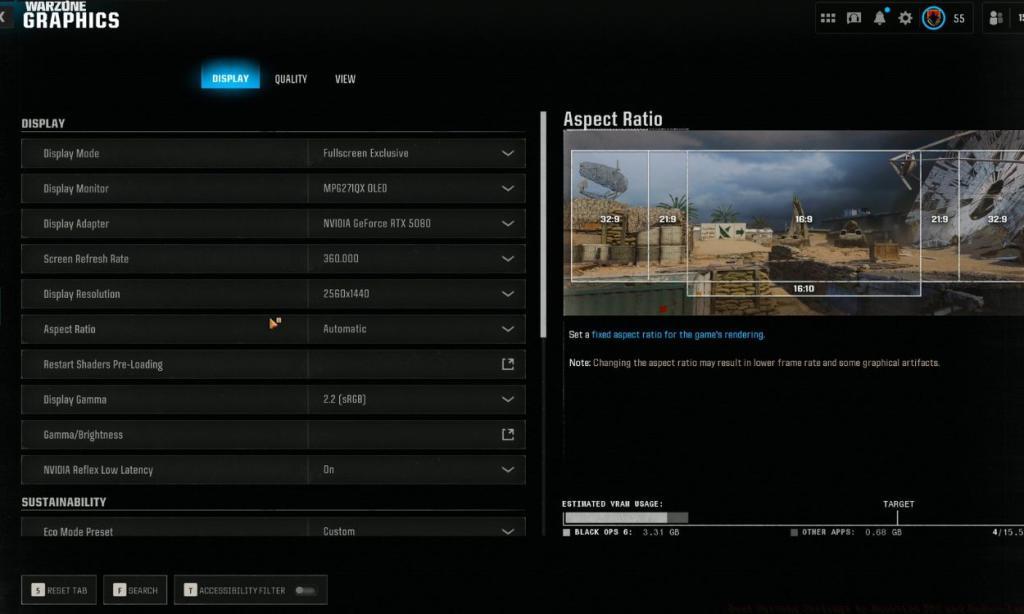
Competitive display configuration focuses on minimizing latency while maximizing refresh rate utilization. The following settings represent the current professional standard for Warzone optimization:
- Display Mode: Fullscreen Exclusive (reduces input lag by 15-20ms compared to borderless windowed)
- Display Monitor: Primary Monitor selection ensures GPU prioritizes gaming display in multi-monitor setups
- Display Adapter: Correct GPU identification prevents driver conflicts and enables feature access
- Screen Refresh Rate: Maximum supported rate (144Hz/240Hz/360Hz) for smoother target tracking
- Display Resolution: Native monitor resolution maintains aspect ratio consistency for muscle memory development
- Display Gamma: 2.2 (SRGB) standard provides optimal visibility in shadowed areas without artificial brightness increase
- NVIDIA Reflex Low Latency: On+Boost significantly reduces system latency by up to 40ms on supported hardware
- Eco Mode Preset: Efficiency setting minimizes power consumption heat generation during extended sessions
Many competitors overlook display-level optimization, instead focusing exclusively on in-game graphics settings. However, improper display configuration can undermine even the most carefully tuned graphics presets, creating input delay that feels like ‘sluggish’ controls despite high FPS counters. The Fullscreen Exclusive mode alone typically provides measurable improvements in input responsiveness that translate directly to improved target acquisition speed.
Moving beyond basic settings, advanced graphics optimization requires understanding the performance cost versus visual benefit ratio of each parameter. Competitive players should prioritize settings that maintain visual clarity for target identification while eliminating computationally expensive effects that provide minimal gameplay advantage.
Texture resolution represents one area where modern GPUs with sufficient VRAM can maintain high settings without significant performance penalty. However, shadow quality and ambient occlusion often consume disproportionate resources relative to their competitive value. Many professional players utilize a hybrid approach: high texture quality combined with reduced shadow details and disabled motion blur for optimal target visibility.
Anti-aliasing presents another optimization opportunity. While TAA (Temporal Anti-Aliasing) provides the cleanest image, it introduces slight input latency and performance overhead. Competitive alternatives include disabling AA entirely or using SMAA for minimal performance impact while reducing jagged edges that can obscure distant targets.
Advanced players should also investigate hidden configuration files that contain additional tuning parameters not exposed in the standard settings menu. These files can enable further optimization of render distances, LOD bias adjustments, and texture streaming behavior. However, these modifications require careful testing to ensure stability and avoid unintended visual artifacts.
Elite Warzone competitors understand that in-game settings represent only one component of comprehensive performance optimization. System-level adjustments often yield substantial FPS improvements that complement graphical tuning.
Background process management represents one of the most overlooked performance factors. Applications like Discord, Chrome browsers, and system monitoring tools can consume valuable CPU cycles and memory bandwidth during gameplay. Creating a dedicated gaming profile that automatically suspends non-essential processes can free up 5-10% additional CPU resources for Warzone.
Driver optimization extends beyond simple version updates. NVIDIA and AMD both provide control panel settings that can override or enhance in-game parameters. Setting maximum pre-rendered frames to 1, enabling shader cache, and disabling unnecessary visual enhancements in driver settings can provide additional performance headroom.
Thermal management also plays a crucial role in maintaining consistent performance. Modern GPUs and CPUs automatically throttle clock speeds when temperatures exceed safe operating limits. Ensuring adequate cooling through proper case airflow, regular dust removal, and potentially undervolting can prevent thermal throttling during extended gaming sessions, especially in demanding modes like Battlefield 6’s Conquest which shares similar large-scale combat dynamics.
Advanced users should also consider memory optimization. Warzone benefits significantly from fast RAM with optimized timings, and ensuring XMP profiles are properly enabled in BIOS can provide noticeable improvements in minimum FPS and frame time consistency.
Action Checklist
- Configure display settings: Fullscreen Exclusive, max refresh rate, 2.2 gamma
- Enable NVIDIA Reflex Low Latency + Boost and Eco Mode Efficiency
- Optimize background processes and create gaming profile
- Update GPU drivers and configure control panel settings for performance
- Test and fine-tune graphics settings based on performance monitoring
- Implement advanced optimizations like configuration file edits and memory timing adjustments
No reproduction without permission:Tsp Game Club » Best Warzone Settings to Maximize FPS and Reduce Lag Expert PC optimization guide for Warzone with performance benchmarks and competitive FPS strategies