
TL;DR
- Secure Boot and TPM 2.0 are mandatory for Black Ops 7 due to kernel-level anti-cheat requirements
- Windows 11 systems typically have these enabled by default, while Windows 10 requires manual configuration
- Check Secure Boot status via msinfo32 and TPM status via tpm.msc before attempting BIOS changes
- GPT partition style is required for TPM 2.0 functionality – MBR drives need conversion
- Failure to enable these features will prevent game launch across both beta and full release versions
Modern competitive gaming demands robust security measures, and Black Ops 7 represents Activision’s most aggressive stance against cheating software. The game’s kernel-level RICOCHET Anti-Cheat system integrates directly with hardware security features to create a protected gaming environment. Understanding these requirements before attempting to play is crucial for a seamless experience.
Secure Boot functions as a system-level protection mechanism that validates all boot-time software components during system startup. This prevents unauthorized programs from loading before the operating system initializes, effectively blocking many cheat injection methods that operate at the kernel level. When you combine this with Trusted Platform Module (TPM 2.0) – a dedicated microcontroller that provides cryptographic operations and secure key storage – you establish multiple defense layers against manipulation attempts.
These security protocols became non-negotiable for Call of Duty titles starting with Season 5 updates. The implementation affects both the Black Ops 7 Beta testing phase and the eventual full game release. Most Windows 11 installations come with these features pre-enabled due to Microsoft’s security requirements, while Windows 10 users often need to manually configure their systems.

Before diving into BIOS configuration, always verify your current Secure Boot status to avoid unnecessary system modifications. Many modern gaming systems already have this feature enabled, particularly those manufactured within the last three years with UEFI firmware implementations.
Secure Boot Status Verification Steps:
- Simultaneously press the Windows Button + R Key combination to launch the Run dialog box
- Enter the command ‘msinfo32‘ exactly as shown and execute with Enter key
- Navigate to the ‘System Summary’ section within the System Information window
- Locate the ‘Secure Boot State‘ entry in the detailed property list
- If the status displays ‘On,’ your system meets Black Ops 7’s security prerequisites
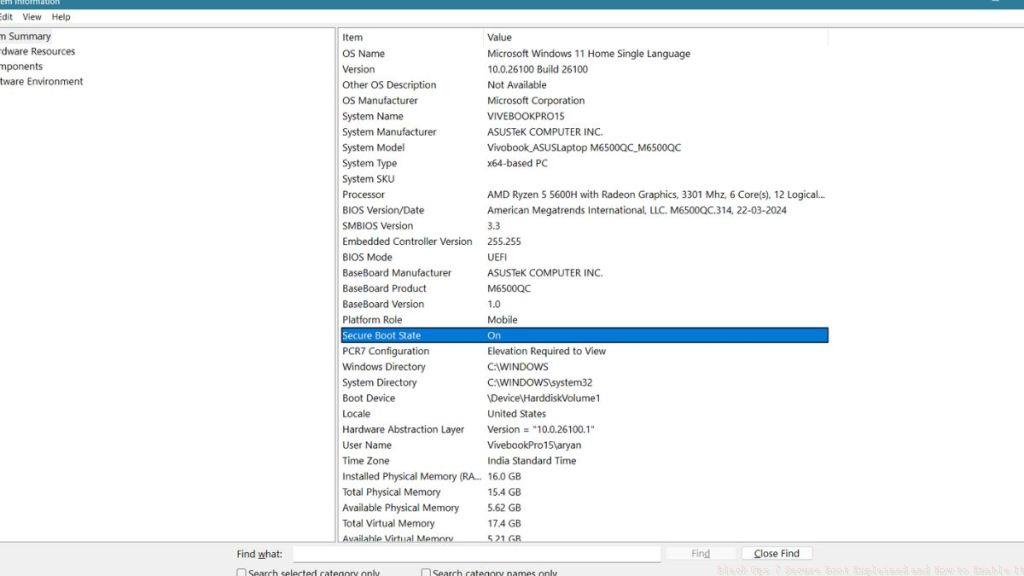
When the Secure Boot State indicates ‘Off,’ you’ll need to access your system’s BIOS or UEFI firmware settings. This process varies significantly between motherboard manufacturers but generally involves restarting your computer and pressing a specific key (commonly Delete, F2, or F10) during boot sequence. Within BIOS settings, locate security or boot configuration sections to enable Secure Boot functionality.
Common Configuration Challenges: Many users encounter issues when their BIOS operates in Legacy mode instead of UEFI mode. Secure Boot requires UEFI firmware, so you may need to change this setting first. Always backup critical data before modifying BIOS settings, as incorrect configurations can affect system stability.
TPM 2.0 serves as a foundational Windows 11 requirement, making its absence primarily a Windows 10 compatibility concern. The feature activation directly correlates with Secure Boot configuration, as both require UEFI firmware environment to function correctly.
TPM 2.0 Status Verification Procedure:
- Activate the Run command using the Windows + R keyboard combination
- Input ‘tpm.msc‘ precisely into the dialog field and press Enter
- Examine the ‘Status’ information within the TPM Management interface
- A message stating ‘The TPM is ready to use’ confirms proper configuration
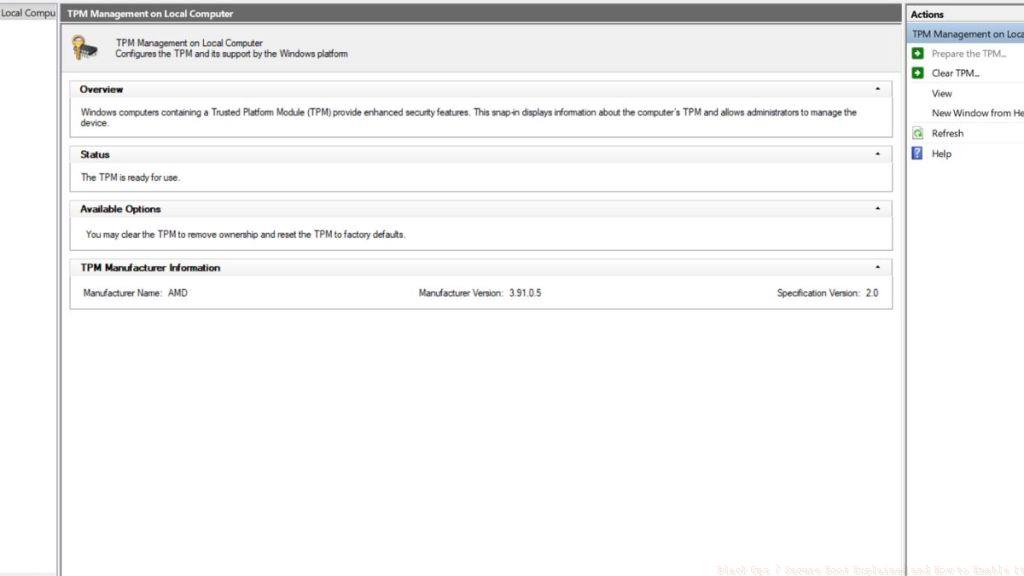
Encountering the ‘not ready for use’ status typically indicates partition style incompatibility. Your Windows boot drive must utilize GPT (GUID Partition Table) rather than MBR (Master Boot Record) for TPM 2.0 functionality.
Partition Style Verification Steps:
- Right-click the Start menu button and select Disk Management from the context menu
- Right-click your primary (C:) Drive partition and choose Properties
- Navigate to the ‘Hardware‘ tab within Properties and click Properties again
- Select the Volumes tab to view partition configuration details
- Confirm the Partition Style displays as GPT rather than MBR
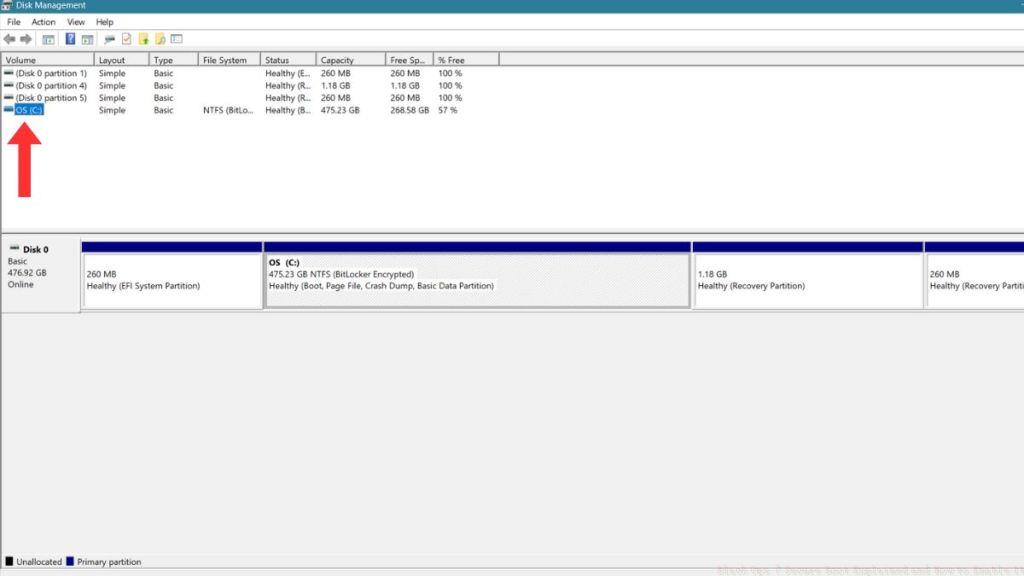
Systems with MBR partition style require conversion to GPT before TPM 2.0 can function. This process involves using Windows built-in MBR2GPT tool or third-party partition management software. Always create comprehensive backups before partition conversion, as data loss represents a significant risk during this procedure.
Playing Black Ops 7 without Secure Boot enabled is impossible due to the integration between game security and hardware validation systems. This requirement extends beyond Call of Duty to other competitive shooters implementing similar anti-cheat measures.
The security mandate applies uniformly to both the Black Ops 7 Beta access period and the complete game release. Major titles including Battlefield 6 and Valorant employ comparable kernel-level protection that necessitates Secure Boot activation.
Advanced Troubleshooting Scenarios: Some systems, particularly custom-built PCs or older pre-built computers, may lack TPM 2.0 hardware entirely. In these cases, hardware upgrades become necessary, typically involving TPM module installation or motherboard replacement for compatibility.
For gamers encountering persistent configuration challenges, exploring alternative competitive shooters with different security requirements might provide temporary entertainment options. Our comprehensive BF6 weapons guide provides detailed information about weapon systems in Battlefield 6, while our class selection guide helps optimize gameplay strategy while addressing security requirements.
System Compatibility Assessment: Before purchasing Black Ops 7, verify your system meets these security prerequisites. The investment in compatible hardware ensures not only current game access but future compatibility with upcoming titles adopting similar security standards.
Action Checklist
- Verify Secure Boot status using msinfo32 command
- Check TPM 2.0 functionality via tpm.msc management console
- Confirm partition style is GPT using Disk Management tools
- Access BIOS/UEFI settings during system boot sequence
- Enable Secure Boot and TPM 2.0 in firmware settings
No reproduction without permission:Tsp Game Club » Black Ops 7 Secure Boot Explained and How to Enable It Complete guide to enabling Secure Boot and TPM 2.0 for Black Ops 7 with troubleshooting tips