
TL;DR
- Borderlands 4 currently only offers FOV slider on PC, not consoles
- PC version features dual sliders for gameplay and vehicles with 110 maximum
- Console players should expect FOV addition through future game updates
- Optimal FOV range is 100-110 for balanced visibility and performance
- Motion blur toggle is also PC-exclusive but likely coming to consoles
Borderlands 4 has earned widespread praise from gaming critics and content creators, with many considering it the pinnacle of the franchise’s distinctive looter-shooter gameplay. As a contemporary first-person shooter, the title provides extensive accessibility options, leaving numerous players curious about whether it incorporates a Field of View (FOV) adjustment feature. This quality-of-life setting has become essential for many FPS enthusiasts. In this comprehensive guide, we examine the availability and optimal configuration of FOV settings across different platforms.
Field of View (FOV) determines how much of the game world you can see on screen simultaneously. A wider FOV provides greater peripheral awareness but may impact performance, while narrower settings can improve focus but limit situational awareness.
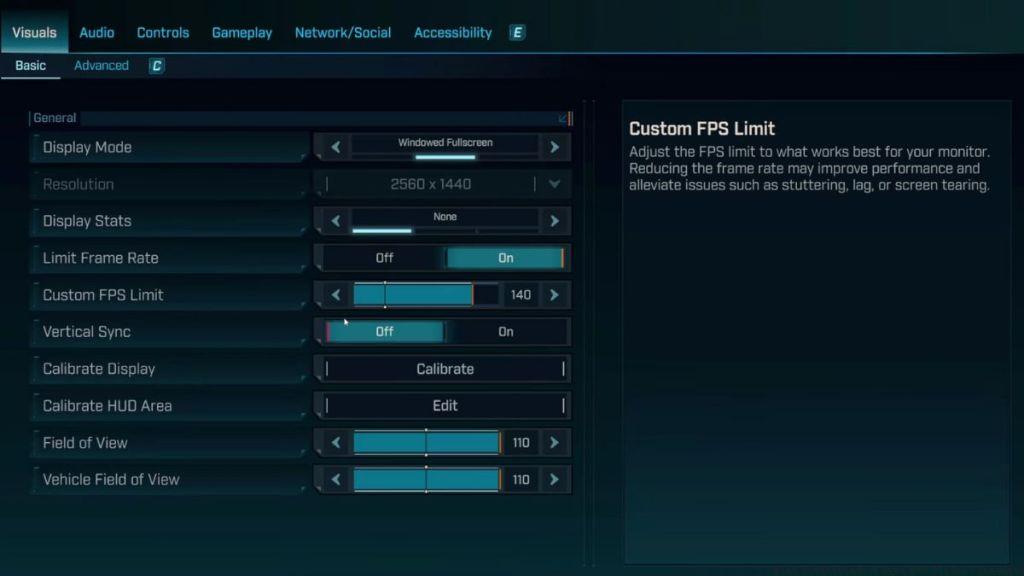
Borderlands 4 does include an FOV adjustment feature, but this functionality remains exclusive to the PC platform currently. PlayStation 5 and Xbox Series X/S iterations of BL4 lack the Field of View slider entirely, creating a significant gap in accessibility options between platforms.
This omission represents a substantial letdown for console gamers. Nearly all major first-person shooter releases on modern consoles incorporate this crucial accessibility feature, making Gearbox’s decision to exclude it particularly unexpected. BL4 additionally misses the capability to disable Motion Blur on consoles, which compounds the disappointment for players sensitive to motion effects.
However, players can remain optimistic that the FOV slider will probably be implemented through a subsequent game update. The specific timing for this enhancement’s release remains undisclosed at present.
Many players transitioning from other modern shooters like Battlefield 6 may find the absence particularly jarring, as competitive FPS titles typically prioritize such customization options.
The PC configuration menu contains two distinct Field of View adjustment sliders: one governing standard gameplay perspective and another specifically controlling vehicle camera views. We suggest utilizing values between 100-110 to achieve adequate environmental visibility without creating excessive camera distance sensations.
The computer version additionally provides an option to deactivate Motion Blur. Given that these customization features exist within the PC build, they’re highly probable to transition to console platforms eventually.
For players who prioritize weapon accuracy and character progression, understanding how FOV interacts with weapon handling becomes crucial for optimal performance.
Higher FOV settings (105-110) work exceptionally well for fast-paced combat and situational awareness, while moderate ranges (95-100) may benefit players focusing on precision shooting and reduced visual distortion.
Competitive players should experiment with FOV settings during early gameplay sessions to establish personal preferences before engaging in high-level content. Many veterans recommend starting at 95 and gradually increasing until finding the optimal balance between awareness and visual comfort.
Avoid these common FOV configuration mistakes:
- Setting FOV too high without considering performance impact
- Neglecting to adjust both gameplay and vehicle sliders independently
- Failing to test settings in actual combat scenarios
- Ignoring the relationship between FOV and class abilities that affect visibility
Performance optimization becomes particularly important at higher FOV values. Players using older hardware may experience frame rate drops above 105 FOV, requiring adjustments to other graphical settings to maintain smooth performance.
And that covers everything essential about the Field of View adjustment system in Borderlands 4. Are you frustrated by this feature’s absence on gaming consoles? Feel free to share your perspectives in the comment section below.
Action Checklist
- Check PC settings menu for dual FOV sliders (gameplay and vehicles)
- Set gameplay FOV between 100-110 for optimal visibility
- Disable motion blur in PC graphics settings for clearer visuals
- Test FOV settings in combat scenarios before finalizing preferences
- Monitor console update announcements for FOV slider implementation
No reproduction without permission:Tsp Game Club » Does Borderlands 4 have FOV Slider? Answered Complete guide to Borderlands 4 FOV settings, console limitations, and optimal PC configuration strategies