
A comprehensive guide to diagnosing and resolving Elden Ring Nightreign controller connectivity issues on PC, with advanced troubleshooting techniques.
Understanding the Problem: Widespread Controller Bugs
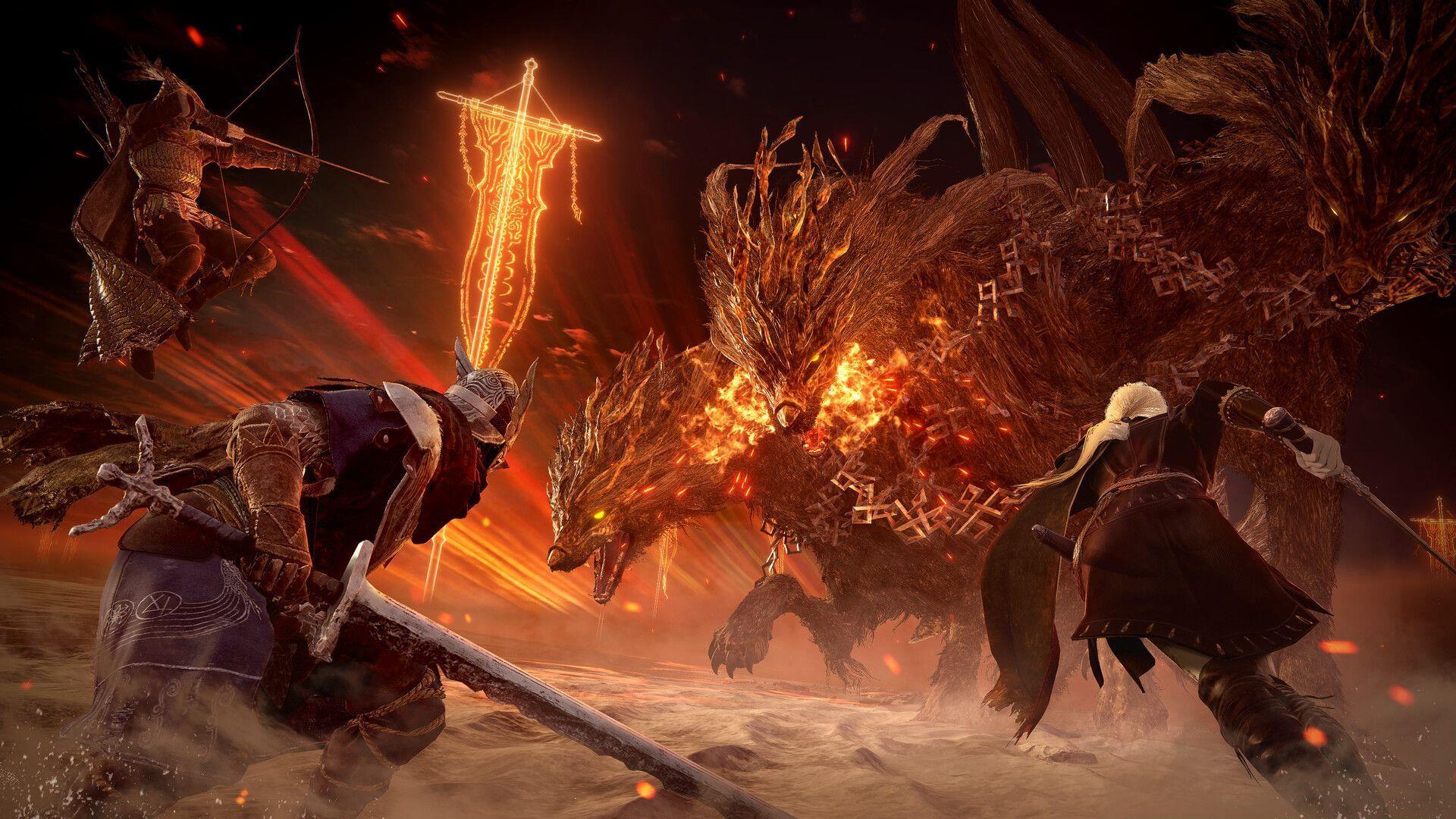
PC gamers embarking on the Elden Ring Nightreign journey with a controller should be aware of a prevalent connectivity bug disrupting the experience. As a recent major release, the title is experiencing several post-launch technical issues, with controller recognition problems being a primary complaint. While developers are expected to deploy patches, players can employ several effective workarounds to restore functionality in the interim.
This issue typically manifests as the controller failing to connect at launch or disconnecting intermittently during gameplay. The root cause often lies in conflicts between game inputs, Steam’s controller management layer, and Windows’ native driver handling. Understanding this interplay is the first step toward a stable setup.
Immediate Troubleshooting: Quick-Fix Protocol
When your controller refuses to connect or drops signal, initiate a structured restart sequence. First, completely close Elden Ring Nightreign. Next, exit the Steam client entirely—don’t just minimize it. Finally, relaunch Steam and then the game. This cycle refreshes the communication channels between the controller driver, Steam, and the game executable.
If the basic restart fails to resolve the disconnections, the problem likely stems from deeper software configuration conflicts rather than a temporary glitch. This indicates you should proceed to investigate Steam’s controller settings and firmware status, as a simple reset is insufficient.
Common Mistake to Avoid: Many players only restart the game, neglecting to fully shut down Steam. Background Steam processes can maintain faulty controller handshakes, rendering a game-only restart ineffective. Always perform a full Steam exit via the taskbar system tray.
Steam Input: A Double-Edged Sword
Steam Input is a powerful compatibility layer that allows non-Xbox controllers, like the PlayStation DualSense or DualShock, to function seamlessly on PC by mimicking Xbox inputs. However, for controllers with native Windows support—primarily Xbox pads—this layer can become a source of conflict, causing recognition failures or input lag in Elden Ring Nightreign.
For Xbox controller users, the optimal path is often to disable Steam Input, allowing Windows’ native XInput drivers to manage the device directly. Conversely, PlayStation controller users typically need it enabled. The configuration steps are as follows:
A potent troubleshooting step is to toggle this setting: if enabled, disable it, apply, restart Steam, then re-enable it. This forces Steam to re-initialize the controller profile and can clear corrupted configuration data.
Proactive Maintenance: Firmware and Driver Management
Outdated controller firmware is a leading cause of intermittent connectivity and erratic behavior. Regular updates patch known bugs and improve compatibility with system updates. The update process differs by manufacturer.
Xbox Wireless Controller users should utilize the official Xbox Accessories application from the Microsoft Store. Connect your controller via USB, open the app, and it will prompt you if a firmware update is available. This is crucial after major Windows updates.
Owners of Sony’s DualSense or DualShock 4 controllers must use the PlayStation DualSense Firmware Updater tool (or DS4Windows for older DualShock 4 models on PC). This requires a wired USB connection and the tool downloaded from Sony’s official support site.
Optimization Tip: For wireless play, ensure your Bluetooth adapter drivers are also updated via Windows Device Manager or the manufacturer’s website. A modern Bluetooth 5.0+ adapter significantly improves stability over older 4.0/4.2 versions for wireless controllers.
Advanced Diagnostics and Prevention
If issues persist after the above steps, advanced diagnostics are required. First, try a different USB port, preferably a USB 3.0 (blue) port directly on your motherboard, avoiding hubs. USB port power delivery can be inconsistent.
Second, check for software conflicts. Other applications like Discord, MSI Afterburner, or RGB lighting software can sometimes hijack controller inputs. Close non-essential background processes before launching the game.
Third, verify the game’s controller configuration within Steam. Right-click Elden Ring Nightreign in your library, select Properties > Controller, and ensure the override is set to “Enable Steam Input” or “Disable Steam Input” consistently with your global setting.
Also Read: Elden Ring Nightreign Fatal Error and Black Screen issue: Potential fixes to try
For the latest Elden Ring Nightreign news and in-depth guides, stay tuned to Sportskeeda.
No reproduction without permission:Tsp Game Club » Elden Ring Nightreign: Potential fixes for controller not working error on PC A comprehensive guide to diagnosing and resolving Elden Ring Nightreign controller connectivity issues on PC, with advanced troubleshooting techniques.