
TL;DR
- CurseForge offers one-click mod management while Forge requires manual installation
- Both loaders have minimal system requirements if Minecraft runs smoothly on your PC
- Always download from official sources to avoid security risks and malware
- Performance mods can actually improve game performance on lower-end systems
- Proper uninstallation prevents conflicts when switching between mod loaders
Minecraft modding transforms your gaming experience by introducing new features, mechanics, and visual enhancements. The foundation of this customization relies on specialized software that bridges the gap between vanilla Minecraft and community-created modifications. Understanding your system capabilities and choosing the right mod loader is crucial for optimal performance.
When evaluating system requirements for mod loaders, the key consideration is your computer’s ability to run Minecraft itself. If your system handles the base game without performance issues, you’ll likely experience smooth operation with Forge or CurseForge. However, individual mods vary significantly in their resource demands—some lightweight performance optimizers may actually improve frame rates, while complex content additions with high-resolution textures can strain even capable hardware.
Performance-focused mods like OptiFine or Sodium can provide substantial improvements for lower-end systems, making them excellent starting points for players concerned about performance impact.
The Minecraft modding ecosystem offers two primary approaches: the automated convenience of CurseForge versus the manual control of traditional Forge installation. CurseForge functions as a comprehensive mod management platform that handles dependency resolution, version compatibility, and installation with minimal user intervention. This makes it particularly appealing for newcomers to Minecraft modding who want to avoid technical complexities.
Traditional Forge installation provides direct access to Minecraft’s modding framework but requires manual management of mod files, compatibility checking, and dependency resolution. This hands-on approach appeals to experienced modders who prefer granular control over their mod setup.
CurseForge revolutionizes Minecraft mod management by combining an extensive mod library with intuitive installation tools. This platform eliminates the traditional complexities of manual mod management through its integrated approach.
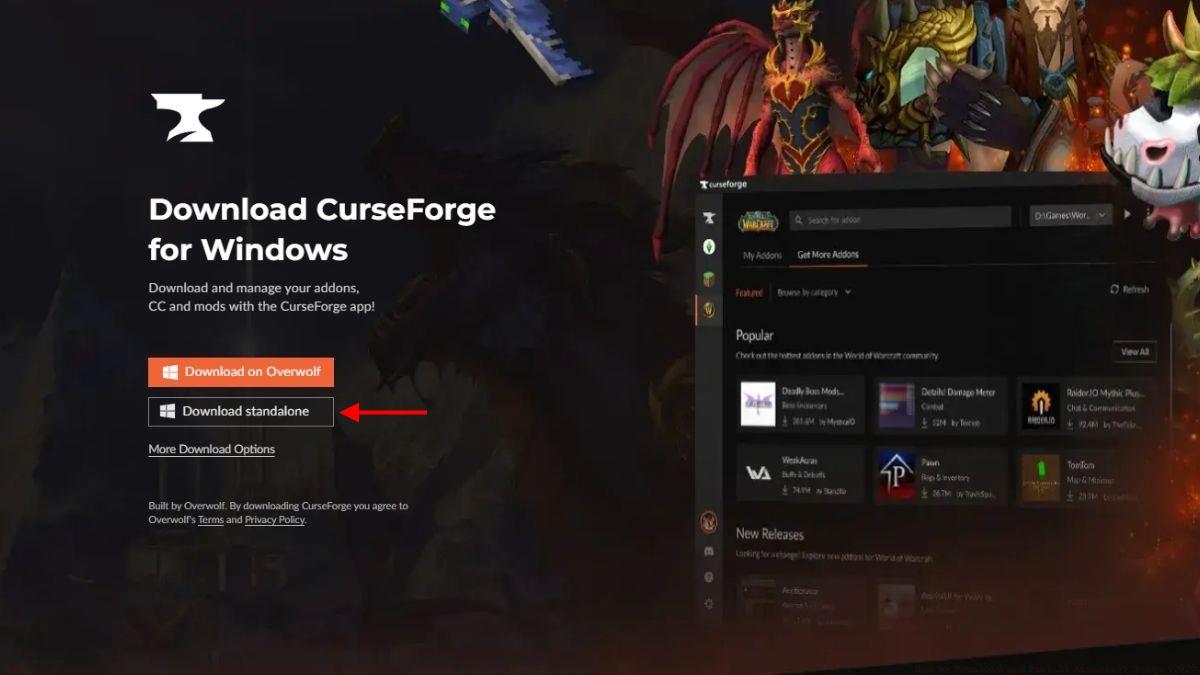
Begin by visiting the official CurseForge website to download the installer. Always verify you’re using the legitimate site to avoid potentially harmful counterfeit software that could compromise your system security.
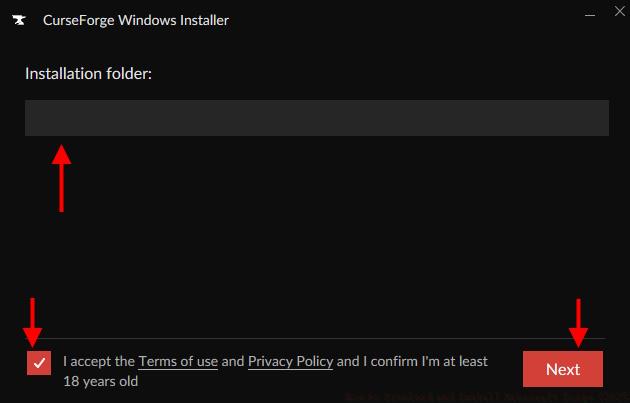
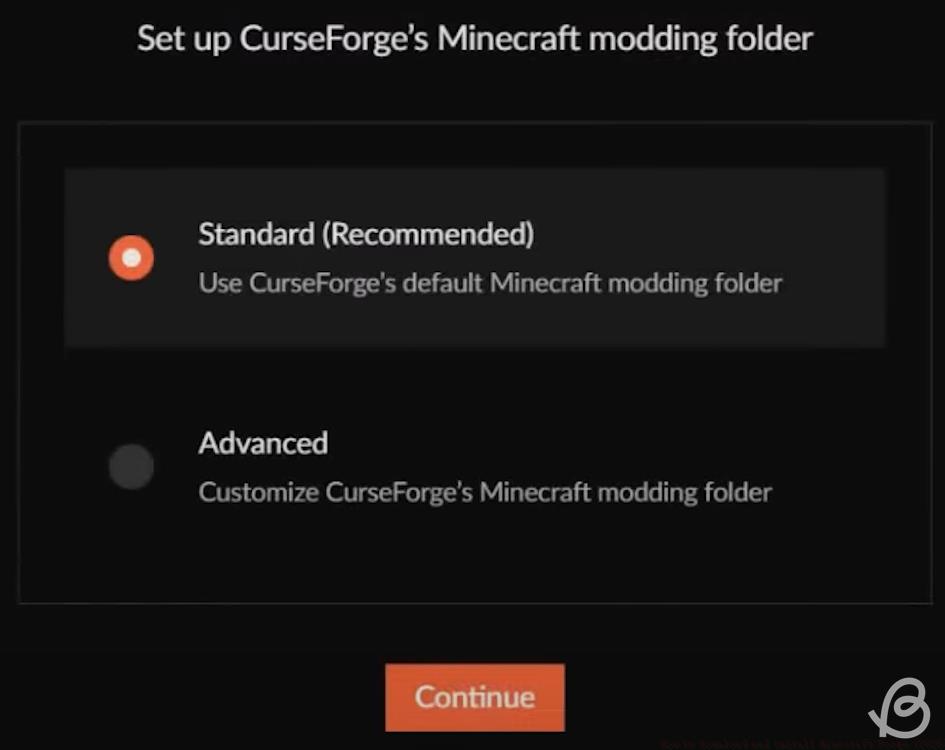
During installation, you’ll encounter several configuration options. The standard Minecraft modding folder location is typically recommended for most users, as it maintains organization and simplifies troubleshooting. Advanced users with multiple Minecraft installations may prefer custom directory paths.
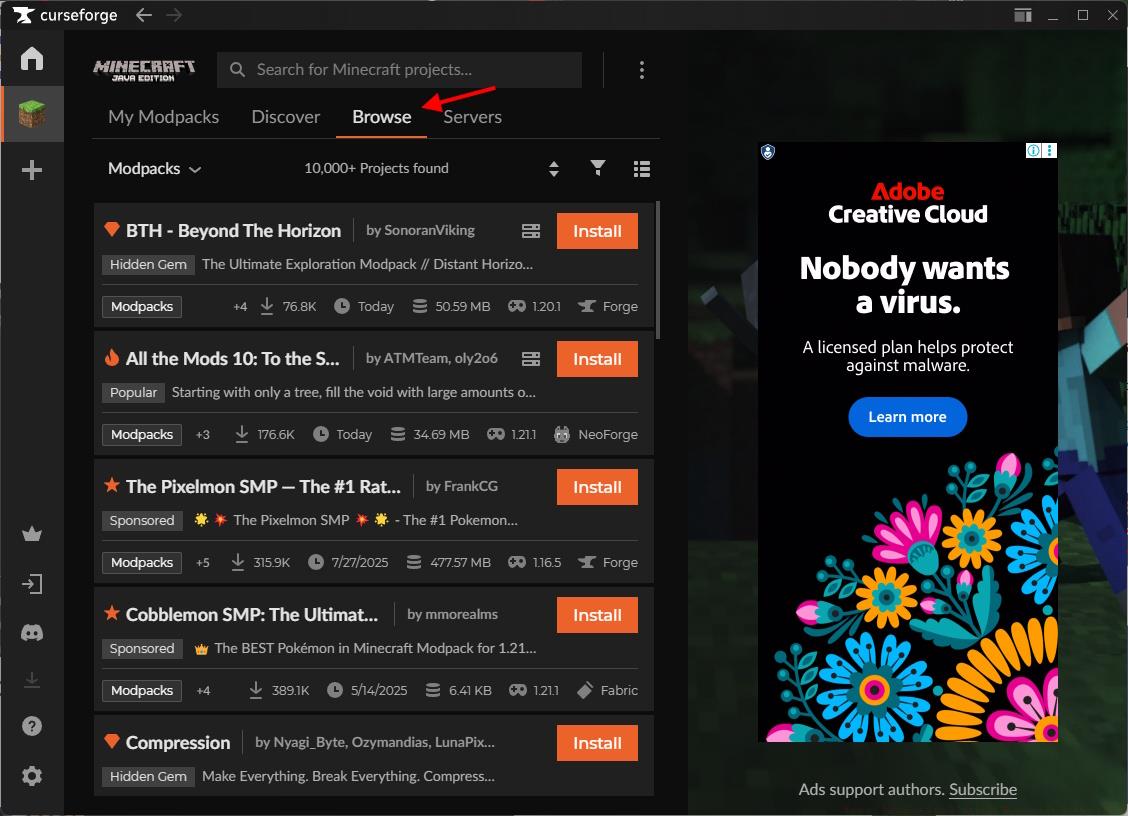
Once installed, CurseForge provides access to thousands of mods and modpacks through its built-in browser. The interface categorizes content by functionality, popularity, and Minecraft version compatibility, making discovery straightforward even for beginners.
A critical advantage of CurseForge is its automatic dependency management. When you install a mod that requires supporting libraries or frameworks, the platform identifies and installs these prerequisites automatically, eliminating a common pain point in manual mod management.
Common installation mistakes include selecting incorrect Minecraft versions, ignoring storage space requirements for large modpacks, or disabling essential security software that may interfere with installation. Always ensure you have adequate disk space and temporarily disable aggressive antivirus scanning if installation fails unexpectedly.
Traditional Forge installation offers experienced modders complete control over their Minecraft modification environment. This approach involves downloading the Forge installer directly and manually integrating it with your Minecraft installation.
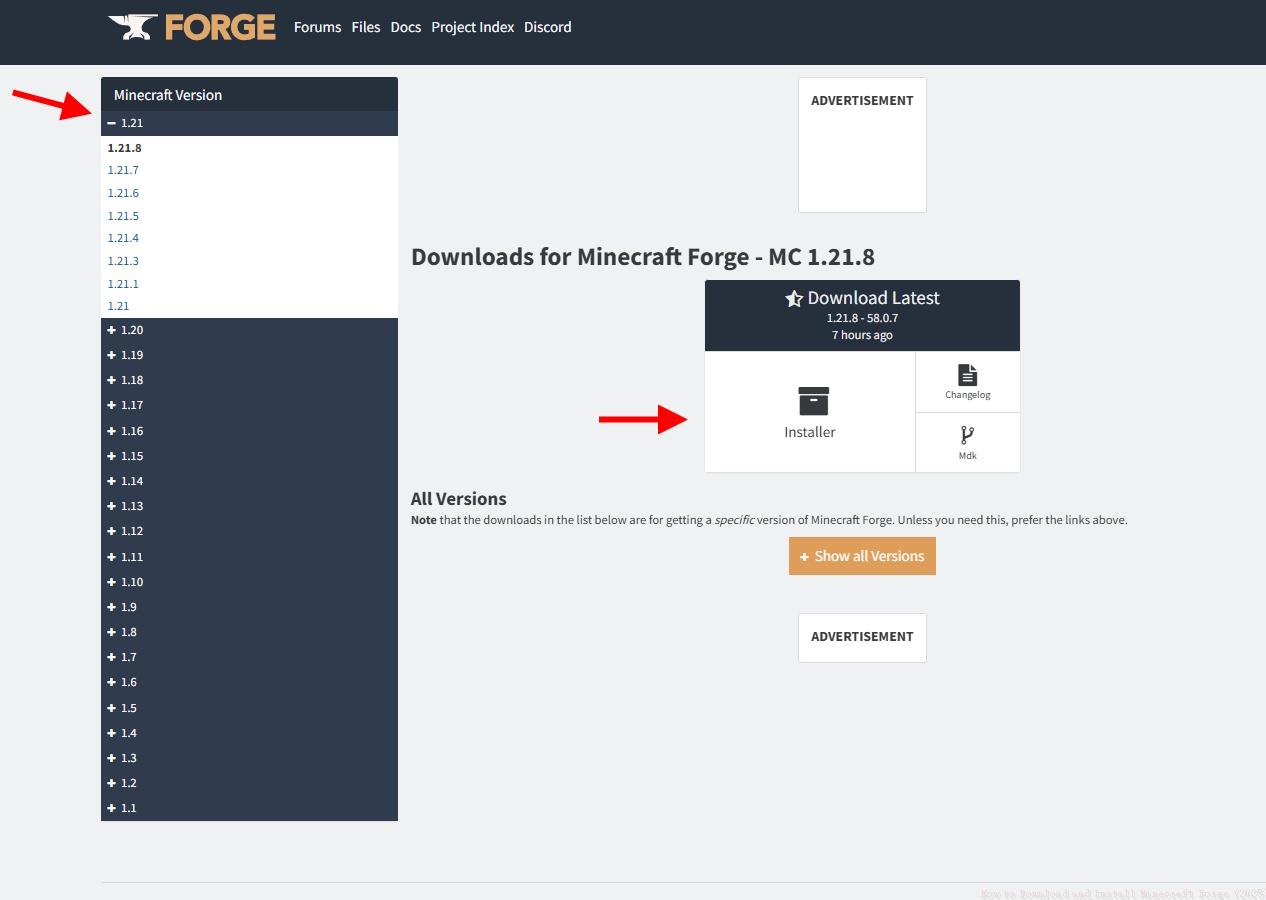
Navigate to the official Forge download page and select the version matching your Minecraft installation. It’s crucial to match versions precisely—using Forge designed for Minecraft 1.19 with Minecraft 1.20 will cause compatibility issues and likely prevent the game from launching properly.
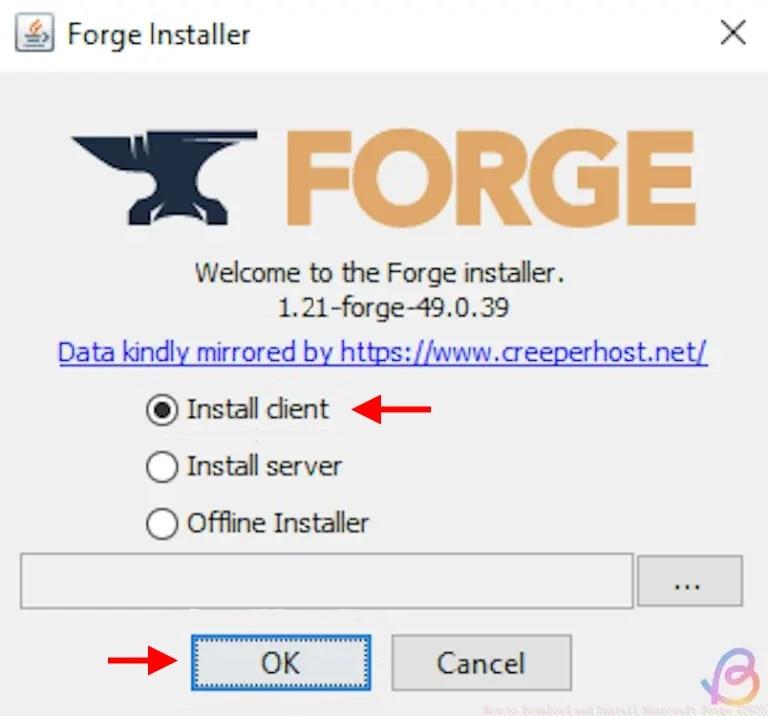
Run the downloaded Forge installer and select “Install client” when prompted. This option configures Forge for standard gameplay, while “Install server” is reserved for setting up modded Minecraft servers.
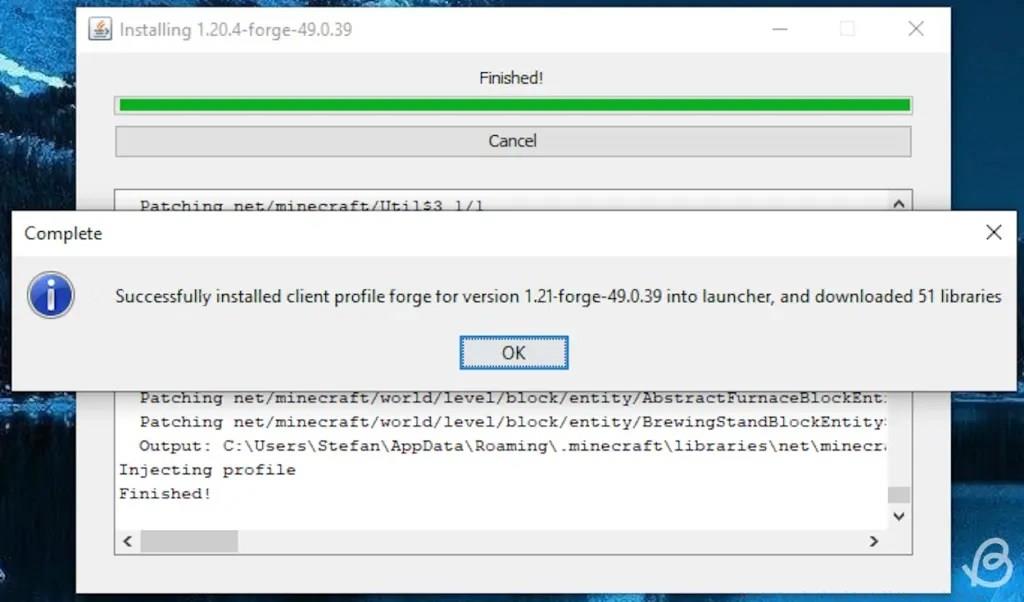
After successful installation, Forge creates a new profile in the Minecraft launcher. This profile maintains separation between modded and vanilla gameplay, allowing you to switch between experiences without conflicts.
Manual mod management with Forge requires careful attention to compatibility and load order. Some mods must load before others to function correctly, and conflicting mods can cause game crashes or unpredictable behavior. Always read mod documentation thoroughly before installation.
Advanced optimization techniques include monitoring RAM allocation in the Minecraft launcher—typically 4GB is sufficient for most modpacks, while extensive 200+ mod setups may benefit from 6-8GB allocation. Excessive RAM allocation can actually degrade performance due to Java garbage collection inefficiencies.
Experienced modders often create custom mod configurations by mixing compatible mods from different sources. This approach requires thorough testing and understanding of mod interactions, but can result in highly personalized Minecraft experiences unavailable through pre-packaged modpacks.
Proper maintenance of your Minecraft modding setup ensures long-term stability and prevents technical issues. Whether using CurseForge or manual Forge installation, regular maintenance practices will enhance your modding experience.
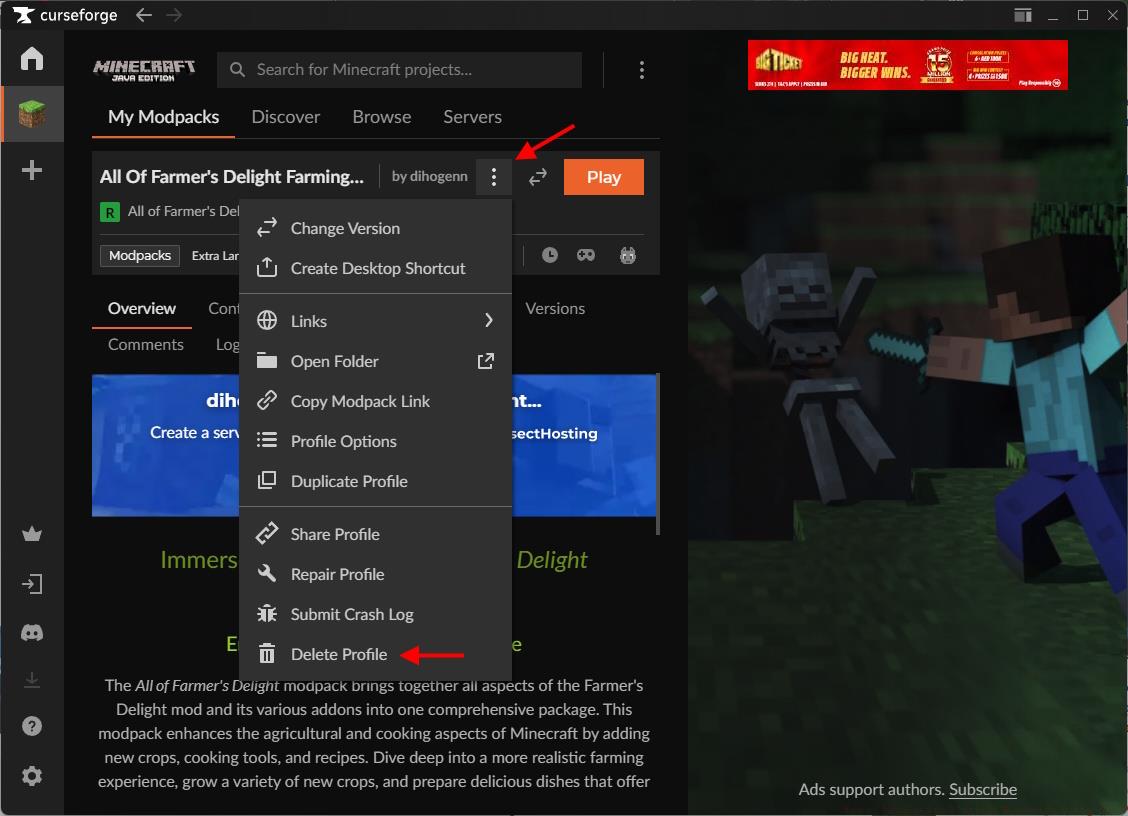
To uninstall CurseForge completely, use your operating system’s standard software removal process. On Windows, access Programs and Features through the Control Panel; on macOS, drag the application to Trash; on Linux, use your distribution’s package manager or remove the installation directory manually.

Before removing individual mods from CurseForge, access the mod management interface where you can disable or remove specific modifications without affecting others.
Common troubleshooting scenarios include game crashes on startup (often due to mod conflicts or missing dependencies), performance issues (typically resolved by adjusting video settings or allocating more RAM), and mod functionality problems (usually fixed by updating mods or adjusting load order).
Performance optimization for modded Minecraft involves several strategies: reducing render distance, turning off fancy graphics options, installing performance-enhancing mods, and ensuring Java is updated to the latest version.
When experiencing issues, methodical problem-solving yields the best results. Start by launching with minimal mods and gradually adding others to identify conflicts. Check mod documentation for known issues and compatibility notes. Monitor system resource usage to identify bottlenecks.
Advanced users can employ profiling tools to identify performance-hungry mods, though this requires technical expertise. For most players, starting with well-curated modpacks and gradually experimenting with custom configurations provides the smoothest learning curve.
Action Checklist
- Verify your system can run Minecraft smoothly before installing mod loaders
- Download CurseForge from official website for automated mod management
- Install CurseForge using standard settings for optimal compatibility
- Browse and install mods through CurseForge interface with one-click installation
- For manual control, download and install Forge directly, creating separate Minecraft profiles
- Allocate appropriate RAM (4-8GB) in Minecraft launcher for modded gameplay
No reproduction without permission:Tsp Game Club » How to Download and Install Minecraft Forge (2025) Complete guide to installing Forge and CurseForge mod loaders for Minecraft with performance tips