
Complete guide to fixing Schedule 1 co-op version mismatch errors with practical troubleshooting strategies
Understanding the Version Mismatch Error
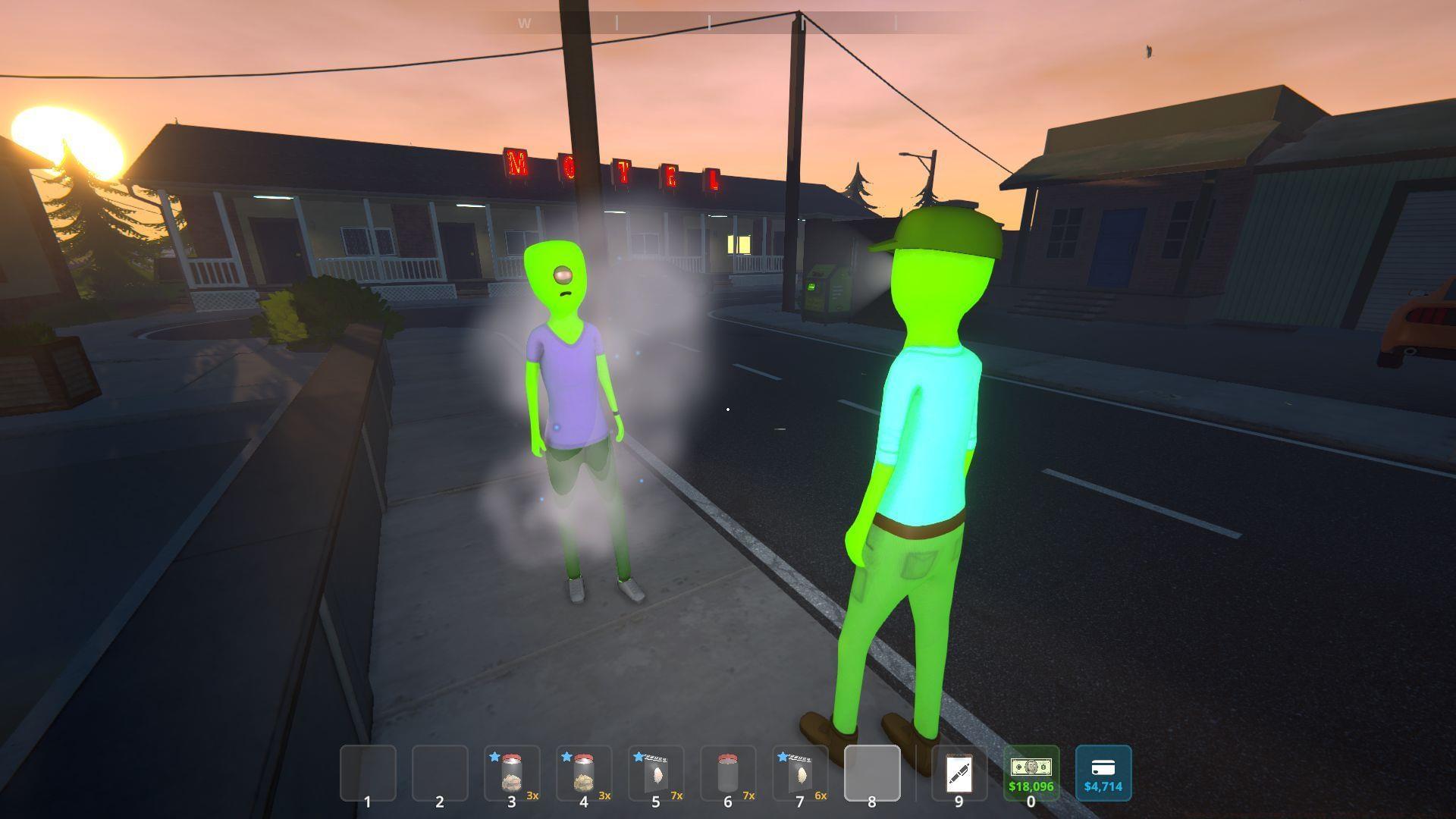
Schedule 1’s cooperative mode enables up to four players to collaborate in building their criminal enterprise, but technical obstacles like the Version Mismatch error frequently disrupt these multiplayer sessions. This connectivity issue has become increasingly prevalent across Steam Community discussions and the game’s official Subreddit, generating significant player frustration when attempting to join cooperative lobbies.
The Version Mismatch error typically manifests when players attempt to connect with incompatible game client versions. This version disparity can stem from multiple sources: participation in different beta programs, outdated game files that haven’t properly updated, or installation corruption affecting core game components. Understanding these root causes is essential for implementing effective solutions.
Advanced players should recognize that even minute version differences—sometimes as small as a single hotfix—can trigger this error. The game’s early access status means frequent updates, making version synchronization between co-op partners particularly challenging without proper communication and update management practices.
Verifying Game Files Integrity
Corrupted or missing game files represent one of the most common triggers for version mismatch errors. The initial troubleshooting step for you and your co-op partners should involve comprehensive verification of game files through Steam’s built-in validation system. This process scans your installation and replaces any compromised files with clean versions from Steam’s servers.
Here’s an enhanced step-by-step approach to game file verification:
For optimal results, consider performing a full system restart after the file verification process completes. This ensures any locked game files are properly released and reloaded. Advanced users can also check Steam’s download history to confirm all players received identical update packages, as partial downloads can create version inconsistencies even when verification reports success.
Common mistake: Players often skip the Steam restart step, which can leave outdated game components cached in memory. Always ensure all co-op participants complete the full verification and restart sequence before attempting to reconnect.
Synchronizing Game Versions
Version synchronization represents a critical component of successful Schedule 1 co-op play. When participants operate different game builds—particularly when mixing beta and standard releases—connection attempts will consistently fail with version mismatch errors. Meticulous version coordination eliminates this prevalent issue.
Follow this comprehensive version alignment procedure:
Pro tip: Establish a version protocol with your regular co-op group, designating one player as the version coordinator who communicates when updates are available and which version the group should adopt. This prevents situations where some players update automatically while others remain on older versions.
Optimization strategy: For stability-focused groups, the ‘none’ (standard) version typically provides the most consistent experience, while experimental groups might prefer beta access despite increased version synchronization requirements.
Advanced Troubleshooting Methods
When fundamental troubleshooting methods prove insufficient, advanced techniques become necessary to resolve persistent version mismatch errors. These approaches address deeper system-level issues that standard verification cannot rectify.
If file verification yields no results, implement a complete game reinstallation process:
Modification conflicts represent another frequent source of version discrepancies. While mods enhance solo gameplay experiences, cooperative sessions demand absolute mod consistency across all participants. Every player must maintain identical mod collections with matching version numbers to prevent mismatch errors.
Strongly consider disabling or completely removing all mods when preparing for Schedule 1 cooperative sessions. Even apparently compatible mods can introduce subtle version conflicts that disrupt multiplayer connectivity. For mod-dedicated groups, establish a shared mod checklist and version verification process before each co-op session.
Network considerations: Sometimes version errors actually mask network connectivity issues. Ensure all players have stable internet connections and consider temporarily disabling firewalls or VPNs during connection attempts to isolate the true cause of connection failures.
Proactive Prevention Strategies
Implementing preventive measures significantly reduces version mismatch occurrences and ensures smoother cooperative experiences in Schedule 1. These proactive strategies help maintain version alignment before connection issues arise.
Develop a version monitoring routine: Regularly check the game’s properties in Steam to confirm you’re running the intended version. Establish a communication protocol with your co-op team where players announce when they’ve updated their game clients, ensuring everyone remains synchronized.
Pre-session preparation checklist: Before initiating co-op sessions, verify that all participants have completed recent updates, disabled mods unless previously coordinated, and performed quick file verification scans. This five-minute pre-check prevents hours of frustrated troubleshooting attempts.
Community engagement: Follow official Schedule 1 communication channels for update announcements and known issue reports. The game’s early access status means rapid iterations, and staying informed about upcoming changes helps prepare for necessary version transitions.
These comprehensive strategies should restore your ability to enjoy Schedule 1’s cooperative gameplay with friends. Remember that as an early access title, occasional technical challenges like version mismatches are expected development growing pains. For persistent unresolved issues, contact TVGS technical support through their official channels.
Expand your Schedule 1 knowledge with these related guides:
No reproduction without permission:Tsp Game Club » Schedule 1 version mismatch error: Possible reasons and fixes Complete guide to fixing Schedule 1 co-op version mismatch errors with practical troubleshooting strategies