
TL;DR
- Starfield is heavily CPU-bound, causing performance bottlenecks even with high-end GPUs
- Optimizing crowd density, shadow quality, and volumetric lighting provides immediate FPS improvements
- System-level tweaks including driver updates and process priority adjustments deliver significant gains
- Intel CPU and NVIDIA GPU combinations require specific optimization approaches
- Proper system configuration can increase performance by 20-30% in demanding areas
Many Starfield players have encountered significant performance challenges that stem from the game’s unique technical architecture. While some initially blamed outdated hardware, the reality involves complex optimization dynamics that affect even modern gaming rigs. Whether you’re experiencing frame rate drops, micro-stuttering, or audio synchronization problems, these issues typically originate from the game’s fundamental design approach.

The core performance challenge with Starfield lies in its heavy reliance on CPU processing power. Unlike many contemporary titles that distribute workload more evenly between CPU and GPU, Starfield places disproportionate demands on processor cores. This creates a scenario where even premium graphics cards cannot reach their full potential due to CPU limitations.
Performance analysis reveals that Intel processors paired with NVIDIA graphics cards experience particularly pronounced issues. The game’s engine appears to have optimization gaps with these specific hardware combinations, leading to reported frame rates dipping below 60 FPS in densely populated areas like New Atlantis.
In my testing configuration using an AMD Ryzen 5600 processor and NVIDIA RTX 4070 Ti graphics card with 16GB RAM, performance metrics showed concerning patterns. Despite the system handling other demanding titles at 1080p resolution without issues, Starfield exhibited CPU and GPU utilization rates of only 75-80% at maximum settings. This indicates clear optimization opportunities rather than hardware deficiencies.
Common Performance Pitfalls to Avoid:
- Assuming GPU upgrades alone will solve performance issues
- Overlooking driver optimization for both CPU and GPU
- Neglecting background process management during gameplay
- Using outdated directX versions or system libraries
The most accessible starting point for improving Starfield’s performance involves strategic graphics configuration. Rather than applying blanket reductions across all settings, targeted adjustments to specific parameters yield the best results with minimal visual compromise.
Begin by adjusting these three critical settings that significantly impact performance without drastically reducing visual quality:
- Crowd Density: Medium – Reduces NPC count in crowded areas, decreasing CPU load
- Shadow Quality: High or Medium – Maintains visual fidelity while improving rendering efficiency
- Volumetric Lighting: Medium – Optimizes lighting calculations that heavily tax both CPU and GPU
These specific settings were identified through extensive testing as having the highest performance-to-visual-quality ratio. Crowd density specifically addresses the CPU bottleneck by reducing the number of AI-controlled characters the processor must manage simultaneously.
Advanced Optimization Strategy: For players seeking additional performance headroom, consider these secondary adjustments that can provide another 10-15% FPS improvement:
- Contact Shadows: Medium
- Reflections: Medium
- Grass Quality: High (surprisingly has minimal CPU impact)
- Motion Blur: Personal preference – disabling can improve perceived smoothness
Performance testing reveals that these settings adjustments typically yield 15-25% frame rate improvements in CPU-intensive areas, making them essential for smooth gameplay. Similar optimization principles apply to other demanding titles – check our Complete Guide for cross-game performance tips.
Beyond in-game settings, several system-level optimizations can dramatically improve Starfield’s performance. These approaches address the fundamental CPU-bound nature of the game by optimizing how system resources are allocated and managed.

Driver Optimization Protocol:
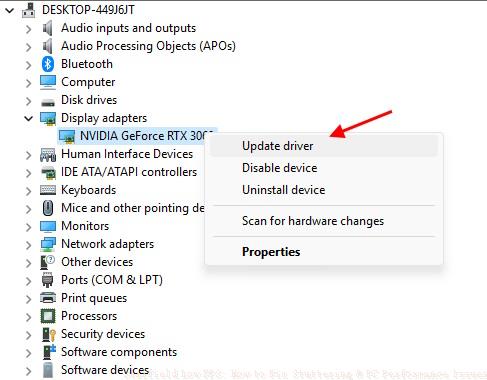
- Update to latest GPU drivers – NVIDIA and AMD release game-specific optimizations
- Ensure chipset drivers are current – critical for CPU performance
- Consider using specialized driver utilities like DDU for clean installations

Process Priority Management:
- Set Starfield process priority to High in Task Manager
- Disable fullscreen optimizations for dedicated fullscreen mode
- Manage background applications to free up CPU resources


These system-level adjustments typically require 15-30 minutes to implement but can yield performance improvements of 20-30% in demanding scenarios. The combination of proper driver management and process optimization addresses the core CPU limitations that cause stuttering and frame rate inconsistencies.


For players looking to optimize their entire gaming setup, our Weapons Unlock guide includes performance tips that apply across multiple game engines and titles.

Action Checklist
- Update GPU and chipset drivers to latest versions
- Adjust crowd density to Medium in graphics settings
- Configure shadow quality and volumetric lighting to Medium
- Set Starfield process priority to High in Task Manager
- Disable fullscreen optimizations in game properties
- Test performance in New Atlantis and adjust settings further if needed
No reproduction without permission:Tsp Game Club » Starfield Low FPS: How to Fix Stuttering & PC Performance Issues Expert solutions to fix Starfield's CPU-bound performance issues and optimize FPS on PC