
Comprehensive solutions to fix the 7 Days to Die server initialization error with advanced troubleshooting techniques
Understanding the Server Initialization Error
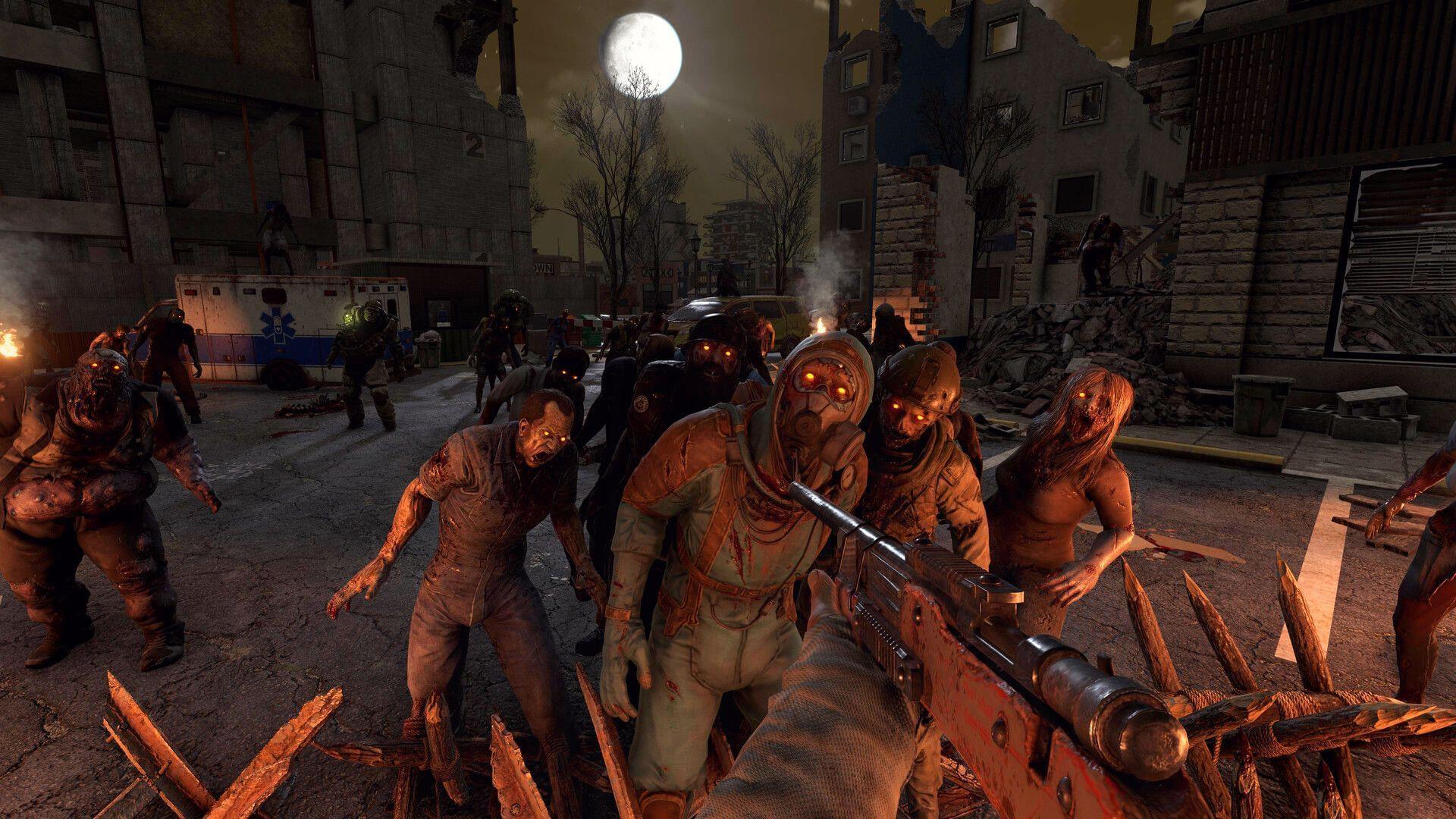
The persistent 7 Days to Die server is still initializing error has reemerged as a significant concern for players across both private and public gaming environments. This connectivity issue typically manifests when game servers fail to properly authenticate incoming player connections, creating a frustrating cycle of infinite loading screens followed by abrupt error notifications.
What many players don’t realize is that this problem stems from multiple potential sources. While server-side configuration issues are the most common culprit, client-side resource constraints can equally trigger this error. The game’s demanding CPU and memory requirements mean that inadequate system resources on the player’s machine often contribute to failed initialization attempts.
Understanding the bidirectional nature of this problem is essential for effective troubleshooting. Server hosts might experience overload during peak traffic periods, while individual players could be hampered by background processes consuming critical system resources needed for stable game connections.
Immediate Server Restart Solutions
When encountering connection difficulties with any server type, initiating a controlled restart procedure should be your primary intervention. For public servers, contacting the administrator to perform a systematic shutdown and reboot often resolves temporary glitches causing the initialization failure. This approach clears cached errors and resets connection protocols.
Private server operators have more direct control over the resolution process. The most reliable method involves navigating to the main menu, completely terminating the server instance, and then relaunching with fresh invitations to participating players. This clean restart sequence frequently bypasses the initialization error by establishing new connection handshakes.
Pro Tip: Before restarting, ensure all players have completely exited the game to prevent residual connection attempts from interfering with the fresh start. This comprehensive approach makes server restarting the most consistently effective solution for the 7 Days to Die initialization error.
Related Reading: 7 Days to Die: Complete biome badge acquisition guide and unlocking strategies
System Resource Optimization
7 Days to Die’s substantial processing demands require careful resource management to prevent initialization failures. The game engine actively monitors system capabilities, and insufficient resources automatically trigger protective error responses including the server initialization message.
Strategic memory allocation is particularly crucial. Begin by accessing your gameplay logs through this directory path:
Examine the most recent log file for memory allocation warnings. If indicators show RAM deficiencies, implement immediate resource reclamation by closing non-essential applications and terminating background processes. Browser tabs, streaming services, and download managers are common resource hogs that significantly impact game performance.
Advanced Optimization: For persistent issues, adjust virtual memory settings and ensure your system meets the recommended 16GB RAM specification for optimal 7 Days to Die performance. Consider creating a dedicated gaming profile that automatically suspends unnecessary services when launching the game.
Update Reference: 7 Days to Die latest patch analysis: Biome progression systems and comprehensive perk adjustments
Advanced Troubleshooting Methods
When basic solutions prove insufficient, advanced diagnostic approaches become necessary. Log file analysis provides the most detailed insight into initialization failures. Look for specific error codes preceding the initialization message, as these often indicate whether the issue relates to network timeouts, authentication failures, or resource constraints.
Network configuration frequently contributes to persistent connection problems. Verify that your firewall settings aren’t blocking 7 Days to Die’s communication ports. The game typically uses port 26900 for connections, so ensuring this port remains open in both directions is essential for successful server handshakes.
Common Configuration Mistakes: Many players overlook DNS settings and MTU configuration, which can create subtle connection instabilities. Using Google’s DNS (8.8.8.8) or Cloudflare DNS (1.1.1.1) often resolves obscure network-related initialization issues.
For recurring problems, establish a preventive maintenance routine that includes regular server reboots, log file monitoring, and performance benchmarking. This proactive approach significantly reduces initialization error frequency and ensures more stable gaming sessions.
Additional Resources: Comprehensive breakdown of new perk systems in the 7 Days to Die 2.0 expansion
This comprehensive guide provides everything required to resolve the 7 Days to Die server initialization error. For additional gaming insights and technical guides, explore Sportskeeda’s dedicated gaming knowledge base.
No reproduction without permission:Tsp Game Club » 7 Days to Die server is still initializing error: Possible reasons and fixes Comprehensive solutions to fix the 7 Days to Die server initialization error with advanced troubleshooting techniques