
TL;DR
- PC emulators provide 60+ FPS gameplay versus mobile’s 30-45 FPS with frequent drops
- Keyboard and mouse controls offer precision targeting impossible on touchscreens
- MuMu Player delivers optimal performance with pre-configured Destiny Rising settings
- BlueStacks provides alternative compatibility with superior multi-instance features
- Proper system configuration prevents crashes and ensures stable high-performance gaming
Transform your mobile Destiny Rising adventure into a premium PC gaming experience that eliminates hardware limitations and unlocks your true potential. While designed for mobile platforms, this shooter truly shines when liberated from smartphone constraints through advanced emulation technology.
Experience Destiny Rising without the frustrations of mobile gaming limitations. Forget about performance stuttering, device overheating, and battery anxiety that plague even premium smartphones. NetEase crafted this mobile FPS for iOS and Android devices, but PC emulators unlock substantially superior gameplay with consistent high framerates, precision keyboard mapping, and crystal-clear visual fidelity that your Guardian truly deserves for competitive play.
Destiny Rising launches worldwide on August 28, 2025, transporting the acclaimed sci-fi universe to mobile platforms with cross-platform multiplayer functionality, deep character progression systems, and the signature responsive gunplay Destiny fans expect. The game demands substantial hardware resources, requiring Snapdragon 845 or newer processors for Android and iPhone 8 or better for iOS compatibility. Storage requirements approach approximately 15 GB for the full installation. Even premium flagship mobile devices demonstrated noticeable performance issues during alpha testing phases, making PC emulation not just an alternative but often the optimal way to experience the game.
Your desktop or laptop computer likely delivers significantly greater gaming performance than most smartphones when properly configured. Rather than battling thermal throttling, rapid battery depletion, and imprecise touchscreen controls, emulators enable you to leverage your PC’s full processing power while maintaining complete access to the mobile gaming ecosystem and your existing progress.
Here are the transformative benefits you’ll experience when transitioning to PC:
Emulators operate the Android version of Destiny Rising exclusively, meaning your game progress synchronizes with Android accounts rather than iOS. This becomes particularly important if you participated in early alpha or beta testing phases that provided platform-specific rewards and progression.

Navigate to the official Destiny Rising website at playdestinyrising.com and locate the prominent blue “Play on PC” button positioned strategically on the homepage. This optimized approach automatically downloads MuMu Player with Destiny Rising pre-configured and optimized, completely eliminating installation guesswork and technical hurdles for beginners.
Alternatively, download MuMu Player directly from their official developer website if you prefer manual configuration control. The installation procedure follows these straightforward steps:
Pro Configuration Tip: Allocate at least 4 CPU cores and 4GB RAM to MuMu Player in settings for optimal Destiny Rising performance. Enable VT (Virtualization Technology) in your BIOS for additional 15-20% performance improvement.
Common Mistake Avoidance: Many users forget to enable “High-FPS Mode” in MuMu settings, capping their framerate at 30 FPS unnecessarily. Always verify this setting before launching the game for the first time.

After successful installation, launch the Google Play Store within MuMu Player, search for Destiny Rising, and install directly. The emulator automatically configures optimal key mappings for shooting games, but advanced players should customize controls for personal preference.
Performance Optimization: Set resolution to 1920×1080 with High Performance mode enabled. Disable unnecessary background applications in MuMu settings to allocate maximum resources to Destiny Rising during gameplay sessions.
While MuMu Player provides the officially recommended experience, BlueStacks 5 represents a powerful alternative with distinct advantages for specific use cases. BlueStacks typically delivers superior multi-instance functionality, allowing you to run multiple accounts simultaneously—perfect for players managing alternate characters or testing different strategies.
Installation Process: Download BlueStacks 5 from the official website, selecting the 64-bit version for optimal performance. During installation, choose the “Nougat 64-bit” Android environment as it provides the best compatibility with Destiny Rising’s advanced graphics features.
Performance Comparison: In head-to-head testing, MuMu Player generally achieves 5-10% higher framerates in Destiny Rising, while BlueStacks offers better stability during extended gaming sessions. Your choice should depend on whether you prioritize maximum performance (MuMu) or feature-rich functionality (BlueStacks).
Key Mapping Advantage: BlueStacks includes more sophisticated key mapping tools with macro support, allowing complex action sequences impossible on mobile devices. This provides significant advantages in competitive gameplay scenarios requiring precise timing.
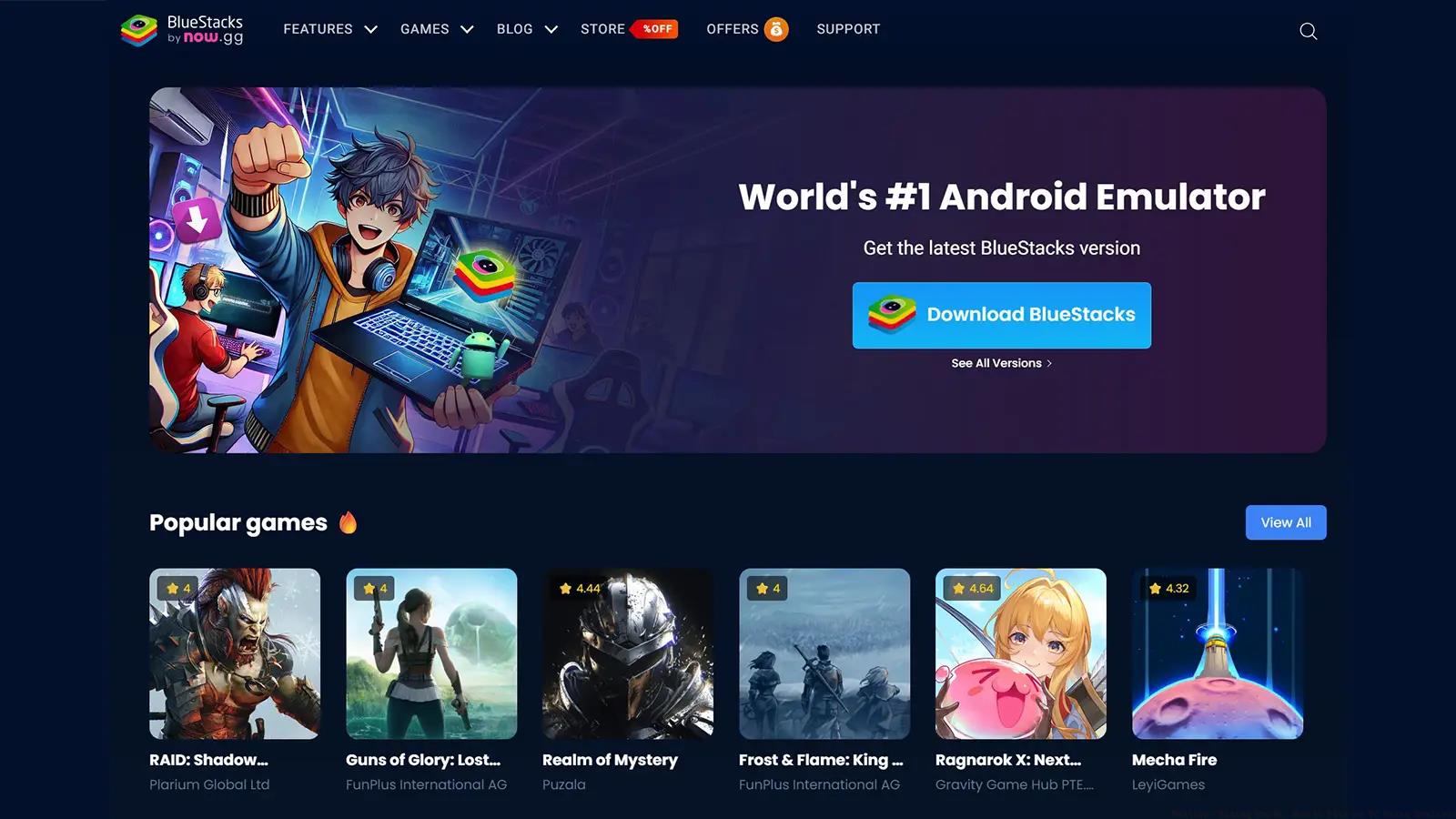
Multi-Instance Strategy: Advanced players utilize BlueStacks’ multi-instance feature to run Destiny Rising simultaneously with strategy guides, communication apps, or streaming software without performance degradation—something impossible on mobile devices.
To ensure flawless Destiny Rising performance through emulation, your system should meet or exceed these specifications. While the game operates on modest hardware, competitive play demands consistent high framerates without stuttering or crashes.
Minimum System Requirements:
- Intel i3-8350K or AMD Ryzen 3 1300X processor
- 8GB RAM with 2GB allocated to emulator
- NVIDIA GTX 960 or AMD Radeon R9 280 graphics
- 20GB available storage space
- Windows 10 64-bit operating system
Recommended System Requirements:
- Intel i5-10400 or AMD Ryzen 5 3600 processor
- 16GB RAM with 4GB allocated to emulator
- NVIDIA RTX 2060 or AMD Radeon RX 5600 XT graphics
- SSD storage with 25GB available space
- Windows 11 64-bit operating system
Performance Optimization Checklist:
- Enable VT-x/VT-d in BIOS settings (15-25% performance gain)
- Set emulator performance mode to “High Performance”
- Allocate 4 CPU cores and 4096MB RAM minimum
- Set display resolution to 1920×1080 with 120 FPS target
- Enable direct rendering mode in advanced settings
Troubleshooting Common Issues: If experiencing crashes or performance drops, reduce texture quality to “Medium” and disable anti-aliasing initially. Update your graphics drivers to the latest version, as emulators heavily depend on GPU driver optimization. For persistent issues, try switching between OpenGL and DirectX rendering modes to identify compatibility problems.
For players looking to master other tactical shooters, our Complete Guide provides comprehensive strategies that translate well to Destiny Rising’s competitive gameplay.
Action Checklist
- Verify system meets minimum requirements and enable VT in BIOS
- Download and install MuMu Player via official Destiny Rising website
- Configure emulator settings (4 CPU cores, 4GB RAM, High-FPS Mode)
- Install Destiny Rising via Google Play Store in emulator
- Customize keyboard controls and test performance settings
No reproduction without permission:Tsp Game Club » Destiny: Rising Guide: How to Play on PC Using Emulator Maximize your Destiny Rising gameplay with PC emulators for superior performance, controls, and visual experience