
Comprehensive troubleshooting guide to fix Escape from Tarkov crashes on PC with advanced optimization strategies
Understanding Tarkov Crash Causes
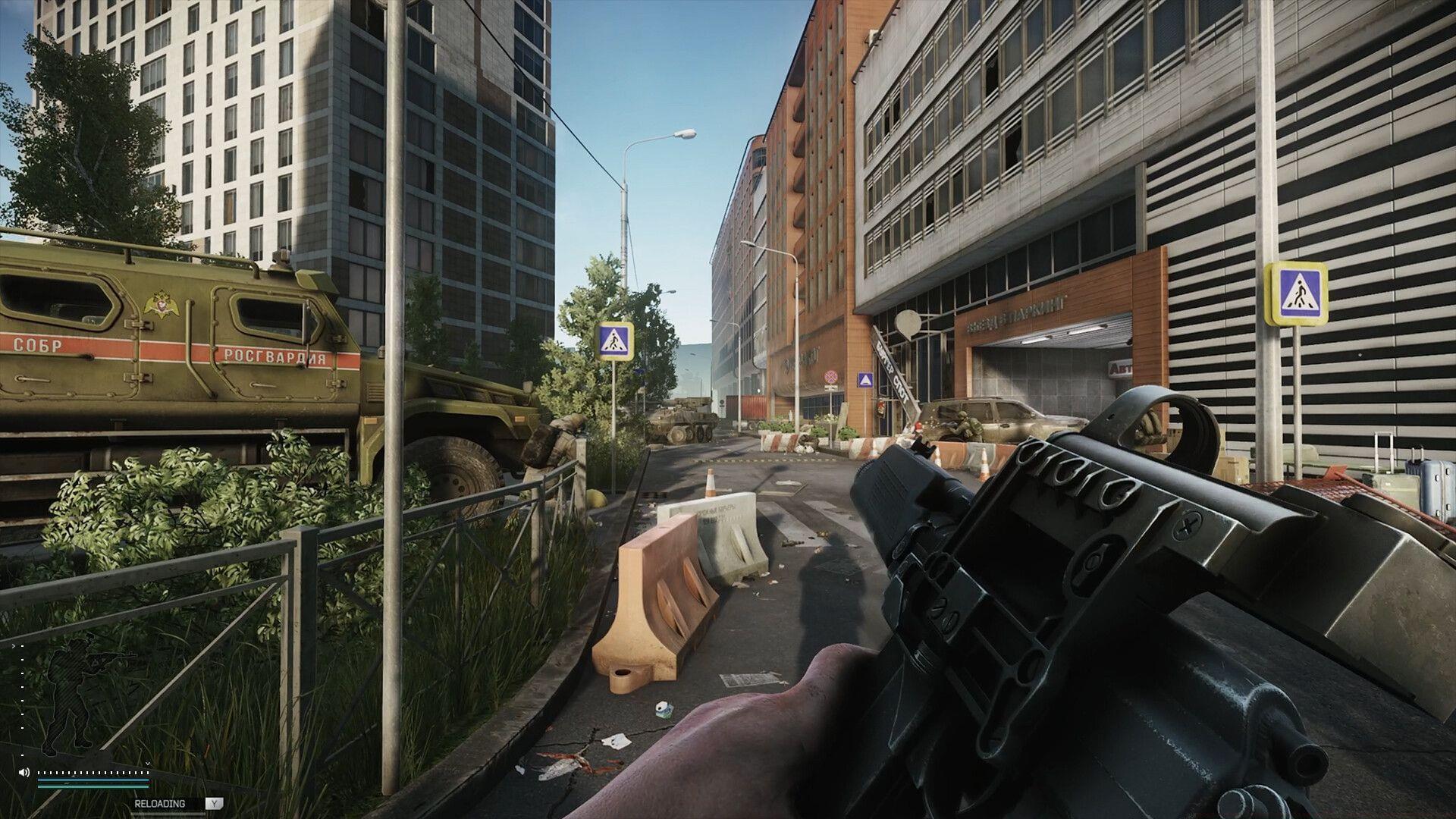
Since Battlestate Games launched their extraction shooter on Steam in November 2025, numerous players have encountered Escape from Tarkov crashing on PC during critical gameplay moments. These stability issues can stem from multiple sources, requiring different approaches for resolution.
Server-side complications often emerge during peak gaming hours when player traffic overwhelms infrastructure capacity. Overloaded servers or incomplete optimization patches from developers can create temporary instability that resolves once official hotfixes deploy. However, when crashes persist across multiple sessions, the root cause typically involves client-side configuration problems.
Hardware limitations represent another common crash source, particularly when system components operate near their performance thresholds. Insufficient RAM, overheating processors, or outdated drivers frequently trigger unexpected game closures during intense firefights or map transitions where resource demands spike dramatically.
Driver and System Optimization
1) Update your GPU Drivers
Outdated graphics drivers represent one of the most frequent culprits behind Escape from Tarkov crashing on PC. Both AMD and NVIDIA regularly release driver updates specifically optimized for new game releases. Visiting the manufacturer’s official website to download the latest stable driver version ensures compatibility with Tarkov’s demanding graphics engine.
For optimal results, completely remove previous driver installations using specialized software like Display Driver Uninstaller (DDU). This thorough cleansing process eliminates residual files and registry entries that can create conflicts between driver versions. After running DDU in Windows Safe Mode, install the fresh driver package to establish a clean foundation for stable gameplay.
Advanced users should consider creating system restore points before driver modifications and monitoring GPU temperatures during extended sessions. Overheating components often manifest as sudden crashes rather than gradual performance degradation, making thermal management crucial for crash prevention.
Read more: Escape from Tarkov Error 213: Possible reasons and fixes
Game File Verification Process
2) Verify your game files
Corrupted or missing game files frequently cause Escape from Tarkov crashing on PC, particularly after updates or system interruptions. Steam’s built-in verification tool automatically scans and repairs damaged game data, restoring stability without requiring complete reinstallation.
Follow this detailed verification process:
- Launch the Steam client and authenticate with your account credentials
- Navigate to your Game Library section within the interface
- Locate Escape from Tarkov within your installed games collection
- Right-click the game entry to access the context menu, then select ‘Properties’
- Within the properties window, choose the ‘Installed Files’ tab
- Click the verify integrity of game files button to initiate the scanning procedure
The verification process comprehensively examines all game components, automatically replacing damaged files with functional versions downloaded from Steam’s servers. This method resolves crashes caused by incomplete updates, disk errors, or accidental file modifications. For additional protection, consider backing up your game settings and profile data before major updates to simplify recovery if verification fails.
Also read: Escape from Tarkov Error 418: Possible reasons and fixes
Advanced Troubleshooting Methods
When basic fixes fail to resolve persistent crashes, advanced troubleshooting techniques become necessary. Begin by monitoring system resource utilization through Task Manager or specialized tools like MSI Afterburner during gameplay. Note whether crashes coincide with specific resource spikes, particularly RAM usage exceeding 80% or CPU temperatures surpassing 80°C.
Adjusting in-game settings provides another crash reduction strategy. Lowering texture quality, disabling unnecessary post-processing effects, and reducing shadow details can significantly decrease hardware strain. The ‘Auto RAM Cleaner’ feature within Tarkov’s settings helps manage memory usage during extended sessions, potentially preventing memory-related crashes.
Third-party optimization tools offer additional stabilization options. Applications like Intelligent Standby List Cleaner (ISLC) automatically manage Windows memory standby lists, while process prioritization software can ensure Tarkov receives adequate CPU resources. Always download such tools from official sources to avoid introducing additional stability issues through malicious software.
For players experiencing consistent crashes during specific gameplay scenarios, documenting the circumstances surrounding each crash helps identify patterns. Note the map, player count, weather conditions, and actions performed immediately before crashes to identify reproducible scenarios for more targeted troubleshooting.
No reproduction without permission:Tsp Game Club » Escape from Tarkov crashing on PC: Possible reasons and fixes Comprehensive troubleshooting guide to fix Escape from Tarkov crashes on PC with advanced optimization strategies