
TL;DR
- Premium editions preload May 11 UTC, Standard editions May 13 UTC across all platforms
- Steam requires manual store page navigation while Game Pass integrates automatically
- Console preloads follow similar patterns but require specific platform navigation
- Storage space verification and internet stability are critical for successful preloading
- Day-one patch preparation ensures immediate gameplay access at launch
The highly anticipated release of Doom The Dark Ages marks a pivotal moment for FPS enthusiasts, serving as a direct prequel to the acclaimed Doom 2016 reboot. This installment reimagines the Slayer as an ancient instrument of demonic annihilation, setting the stage for an explosive gaming experience. With community excitement reaching unprecedented levels since the initial reveal, strategic preloading becomes essential for immediate gameplay access.
Understanding the franchise’s evolution from its origins provides context for The Dark Ages’ significance. The series has consistently pushed technical boundaries, making proper preloading particularly important for this graphically intensive title. Early download ensures you’re combat-ready the moment servers go live.
PC gamers enjoy multiple access pathways to Doom The Dark Ages, each with distinct preloading procedures. The Steam platform offers direct purchase options while Game Pass provides subscription-based entry, both requiring specific navigation techniques.
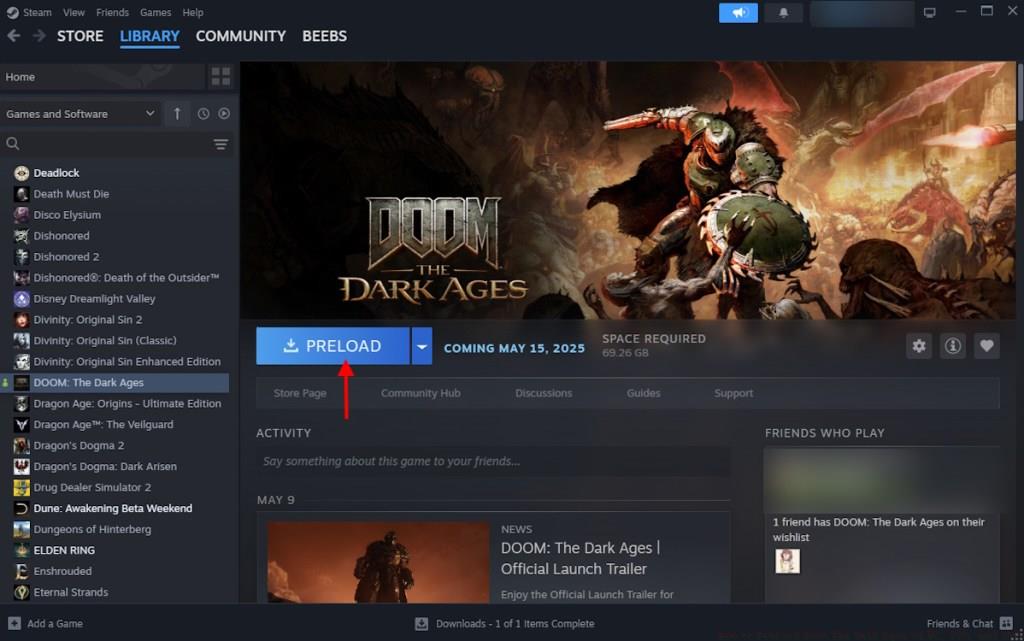
For Steam users, Doom The Dark Ages Premium and Collector’s Editions initiated preloading on May 11 at midnight UTC. Standard Edition preloads commence on May 13 at midnight UTC. Follow this precise sequence:
PC Game Pass subscribers receive automatic access to The Dark Ages’ Standard Edition at launch. The preloading process differs slightly:
Pro Tip: Verify you have at least 80GB of free SSD space for optimal performance, as mechanical hard drives may struggle with the game’s streaming assets. Consider our Weapons Unlock guide for similar optimization strategies in other FPS titles.
Console platforms maintain synchronized preload schedules with PC but require platform-specific navigation methods. Both PlayStation 5 and Xbox Series X/S share the same tiered access timing but differ in interface navigation.
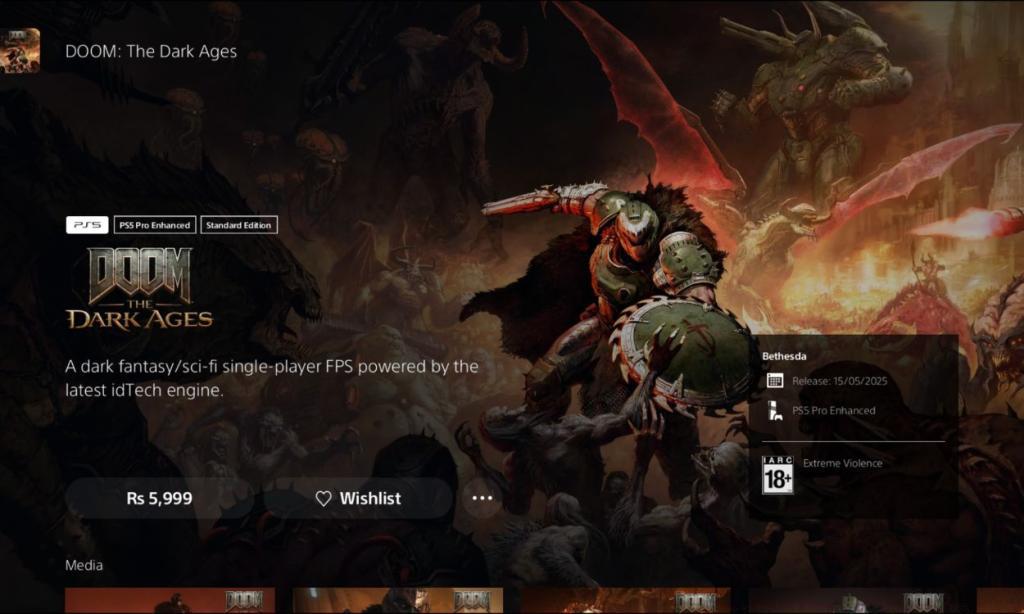
PlayStation 5 users should follow this methodical approach:
Xbox Series X/S owners have a streamlined process:
Critical Insight: Both console platforms typically require approximately 70-80GB of free space. Enable automatic updates in system settings to receive the day-one patch seamlessly. For comprehensive gaming strategies across titles, explore our Complete Guide to battlefield mechanics.
Beyond basic preloading, several advanced techniques can enhance your launch day experience. Understanding common pitfalls and preparation strategies separates casual players from dedicated enthusiasts.
Common preloading errors include missing preload buttons (usually resolved by restarting the client), insufficient space warnings (requiring cleanup of temporary files or old installations), and download stalls (fixed by pausing and resuming the transfer).
Expert Recommendation: Prepare for the inevitable day-one patch by ensuring your platform’s automatic update functionality is enabled. This typically adds 2-5GB additional download at launch. For character optimization strategies similar to those in other tactical shooters, consult our Class Guide for specialized loadout advice.
Remember that preloading decrypts and installs automatically at launch time, which may take 10-30 minutes depending on your storage speed. Plan your gaming session accordingly to avoid frustration.
Action Checklist
- Verify your edition type and corresponding preload date
- Check available storage space (minimum 80GB recommended)
- Navigate to platform-specific store page following detailed instructions
- Initiate preload during off-peak hours for optimal speed
- Enable automatic updates and verify download completion before launch
No reproduction without permission:Tsp Game Club » How to Preload Doom The Dark Ages on PC, PS5, and Xbox Complete guide to preloading Doom The Dark Ages across all platforms with expert tips and troubleshooting