
TL;DR
- PS5 offers native Discord integration with full voice chat functionality since 2023
- Connect via PC/mobile Discord app or directly through PS5 system settings
- PS4 requires Remote Play workarounds with some audio quality limitations
- Optimize voice settings for crystal-clear cross-platform communication
- Use individual volume controls to balance game audio with chat
The collaboration between Sony and Discord has transformed how PlayStation gamers communicate across platforms. While there’s no standalone Discord application for PlayStation consoles, the integration allows seamless voice chat connectivity that bridges gaming communities.
PS5 users enjoy native support that was introduced in 2023, providing direct access to Discord servers and voice channels through the console interface. This official partnership eliminates previous barriers that separated PlayStation and PC gaming circles.
For PS4 owners, the experience requires creative solutions since native integration isn’t available. However, determined players can still achieve Discord connectivity through alternative methods that deliver functional, though slightly compromised, voice chat capabilities.
Begin by ensuring your PlayStation Network account is properly linked to Discord. You have two primary connection methods available: through Discord’s desktop or mobile application, or directly via your PS5’s system settings menu.
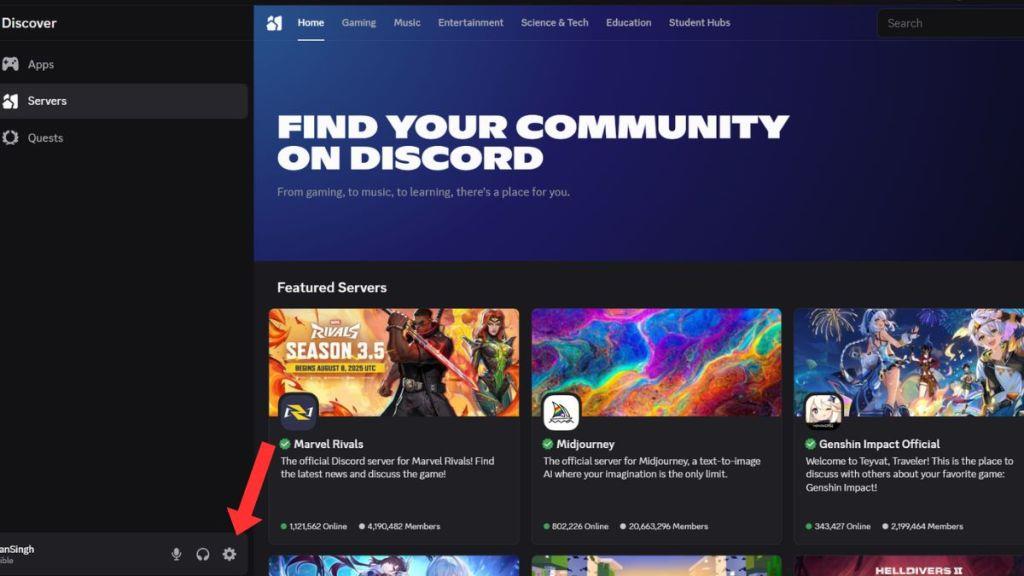
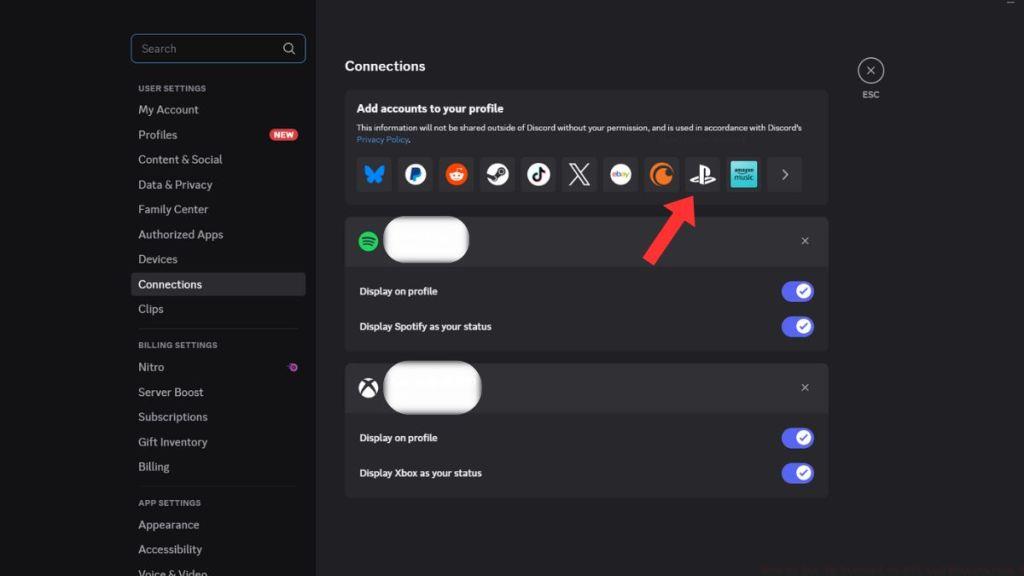
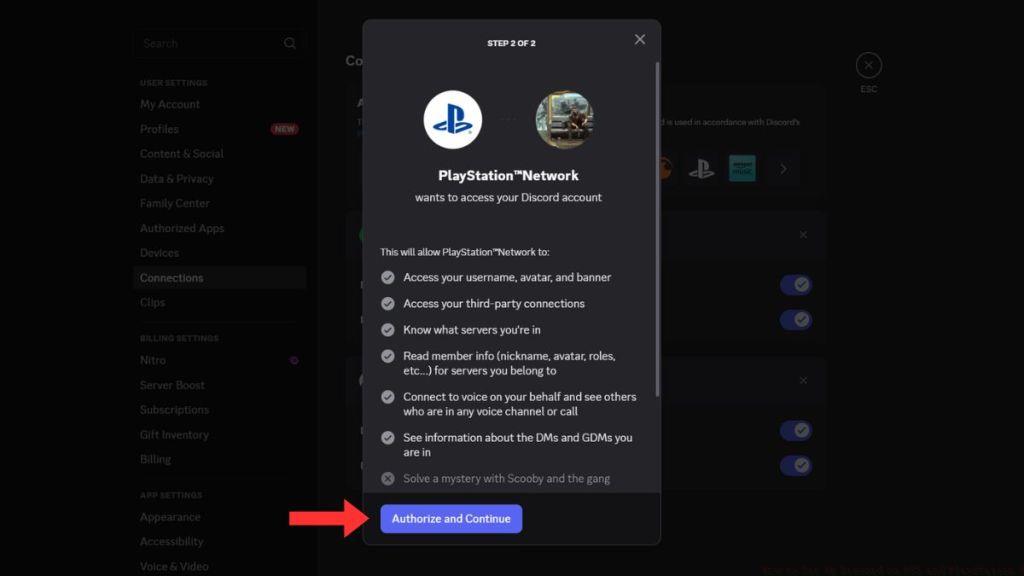
Pro Tip: If you encounter connection issues, try clearing your browser cache or using incognito mode during the linking process. Many authentication problems stem from cached credentials conflicting with new authorization requests.
While PS4 lacks official Discord integration, resourceful gamers can employ the PS Remote Play application as a functional workaround. This method streams your PS4 gameplay to another device while allowing Discord to run simultaneously on that same device.
The most effective approach involves running Discord on your computer or smartphone while using Remote Play to access your PS4. This creates a hybrid setup where game audio comes through your television or headset, while voice chat is handled by Discord on your secondary device.
Important Consideration: Audio quality may suffer slightly due to the dual-device setup, and you’ll need to manage audio routing carefully to prevent echo or feedback issues between devices.
Once connected, maximize your Discord experience by fine-tuning audio settings. The integration supports Discord’s comprehensive voice features including individual participant volume controls, audio balance adjustments, and the convenient sidebar for swift navigation between channels.
Adjust individual voice volumes to ensure clear communication with friends who have varying microphone quality. The audio balance feature lets you prioritize game sounds or chat audio based on your current needs during intense gaming sessions.
Common Mistake to Avoid: Many users forget to test their microphone settings within Discord after connecting. Always verify your input levels and noise suppression settings to ensure teammates hear you clearly during crucial Conquest matches or when coordinating complex Assignments.
For competitive gaming, consider lowering game music volume while maintaining sound effects to better hear positional audio cues while communicating with your squad.
Discord audio complications frequently transfer to PlayStation 5 environments, creating communication barriers during gaming sessions. The predominant challenge involves players becoming inaudible to their squadmates despite proper setup. Understanding these core problems helps implement targeted solutions effectively.
Microphone detection failures represent the most widespread issue, where the system defaults to inadequate input sources. Audio routing conflicts emerge when multiple voice channels compete for priority, while voice chat quality degradation often stems from incorrect sensitivity configurations.
- Switch Input Source: Without a dedicated headset connection, PS5 automatically employs the DualSense controller’s built-in microphone. Navigate to the ‘Mic’ subsection within your Control Center to select superior audio input hardware for clearer transmission.
- Calibrate Microphone Sensitivity: Access the ‘Adjust Mic Level’ feature located in the same control panel. Gradually elevate input volume while testing communication clarity until voice distortion disappears and teammates report clear audio reception.
- Resolve Party Chat Interference: When simultaneously connected to both a Discord server and PlayStation party chat, your voice typically redirects to the latter. Depart from the party through the Game Base interface to restore proper Discord functionality.
- Console Reset Procedure: A swift system reboot resolves numerous technical glitches, including persistent audio malfunctions. Attempt this straightforward troubleshooting method when previous approaches prove ineffective.
- Account Reconnection Protocol: As a final resort, disconnect then reconnect your PlayStation Network and Discord accounts. This comprehensive reset typically eliminates stubborn connectivity problems.
Pro Tip: Always test microphone functionality in Discord’s voice settings before joining critical gaming sessions. This preemptive check prevents mid-game communication breakdowns during competitive matches.
PlayStation veterans have relied on native party chat systems for years, making official Discord integration a revolutionary upgrade. As an experienced Discord power user, I configured the connection immediately and extensively tested voice chat capabilities on PS5. The performance exceeded expectations with remarkably stable operation. Most impressively, I experienced zero latency spikes or disconnections throughout rigorous Discord voice testing on PlayStation 5. The console maintained consistent voice network performance without interruptions.
Discord provides substantial control customization options. As previously indicated, you can rapidly modify individual participant volumes or mute entire channel members including yourself. Unsurprisingly, Discord voice chat functionality operates seamlessly across both single-player and multiplayer titles. Activate the overlay interface via the Game Base menu. One particularly useful feature enables individual audio balance adjustment between game sounds and voice chat. This allows quick reduction of distracting friends without compromising game audio awareness.
PS5 enthusiasts can broadcast their gameplay directly to Discord, enabling all community members to spectate. To initiate this, you must activate Remote Play functionality on your PlayStation 5, then install the Remote Play application on your mobile device or computer. After authenticating through the app with your PSN credentials, your streaming broadcast becomes operational.
Advanced Technique: Configure push-to-talk settings through Discord’s mobile app before connecting to your PS5 session. This prevents background noise transmission and maintains chat channel cleanliness during intense gaming moments.
PlayStation 4 users must navigate considerably more complex procedures to achieve functional Discord voice chat on their older consoles. If you’re determined to utilize Discord on PS4 and willing to undertake extensive configuration steps, this approach should deliver workable results:
Legacy console owners face additional hurdles including limited system resources and outdated audio processing capabilities. These technical constraints necessitate creative solutions beyond standard troubleshooting protocols.
Action Checklist
- Link PSN account through Discord PC/mobile app or PS5 settings
- Test voice chat functionality with friends on other platforms
- Configure individual volume controls for clear communication
- Optimize audio balance between game sounds and voice chat
- For PS4, set up Remote Play and configure audio routing
- Verify headset connection and select as primary input device in Control Center
- Calibrate microphone sensitivity using incremental adjustment method
- Exit any active PlayStation party chats to prevent audio routing conflicts
- Configure game/voice audio balance for optimal mixing during sessions
- Set up Remote Play for Discord streaming functionality
No reproduction without permission:Tsp Game Club » How to Set Up Discord on PS5 and PlayStation 4