
TL;DR
- Desktop Mode transforms your Steam Deck into a full Linux desktop computer using KDE Plasma
- Essential for installing third-party game launchers like EA App, Epic Games, and Battle.net
- Switch between modes easily via Steam Menu with simple navigation steps
- Install critical apps like Dolphin file manager and Heroic Launcher for expanded functionality
- Master file system access to customize your gaming experience and install plugins
Steam Deck’s Desktop Mode represents a powerful hidden feature that converts your gaming handheld into a complete Linux-based computing environment. While the standard SteamOS interface provides excellent gaming optimization, Desktop Mode unlocks the full potential of the underlying Arch Linux system.
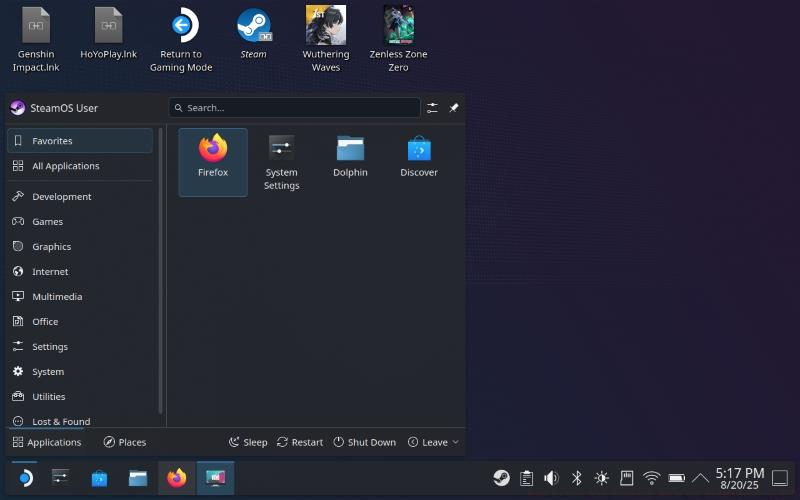
This dual-interface approach allows Steam Deck to function as both a dedicated gaming console and a portable desktop computer. The transition between modes is seamless, maintaining your gaming sessions while providing access to advanced system features.
Desktop Mode utilizes the KDE Plasma desktop environment, offering a familiar interface for users experienced with Linux systems. You gain complete access to SteamOS directories, application installation capabilities, and system customization options typically unavailable in the standard gaming interface.
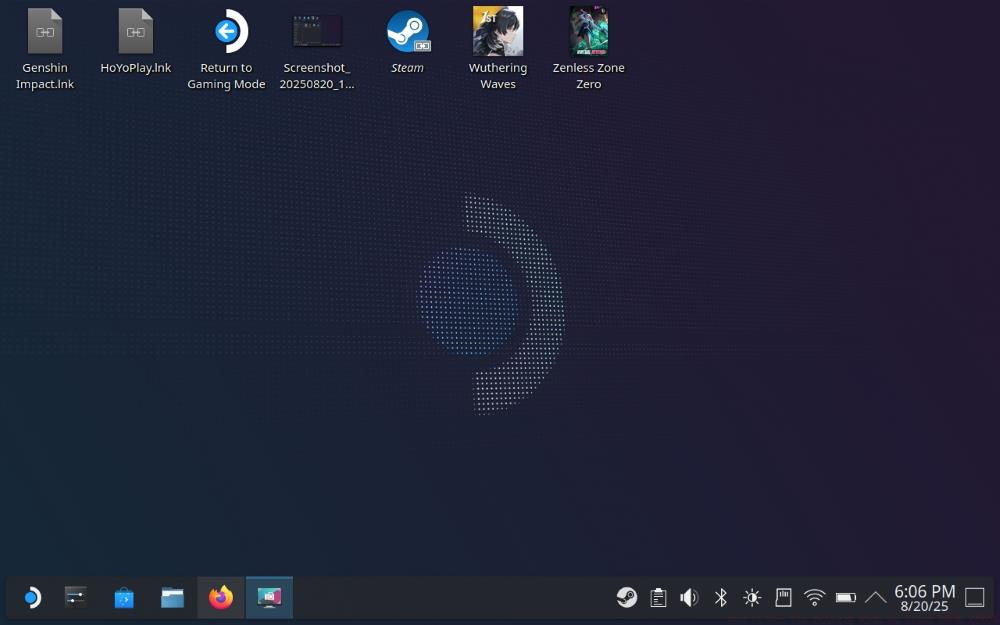
Understanding Desktop Mode is crucial for maximizing your Steam Deck investment. It enables installation of third-party applications, system plugins, and provides file management capabilities that transform your handheld into a versatile computing device.
Desktop Mode serves as the gateway to expanding your Steam Deck beyond Valve’s curated gaming experience. This environment becomes particularly valuable when you need to install third-party tools, plugins, or applications not available through Steam’s native interface.
One of the primary advantages involves accessing game launchers from other platforms. Services like Epic Games Store, EA App, GOG Galaxy, and Battle.net require Desktop Mode for installation and operation, significantly broadening your available game library beyond Steam titles.
The file system access provided by Desktop Mode enables advanced customization opportunities. You can modify game files, install community-created mods, and access system directories that remain hidden in standard Gaming Mode. This level of access proves essential for power users seeking to tailor their gaming experience.
Beyond gaming, Desktop Mode transforms your Steam Deck into a legitimate productivity tool. You can install office applications, web browsers with full extension support, media editing software, and development tools. This versatility makes the device suitable for work, content creation, and general computing tasks when paired with peripherals.
System maintenance and troubleshooting also benefit from Desktop Mode access. You can monitor system performance, manage storage more effectively, and resolve issues that might be difficult to address through the standard interface alone.
Transitioning between Steam Deck’s Gaming Mode and Desktop Mode is designed to be intuitive and straightforward. The process mirrors switching out of Big Picture mode on a desktop PC, but instead returns you to a Linux environment rather than Windows.
To activate Desktop Mode, follow these precise steps:
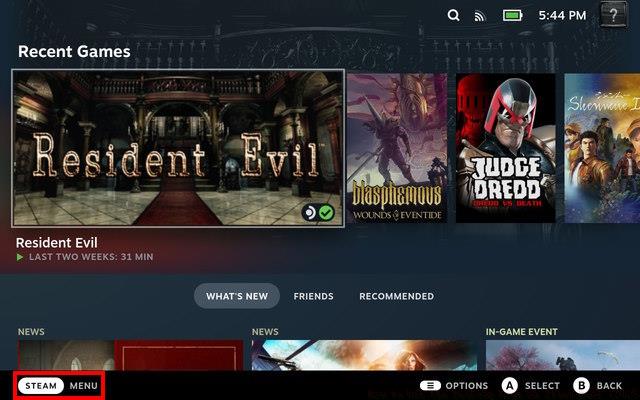
- Press the Steam button located below the left trackpad or tap the Steam Menu icon in the bottom-left corner
- Navigate to the Power options menu
- Select Switch to Desktop Mode from the available choices
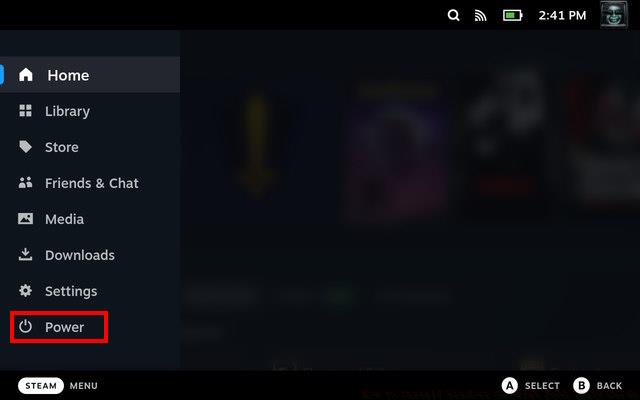
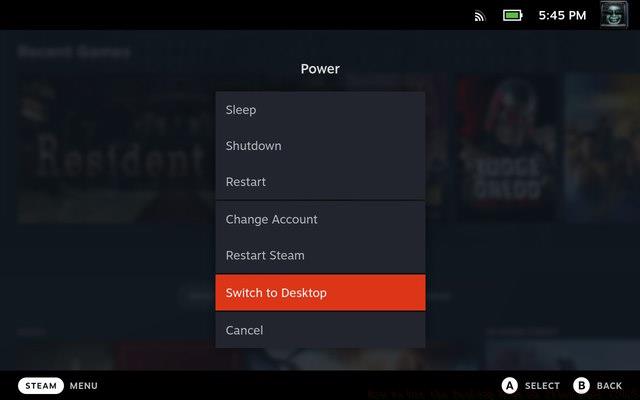
Your Steam Deck will briefly display a loading screen before booting into the KDE Plasma desktop environment. The transition typically takes 15-30 seconds depending on system load.
Returning to Gaming Mode requires locating the Return to Gaming Mode shortcut on the desktop. This icon appears as a gaming controller symbol and requires a double-tap or double-click to activate. Some users mistakenly attempt single clicks, which won’t initiate the return process.
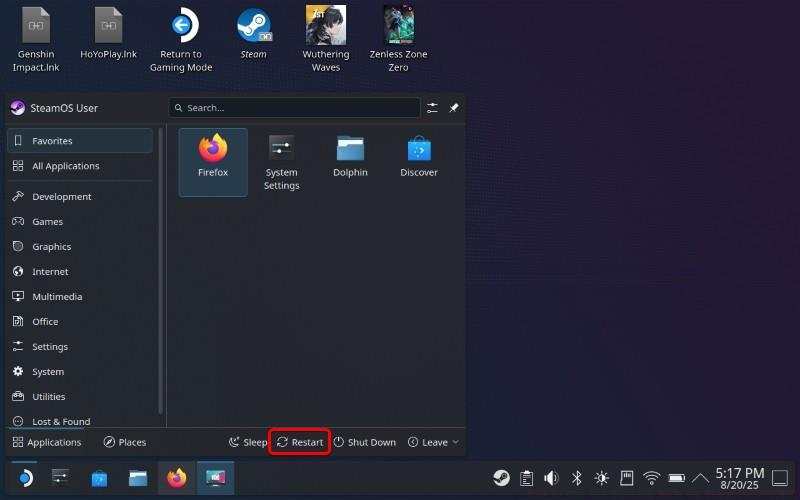
If you encounter issues returning to Gaming Mode, you can alternatively restart your Steam Deck through the system menu. Navigate to the bottom-left application launcher, select System, then choose Restart to reboot directly into the standard gaming interface.
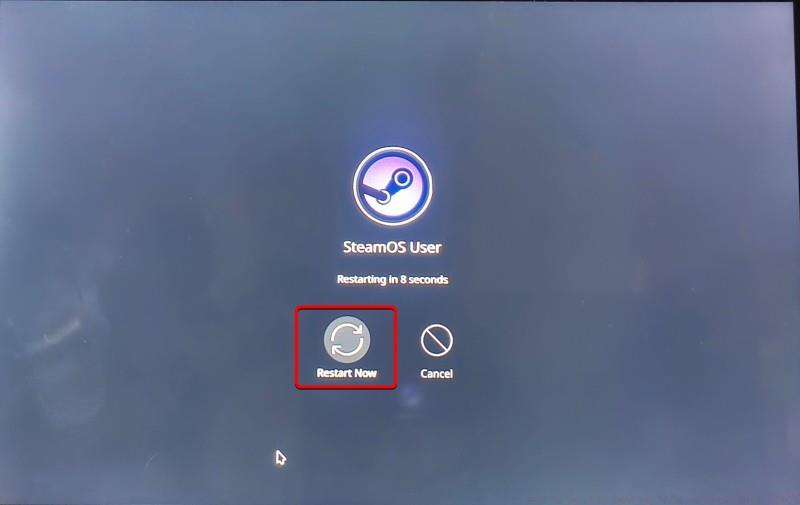
Pro tip: Always save your work and close applications before switching back to Gaming Mode. Unsaved data in Desktop Mode applications may be lost during the transition.
Installing third-party game launchers represents one of the most valuable applications of Steam Deck Desktop Mode. This process enables access to your entire gaming library across multiple platforms directly from your handheld device.
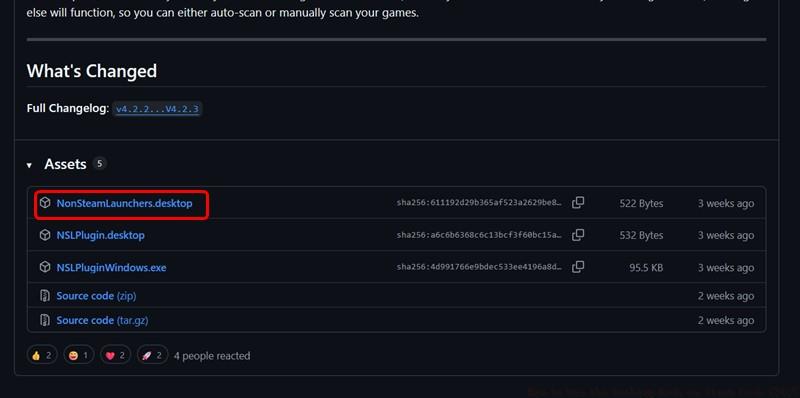
Begin by downloading the NonSteamGameLaunchers installer from its official GitHub repository. Ensure you select the correct version compatible with SteamOS and download it to your Downloads folder for easy access.
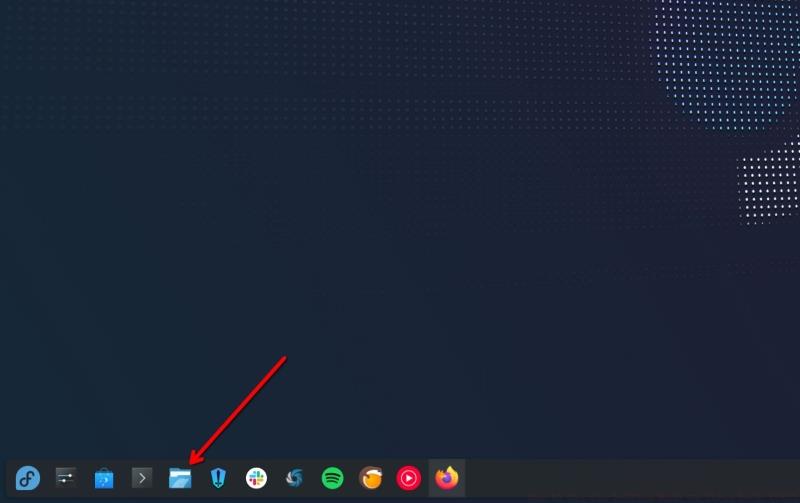
Navigate to your Downloads directory using the Dolphin file manager. Locate the Dolphin icon in the taskbar or application menu – it typically appears as a blue dolphin symbol.
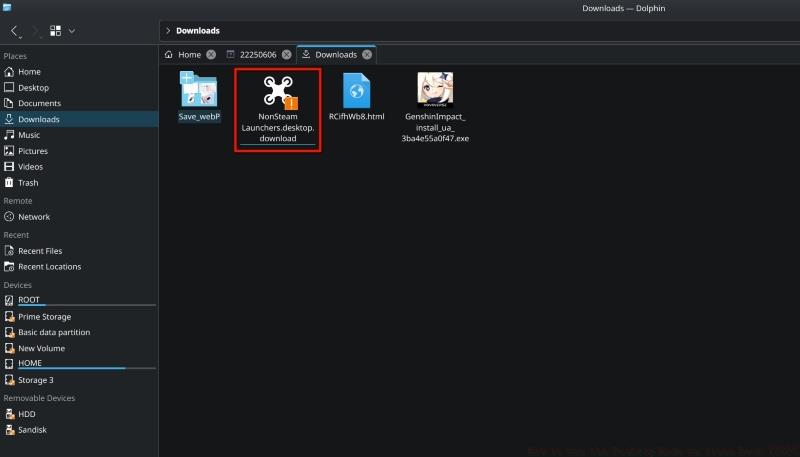
Right-click the downloaded installer file and select Execute from the context menu. This action launches the installation wizard that will guide you through the setup process.
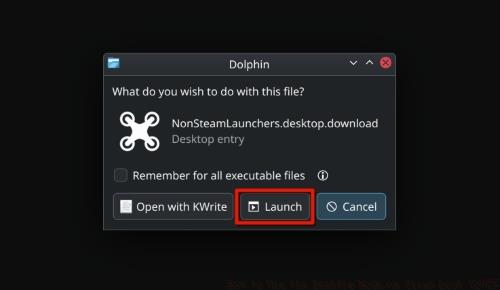
The installation process automatically handles adding launchers to your Steam library. You’ll see progress indicators as each launcher installs, with the EA App typically being one of the first installations.
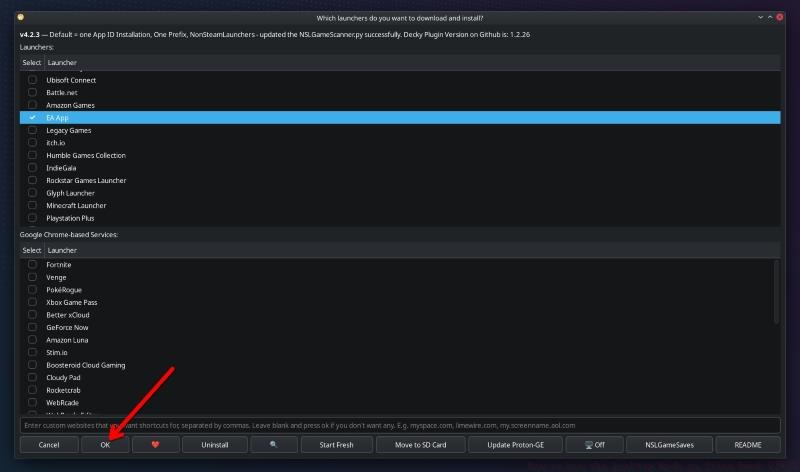
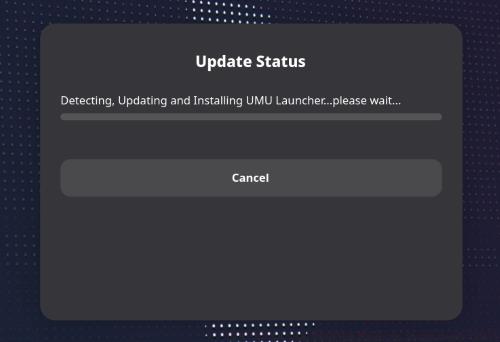
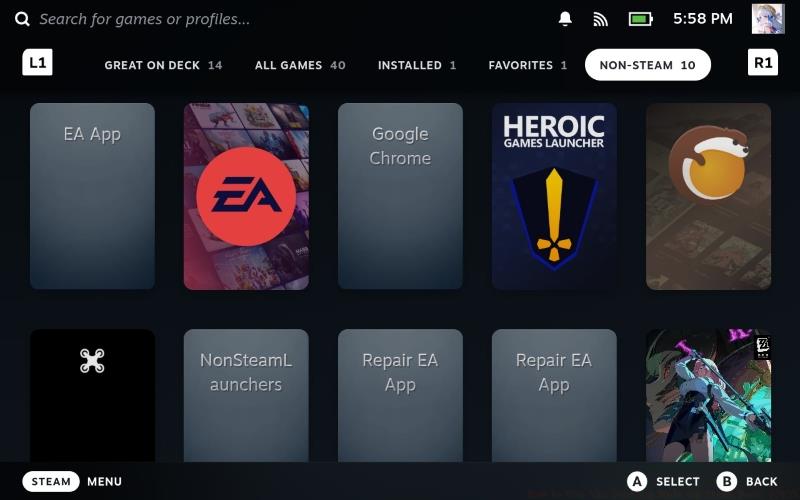
After completion, return to Gaming Mode and check your Steam library. New entries should appear for each installed launcher, ready to access your games from other platforms.
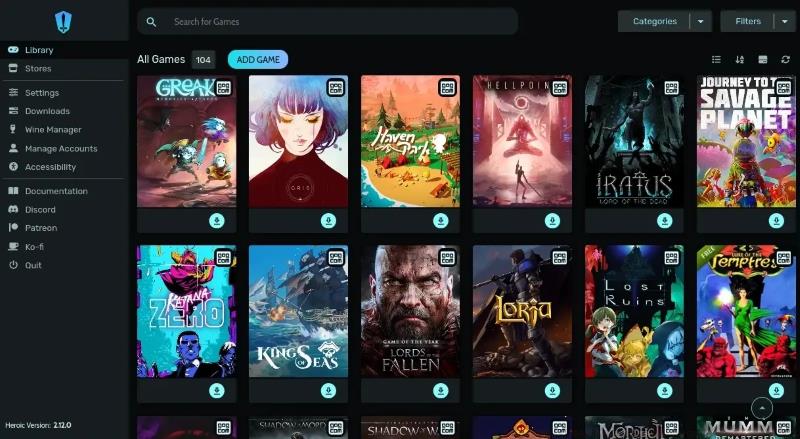
Advanced users may prefer installing individual launchers manually for greater control over configuration. The Heroic Games Launcher offers excellent Epic Games Store integration with additional features like automated wine prefix management.
Beyond game launchers, several critical applications significantly enhance your Steam Deck Desktop Mode experience. These tools improve system management, file organization, and overall usability of the Linux environment.
Dolphin File Manager serves as your primary tool for navigating the Steam Deck file system. This application provides graphical access to system directories, external storage devices, and network locations. Mastering Dolphin is essential for effective file management and application installation.
Discover Software Center acts as Steam Deck’s application store, providing access to thousands of Linux-compatible programs. From productivity suites to media players and development tools, Discover offers centralized installation and updates for most applications you’ll need.
For gaming-specific enhancements, consider installing:
- ProtonUp-Qt: Manages different Proton versions for optimal game compatibility
- Lutris: Alternative game manager with extensive configuration options
- Wine: Compatibility layer for running Windows applications
- Flatseal: Manages permissions for Flatpak applications
System monitoring tools like GOverlay and MangoHud provide real-time performance metrics during gameplay. These tools help identify system bottlenecks and optimize performance settings for demanding titles.
Media applications transform your Steam Deck into an entertainment hub. Install VLC Media Player for universal video format support, Kodi for media center functionality, and Audacious for audio playback. These applications leverage the device’s hardware for excellent media consumption experiences.
Productivity suites like LibreOffice provide full office functionality, while browsers like Firefox offer complete web browsing with extension support. These additions make Steam Deck viable for work and content creation when connected to external displays and peripherals.
Remember that application installation through Discover typically provides better integration and easier updates compared to manual installation methods. The Flatpak format used by most applications ensures compatibility and security across different Linux distributions.
Action Checklist
- Switch to Desktop Mode via Steam Menu → Power → Switch to Desktop
- Download NonSteamGameLaunchers from GitHub repository
- Execute installer through Dolphin file manager and follow setup wizard
- Install essential applications via Discover Software Center
- Configure game launchers and return to Gaming Mode
No reproduction without permission:Tsp Game Club » How to Use the Desktop Mode on Steam Deck (2025) Master Steam Deck Desktop Mode to unlock Linux capabilities, install third-party launchers, and transform your handheld into a portable PC