
Master Ghost of Yotei’s Photo Mode with advanced techniques, creative strategies, and practical workflow optimization
Introduction to Photo Mode Essentials
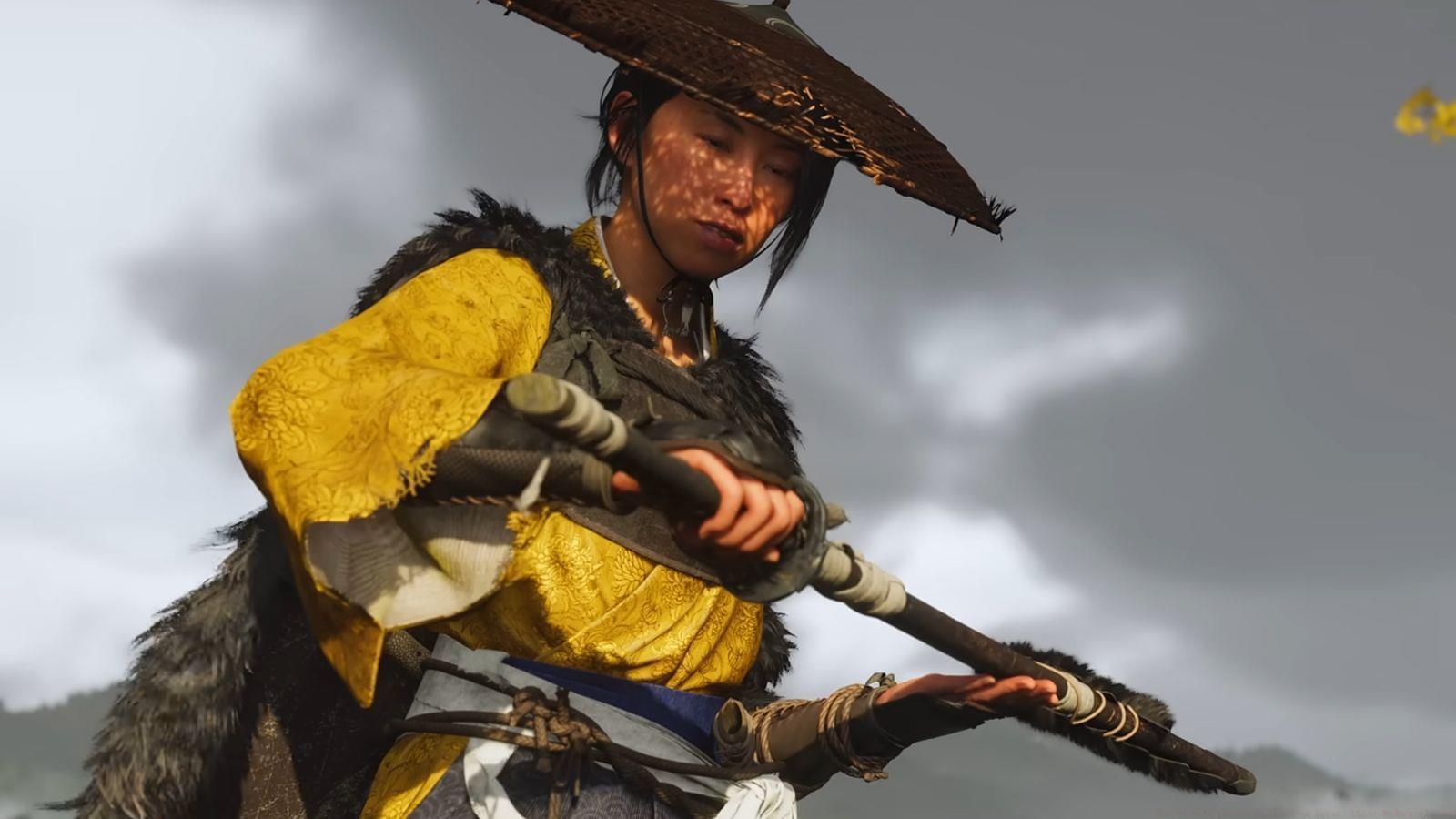
The eagerly awaited sequel Ghost of Yotei launched exclusively on PlayStation 5 on October 2, 2025, continuing the visual excellence established by its predecessor. Set 329 years following the original narrative, players embody mercenary warrior Atsu during their pursuit of the formidable Yotei Six faction across Ezo’s breathtaking landscapes.
Activate the photography system by pressing right on your D-pad controller. This feature remains accessible throughout most gameplay sequences, excluding cinematic narrative moments. The interface enables comprehensive adjustment of multiple visual parameters including focus calibration, color treatment applications, environmental particle density, bokeh effects, and protagonist emotional states.
Similar to the previous installment, Ghost of Yotei doesn’t incorporate internal screenshot storage. Rather, players must engage the Create/Share interface option followed by selecting the dedicated screenshot function to preserve their photographic compositions. These captured images become available within the PlayStation system’s Media Gallery application for subsequent viewing and sharing.
Advanced Camera Controls and Composition
Ghost of Yotei’s photography system provides professional-grade camera manipulation tools that rival dedicated photography software. Understanding these controls transforms ordinary scenes into breathtaking visual narratives.
Tracking Shot functionality enables recording up to 16 distinct camera positions for creating cinematic motion sequences. This feature proves particularly effective for capturing dynamic combat sequences or following character movement through environments.
The Focal Length spectrum spans from ultra-wide 12mm to telephoto 300mm, allowing dramatic perspective control. Wide angles excel at landscape captures while telephoto settings isolate subjects from backgrounds.
Depth of Field manipulation can be activated or disabled, with aperture simulation ranging from f/1.2 (creating extreme background blur) to f/63 (maximum sharpness throughout the scene). This professional feature separates subjects from their environment effectively.
Focus Distance calibration operates from 0.1 meters (extreme close-ups) to 200 meters (distant landscape focus), providing precise control over which elements remain sharp within your composition.
Visual Enhancement Features
The visual customization suite in Ghost of Yotei empowers creators to establish distinctive moods and atmospheres through sophisticated color science and environmental manipulation.
Color Grading options include eleven distinctive presets: None (original rendering), Vivid (enhanced saturation), B/W (classic monochrome), B/W Vintage (aged photographic appearance), Storm (dramatic cool tones), Autumn (warm golden hues), Samurai Red (thematic crimson accents), Smoke (desaturated moody aesthetic), Maple (warm autumn palette), Ginkgo (golden yellow dominance), and Tintype (historical photographic process simulation).
Color Grading Intensity permits adjustment from 0% (subtle effect) to 100% (maximum preset application), enabling fine-tuned control over visual impact.
Exposure Bias correction spans from -5.0 (significant underexposure) to +5.0 (substantial overexposure), providing creative control over image brightness beyond the game’s automatic exposure system.
Contrast adjustment for black and white points ranges from 1.0 (minimum contrast) to 3.0 (high contrast), affecting the dynamic range and punch of your images.
Particle effects offer fifteen atmospheric options: None, Red Leaves, Yellow Leaves, Bamboo Leaves, Orange Leaves, Green Leaves, Cherry Blossoms, Pampas Pollen, Ash & Embers, Fireflies, Dragonflies, Butterflies, Crows, Song Birds, and Violet Petals. These elements add dynamic movement and environmental storytelling to compositions.
Particle Intensity controls from 0% (minimal presence) to 100% (dense effect) determine how prominently these elements feature in your scene.
Character and Environment Customization
Beyond technical camera controls, Ghost of Yotei provides extensive character and environmental manipulation tools that enable deeply personalized photographic narratives.
Wind Speed simulation adjusts from 0% (completely calm) to 44% (storm-level intensity), affecting clothing movement, vegetation sway, and particle trajectory. This creates dynamic natural movement within static images.
Wind Direction control spans 0 to 358 degrees, allowing precise orientation of environmental effects relative to your composition and subject.
Weather conditions can be overridden with eight options: Current (existing game weather), Clear, Fog, Heavy Fog, Sunbreak (partial clearing), Overcast, Rain/Snow, Heavy Rain/Snow, and Thunder. These dramatically alter mood and lighting conditions.
Animated Environment toggle enables or disables background character and creature movement, allowing photographers to eliminate distracting elements or preserve natural world activity.
Atsu character states include four options: None (standard appearance), Hide (character removed from scene), Muddy (weathering effects applied), and Bloody (battle damage visualization).
Emote selection provides seventeen emotional expressions: Current, Angry, Confused, Dead, Disbelief, Disgusted, Fearful, Happy, Enraged, Intense, Neutral, Sad, Surprised, Amused, Annoyed, Concerned, and Hopeful. These enable powerful character storytelling within scenes.
Helmet/Mask visibility toggles between Show or Hide, allowing facial expression emphasis or traditional samurai aesthetic preservation.
Sword Glint intensity adjusts from 0.0 (no reflection) to 15.0 (highly reflective), controlling blade shine in various lighting conditions.
Professional Workflow and Export
Aspect Ratio options include Standard (traditional gaming aspect ratio), 21:9 (cinematic widescreen), and 32:9 (super ultrawide). These formatting choices dramatically impact composition and are particularly valuable for desktop wallpaper creation or social media sharing.
Musical accompaniment features eleven soundtrack selections: None, Atsu’s Theme, Mother’s Theme, Oyuki’s Theme, Twin Wolves, The Yotei Six, Upon the Wind, Wanderer, Okami, The Wilds of Ezo, and Clan Matsumae. While not affecting the visual output, these enhance the creative atmosphere during photography sessions.
For optimal workflow efficiency, establish your composition first using camera positioning and framing, then apply atmospheric effects, followed by character customization, and finally fine-tune color grading and exposure. This systematic approach prevents needing to repeatedly adjust interconnected parameters.
Also read: 7 best beginner tips and tricks for Ghost of Yotei
Also read: All Mountain Reliquaries in GOY and how to solve them
Remember that the photography system doesn’t automatically save captures internally. Always use the Create/Share interface followed by the Screenshot function to preserve your work to the PlayStation Media Gallery. For professional results, consider capturing multiple variations of each scene with different settings to select the optimal version during post-review.
Check out more Ghost of Yotei guides from Sportskeeda from the links below:
- How to remove black bars in GOY
- Is Atsu queer in GOY?
- GOY Undying Samurai walkthrough and rewards (Ishikari Storyteller)
No reproduction without permission:Tsp Game Club » How to take photos in Ghost of Yotei: Photo Mode explained Master Ghost of Yotei's Photo Mode with advanced techniques, creative strategies, and practical workflow optimization