
TL;DR
- Access photo mode instantly using the Right D-Pad button during gameplay (except cutscenes)
- Utilize advanced settings including depth of field, weather control, and character expressions
- Hide HUD with Triangle button before capturing your perfect shot
- Save photos through PlayStation’s Create/Share button system
- Find all captured images in PlayStation Media Gallery for sharing
Building upon the critically acclaimed photography system from Ghost of Tsushima, Ghost of Yotei elevates in-game photography to an art form. The sequel introduces refined controls and expanded creative options that allow players to immortalize their journey through the breathtaking landscapes of Ezo. Whether you’re documenting intense samurai battles or capturing serene mountain vistas, this guide provides comprehensive techniques for mastering the photo mode.
- Ghost of Yotei’s Photo Mode can be accessed by pressing right on the D-pad.
- The mode allows you to take pictures during your gameplay.
- Photo Mode is not available for use during cutscenes.
The original Ghost of Tsushima set a new standard for in-game photography with its intuitive interface and powerful editing tools. Now, Ghost of Yotei enhances this legacy with additional features that give photographers unprecedented creative control over their virtual compositions.
How to Enter Photo Mode and Capture Photos in Ghost of Yotei?
Ghost of Yotei’s photo functionality becomes available immediately as you begin your adventure as Atsu. The system offers remarkable flexibility, permitting photography during horseback exploration, intense combat encounters, and peaceful moments of reflection—though cinematic sequences remain off-limits for photography sessions.
-
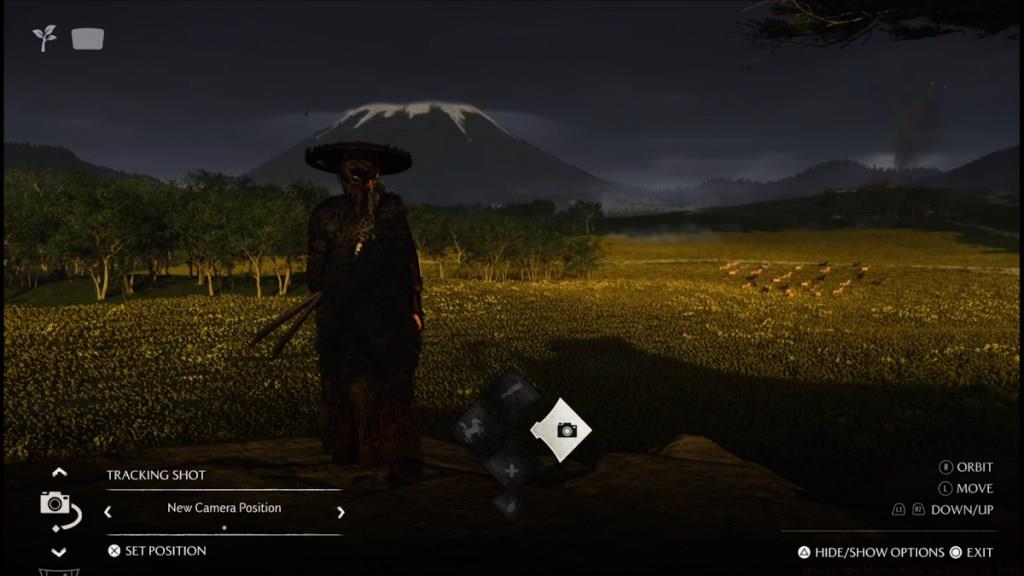
Image Credit: Sony -
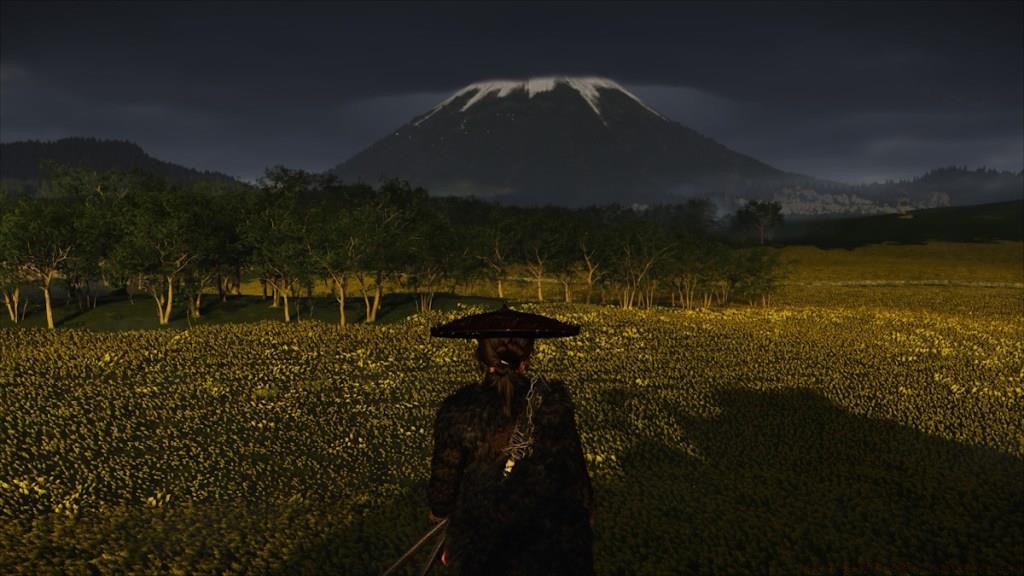
Image Credit: Sony
Beyond the basic D-pad access, experienced photographers can utilize quick-access shortcuts and customize control schemes through the game’s settings menu. For combat photography, timing becomes crucial—pause during sword clashes to capture dynamic action shots with perfect framing.
The photography toolkit in Ghost of Yotei provides extensive customization that mirrors professional editing software. Key adjustable parameters include depth of field for controlling focus areas, comprehensive filter collections for mood setting, Atsu’s emotional expressions for narrative depth, dynamic weather manipulation for atmospheric control, and wind intensity adjustments for natural element dynamics.
Depth of field settings allow you to create cinematic blur effects, drawing attention to specific subjects while softening backgrounds. The expanded filter library now includes historical photographic styles that emulate traditional Japanese art forms, adding authentic cultural aesthetics to your captures.
Now let’s explore the step-by-step process for capturing exceptional photographs within Ghost of Yotei:
- Press the ‘Right D-Pad button‘ to activate photo mode whenever inspiration strikes during your adventure.
- Refine your composition by experimenting with the various adjustment settings to achieve your desired visual impact.
- Once satisfied with your setup, eliminate distracting interface elements by hiding the HUD using the ‘triangle’ button.
- Similar to its predecessor, Ghost of Yotei doesn’t incorporate a direct save function within the photo mode interface.
- Consequently, you must press the ‘create/share’ button and choose the screenshot option to permanently record your image creation.
All photographs you successfully capture will be stored within your PlayStation’s Media Gallery application. The design choice to exclude immediate saving functionality, while initially perplexing, encourages photographers to focus on composition rather than file management during creative sessions.
For truly spectacular results, implement these professional photography principles within Ghost of Yotei’s virtual environment. The rule of thirds becomes particularly effective when framing Atsu against the majestic Mount Yotei or during intense combat sequences. Time-of-day adjustments can transform mundane scenes into dramatic masterpieces—capture sunrise moments for warm golden lighting or midnight scenes for mysterious atmospheric effects.
Tracking mode enables dynamic action photography, allowing you to freeze-frame perfect combat moments. Weather manipulation adds emotional depth to your images—contrast peaceful snow-covered landscapes with stormy battle scenes for narrative impact. The addition of floating leaves and other natural elements introduces movement and life into otherwise static compositions.
Many players discover themselves frequently pausing their progression to document the visually stunning environments throughout Ghost of Yotei. We welcome your perspectives and experiences with the photo mode in the comments section below.
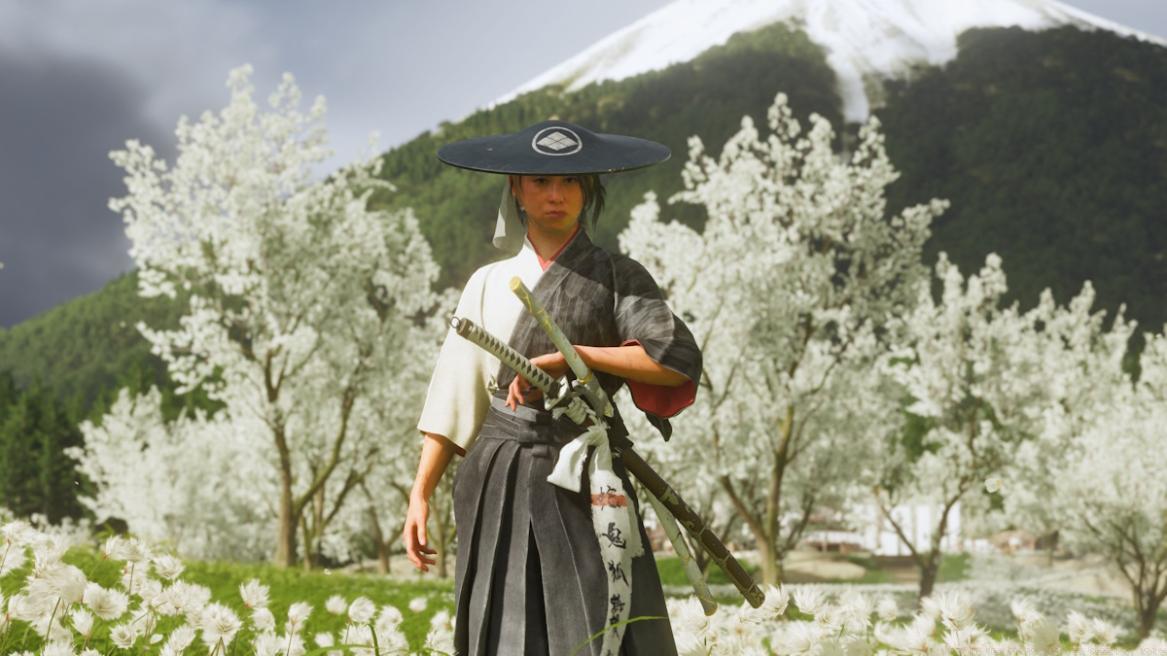
Image Credit: Sony
Action Checklist
- Press Right D-Pad during gameplay to activate photo mode
- Experiment with depth of field and filter settings for desired aesthetic
- Hide HUD using Triangle button for clean composition
- Use Create/Share button to save your photograph
- Access Media Gallery to view and share your captured images
- Experiment with weather and time changes for dramatic effects
No reproduction without permission:Tsp Game Club » How to Use Photo Mode in Ghost of Yotei Master Ghost of Yotei's photo mode with advanced techniques for capturing stunning in-game moments