
TL;DR
- Disable auto back skate completely to maintain defensive positioning against fast breaks
- Use Classic camera for optimal zone visibility while maintaining player detail recognition
- Set pass assist to 90% for precision control without sacrificing passing reliability
- Configure hybrid controls for maximum offensive creativity and defensive responsiveness
- Enable strategic HUD elements while minimizing visual clutter for better focus
Mastering NHL 26’s controller settings provides the competitive edge needed for online dominance. Your input configuration directly impacts puck control, passing accuracy, and defensive positioning.
When launching NHL 26, resist the immediate urge to jump into gameplay. Investing time in fine-tuning your controller setup pays significant dividends during competitive matches. These configurations fundamentally shape your interaction with the game, influencing everything from player movement precision to situational awareness during offensive and defensive sequences. Many competitors mistakenly assume default settings are adequate, but this approach creates unnecessary disadvantages against properly configured opponents.
This comprehensive guide details which configurations deliver competitive advantages, explains the underlying mechanics, and demonstrates how to create the most responsive and intuitive control experience in NHL 26.
NHL 26 Advanced Settings: Optimized Controller Configuration
Your controller setup establishes the foundation for competitive performance. Begin by adjusting pass assistance to approximately 90% instead of maximum values. While Electronic Arts has made substantial improvements to directional passing mechanics in recent iterations, that deliberate 10% reduction provides enhanced precision for targeting specific passing lanes and player positions.
The most crucial defensive setting remains auto back skate functionality. Competitive players must completely disable this feature. When activated, your defender automatically transitions to backward skating during opponent zone entries. While seemingly beneficial initially, this automation creates significant defensive vulnerabilities. The automatic pivot animation between forward and backward movement sacrifices both acceleration and positioning timing, granting speed-focused attackers clear pathways during transitional moments.
Auto back skate consistently results in conceded goals against elite speed forwards. Permanently disable this setting for competitive gameplay scenarios.
Your selected camera perspective critically influences play recognition capabilities and split-second decision making. Avoid any camera modes labeled as dynamic—these perspectives continuously adjust and reposition, forcing constant recalibration of spatial awareness. You’re no longer solely focused on gameplay execution; you’re simultaneously compensating for unpredictable camera behavior.
The Classic camera delivers the ideal equilibrium between comprehensive ice coverage and player detail visibility. This perspective provides substantial zone visibility while maintaining close enough proximity to discern player animations and stick positioning nuances. Overhead cameras offer expanded viewing areas but minimize player models, making individual skaters difficult to distinguish during fast-paced sequences.
For shootout situations, transition to high perspective rather than default dynamic low positioning. The elevated viewpoint enables clearer reading of goaltender movements and reaction patterns, providing superior timing for deking maneuvers and shot placement precision. Consider experimenting with zone cameras for power play setups, as these provide optimal viewing angles for identifying passing lanes and defensive gaps.
Advanced players should master camera switching during different game situations. While Classic works well for 5v5 play, switching to Overhead during penalty kills provides better defensive zone coverage. The wider perspective helps track multiple attacking players and identify potential cross-ice passing threats that might be obscured in closer camera angles.
Beyond basic controls, NHL 26’s gameplay settings significantly impact AI behavior and strategic execution. Proper configuration of these elements separates competitive players from casual participants.
Adjust AI assistance levels based on your skill progression. Beginners benefit from moderate assistance for defensive positioning and puck pickups, while advanced players should minimize AI intervention for maximum control. The strategic settings menu contains crucial options for line management and offensive/defensive pressure—configure these to match your preferred playing style.
Gameplay toggles like auto hustle and board play assistance require careful consideration. While auto hustle seems convenient, manual hustle control provides better stamina management during extended shifts. Board play assistance can help newer players but often interferes with advanced puck retrieval techniques used by experienced competitors.
For those transitioning from previous NHL titles, pay particular attention to the new collision physics settings. The default values may not match your preferred level of physical play. Testing these in offline modes before competitive matches ensures you understand how checks, puck battles, and net-front collisions will behave under your configured parameters.
NHL 26 offers multiple control schemes catering to different skill levels and play styles. Understanding the strengths and limitations of each configuration is essential for competitive optimization.
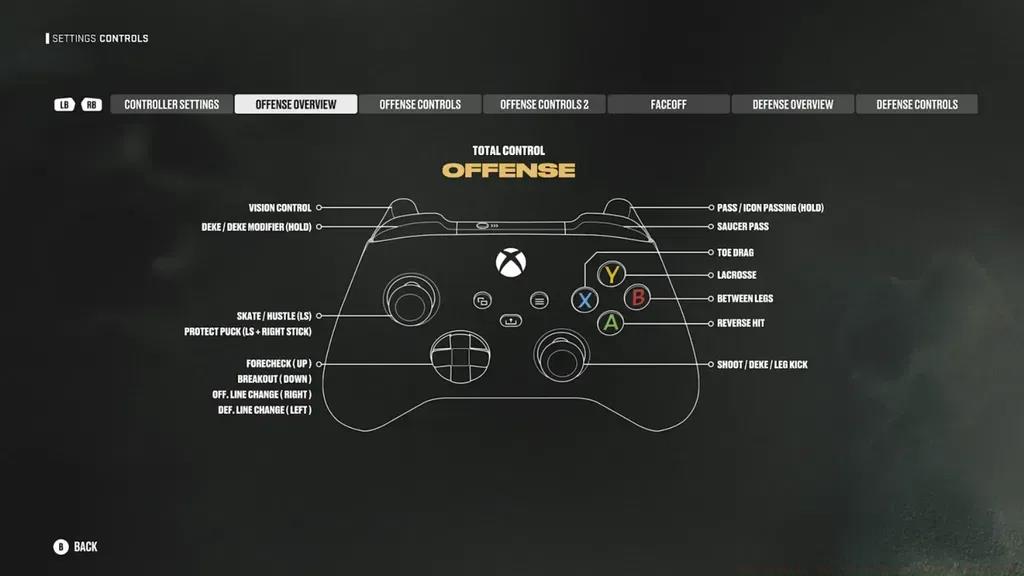
Hybrid controls provide the ideal balance for most players, combining simplified shooting with advanced skating controls. This scheme allows creative offensive moves while maintaining defensive reliability. The skill stick configuration offers maximum creative potential but requires significant practice to master—recommended for experienced players seeking complete offensive arsenal access.
Custom button mapping represents an often-overlooked competitive advantage. Reassigning frequently used actions to more accessible buttons can shave crucial milliseconds off reaction times. Consider moving hustle to a trigger button or assigning specific dekes to easily reachable face buttons based on your hand positioning preferences.
Advanced players should experiment with control sensitivity settings. Increased sensitivity provides quicker player response but reduces precision for delicate maneuvers. Finding your personal balance between responsiveness and control requires experimentation in practice modes before implementing in competitive matches.
Strategic HUD configuration enhances situational awareness without creating visual clutter. The on-ice trainer provides valuable feedback for skill development but becomes distracting during competitive play.
Enable strategic HUD elements like player energy indicators and matchup information while disabling excessive visual effects. The shot aiming indicator proves valuable for precision shooting but may be disabled by advanced players who rely on muscle memory. Pass receiver icons should remain active for most players, as they significantly improve passing accuracy during fast breaks.
Minimalist HUD configurations benefit experienced players by reducing screen clutter and improving focus on player movements and puck tracking. However, beginners should maintain more comprehensive displays until game sense develops sufficiently to recognize patterns and opportunities without visual assistance.
Custom color configurations for team indicators can provide subtle competitive advantages. Using high-contrast colors for opponent indicators makes them easier to track during chaotic offensive zone sequences. Many professional players use custom color schemes that differ significantly from default options.
Audio configuration significantly impacts gameplay awareness and reaction timing. Proper sound mixing helps identify off-screen developments and player positioning through auditory cues.
Adjust audio sliders to emphasize gameplay sounds over commentary and crowd noise. Skate blade sounds provide crucial information about opponent speed changes, while puck sounds help track play during crowded net-front situations. Many competitive players completely disable commentary to eliminate distractions during intense moments.
Controller vibration settings require personal preference consideration. While vibration provides tactile feedback for hits and shots, some players disable it for improved stick control during precise maneuvers. Experiment with different vibration intensities to determine what enhances rather than hinders your performance.
Advanced settings like input delay reduction and performance mode options can provide marginal gains for players with compatible hardware. These settings minimize processing latency between controller input and on-screen action, creating more responsive gameplay experiences particularly important for timing-based mechanics like goalie dekes and precision shots.
Action Checklist
- Disable auto back skate in controller settings
- Configure pass assist to 90% for precision control
- Set camera to Classic mode with situational adjustments
- Customize button mapping for frequently used actions
- Optimize HUD elements for minimal clutter with strategic information
- Adjust audio mix to emphasize gameplay sounds over commentary
No reproduction without permission:Tsp Game Club » NHL 26 Guide: Best Settings for Optimized Gameplay Master NHL 26's essential settings to dominate online matches with pro-tested configurations and strategic insights