
Master Tainted Grail’s save management and configuration files with expert PC optimization tips
Introduction: Why Understanding Save Files Matters
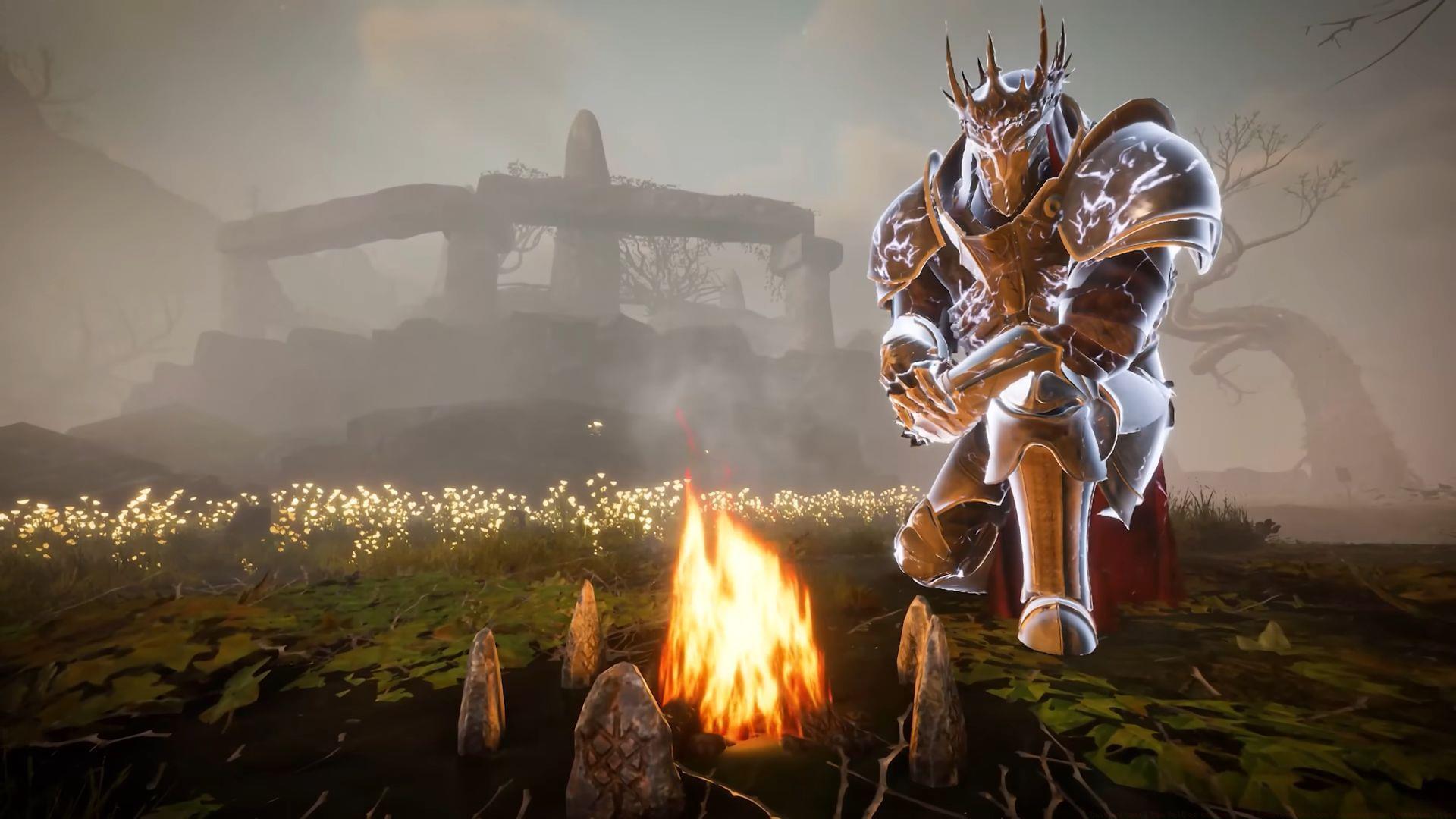
Tainted Grail The Fall of Avalon launched across PlayStation 5, Xbox Series consoles, and PC via Steam on May 23, 2025, introducing players to a dark fantasy first-person RPG experience. While cloud saving provides basic protection, experienced PC gamers understand that manual save file management offers crucial advantages for backup security, mod compatibility, and troubleshooting progression issues that cloud systems might not resolve.
Understanding your save file locations becomes particularly important when dealing with game-breaking bugs, attempting to share progress between different installations, or when preparing for major game updates that might conflict with existing saves. Unlike console versions where save management is largely automated, PC gaming empowers players with direct file system access—but this power requires knowledge to use effectively without risking data loss.
Primary Save File Location: Step-by-Step Access Guide
The primary save directory for Tainted Grail The Fall of Avalon follows a specific pattern that includes a randomly generated ten-digit folder identifier. This randomization helps prevent save file conflicts but makes manual navigation slightly more challenging than games with static paths.
For efficient access, press Windows + R simultaneously to open the Run dialog, then paste the exact path while replacing [YourUsername] with your actual Windows account name. Seasoned players recommend copying the path directly from this guide to avoid typographical errors that could lead to navigation failures. The randomization means each installation creates a unique folder, so you cannot simply memorize a static location across different systems or after reinstalls.
File Explorer search provides an alternative approach: paste the path into the address bar or search field, ensuring you include the backslashes precisely as shown. Many users find this method more intuitive than the Run dialog, especially when they need to browse surrounding folders for configuration files or logs.
If the AppData folder remains invisible despite correct path entry, you’ve encountered Windows’ default hidden system folder protection. Navigate to View → Options → Change folder and search options → View tab, then select “Show hidden files, folders, and drives” while deselecting “Hide protected operating system files” temporarily. Experienced modders often keep these visible permanently for easier game file management across multiple titles.
Also read: Tainted Grail The Fall of Avalon: Dead as Dreams quest walkthrough
Configuration Files: Advanced Game Customization
Advanced customization requires accessing the game’s configuration directory, which stores settings that extend beyond the in-game options menu. This separate location allows for finer control over performance parameters and visual fidelity adjustments.
Also read: Tainted Grail The Fall of Avalon: All available platforms and PC system requirements
Notepad++ or Visual Studio Code often serve better than basic Notepad for configuration editing, as they provide syntax highlighting for formats like JSON, YAML, or XML—common structures for modern game config files. These editors help identify nested structures and prevent formatting errors that could render settings unreadable by the game engine. Before modifying any values, identify whether the file uses key-value pairs (setting=value) or structured data formats, as incorrect formatting will prevent proper loading.
The configuration folder typically controls advanced rendering options like shadow cascade resolutions, texture streaming budgets, LOD transition distances, and post-processing effect quality levels that aren’t exposed through standard settings. Performance-conscious players can adjust these to balance visual quality against frame rate stability, particularly useful for maintaining smooth gameplay on mid-range hardware. Specific settings to investigate include volumetric fog quality, screen-space reflection resolution, and ambient occlusion sampling rates—all significant performance factors in Unreal Engine titles like Tainted Grail.
Always generate a backup copy of original configuration files before implementing changes. Create a “Backup” folder within the config directory and timestamp your copies (e.g., “GraphicsConfig_Original_20250523.xml”). This practice enables quick restoration if tweaks cause instability or visual artifacts. Beginners should modify only one setting at a time, testing thoroughly between changes to isolate any problematic adjustments.
Also read: All Tainted Grail The Fall of Avalon classes (Archetypes)
Practical Tips and Common Pitfalls
Dedicated gaming communities and modding forums represent invaluable resources for configuration optimization. Platforms like Nexus Mods, Reddit’s r/TaintedGrail community, and Awaken Realms’ official Discord often feature pre-tested configuration files tailored to specific GPU brands, CPU performance tiers, and desired visual styles. These shared presets can dramatically reduce trial-and-error time while providing professionally optimized baseline settings.
Avoid these common mistakes: never edit configuration files while the game is running (changes won’t save properly), don’t delete configuration files expecting regeneration (some games don’t recreate them automatically), and always note original values before modification. Particularly dangerous is altering engine-critical parameters like renderer selection or direct memory addresses—stick to documented settings from community guides unless you possess technical expertise.
For players experiencing crashes after config edits, the safest recovery method involves deleting the entire configuration folder while the game is closed. Most modern games regenerate default configs on next launch, though you’ll lose all customizations. Alternatively, verify game files through Steam (right-click game → Properties → Installed Files → Verify Integrity) to replace modified files with originals while preserving save data separately.
Consider creating a batch file or PowerShell script that automatically backs up your save and config folders before each gaming session. This advanced technique provides rolling backups without manual intervention, ensuring you never lose more than one session’s progress even if both cloud and local saves become corrupted—a rare but devastating scenario in lengthy RPGs.
Related Game Resources and Next Steps
Check out our other articles on the RPG:
Looking for Crossword hints & solutions? Check out latest NYT Mini Crossword Answers, LA Times Crossword Answers, and Atlantic Crossword Answers
Beyond file management, consider exploring Tainted Grail’s class system to understand how different archetypes interact with game mechanics, or investigate quest walkthroughs for challenging sections. The game’s multiple endings particularly benefit from save file management—keeping strategic backups before pivotal decisions allows experiencing different narrative branches without restarting entire playthroughs.
As you master save and configuration management, you’ll gain transferable skills applicable to most PC RPGs and Unreal Engine titles. These fundamentals empower you to troubleshoot issues independently, optimize performance for your specific hardware, and safeguard your gaming investments against data loss—making you a more resilient and knowledgeable member of the PC gaming community.
No reproduction without permission:Tsp Game Club » Tainted Grail The Fall of Avalon: Save location and how to access configuration files Master Tainted Grail's save management and configuration files with expert PC optimization tips