
Essential PC performance fixes and optimization strategies for The Precinct’s top-down police action gameplay
Understanding The Precinct’s Performance Challenges
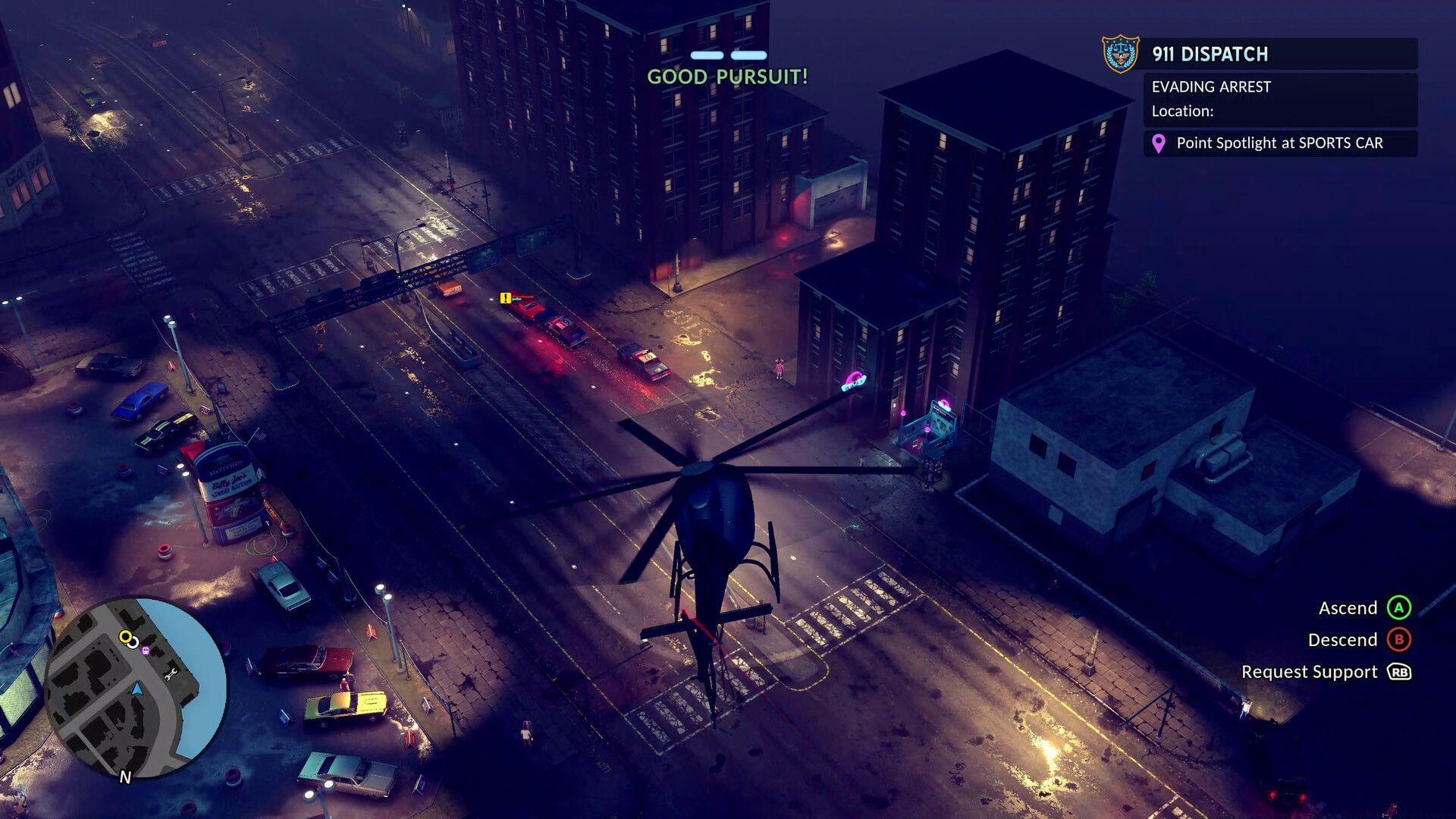
Experience the thrill of law enforcement in The Precinct, a nostalgic top-down action title that channels classic GTA vibes while putting you in the police officer’s uniform. Available exclusively on Steam for PC gamers, this title delivers an alternative perspective to traditional crime sandbox games. However, numerous players have reported technical difficulties affecting their gameplay experience.
Performance degradation manifests through various symptoms including frame rate instability, input latency, unexpected crashes, and visual artifacts. These issues typically stem from outdated system components, improper configuration settings, or corrupted installation files. Addressing these concerns requires a systematic troubleshooting approach.
Before implementing solutions, ensure your system meets the minimum requirements: Windows 10 64-bit, Intel Core i5-4460 or AMD FX-6300 processor, 8GB RAM, and NVIDIA GeForce GTX 760 or AMD Radeon R7 260x graphics card. Exceeding these specifications provides better performance headroom.
Graphics Driver Optimization Strategies
Outdated graphics drivers represent the most common culprit behind performance inconsistencies in The Precinct. Even premium graphics hardware cannot compensate for obsolete driver software, which creates compatibility gaps and optimization deficiencies.
NVIDIA Graphics Card Optimization:
AMD Graphics Card Procedure:
Advanced Driver Considerations: For experienced users, consider performing a clean installation using Display Driver Uninstaller (DDU) before installing new drivers. This eliminates residual files that might cause conflicts. Additionally, research game-specific driver optimizations on manufacturer forums for enhanced performance tuning.
System Configuration and Resource Management
Inadequate system resource allocation frequently causes performance constraints in The Precinct. The game may not receive sufficient processing priority or memory resources, resulting in suboptimal performance during intensive gameplay sequences.
Resource Management Best Practices: Before launching the game, close unnecessary background applications, especially web browsers, streaming software, and resource-intensive utilities. Use Task Manager (Ctrl+Shift+Esc) to identify and terminate processes consuming significant CPU or memory resources. Adjust Windows power settings to ‘High Performance’ mode to ensure consistent system performance. For systems with multiple monitor setups, disabling secondary displays during gameplay can free up additional GPU resources.
Game File Integrity and Validation
Corrupted or modified game files represent another prevalent source of performance problems in The Precinct. File integrity issues can manifest as frame rate inconsistencies, graphical anomalies, unexpected crashes, or loading failures.
Advanced File Management: If verification fails to resolve issues, consider completely uninstalling and reinstalling the game. Before reinstalling, manually delete any remaining game folders in your Steam directory. For persistent issues, check your storage device for errors using CHKDSK or similar utilities, as disk corruption can affect game performance.
Advanced Performance Enhancement Techniques
Beyond fundamental troubleshooting, several advanced techniques can further optimize The Precinct’s performance on PC systems. These methods address underlying system configuration and resource allocation challenges.
Graphics Settings Optimization: Within the game’s video settings, reduce shadow quality, anti-aliasing, and post-processing effects for immediate performance gains. Lowering resolution scale to 90-95% can provide significant frame rate improvements with minimal visual quality reduction. Disable motion blur and depth of field effects, as these consume substantial resources without enhancing gameplay.
System Resource Allocation: Use Windows Game Mode to prioritize gaming resources, though test this feature as it sometimes decreases performance in certain configurations. Adjust NVIDIA Control Panel or AMD Adrenalin settings to prefer maximum performance over quality. Increase virtual memory allocation if you experience stuttering during asset streaming.
Third-party Optimization Tools: Applications like MSI Afterburner with RivaTuner Statistics Server allow real-time performance monitoring and frame rate limiting. Specialized game optimizers can automatically configure system settings for optimal gaming performance. Always download such tools from official sources to avoid malware risks.
Also Read: Is The Precinct a multiplayer game?
For additional gaming news and comprehensive guides, continue visiting Sportskeeda’s gaming section regularly.
No reproduction without permission:Tsp Game Club » The Precinct stuttering and crashing on PC: Possible fixes and reasons Essential PC performance fixes and optimization strategies for The Precinct's top-down police action gameplay