
TL;DR
- Secure Boot is mandatory for Battlefield 6’s Javelin anti-cheat system on PC
- Most modern PCs support Secure Boot, but verification is essential before gameplay
- Console players are exempt from Secure Boot requirements entirely
- Proper configuration prevents cheating tools and ensures optimal gaming performance
- System compatibility checks should be performed before attempting BIOS modifications
Resolve Battlefield 6 Secure Boot configuration issues using our comprehensive troubleshooting methodology.
Encountering the frustrating Secure Boot is Not Enabled notification when attempting to start Battlefield 6? Many players face this obstacle. This security protocol forms an integral component of EA’s Javelin anti-cheat infrastructure, specifically engineered to prevent unauthorized cheating applications from initializing during system startup. Though inconvenient, this security barrier can be systematically overcome using proven techniques that accommodate diverse computer system configurations.
Battlefield 6 Technical Guide: Comprehensive Secure Boot Activation Protocol
Secure Boot represents more than a simple technical checkbox; it serves as the foundational security layer within EA’s multi-tiered defense against sophisticated cheating methodologies. Operating as a UEFI firmware security feature, Secure Boot validates that exclusively authorized software components execute throughout your computer’s boot sequence. This establishes a protected operational environment that the Javelin anti-cheat framework requires for proper functionality and cheat detection accuracy.
Gamers utilizing console platforms need not concern themselves with this requirement. Secure Boot enforcement applies exclusively to personal computer users. For PC enthusiasts, it’s crucial to understand that bypass options don’t exist—Battlefield 6 deliberately prevents launch attempts when Secure Boot remains deactivated. Fortunately, the majority of contemporary computer systems manufactured after 2012 incorporate Secure Boot compatibility as a standard feature.
Electronic Arts consistently implements rigorous anti-cheat protocols across their gaming portfolio. Earlier Battlefield installations would automatically terminate when detecting potentially questionable software, including legitimate controller utilities such as DS4Windows.
Before undertaking BIOS-level adjustments, we should comprehensively assess your current system configuration and pinpoint specific areas requiring modification.
Upon accessing System Summary, locate the “Secure Boot State” entry within the right-hand panel. This parameter will display either “On” or “Off” indicating your current configuration status. If the state shows “Unsupported,” your hardware may lack UEFI firmware compatibility, necessitating alternative approaches for Battlefield 6 gameplay.
For systems demonstrating Secure Boot capability but incorrect configuration, accessing your BIOS/UEFI settings becomes necessary. Restart your computer and repeatedly press the designated key during startup (commonly Delete, F2, F10, or F12) to enter firmware configuration. Navigation varies between manufacturers, but typically locates Secure Boot settings under “Security,” “Boot,” or “Authentication” tabs.

When modifying Secure Boot settings, ensure you simultaneously enable TPM (Trusted Platform Module) 2.0 functionality for optimal security compliance. Many modern games, including Battlefield 6, increasingly require both features for advanced anti-cheat protection. Document your original settings before making changes to facilitate restoration if necessary.
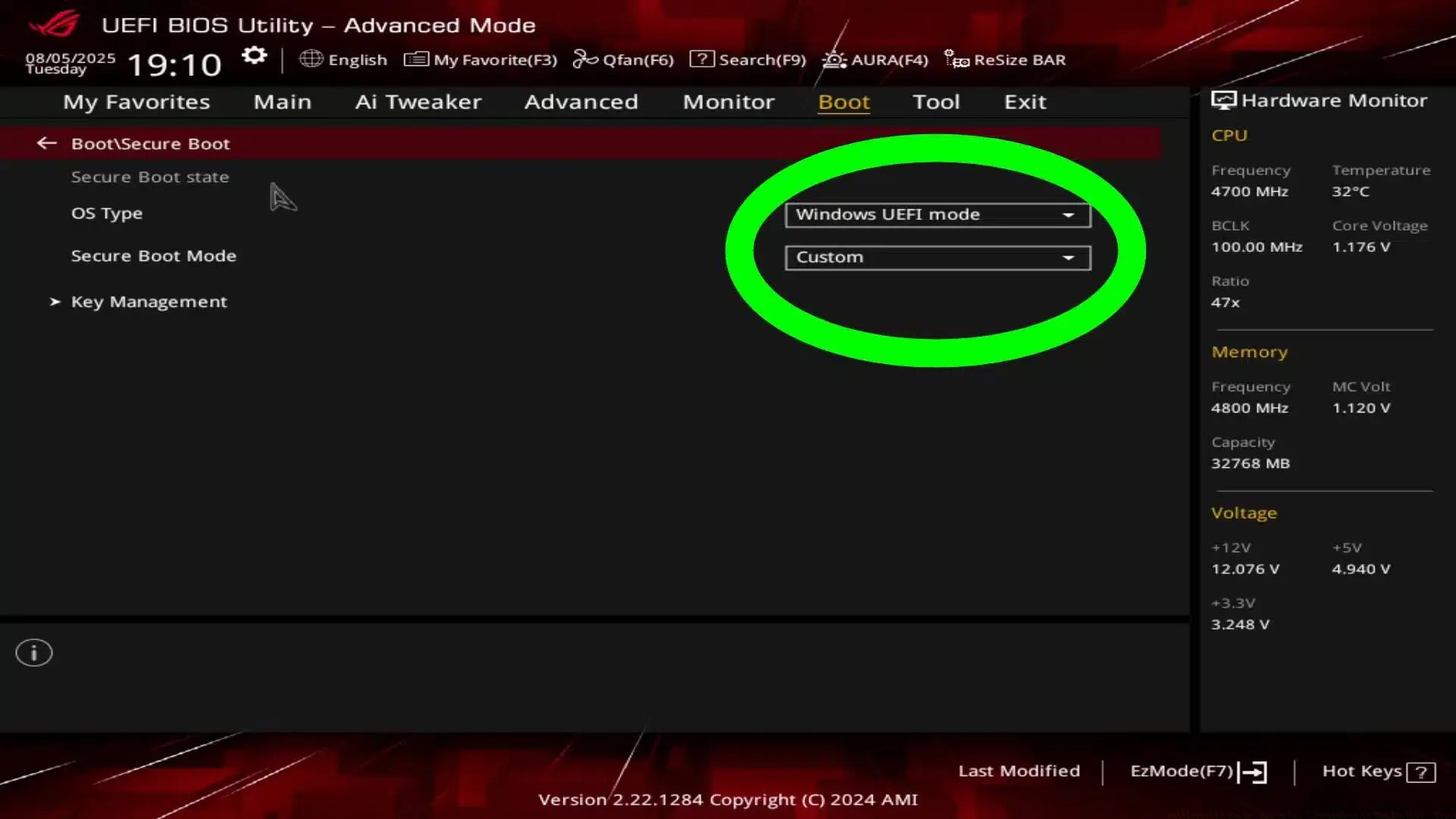
For computers manufactured before 2012 or those utilizing legacy BIOS systems, Secure Boot compatibility may be unavailable. In such scenarios, consider hardware upgrades or explore alternative gaming platforms that don’t mandate this security feature. Some players have successfully implemented UEFI firmware updates on compatible older hardware, though this carries potential system stability risks.
Beyond basic Secure Boot activation, optimize your Battlefield 6 experience by ensuring your system meets all Complete Guide requirements. Performance tuning can significantly impact gameplay smoothness, especially during intense Class Guide combat scenarios where frame rate consistency determines engagement outcomes.
Common configuration mistakes include forgetting to save BIOS settings before exiting, attempting to enable Secure Boot while in Legacy/CSM mode, or overlooking necessary firmware updates. Always create system restore points before modifying firmware settings and consider consulting your motherboard manufacturer’s documentation for model-specific instructions.
As anti-cheat technologies evolve, future Battlefield titles may introduce even stricter security requirements. Proactive gamers should consider investing in TPM 2.0-compatible hardware and maintaining updated system firmware to ensure compatibility with upcoming releases. Understanding these requirements now will streamline your transition to future Weapons Unlock content and game iterations.
Action Checklist
- Verify current Secure Boot status using System Information
- Access BIOS/UEFI settings during system startup
- Enable Secure Boot and TPM 2.0 in security settings
- Confirm changes and test Battlefield 6 launch
- Document settings for future reference and troubleshooting
No reproduction without permission:Tsp Game Club » Battlefield 6 Guide: How To Fix‘ SecureBoot is Not Enabled’ Error Master Secure Boot setup for Battlefield 6 with comprehensive troubleshooting and optimization strategies