
TL;DR
- Use borderless fullscreen for seamless alt-tabbing without performance loss
- Enable DLSS/FSR Quality mode with frame generation for massive FPS boost
- Set texture quality based on VRAM: 6GB=Low-Medium, 8GB=High, 12GB+=Ultra
- Keep shadow and reflection settings at medium to preserve competitive FPS
- Monitor 1% lows for stable performance during intense destruction sequences
Battlefield 6 immerses players in massive 128-player warfare with unprecedented environmental destruction. While strategic coordination and precise aiming are essential for victory, maintaining smooth frame rates during chaotic combat scenarios is equally critical. The game’s engine delivers impressive optimization out of the box, but extreme moments featuring collapsing structures and dense player concentrations can severely impact performance. This comprehensive optimization guide delivers the optimal graphics configurations for BF6 to maximize your competitive edge while preserving visual fidelity.
Battlefield 6 provides extensive visual customization options allowing players to balance appearance preferences with performance requirements. The game includes numerous camera adjustments and aesthetic modifications that won’t be covered here, as our primary objective focuses on eliminating low FPS, stuttering, or sudden frame drops that compromise gameplay responsiveness.
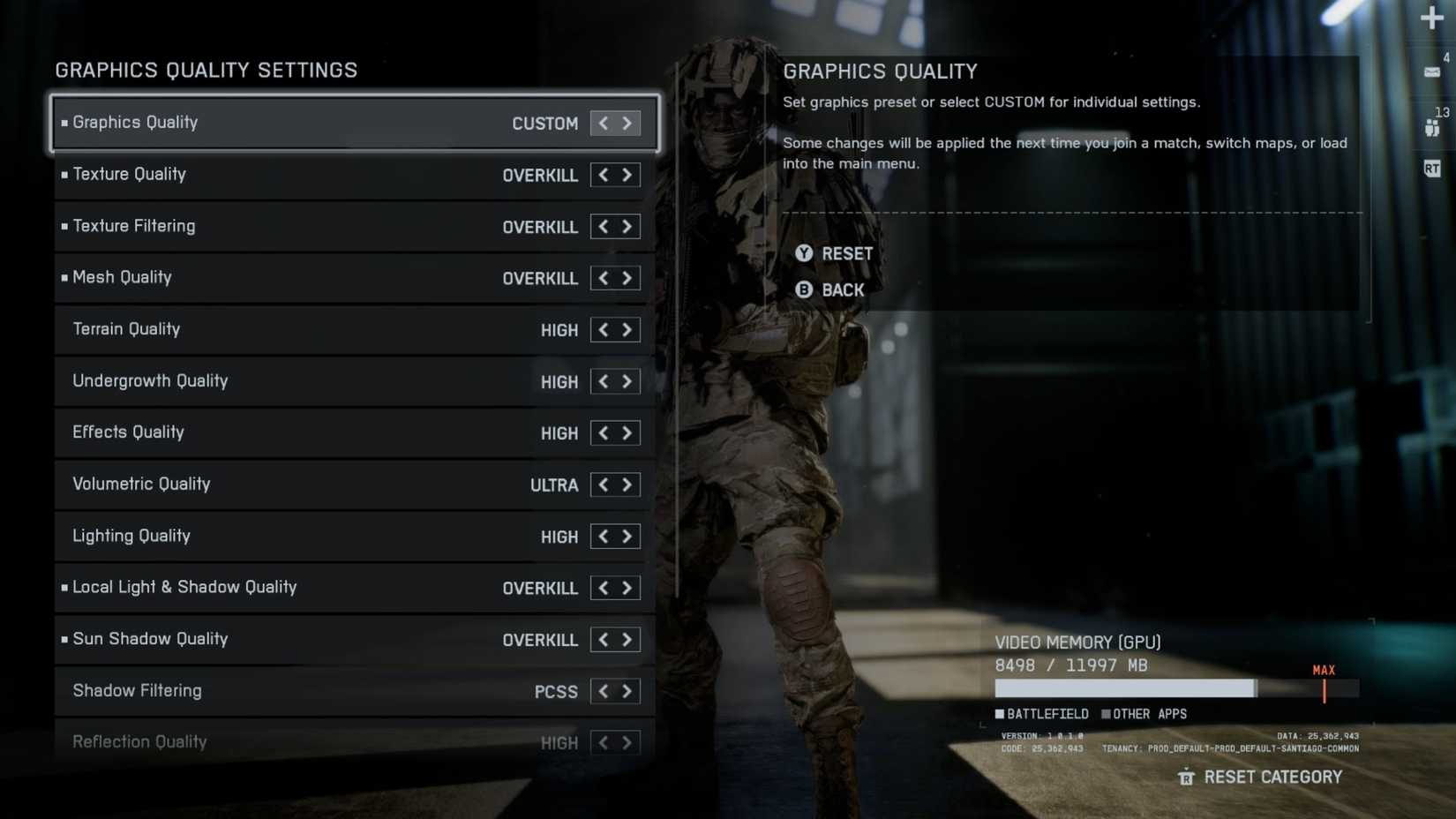
This guide presents the definitive settings configuration for Battlefield 6 on PC, designed specifically for competitive multiplayer dominance.
We’ll customize each individual setting systematically, eliminating the need for generic preset configurations that fail to address specific hardware capabilities.
Starting with sharpness adjustments, begin at 30% intensity and calibrate upward or downward based on personal preference. Excessive sharpening introduces artificial artifacts that degrade visual quality and can cause eye strain during extended gaming sessions.
|
Type |
Option Name |
Best BF6 Settings |
Notes |
|---|---|---|---|
|
Graphics |
Performance Preset |
Custom |
We’ll tweak individual settings, so there’s no need to choose a static preset for all the settings. |
|
Graphics Preset |
|||
|
Sharpness |
Player’s Preference |
It’s recommended to start from 30% sharpness and either increase or decrease from there. Oversharpening the game makes the visuals look bad. |
|
|
Display |
Fullscreen Mode |
Borderless |
Makes it easier to Alt+Tab out of the game, and there isn’t any performance reduction compared to using the exclusive full-screen mode. |
|
Fullscreen Resolution |
Native |
It’s best that players use the native resolution of their monitor to get the best visual experience in Battlefield 6. |
|
|
Aspect Ratio |
Auto |
– |
|
|
Vertical Sync |
Off |
– |
Pro Tip: Borderless fullscreen provides instant application switching capability while maintaining identical performance characteristics to exclusive fullscreen mode.
|
Type |
Option Name |
Best BF6 Settings |
Notes |
|---|---|---|---|
|
Advanced Graphics Settings |
Fixed Resolution Scale |
100% |
Lowering this scale will result in low-rest muddy textures. Keep it at 100%, and we’ll use an upscaler to get performance gains instead. |
|
Frame Rate Limited |
Off |
It’s best to keep your FPS uncapped to have the most responsive experience in the game, especially during gunfights. |
|
|
Dynamic Resolution Scale |
Off |
This option will automatically downscale your resolution during intense scenes to maintain high FPS. Definitely won’t be needing this. |
|
|
Nvidia Reflex Low Latency |
Enabled |
Reduce latency in-game that might be produced with upscalers or frame generation. Not sure if there’s AMD Anti-Lag as well, but if AMD users can spot that, make sure to use it. |
|
|
Anti-Aliasing |
Off |
Since we’ll use the Upscaling Technique below, this option will be greyed out automatically. But for players who want to attain the max visuals in the single-player campaign, go for DLAA or FSR Native AA. |
|
|
Upscaling Technique |
DLSS or FSR |
It’s best to use Nvidia DLSS or AMD FSR to get a performance boost in multiplayer and other competitive modes. |
|
|
Upscaling Quality |
Quality Mode |
Battlefield 6’s performance is stable enough that players can switch to quality mode and still get an FPS boost while maintaining high visual fidelity. |
|
|
Frame Generation |
On |
Frame Generation is one of the best settings for Battlefield 6 that you can use to get a huge performance uplift. Since your base FPS (before turning on FG) will be decent, you won’t be experiencing any noticeable input lag. |
|
|
Future Frame Rendering |
Players’ Preference |
Future Frame Rendering takes the Frame Generation feature a step further by making the gameplay even smoother, but at the cost of input lag. So, it’s recommended to try this setting out yourself and see if you’re not at a competitive disadvantage. |
Advanced Optimization Strategy: Modern upscaling technologies represent the most significant performance enhancement available. DLSS (Deep Learning Super Sampling) for NVIDIA hardware and FSR (FidelityFX Super Resolution) for AMD systems provide substantial frame rate improvements without sacrificing visual clarity. For competitive multiplayer sessions, prioritize these AI-powered solutions over traditional resolution scaling methods.
Common Mistake: Many players disable frame generation due to concerns about input latency, but in Battlefield 6, the baseline performance is sufficiently high that the additional smoothness outweighs any minimal latency impact.
|
Type |
Option Name |
Best BF6 Settings |
Notes |
|---|---|---|---|
|
Graphics Quality |
Texture Quality |
GPU VRAM Dependent |
Low-Medium: 6GB VRAM, High: 8GB VRAM, Ultra: 12GB VRAM, Overkill: 16GB VRAM |
|
Texture Filtering |
Overkill |
It does not impact CPU or GPU performance that much, but improves texture quality significantly. |
|
|
Mesh Quality |
High |
Improves the level of detail for environments, excluding other players or vehicles. High is a sweet spot between quality and performance. |
|
|
Terrain Quality |
Medium |
Will control how the ground surfaces with rocks or grass look in Battlefield 6, and medium is the best setting preset here for performance. |
|
|
Undergrowth Quality |
|||
|
Effects Quality |
High |
||
|
Volumetric Quality |
High |
Battlefield 6 features some jaw-dropping effects when buildings get hit by explosives and crumble, and an aerial vehicle shoots out flares. Setting it to low will help you attain some FPS, but will lower the visual fidelity of the aforementioned effects. |
|
|
Lighting Quality |
GPU VRAM Dependent |
6–8 GB VRAM: Low, 12GB+ VRAM: High |
|
|
Local Light & Shadow Quality |
High |
One of the most intensive settings here, and it will balance the look of shadows and local lighting in all BF6 maps. |
|
|
Sun Shadow Quality |
Medium |
The medium preset for Sun Shadow Quality looks good enough and will also boost FPS significantly. For players who have performance to spare, they can go for Ultra. |
|
|
Shadow Filtering |
PCF |
While PCSS (Percentage-Closer Soft Shadows) gives a realistic feeling to shadows produced in-game, PCF (Percentage Closer Filtering) is a much more performance-friendly option for most players. |
|
|
Reflection Quality |
Medium |
Another one of the most taxing settings on Battlefield 6’s performance & GPU VRAM on PC, which should be kept at medium to preserve stable FPS. |
|
|
Screen Space Reflections (SSR) |
Low |
SSR mainly handles the light reflections bounced off different objects in the maps. This can cause FPS drops in certain indoor environments with an abundance of objects with reflective surfaces. |
|
|
Post Process Quality |
Ultra |
It does not impact the FPS a lot, but it will improve the look of any post-processing effects you have enabled, like DOF, bloom, or motion blur. |
|
|
Screen Space AO (Ambient Occlusion) & GI (Global Illumination) |
GTAO High |
GTAO is the most performance-friendly option out of the bunch, as SSGI will simulate indirect lighting, which is a taxing technique. |
|
|
High Fidelity Objects Amount |
High |
Improves the animation and visual quality of other players and vehicles on the screen. High is a sweet spot between graphics and performance. |
Performance Analysis: These optimized configurations underwent rigorous testing on high-end gaming hardware featuring Intel i9-14900HX processor, NVIDIA RTX 4080 graphics, and 32GB system memory. The resulting frame rates consistently maintained 150–170 FPS averages, with 1% minimums in densely populated multiplayer zones reaching 120 FPS, demonstrating the development team’s commitment to performance optimization.
VRAM Allocation Strategy: Texture quality settings directly correlate with your graphics card’s video memory capacity. For optimal performance matching, reference our comprehensive Battlefield 6 Complete Guide for detailed hardware recommendations.
Advanced Performance Monitoring: Beyond basic FPS counters, track your 1% low frame rates during intense combat sequences featuring environmental destruction. These moments typically produce the most significant performance drops and should guide your final adjustments.
Setting Priority Framework: When fine-tuning for competitive advantage, prioritize responsiveness over visual fidelity. The game’s optimized architecture allows players to enhance certain visual elements if prioritizing single-player immersion over multiplayer performance.
Common Configuration Errors: Many players mistakenly enable dynamic resolution scaling alongside AI upscalers, creating conflicting image reconstruction processes that can introduce artifacts and input latency.
Weapon Performance Integration: Your graphical configuration directly impacts target acquisition and tracking precision. For comprehensive weapon optimization strategies, consult our detailed BF6 Weapons Unlock Guide to maximize your combat effectiveness.
Class-Specific Considerations: Different BF6 Class Selection Guide provides additional performance considerations based on specialized roles and engagement distances.
Performance Validation: After implementing these settings, join a full 128-player Conquest match to verify stability during maximum intensity scenarios.
Action Checklist
- Configure display settings: Borderless fullscreen, native resolution, V-Sync off
- Enable DLSS/FSR Quality mode with frame generation activated
- Set texture quality based on GPU VRAM capacity
- Adjust shadow and reflection settings to medium for optimal performance balance
- Test configuration in 128-player Conquest match, monitoring 1% low FPS
No reproduction without permission:Tsp Game Club » Battlefield 6 Optimized Graphics Settings for PC Optimize Battlefield 6 graphics settings for maximum FPS while maintaining visual quality in intense multiplayer battles