
Complete troubleshooting guide for Battlefield RedSec installation errors with actionable fixes and optimization tips
Understanding the RedSec Installation Error
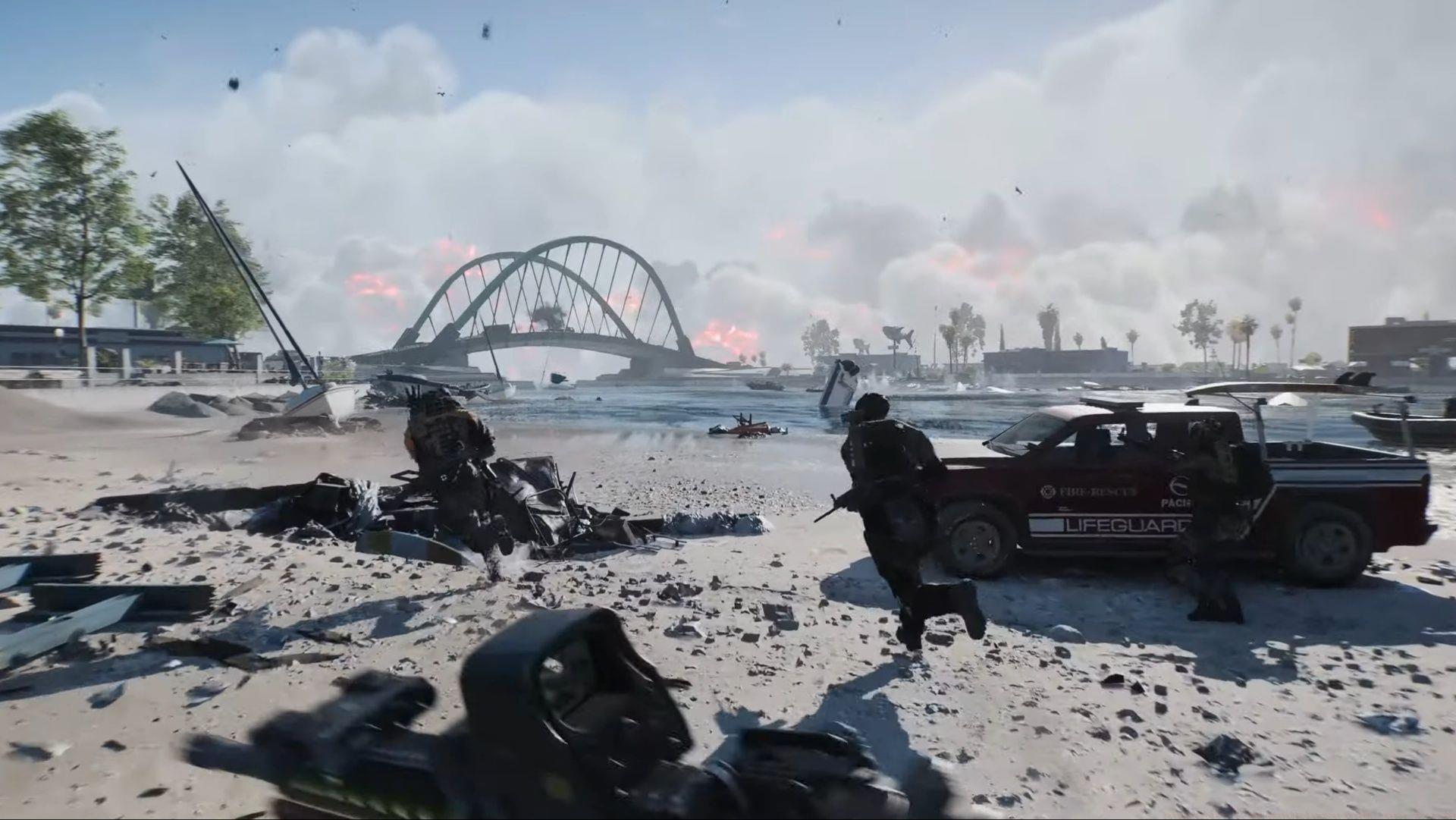
Battlefield RedSec has recently launched, and numerous players who previously installed Battlefield 6 are encountering the frustrating “not installed in your system” notification. This specific problem exclusively impacts gamers who owned the base BF6 title before acquiring RedSec. Following the Season 1 update installation and attempting to access the battle royale component, the error message becomes visible.
This installation conflict arises because the system fails to recognize RedSec as a properly integrated component when Battlefield 6 was installed first. The game client doesn’t automatically detect the battle royale module despite both products sharing the same ecosystem.
If you exclusively downloaded the standalone Battlefield Battle Royale/RedSec version without the complete BF6 experience, you’ll completely avoid this technical complication. The issue stems from legacy installation registries conflicting with new content deployments.
Step-by-Step Fix: Manage Files Solution
When the “RedSec is not installed on your system” notification appears during gameplay, you’ll notice an interactive option beneath it titled Manage Files. Selecting this directs you to the file management interface, where you must identify and activate the Battlefield RedSec installation toggle.
The interface will display RedSec as Not Installed—simply engage the option to initiate the download sequence. File sizes typically range around 8 GB, though this may fluctuate based on your region and previous updates. After the download concludes fully, perform a complete game restart to activate the battle royale functionality properly.
Critical Tip: Ensure you have at least 15GB free space before downloading to accommodate temporary files during installation. Pausing other downloads during this process prevents corruption and ensures faster completion.
Avoid interrupting the download once initiated, as partial installations may require complete re-downloading. Monitor your network stability—wired connections provide more reliable installation than wireless during large file transfers.
Advanced Troubleshooting for Persistent Issues
Should you experience additional technical problems after launching BF RedSec, including sudden application crashes or failure to start entirely, potential causes include file corruption or obsolete hardware drivers.
Begin by verifying your graphics drivers current status. As this represents a newly released title, maintaining updated display drivers guarantees optimal performance without unexpected interruptions. Visit your GPU manufacturer’s website directly for the latest certified drivers rather than relying on Windows Update.
When files become corrupted, validating file integrity becomes essential. This diagnostic procedure identifies and repairs any compromised game components. You can authenticate game files through both Steam and EA desktop applications. For comprehensive instructions, reference our dedicated Battlefield RedSec Crashing on PC troubleshooting guide.
Performance Optimization: Beyond basic fixes, adjust in-game settings for better stability. Lower shadow quality and disable ray tracing temporarily to identify if specific graphical features cause instability. Monitor temperatures during gameplay—overheating can trigger crashes that mimic installation errors.
Proactive Prevention Strategies
Also read: BF RedSec weapon tier list (ranked from best to worst)
For the latest Battlefield news and guides, be sure to check the links below:
To prevent future installation conflicts, always install game components in recommended sequences. When both Battlefield 6 and RedSec are available, install the base game first followed by supplementary modes. Maintain regular system maintenance including disk cleanup and driver updates before major game patches deploy.
Create system restore points before significant game updates, enabling quick recovery if compatibility issues emerge. Monitor official Battlefield communication channels for acknowledged issues and hotfix announcements—developers often release rapid solutions for widespread installation problems.
Consider using SSD storage for Battlefield titles to reduce loading-related errors and improve asset streaming during gameplay. Defragment HDDs regularly if using traditional hard drives, though SSDs should never be defragmented as it reduces their lifespan.
No reproduction without permission:Tsp Game Club » Battlefield RedSec “not installed in your system” error: How to fix Complete troubleshooting guide for Battlefield RedSec installation errors with actionable fixes and optimization tips