
TL;DR
- Configure graphics settings to low/off with 60 FPS cap for optimal competitive performance
- Update GPU drivers and Windows to latest versions to eliminate compatibility issues
- Perform clean boot to resolve Riot Client and Vanguard-related performance problems
- Verify system meets minimum requirements before troubleshooting complex issues
- Use fullscreen mode and disable V-Sync to reduce input lag significantly
Experiencing frustrating frame drops and stuttering during critical combat moments in 2XKO? While the game is designed to run smoothly on most gaming PCs, specific hardware configurations and software conflicts can create unexpected performance bottlenecks. Understanding the root causes—from outdated drivers to improperly configured graphics settings—is essential for achieving the fluid, responsive gameplay that fighting games demand.
Performance issues typically stem from three primary sources: graphics settings exceeding your hardware capabilities, outdated system software creating compatibility conflicts, and background processes interfering with game performance. This comprehensive guide provides proven optimization strategies that address each of these problem areas systematically.
Many players mistakenly believe their powerful systems should handle maximum settings effortlessly, but fighting games like 2XKO require consistent frame timing above all else. Even minor fluctuations can disrupt combo timing and reaction windows, making optimization crucial for competitive play.
If you’re encountering persistent lag or consistent frame drops during 2XKO’s early access Season 0, the most likely culprit is graphics configuration that exceeds your system’s sustainable performance envelope. Even high-end systems can struggle when certain resource-intensive settings are enabled unnecessarily.
Navigate to Settings → Video and implement these carefully tested configurations to achieve optimal performance:
| Setting | Recommended Value |
|---|---|
| Screen option | Fullscreen |
| Resolution | Low |
| Max Framerate | Uncapped or 60 |
| Shader Quality | Low |
| Self Shadowing | Off |
| Bloom | Low |
| V-Sync | Off |
Pro Tip: While ‘Uncapped’ framerate might seem appealing, capping at 60 FPS provides more consistent performance and prevents GPU from overworking during less demanding scenes. The visual difference is negligible in a fighting game, but the performance stability is substantial.
After applying these settings, restart 2XKO completely and monitor your FPS counter. If performance remains suboptimal, proceed to our advanced system-level optimization techniques below.
When basic graphics adjustments fail to resolve performance issues, deeper system-level optimizations become necessary. These advanced techniques address underlying software conflicts and hardware configuration issues that commonly impact 2XKO’s performance.
1. Verify System Compatibility
Before investing significant time in complex troubleshooting, confirm your system meets 2XKO’s minimum requirements. Incompatible hardware components—particularly older GPUs and insufficient RAM—represent the most fundamental performance limitations.
2. Comprehensive Driver Updates
Assuming your hardware meets specifications, ensure both Windows and your graphics drivers are fully updated. Navigate to your GPU manufacturer’s control panel (NVIDIA Control Panel or AMD Adrenalin) and check for the latest game-ready drivers specifically optimized for 2XKO.
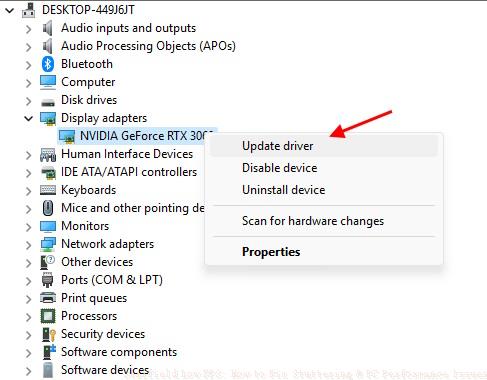
Common Mistake: Many players only update GPU drivers while neglecting critical Windows updates, creating unresolved system-level conflicts that manifest as in-game stuttering.
3. Clean Boot Procedure
If performance issues persist despite updated drivers and optimized settings, perform a clean boot to eliminate background process interference. This specifically addresses conflicts with Riot Client and Vanguard anti-cheat systems.
Execute these precise steps for optimal results:
- Press Windows Key + R simultaneously and type “msconfig” into the Run dialog
- Select the System Configuration utility → Services tab
- Check the “Hide all Microsoft services” checkbox then click “Disable All”
- Locate and re-enable “vgc” service specifically before restarting
- Complete the process by restarting your computer entirely
The clean boot process specifically targets performance degradation caused by Riot Client initialization sequences and Vanguard anti-cheat verification overhead. By isolating these services from competing background processes, you eliminate the most common source of persistent stuttering in 2XKO.
Advanced Optimization: For competitive players seeking every performance advantage, consider these additional tweaks:
- Power Management: Set Windows power plan to “High Performance” and configure GPU settings to prefer maximum performance
- Background Applications: Disable Discord overlay, streaming software, and other gaming utilities during ranked sessions
- Temperature Monitoring: Use tools like MSI Afterburner to ensure your GPU isn’t thermal throttling during extended play sessions
- Input Lag Reduction: Combine these settings with a gaming monitor’s highest refresh rate for minimal delay
These comprehensive optimization strategies represent the most effective approach to achieving buttery-smooth performance in 2XKO. The combination of optimized in-game settings, updated system software, and controlled background processes addresses performance issues comprehensively.
If you continue experiencing performance problems after implementing all recommended solutions, document your specific hardware configuration and issue details for community troubleshooting assistance.
Action Checklist
- Configure all graphics settings to Low/Off with 60 FPS cap in Video settings
- Update GPU drivers to latest version and install all Windows updates
- Perform clean boot via msconfig, disabling all non-Microsoft services except vgc
- Verify system meets minimum requirements and monitor temperatures during gameplay
No reproduction without permission:Tsp Game Club » Best 2XKO Graphics Settings for High FPS, Low Lag Expert guide to optimize 2XKO graphics settings for maximum FPS and eliminate lag completely