
TL;DR
- Prioritize performance over visuals for competitive advantage in Battlefield 6
- Optimize VRAM-heavy settings like Texture Quality based on your GPU capabilities
- Use 100-110 FOV for optimal situational awareness and target acquisition
- Disable motion blur and post-processing effects to reduce visual clutter
- Leverage DLSS/FSR upscaling and Nvidia Reflex for maximum responsiveness
In the fast-paced world of competitive shooters, every frame counts towards victory. Battlefield 6 continues this tradition with exceptional PC optimization that rewards proper configuration. While the game runs smoothly on mid-range systems, strategic settings adjustments can transform your gameplay experience from adequate to exceptional.
Our testing reveals that Battlefield 6 delivers solid performance across diverse hardware configurations, but competitive players need more than just playable frame rates. The difference between 60 FPS and 120+ FPS becomes immediately apparent during intense firefights and vehicle combat scenarios.
Before diving into specific settings, assess your system against Battlefield 6’s requirements. Most modern gaming PCs with mid-range GPUs like the RTX 3060 or RX 6600 XT should achieve excellent results with our optimized configurations.
Graphics Configuration
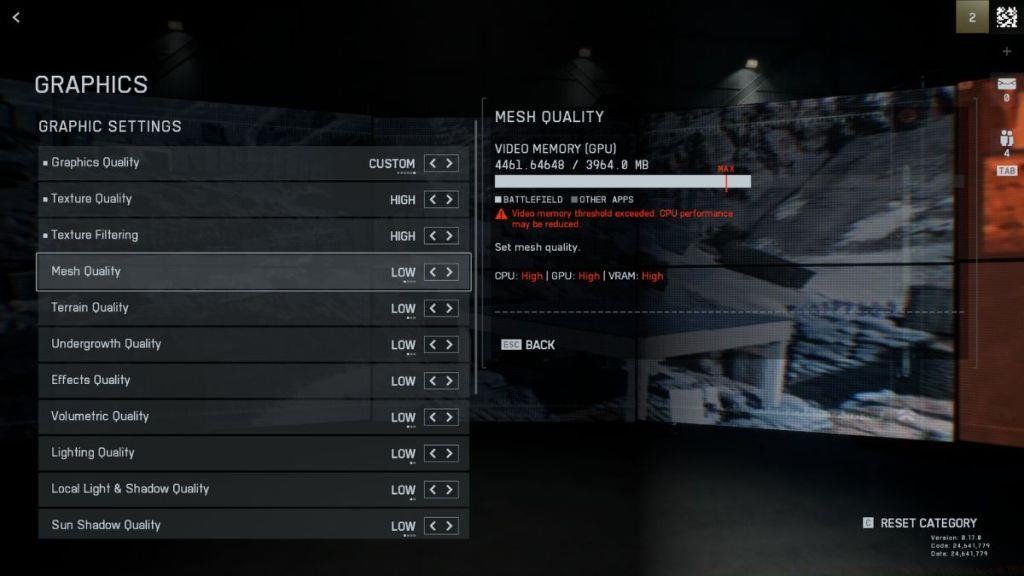
- Performance Preset: Custom
- Graphics Quality: Custom
- Graphics: Modify
- Brightness: 50
- Sharpness: 55
Critical Graphics Settings
- Texture Quality: High (adjust based on VRAM)
- Texture Filtering: High
- Mesh Quality: Low
- Terrain Quality: Medium
- Undergrowth Quality: Low
- Effects Quality: Low
- Volumetric Quality: Low
- Lighting Quality: Low
- Local Light & Shadow Quality: Low
- Sun Shadow Quality: Low
- Shadow Filtering: PCF
- Reflection Quality: Low
- Screen Space Reflections: Off
- Post Processing Quality: Low
- Screen Space AO & GI: Off
- High Fidelity Objects Amount: Low
These graphics settings strike an optimal balance between visual clarity and performance. Texture Quality remains at High to maintain visual fidelity for enemy identification, but if you’re experiencing VRAM limitations (especially on cards with 8GB or less), consider reducing this to Medium. The performance gains from lowering shadow and reflection settings are substantial while having minimal impact on competitive gameplay.
Common Mistake: Many players max out all settings thinking it improves visuals, but this often creates visual noise that actually hinders target acquisition. The reduced settings provide cleaner sightlines and eliminate distracting effects.
Camera Settings Optimization
- Field of View: 110
- Vehicle 3rd Person Field of View: 86
- Weapon Field of View: Wide
- World Motion Blur: 0
- Weapon Motion Blur: 0
- Camera Shake Amount: 20
- Chromatic Aberration: Off
- Vignette: Off
- Film Grain: Off
Field of View configuration significantly impacts your situational awareness in Battlefield 6. The recommended 100-110 range provides optimal peripheral vision without excessive distortion that can affect aiming precision. Higher FOV values make distant targets appear smaller, potentially reducing long-range engagement effectiveness.
Advanced Tip: For players transitioning from other shooters, start at 100 FOV and gradually increase to 110 over several matches to acclimate your muscle memory.
Motion blur settings should always be disabled in competitive gaming. These effects introduce visual lag and make tracking moving targets more challenging. Similarly, post-processing effects like Chromatic Aberration and Film Grain add visual noise that can obscure enemy movement and positioning cues.
Camera shake at 20% maintains some battlefield immersion while preventing excessive screen movement that could disrupt aim during explosions or environmental effects.
Advanced System Settings
- Fixed Resolution Scale: 100
- Frame Rate Limiter: Off/On if inconsistent frame rate
- Nvidia Reflex Low Latency: Enabled + Boost
- Upscaling Technique: DLSS for Nvidia GPUs / FSR for AMD GPUs
- Upscaling Quality: Balanced
- Nvidia Frame Generation: Off
- Future Frame Rendering: Off
- Performance Overlay: Off
Advanced settings provide the final optimization layer for competitive performance. Nvidia Reflex Low Latency with Boost significantly reduces system latency, providing more responsive controls that can make the difference in close-quarters engagements.
Upscaling technologies deliver substantial performance improvements with minimal visual quality loss. DLSS (Nvidia) and FSR (AMD) at Balanced settings typically provide 30-40% FPS increases while maintaining image clarity.
Performance Strategy: Disable Frame Rate Limiters unless experiencing severe frame time inconsistencies. Future Frame Rendering should remain disabled as it can increase input latency despite potentially higher frame rates.
For players seeking to master Battlefield 6’s mechanics, our Complete Guide covers advanced tactics and strategies beyond basic settings optimization.
These settings recommendations work synergistically with proper Class Guide selections to create a comprehensive competitive advantage.
Action Checklist
- Configure graphics settings according to VRAM limitations
- Set Field of View to 100-110 based on personal preference and monitor size
- Disable all motion blur and post-processing effects immediately
- Enable appropriate upscaling technology (DLSS/FSR)
- Activate Nvidia Reflex Low Latency for reduced input delay
- Test settings in practice range before entering competitive matches
No reproduction without permission:Tsp Game Club » Best Battlefield 6 PC Settings for High Performance & FPS Optimize Battlefield 6 performance with expert PC settings for maximum FPS and competitive advantage