
TL;DR
- Access controller settings via top-right cog icon and navigate using Triangle/Y button
- Set FOV between 105-110 for optimal situational awareness without distortion
- Configure aim sensitivity at 50 for infantry with uniform soldier aiming enabled
- Disable controller vibration and optimize deadzone settings for precision control
- Use alternate button mapping for improved movement and combat efficiency
Battlefield 6 RedSec delivers the intense multiplayer combat that defines the franchise, featuring expansive battlefields, comprehensive weapon systems, and fully destructible environments. As a free-to-play experience, mastering your controller configuration provides critical advantages in firefights, particularly through field of view adjustments and sensitivity calibration. This guide delivers professional-grade settings refined through extensive gameplay analysis to elevate your performance immediately.
Proper controller setup transforms your gameplay experience, offering enhanced target acquisition speed, improved movement fluidity, and superior situational awareness. Unlike many competitive shooters, Battlefield 6 RedSec’s complex control system requires strategic optimization across multiple categories to achieve peak performance.
Before implementing our expert recommendations, you’ll need to navigate to the controller configuration interface. Follow this precise sequence to access the full settings spectrum:
- Start Battlefield RedSec and select the settings cog positioned in the top-right corner of your screen.
- The settings panel displays multiple tabs – locate and choose the ‘Controller‘ option.
- Activate the ‘Edit Settings‘ interface by pressing Triangle on PlayStation or Y on Xbox controllers.
Within this comprehensive menu, you gain access to field of view customization, deadzone calibration, aim sensitivity parameters, and numerous advanced configuration options that dramatically impact gameplay effectiveness.
After extensive testing across various combat scenarios, we’ve developed these optimal controller settings. While individual preferences vary for sensitivity and FOV configurations, these values establish an excellent foundation for competitive play.
Gameplay Settings
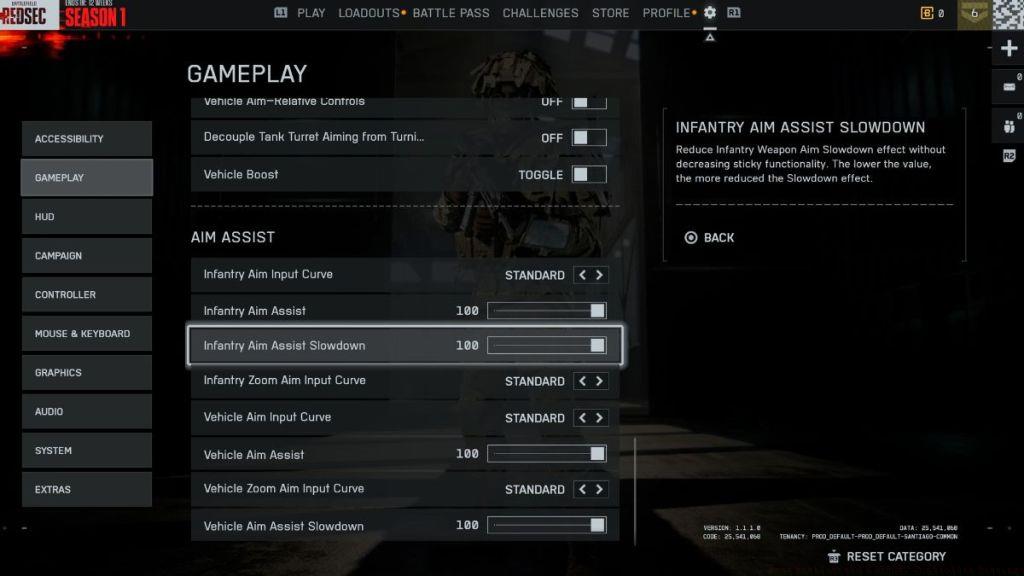
The gameplay settings section provides foundational configuration options that affect multiple gameplay aspects simultaneously:
- Global
- Hold/Toggle settings: Configure all actions as hold rather than toggle for faster response times during intense engagements.
- Capture Area Outline: Maintain this setting enabled to clearly identify objective boundaries during Conquest matches and other objective-based modes.
- Infantry
- Infantry aim sensitivity: 50 (provides balanced tracking and flick shot capability)
- Infantry mouse aim sensitivity: 20
- Double Tap Forward Sprint: Disable to prevent accidental activation during movement.
- Crouch toggle sprint: Stand
- Vault over sprint: Enable for seamless obstacle navigation while maintaining momentum.
- Double tap crouch for sprint slide: Activate to enhance movement versatility and evasive capabilities.
- Landing roll: Keep enabled to minimize recovery time after falls from elevated positions.
- Mount breakout: Instant (allows immediate disengagement from mounted positions)
- Interact & Reload: Prioritize Reload (ensures combat readiness over interaction in firefights)
- Invert demolition charge: Off
- Inventory visibility: Show
- Vehicle
- Vehicle aim sensitivity: 40
- Vehicle mouse aim sensitivity: 20
- Aircraft control sensitivity: 40
- Helicopter control sensitivity: 40
- Helicopter control assists: Disable for maximum control precision and advanced maneuver capability.
- Vehicle aim-relative controls: Off
- Decouple tank turret aiming from turning: Off
- Decouple aiming from turning (As Passenger): Off
- Vehicle Boost: Toggle
- Aim Assist
- Infantry Aim Assist: 100
- Infantry Aim Assist Slowdown: 100
- Infantry Aim Assist Zoom Snap: 100
- Vehicle Aim Assist: 100
- Vehicle Aim Assist Slowdown: 100
- Vehicle Aim Assist Zoom Snap: 100
Controller Settings
The standard control scheme works adequately for beginners, but switching to ‘Alternate’ configuration exchanges crouch and melee functions for superior combat flow and movement efficiency.
- Controller Vibration
- Controller vibration: Disable completely to eliminate controller feedback interference during precise aiming situations.
- Vibration intensity: 0
- Vibration mix: Default
- Controller Left Stick
- Center deadzone: 2 (minimizes stick drift while maintaining responsive movement)
- Axial deadzone: 6
- Max input threshold: 80
- Controller Right Stick
- Center deadzone: 2
- Axial deadzone: 6
- Max input threshold: 80
- Controller L2 and R2 Buttons
- L2 deadzone: 0
- L2 max input threshold: 100
- R2 deadzone: 0
- R2 max input threshold: 100
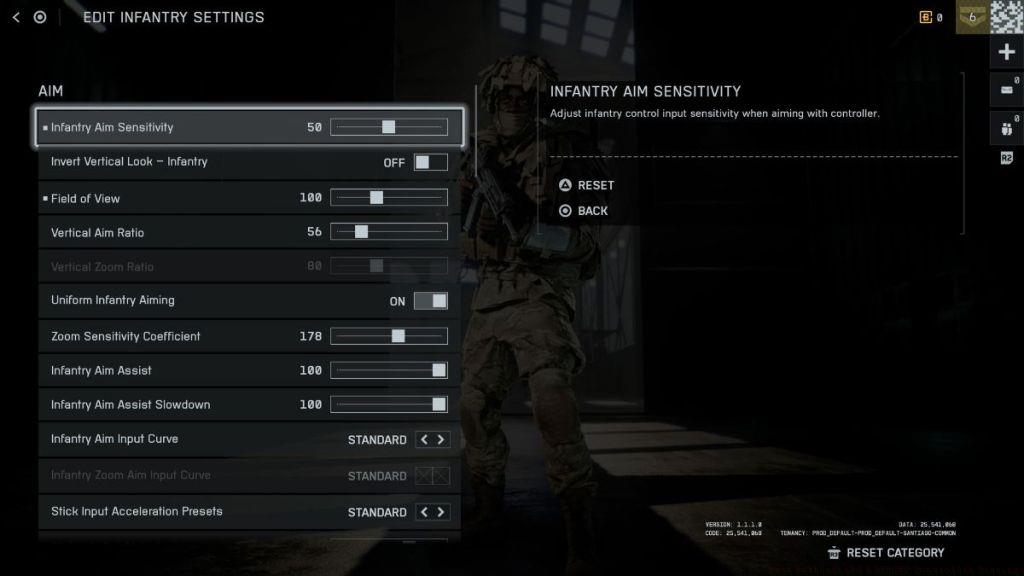
Infantry Settings
- Infantry Control Settings
- Infantry aim sensitivity: 50
- Invert vertical look – Infantry: Off
- Field of view: 105-110 (wider FOV reveals peripheral threats but may cause minor visual distortion)
- UNIFORM INFANTRY AIMING: Enable this critical setting to maintain consistent sensitivity across all zoom levels for muscle memory development.
- Zoom sensitivity coefficient: 178
- Infantry aim assist: 100
- Infantry aim assist slowdown: 100
- Infantry aim assist zoom snap: 0
- Soldier aim input curve: BF 1, BF 4
- Soldier zoom aim input curve: Standard
- Stick input acceleration preset: BF 1
- Aiming left/right acceleration: 0
- Movement
- Infantry sprint: Toggle
- Double tap forward sprint: Off
- Sprint: L3
- Crouch toggle sprint: Stand
- Vault over sprint: On
- Crouch slide: All
- Double tap crouch for sprint slide: On
- Zoom
- Infantry weapon zoom: Hold
- Zoom: L2/LS
- Steady scope: Hold
- Steady scope: L3/LS
- Vertical aim ratio: 56
- Vertical zoom ratio: 80
- Infantry zoom aim sensitivity: 90
- Zoom transition sensitivity smoothing: On
- 1.25x zoom aim sensitivity: 100
- Other
- Parachute Autodeploy: Skydive/Insertion
- Interact & Reload: Prioritize Reload
- Interacts: Toggle
- Skip Revive: Hold
- Request Revive: Toggle
- Invert Demolition Charge: Off
- Mount Breakout: Instant
- Mount Type: Side and Up
- Mount Presets: Combo
- Peek Type: Side and Up
Beyond the basic numerical settings, several advanced techniques can further enhance your Battlefield 6 RedSec performance. These pro-level adjustments address common gameplay issues and optimize controller responsiveness.
Pro Player Tips
Professional players consistently utilize specific controller configurations that maximize their competitive edge. Implement these advanced strategies:
- Deadzone Optimization: Start with center deadzone at 2-3 and axial deadzone at 5-6. Test for stick drift by lightly touching sticks without movement input – if your character moves, increase deadzone slightly until drift disappears.
- Sensitivity Layering: Maintain lower vehicle sensitivity (40) compared to infantry (50) to account for different movement speeds and engagement distances.
- Movement Configuration: Enable both vault over sprint and double tap crouch for sprint slide to create fluid movement chains that outmaneuver opponents.
- Aim Assist Strategy: Keep infantry aim assist at maximum (100) while disabling helicopter assists for precise aerial control.
Common Mistakes to Avoid
Many players undermine their performance through configuration errors. Avoid these common pitfalls:
- Overly High Sensitivity: While tempting for quick turns, sensitivity above 60 typically sacrifices aiming precision for most players.
- Vibration Interference: Controller vibration provides tactile feedback but introduces micro-disruptions during precise aiming. Disable completely for competitive play.
- Inconsistent Zoom Settings: Failing to enable uniform soldier aiming creates inconsistent muscle memory requirements across different optics.
- Improper FOV Selection: Field of view settings below 100 limit peripheral vision, while values above 110 can cause significant visual distortion and target size reduction.
- Neglecting Deadzone Calibration: Even new controllers can develop minor stick drift over time. Regularly test and adjust deadzone settings to maintain precision.
Performance Tweaks
For players seeking every possible advantage, these additional optimizations can provide marginal gains:
- Weapon-Specific Adjustments: After mastering these baseline settings, consider creating custom configurations for specific weapon classes and playstyles.
- Class Optimization: Different specialist roles may benefit from slightly modified sensitivity profiles.
These controller configurations establish a powerful foundation for Battlefield 6 RedSec dominance. Implement them systematically, adjusting gradually based on personal comfort and performance metrics.
Action Checklist
- Navigate to settings via top-right cog and access Controller tab
- Configure basic gameplay settings including hold actions and capture outlines
- Set infantry sensitivity to 50 and FOV between 105-110
- Calibration deadzone settings to eliminate stick drift while maintaining responsiveness
- Disable controller vibration and configure alternate button mapping
- Test settings in practice range and adjust sensitivity incrementally based on performance
No reproduction without permission:Tsp Game Club » Best Battlefield 6 REDSEC Controller Settings Master Battlefield 6 RedSec with optimized controller settings for competitive advantage and improved gameplay performance