
TL;DR
- Maintain stable 60 FPS by balancing texture quality with VRAM limitations
- Prioritize lighting and effects settings for optimal visual impact
- Disable motion blur and depth of field for improved responsiveness
- Update graphics drivers and optimize background processes for peak performance
- Use resolution scaling as primary performance boost for low-end systems
Elden Ring Nightreign has arrived, bringing fresh challenges for PC optimization enthusiasts. While the roguelite expansion maintains relatively modest system demands, FromSoftware’s signature frame pacing complications persist across hardware configurations. Performance dips frequently occur during panoramic vista viewing or when complex environmental elements overload rendering pipelines.
The engine struggles particularly with dynamic lighting transitions and particle effect density, creating noticeable frame rate instability during intense combat sequences. Understanding these technical limitations is crucial for achieving the coveted 60 FPS target that ensures responsive gameplay.
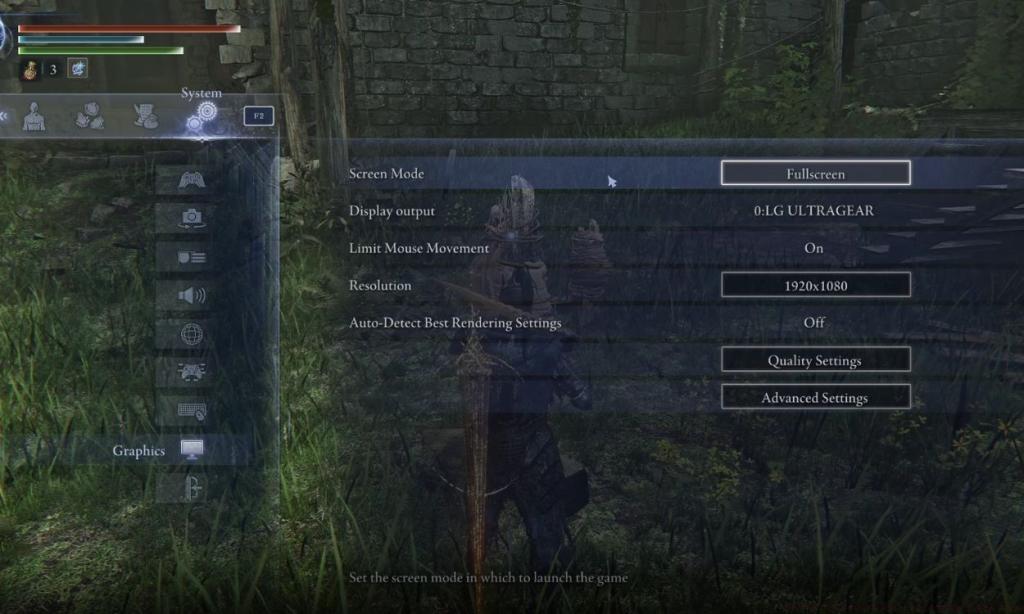
VRAM management becomes especially critical in Nightreign’s expanded environments, where high-resolution textures can quickly exhaust available video memory. This guide provides comprehensive optimization strategies to maximize both visual fidelity and performance stability.
For systems meeting or exceeding Nightreign’s recommended specifications, these carefully calibrated settings deliver exceptional visual quality while maintaining rock-solid 60 FPS performance:
- Display Resolution: Native monitor resolution for maximum clarity
- Texture Quality: High setting (monitor VRAM usage to avoid stuttering)
- Antialiasing Quality: High for smooth edge rendering without performance cost
- Depth of Field: High/Off depending on preference (disabling improves input responsiveness)
- Motion Blur: On/Off based on personal taste (recommend Off for competitive play)
- Lighting Quality: High to preserve atmospheric visual design
- Effects Quality: Medium to balance particle density with frame stability
- Reflection Quality: High for realistic environmental interactions
Texture quality deserves special attention – while High setting provides superior surface detail, it can consume significant VRAM. Systems with 8GB VRAM should monitor usage closely, as exceeding available memory causes severe performance degradation. Consider our Weapons Unlock guide for similar optimization principles applied to different game genres.
Lighting Quality at High preserves the carefully crafted mood and atmosphere that defines Nightreign’s visual identity, while Effects Quality at Medium prevents particle-heavy scenes from tanking your frame rate.
Budget and older systems require more aggressive optimization to achieve playable frame rates. The key lies in identifying settings that provide maximum visual return for minimal performance cost:
- Display Resolution: 1080p or lower with resolution scaling at 85-90%
- Texture Quality: Medium to prevent VRAM exhaustion
- Antialiasing Quality: Medium for acceptable edge smoothing
- Depth of Field: Off to eliminate post-processing overhead
- Motion Blur: Off for cleaner image and better responsiveness
- Lighting Quality: Medium as compromise between atmosphere and performance
- Effects Quality: Low to maintain stability during complex encounters
- Reflection Quality: Low or Medium depending on available resources
Resolution scaling proves particularly effective for low-end optimization. Reducing render resolution to 85% of native provides substantial performance gains with minimal visual degradation. This approach mirrors optimization techniques discussed in our Class Guide for maximizing efficiency in resource-constrained environments.
Common mistake: aggressively lowering all settings equally rather than targeting performance-heavy options specifically. Shadow quality and ambient occlusion have relatively minor impact compared to resolution and texture settings.
Beyond in-game settings, several system-level optimizations can significantly boost Nightreign’s performance:
Driver Configuration: Always install the latest graphics drivers, but consider using studio drivers for improved stability over game-ready versions if experiencing crashes. Adjust power management settings to prefer maximum performance in both NVIDIA Control Panel and AMD Adrenalin software.
Background Process Management: Disable unnecessary background applications, especially overlays from Discord, Steam, or recording software. These can consume valuable CPU cycles and memory bandwidth during gameplay.
Windows Optimization: Enable Game Mode in Windows settings, which prioritizes system resources for gaming applications. Adjust power plan to High Performance and disable fullscreen optimizations for the game executable.
For comprehensive optimization strategies across different gaming scenarios, explore our Complete Guide to system optimization techniques.
Advanced users can experiment with .ini file modifications, though these carry risk of instability. The most reliable gains come from balanced in-game settings combined with proper driver configuration.
Action Checklist
- Update graphics drivers to latest stable version
- Configure display resolution to native and texture quality based on available VRAM
- Disable motion blur and depth of field for improved responsiveness
- Set lighting to High and effects to Medium for optimal visual balance
- Optimize background processes and Windows power settings
No reproduction without permission:Tsp Game Club » Best PC Settings for Elden Ring Nightreign Optimize Elden Ring Nightreign graphics for smooth 60 FPS performance on any PC setup