
Comprehensive guide to troubleshoot and fix Broken Arrow’s loading screen errors with practical strategies
Understanding the Loading Screen Issue
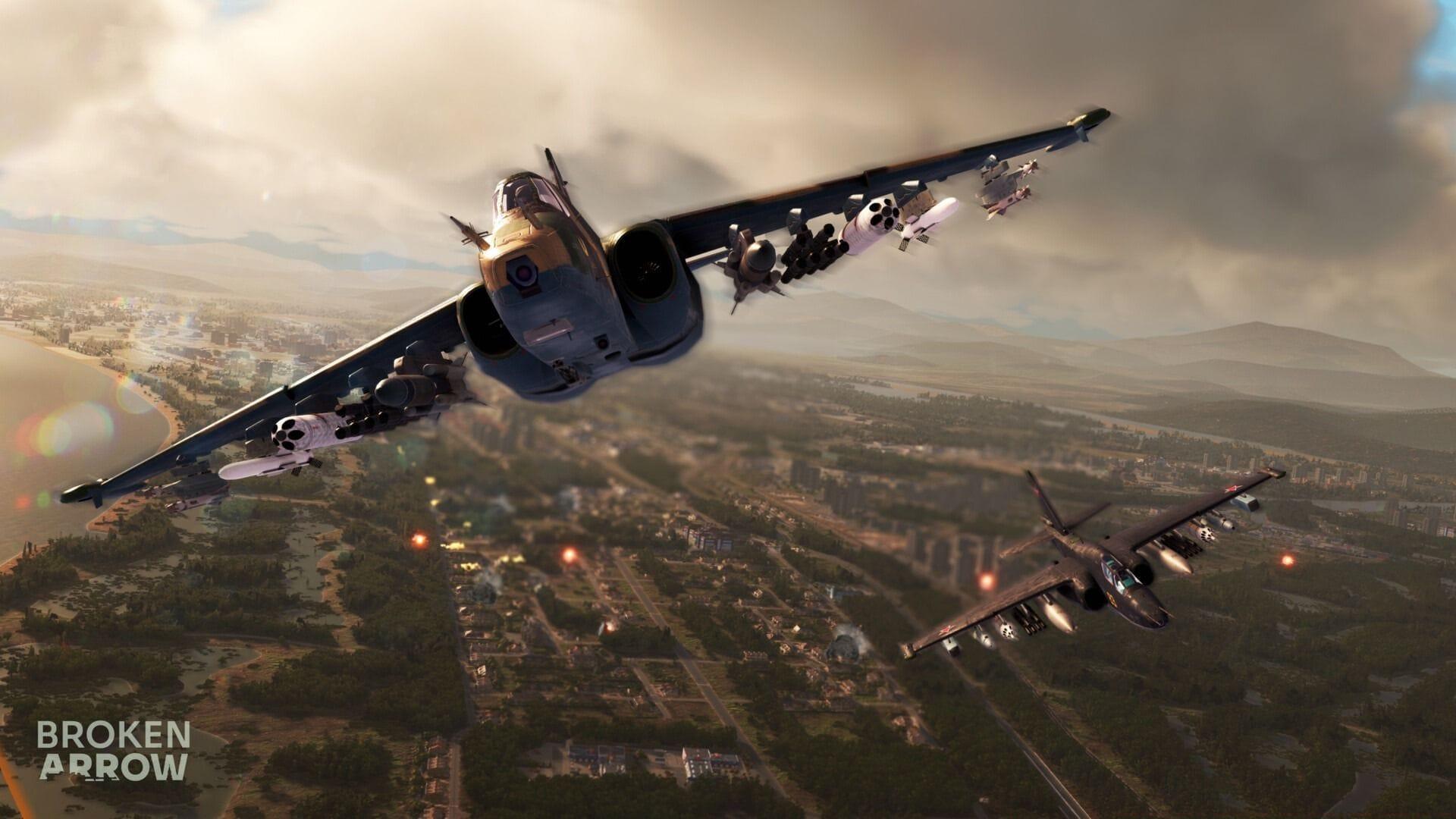
The persistent ‘Stuck on Loading Screen’ error has plagued Broken Arrow players since the game’s official launch on June 19, 2025. Community discussions across platforms like Reddit and Steam forums reveal widespread reporting of this issue, with initial quick fixes providing only partial relief. Many users continue experiencing infinite loading screens despite previous patches, indicating deeper technical challenges requiring comprehensive solutions.
Loading screen freezes typically stem from multiple technical factors including corrupted installation files, software conflicts, or system resource allocation problems. Understanding the root causes helps players implement targeted solutions rather than random troubleshooting attempts that waste time and increase frustration.
File Corruption Solutions
Corrupted game files represent the most frequent culprit behind loading screen failures in PC gaming. During download or installation processes, critical game components can become damaged due to network interruptions, storage issues, or antivirus interference. These corrupted elements prevent proper game initialization, manifesting as endless loading screens or complete startup failures.
Steam’s integrated file verification system provides the most reliable solution for addressing file corruption. Follow this comprehensive procedure:
- Access your Steam library interface and locate Broken Arrow in your games list
- Right-click the game title and select Properties from the context menu, or use the left panel navigation for alternative access
- Navigate to the Installed Files section and initiate the ‘Verify integrity of game files’ function
- Allow Steam to complete its diagnostic scan, which automatically replaces problematic files with fresh copies from the distribution servers
This verification process typically resolves 60-70% of loading screen issues according to community reports. For persistent problems, consider reinstalling the game entirely or checking your storage drive for bad sectors using built-in Windows tools like CHKDSK.
Performance Optimization
Background applications and system optimization settings frequently interfere with Broken Arrow’s resource allocation. Overlays from communication platforms like Discord, performance monitoring tools, and peripheral management software (such as Razer Synapse) can create conflicts that disrupt the game’s loading sequence. These programs often operate with elevated system privileges that compete for the same resources Broken Arrow requires during initialization.
Implement this systematic background process management strategy:
- Launch Windows Task Manager using Ctrl+Shift+Esc for direct access to running processes
- Methodically review applications categorized under ‘Background processes’ and ‘Windows processes’
- Prioritize closing communication overlays, hardware monitoring utilities, and any non-essential system enhancements
- Consider creating a dedicated gaming profile using system configuration tools to automate this process
After terminating conflicting applications, restart Broken Arrow to test loading functionality. For advanced users, adjusting GPU driver settings to prioritize performance over quality during loading sequences can provide additional stability.
Advanced Troubleshooting
When basic solutions prove insufficient, comprehensive system resets often resolve deeper technical conflicts. This approach addresses multiple potential issues simultaneously, including memory allocation errors, network configuration problems, and temporary file corruption. The ‘turn everything off and on again’ methodology remains effective because it clears system caches, resets resource allocation, and re-establishes network connections.
Execute this complete restart sequence for maximum effectiveness:
- Fully close Broken Arrow and ensure the process has terminated in Task Manager
- Perform a complete Windows shutdown and restart rather than a simple reboot
- Power cycle your network router by unplugging it for 30 seconds before reconnecting
- Launch Steam in offline mode initially to test basic functionality before reconnecting to online services
If these advanced measures still don’t resolve the loading screen problem, the issue likely requires developer intervention. Monitor official Broken Arrow communication channels for patch announcements and consider submitting detailed bug reports including your system specifications and error logs to assist the development team.
No reproduction without permission:Tsp Game Club » Broken Arrow “Stuck on Loading Screen” error: Possible fixes, reasons, and more Comprehensive guide to troubleshoot and fix Broken Arrow's loading screen errors with practical strategies