
TL;DR
- Switch to Precision shooting and Advanced Defending for maximum control
- Configure Semi passing assistance for through balls and Assisted for crosses
- Optimize right stick switching with Player Relative reference and sensitivity 4
- Disable vibration feedback and analog sprint for cleaner input response
- Practice new settings in Squad Battles before competitive online matches
EA FC 26 elevates competitive gaming to new heights, particularly when you dive into online modes like Ultimate Team. Whether competing in Weekend Champions or Division Rivals, securing victories demands leveraging every available advantage, beginning with meticulously optimized controller configurations. The game features extensive customization options that can fundamentally alter gameplay mechanics and input responsiveness. This comprehensive guide delivers the essential FC 26 controller settings you must implement to dominate the pitch.
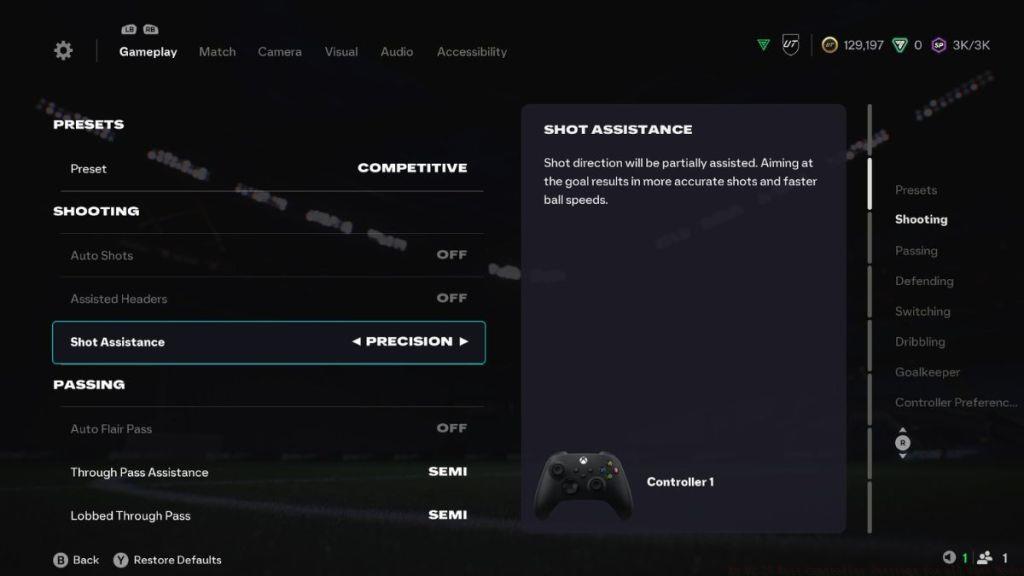
Discover our expert recommendations for optimal FC 26 controller configurations below. Certain adjustments, including transitioning to Precision shooting mechanics and Advanced Defending systems, may necessitate dedicated practice sessions to achieve proficiency. However, these strategic modifications will significantly enhance your command over on-field actions and decision-making capabilities.
Shooting and Passing
Precision Shooting represents the most significant advancement in EA FC 26’s offensive mechanics. Unlike traditional shooting systems, Precision requires manual aiming within a smaller target area, rewarding skilled players with dramatically improved shot placement and goal-scoring consistency. This setting separates elite attackers from average players by enabling pinpoint accuracy when targeting specific corners of the goal.
- Preset: Competitive
- Shooting: Precision
- Through Pass Assistance: Semi
- Lobbed Through Pass: Semi
- Ground Pass Assistance: Assisted
- Cross Assistance: Assisted
- Lob Pass Assistance: Assisted
- Pass Receiver Lock: Late
- Precision Pass Stability: Normal
Common Mistake: Many players immediately switch all passing settings to Manual, overlooking the strategic balance between control and consistency. Semi through passes provide the ideal middle ground, allowing directional influence while maintaining reasonable pass completion rates during high-pressure situations.
Defending
Advanced Defending transforms your defensive capabilities by introducing manual tackling controls and positioning requirements. This system replaces the automated defending of previous titles, demanding precise timing and spatial awareness to successfully dispossess opponents.
- Clearance Assistance: Directional
- Defending: Advanced Defending
- Professional Fouls: Off
- Pass Block Assistance: On
Switching
Player switching configuration critically impacts defensive organization and transition play. Optimal settings ensure seamless control transitions during counter-attacks and organized defensive shapes.
- Auto Switching: On Air Balls and Loose Balls
- Auto Switching Move Assistance: None
- Right Stick Switching: Classic
- Right Stick Switching Reference: Player Relative
- Right Stick Switching Sensitivity: 4
- Next Player Switching: Classic
- Reaction Time Calibration: Off
- Player Lock: On
Pro Tip: Setting Right Stick Switching Sensitivity to 4 provides the perfect balance between responsiveness and precision, preventing accidental player selection during intense defensive sequences.
Dribbling
- Simplified Skill Moves: Based on Personal Preference
Simplified Skill Moves introduces a revolutionary accessibility feature that dramatically simplifies executing advanced dribbling techniques. By manipulating the right analog stick, your controlled player performs context-appropriate skill moves determined by their SM star rating. While incredibly convenient, this setting restricts your available move repertoire to just nine variations from over fifty options in the game. Consequently, if you’ve mastered the traditional input combinations, maintaining this option disabled preserves your full technical arsenal.
Goalkeeper
- Save Assistance: Assisted
- Camera Pan Speed: Default
Controller Preferences
- Analog Sprint: Off
- Trigger Effect: Off
- User Vibration Feedback: Off
Performance Optimization: Disabling vibration feedback and analog sprint eliminates potential input latency and controller vibration interference during critical gameplay moments. These adjustments ensure cleaner command execution when precision matters most.
Successfully integrating these controller configurations requires strategic implementation. Begin by practicing in Squad Battles or against the AI to acclimate to the new responsiveness and control schemes. Many players make the critical error of implementing all changes simultaneously during competitive matches, leading to performance degradation and frustration.
Practice Timeline: Allocate 3-5 hours across multiple sessions to develop muscle memory for Precision shooting and Advanced Defending. These mechanics demand significant adjustment periods but deliver substantial long-term performance improvements.
For those transitioning from other competitive games, remember that football simulations require different timing and spatial awareness than first-person shooters. The learning curve varies based on your previous experience with simulation sports titles.
Configuration Pitfall: Avoid the temptation to constantly tweak settings after single match losses. Consistency in configuration allows for proper adaptation and skill development.
Implementing these controller settings systematically will transform your EA FC 26 experience. The initial adjustment period represents an investment that pays dividends through improved match performance and competitive ranking advancement.
Much like mastering weapon systems in tactical shooters, football simulation mastery requires both technical configuration and practiced execution.
Action Checklist
- Navigate to Controller Settings and select Competitive preset
- Configure Shooting to Precision and practice in Skill Games for 30 minutes
- Set all passing assistance as recommended, focusing on Semi through balls
- Enable Advanced Defending and practice timing in Defending scenarios
- Adjust switching settings with Right Stick Sensitivity at 4
- Disable vibration feedback and test controller responsiveness
- Play 2-3 Squad Battles matches to integrate all settings
No reproduction without permission:Tsp Game Club » EA FC 26 Best Controller Settings for All Game Modes Master EA FC 26 with optimized controller settings for competitive advantage and gameplay precision