
Maximize Doom The Dark Ages performance with expert FPS optimization strategies and visual quality preservation
Essential Display Settings Foundation
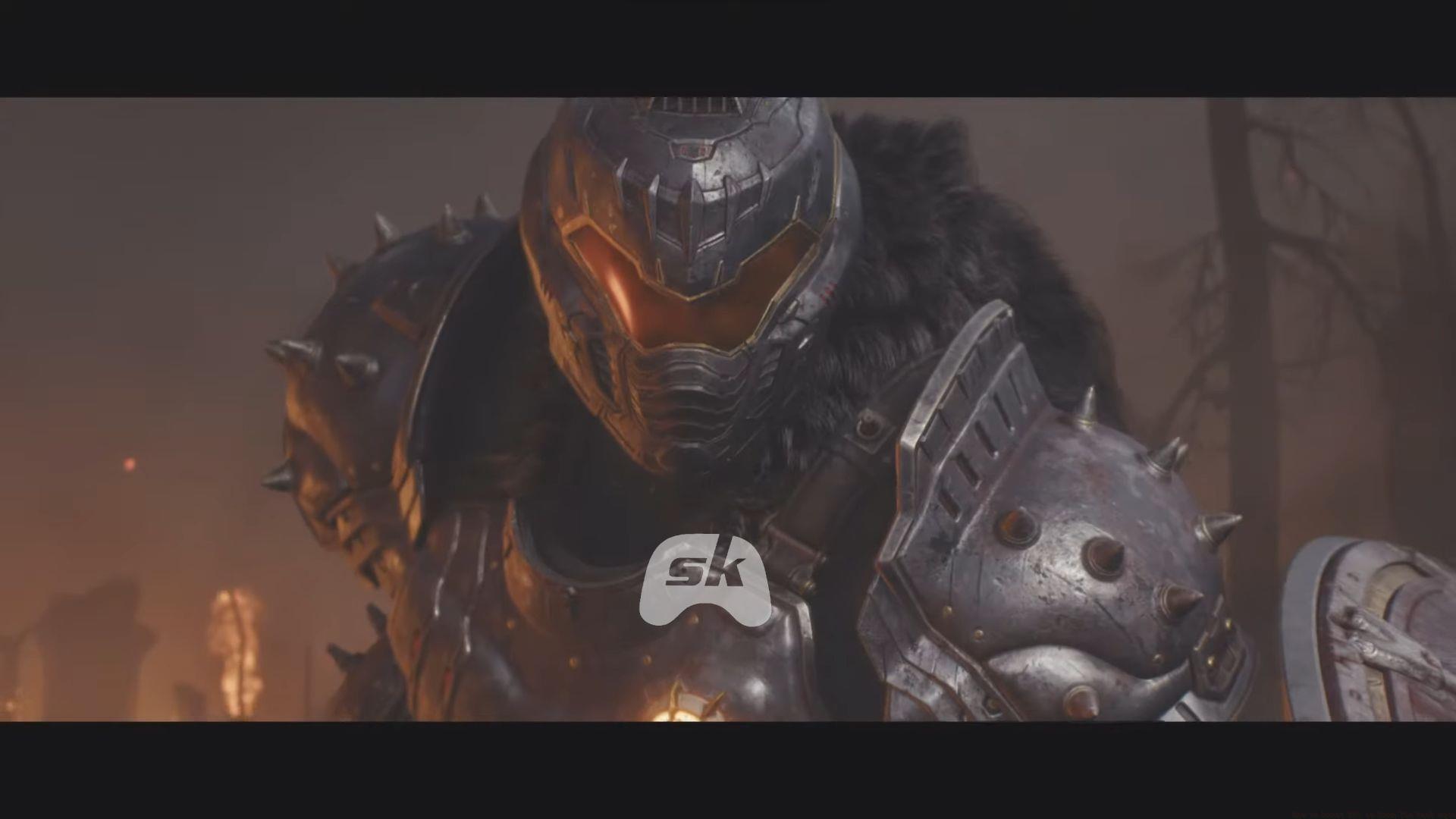
Gamers seeking enhanced frame rates in Doom The Dark Ages frequently struggle to balance performance improvements with visual fidelity preservation. This demanding title can significantly stress even premium hardware configurations when improper settings remain active. Many players discover that high-end systems experience noticeable stuttering and frame drops without careful optimization.
Begin your optimization journey in the Video section within Settings. Prioritize Fullscreen exclusive mode over borderless or windowed alternatives to minimize input latency and ensure smoother frame delivery. Confirm your native resolution and maximum refresh rate align with your display’s specifications for optimal clarity.
Disable V-Sync functionality unless you encounter persistent screen tearing artifacts. The “Present from Compute” feature typically enhances frame pacing—maintain this setting enabled unless you experience compatibility issues with streaming software or system overlays.
Read on: Doom The Dark Ages ending explained
Interestingly, Doom The Dark Ages defaults to Temporal Anti-Aliasing (TAA) for upscaling regardless of your GPU architecture. Nvidia users should immediately switch to DLSS, while AMD card owners will benefit from FSR implementation. These modern upscaling solutions provide superior image reconstruction and deliver substantial performance improvements. RTX 40-series owners gain additional frame generation capabilities through DLSS 3 or DLSS 4, dramatically increasing smoothness while maintaining responsive controls.
Without access to 40-series hardware? FSR with frame generation remains highly effective. Configure your upscaler to Quality mode for the ideal compromise between visual integrity and framerate stability.
Customize the Performance metrics overlay according to your monitoring needs. Select Low for basic FPS display, or Medium for detailed information including active upscaling technology and ray tracing status. Avoid Ultra Nightmare mode unless you require comprehensive diagnostic data, as it overwhelms the screen with technical graphs.
Advanced Graphics Configuration
These visual enhancements provide minimal FPS improvements but can optimize your overall experience:
Navigate to the Advanced video settings to optimize texture management. Texture quality and filtering parameters can be maximized provided your video memory utilization remains within safe limits.
For graphics cards featuring 10 GB VRAM capacity, avoid pushing memory usage to absolute maximum. Maintain approximately 5-10% overhead—roughly 9.2 GB for a 10 GB card. Real-time VRAM consumption displays in the bottom-right corner when adjusting texture settings.
Elevated texture pool size and filtering quality deliver superior visual detail with minimal framerate cost when adequate video memory exists.
Deactivate dynamic resolution scaling entirely. This adaptive setting constantly adjusts rendering resolution, resulting in inconsistent image clarity. Instead, configure DLSS or FSR to Quality mode and manually fine-tune sharpening parameters. This approach ensures stable visual presentation and consistent performance.
Nvidia users should locate Nvidia Reflex Mode in advanced settings. Enable this feature with capable processors, or activate On + Boost mode for systems with CPU limitations. This technology significantly reduces input latency while potentially improving framerate consistency.
High Dynamic Range (HDR) rendering imposes negligible performance penalties—maintain activation if your display supports this technology. Motion blur remains purely aesthetic; disable it if you dislike the cinematic effect or experience motion sensitivity. Neither setting substantially impacts framerates.
Performance Tuning Strategies
Even minimal configurations challenge older hardware and portable gaming devices. Performance data from an RTX 3080 Ti at 1440p resolution demonstrates these approximate framerates across graphical presets:
The Medium preset consistently delivers optimal performance-to-visuals balance. Image quality remains impressive while framerate impact stays manageable. Transitioning from Low to Medium settings minimally affects performance while substantially enhancing detail quality and lighting fidelity. Start with Medium configuration, then perform incremental adjustments based on your hardware capabilities.
Path tracing technology currently remains unavailable in game settings but may arrive through future updates. Exercise caution when this feature releases—activation will likely substantially impact performance without top-tier hardware support.
That concludes our comprehensive Doom The Dark Ages framerate optimization guide.
Check out: Doom The Dark Ages all difficulties explained: Which one should you choose?
Advanced Optimization Tip: Monitor your GPU utilization percentage while playing. If it consistently drops below 95%, your system likely suffers from CPU limitations. In such cases, reducing crowd density or particle effects may provide additional performance headroom.
Common Mistake Avoidance: Many players mistakenly believe higher texture settings always degrade performance. In reality, texture quality only impacts VRAM usage—not rendering speed. The performance penalty occurs only when your graphics card exhausts available video memory and must swap textures from system RAM.
Streaming Optimization: Content creators should prioritize consistent framerates over maximum visual quality. Consider using Medium preset with DLSS/FSR Balanced mode to maintain stable encoding performance while delivering smooth viewing experience.
No reproduction without permission:Tsp Game Club » How to boost FPS in Doom The Dark Ages Maximize Doom The Dark Ages performance with expert FPS optimization strategies and visual quality preservation