
TL;DR
- Two main methods: console commands for precision or workshop map for visual customization
- Key commands: viewmodel_fov, offset_x/y/z for weapon positioning, presetpos for quick setups
- crashz’ Viewmodel Generator provides interactive interface for real-time adjustments
- Proper viewmodel settings reduce visual clutter and improve target acquisition
- Most pros use customized settings between 60-68 viewmodel_fov with lowered weapon positions
Customizing your weapon and hand positioning in CS:GO offers two distinct approaches – manual console configuration and visual workshop tools. While console commands provide granular control, the community-developed map delivers an intuitive interface that simplifies the process significantly.
The positioning of your weapon model is governed by specific viewmodel console variables. Understanding these commands is essential for creating a setup that enhances your gameplay experience rather than hindering it.
The hand placement is affected by viewmodel commands. Let’s examine each parameter in detail:
- viewmodel_fov – Unlike other shooters where this command adjusts your actual field of view, CS:GO restricts it to modifying only the visual length of weapon models. Increasing this value prevents the sensation of your weapon appearing too close to your face, which can obstruct visibility during intense firefights.
- viewmodel_offset_x – Controls the horizontal positioning of your weapon, moving it left or right from the default center position.
- viewmodel_offset_y – Adjusts the vertical placement, allowing you to raise or lower the weapon model relative to your crosshair.
- viewmodel_offset_z – Modifies the forward/backward positioning, effectively changing how far the weapon appears from your perspective.
You don’t need to recall complex coordinate system knowledge from mathematics class. Simply understand that adjusting these parameters moves your weapon model in three-dimensional space. Most players require 5-10 minutes of experimentation to discover their ideal configuration.
For quick setup options, there’s a command that mirrors the in-game settings menu:
- viewmodel_presetpos – This parameter accepts values from 1 to 3, where 1 replicates the classic CS 1.6 positioning, 2 represents the standard CS:GO default, and 3 provides an enlarged weapon model for better visibility.
While console commands offer precision control, the CS:GO community has developed a far more user-friendly solution. Navigate to the Steam Workshop and subscribe to “crashz’ Viewmodel Generator” map for instant access to visual customization tools.
This community creation stands as the most accessible method for perfecting your viewmodel settings. The interface allows you to simply shoot directional arrows displayed throughout the map, with your weapon model responding in real-time to each adjustment. You can modify every aspect including weapon length, positioning on all three axes, and even switch between right and left-handed configurations.
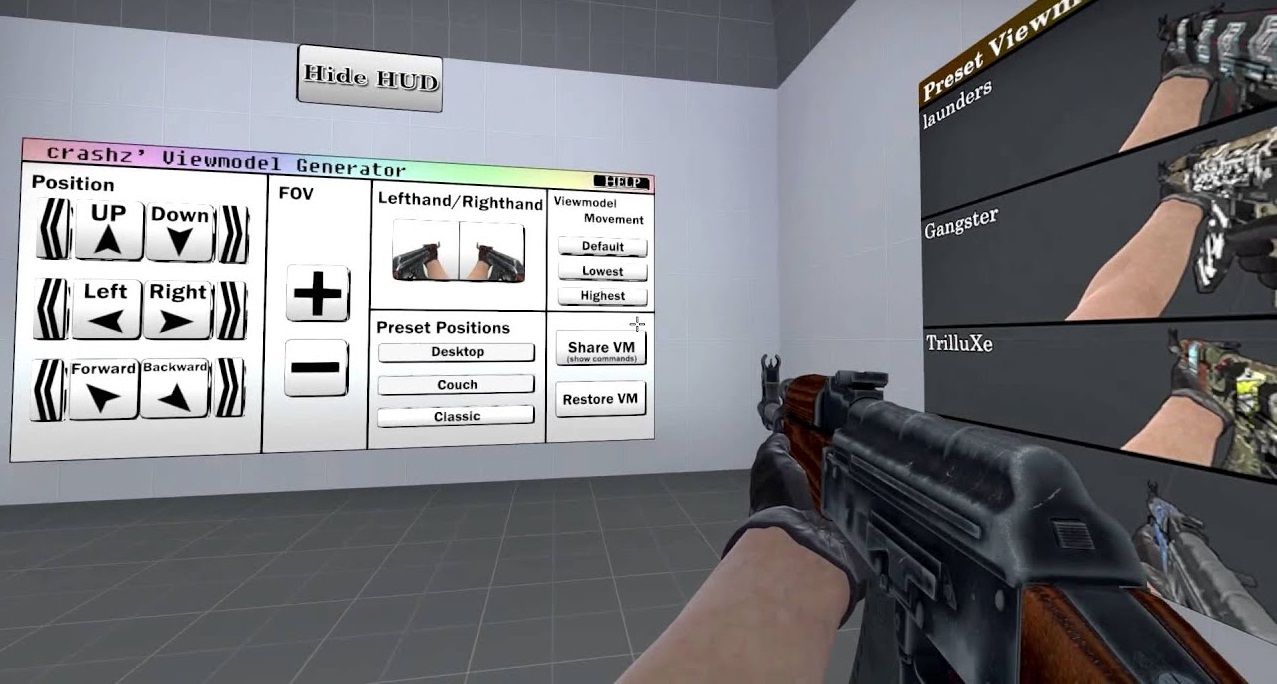
Beyond basic positioning, this innovative map enables adjustments to multiple weapon model parameters that aren’t available through standard console commands, providing unprecedented customization depth for serious players.
Configuring CS:GO to match your personal preferences represents a crucial step toward competitive success. The developers have empowered players with extensive customization options affecting nearly every visual element on screen – from field of view and weapon positioning to screen shake effects. Even minor adjustments can dramatically improve gameplay fluidity by minimizing distractions caused by poorly positioned weapon and hand models.
Professional Configuration Insights: Most elite competitors utilize viewmodel_fov values between 60-68, with weapon positions typically lowered to maximize visibility of approaching enemies. Avoid extreme offset values that might cause weapon models to clip through walls or disappear from view entirely during certain animations.
Common mistakes include setting viewmodel_fov too high (causing weapon distortion) or creating asymmetric positions that feel unnatural during rapid flick shots. For optimal performance, test your settings in actual match conditions rather than just in isolation.
If you’re looking to expand your customization knowledge further, our Complete Guide covers similar principles across different FPS titles.
Action Checklist
- Subscribe to crashz’ Viewmodel Generator in Steam Workshop
- Load the workshop map and experiment with arrow controls
- Test viewmodel_fov between 60-68 for optimal visibility
- Adjust offset commands to lower weapon position without clipping
- Save your preferred configuration to autoexec.cfg for permanent application
No reproduction without permission:Tsp Game Club » How to change hand position in CS:GO? Guide by SCOPE.GG Master CS:GO viewmodel customization with console commands and community tools for optimal gameplay