
TL;DR
- Switch from Wi-Fi to Ethernet for stable connectivity in both PC and console versions
- Utilize community servers as reliable alternatives to potentially overloaded official matchmaking
- Optimize CPU-intensive settings and disable NVIDIA Reflex to prevent performance-related packet loss
- Enable XMP profiles in BIOS to maximize RAM performance for Battlefield 6
- Monitor server ping rates and adjust graphics settings based on your hardware capabilities
Battlefield 6 represents a significant technical leap that challenges even premium gaming systems, with both high-end PC configurations and current-generation consoles experiencing frustrating packet loss during critical multiplayer engagements. While network instability remains the primary culprit, several additional factors can degrade your connection quality when playing Battlefield 6, many of which you can resolve through targeted configuration adjustments.
Packet loss typically manifests as network disruption, but Battlefield 6 introduces unique server connectivity challenges that extend beyond typical internet issues. PC gamers encounter most of these complications, though they’re generally straightforward to diagnose and correct once identified. Console players face more limited troubleshooting options but still have several effective strategies available. Understanding these distinctions helps you apply the most appropriate solutions for your gaming platform.
When you encounter packet loss while playing Battlefield 6, begin by conducting a comprehensive connection assessment. Transitioning from wireless to physical Ethernet connectivity delivers substantial improvements for both computer and console users, directly addressing many of the title’s most persistent server-related complications. For optimal results, use CAT6 or higher Ethernet cables and ensure your router’s firmware is updated.
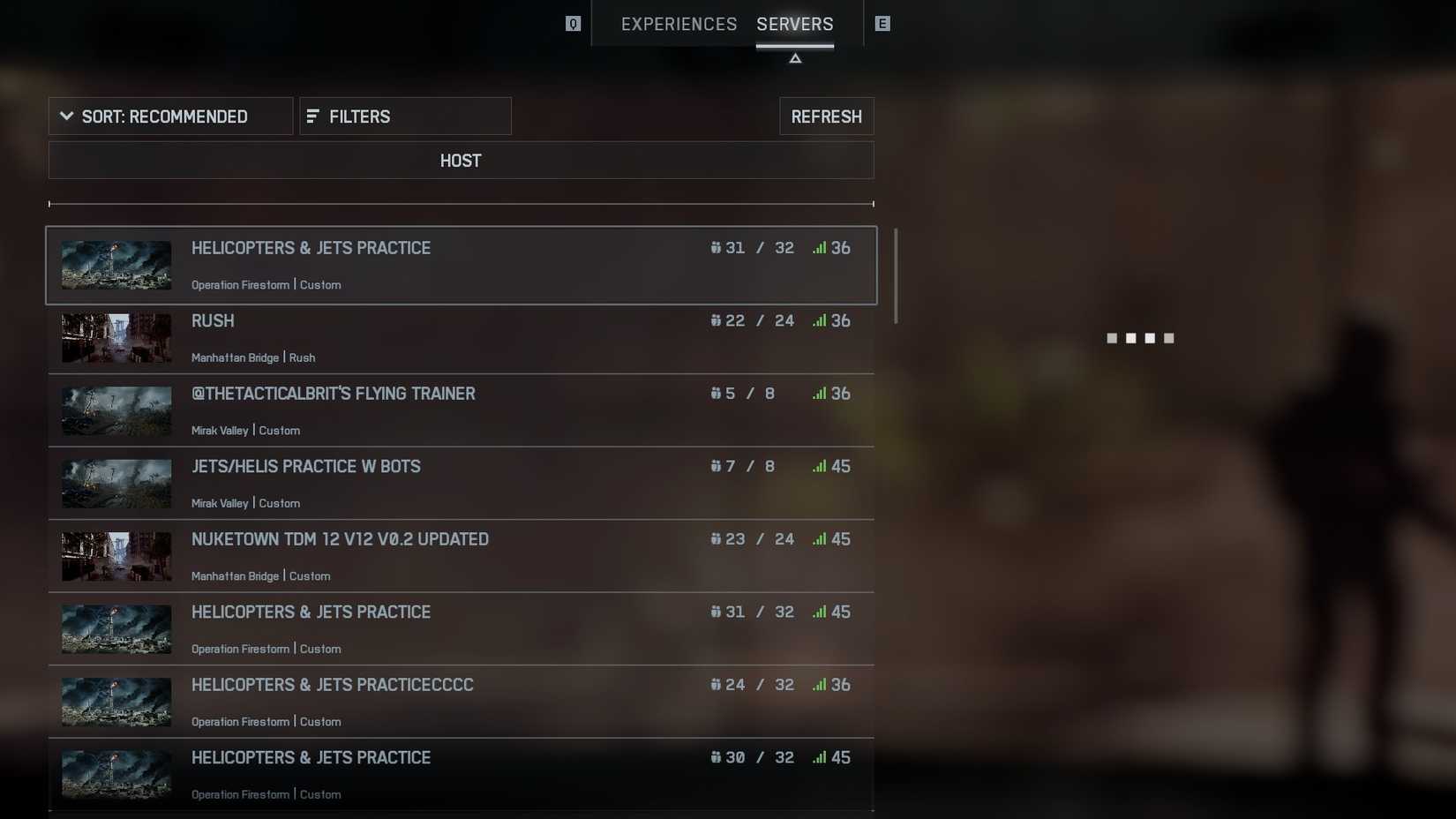
If wired connections don’t resolve the issue, numerous players have achieved success by migrating to community servers rather than depending exclusively on official Battlefield 6 matchmaking services. DICE’s infrastructure frequently experiences heavy load during peak gaming periods, while community-hosted alternatives typically maintain superior stability currently. Select your preferred server and join immediately! Always verify server specifications to monitor latency indicators and experience point adjustments, as each server configuration varies significantly. Lower ping rates (below 50ms) generally indicate healthier connections.
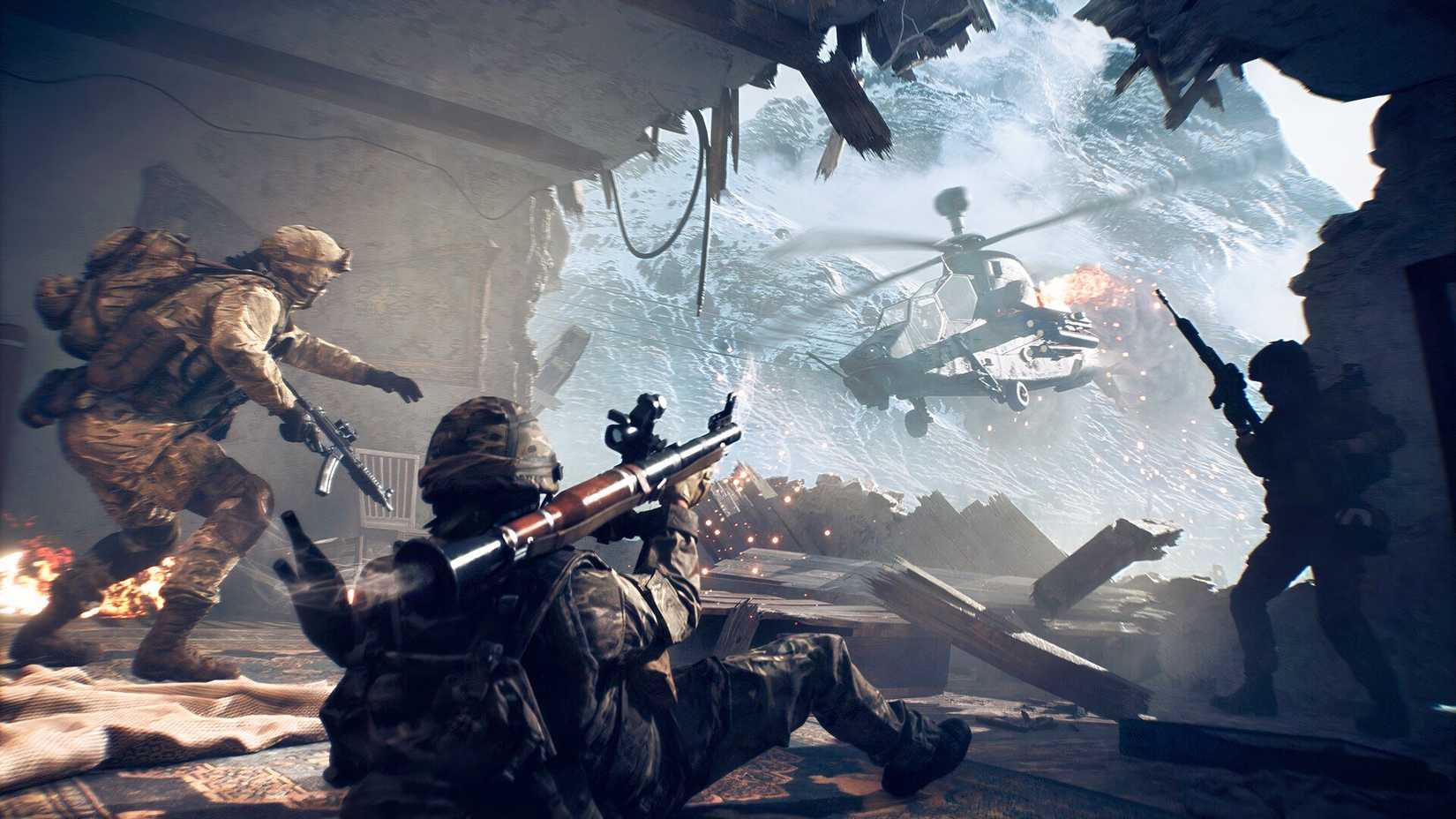
For computer users, packet loss sometimes originates from performance issues combined with FPS drops rather than internet connectivity problems. This proves particularly relevant for CPU-bound configurations because Battlefield 6 demands substantial processor resources. Experiment with reducing graphical presets or capping frame rates at sustainable levels. Multiple users have confirmed that deactivating NVIDIA Reflex also eliminates packet loss problems triggered by stuttering and frame rate instability. Consider adjusting shadow quality and post-processing effects first, as these settings heavily impact CPU workload.
Additionally, verify that you’ve activated XMP enabled profiles if you’re gaming on computer hardware. This configuration resides within your motherboard’s BIOS interface, appearing differently according to your board manufacturer, but usually located within memory configuration sections. Restart your system, press the appropriate key to enter BIOS settings, then activate XMP to enhance your Battlefield 6 gameplay performance. For AMD systems, this feature is typically labeled DOCP or A-XMP. Proper memory optimization can improve frame timing consistency by 15-25%.
Additional updates for Battlefield 6 are forthcoming, and these will undoubtedly include corrections for server problems and connection errors. If packet loss persists despite your efforts, await developer-released patches that will stabilize connectivity. Meanwhile, explore community server options or concentrate on completing Battlefield 6 campaign objectives. For comprehensive gameplay assistance, consult our Battlefield 6 Complete Guide for additional strategies.
Action Checklist
- Test wired Ethernet connection and update router firmware
- Evaluate community servers with ping rates below 50ms
- Adjust CPU-intensive graphics settings and disable NVIDIA Reflex
- Enable XMP/DOCP in BIOS for memory optimization
- Monitor for developer patches and explore campaign challenges meanwhile
No reproduction without permission:Tsp Game Club » How to Fix Packet Loss in Battlefield 6 Comprehensive solutions for Battlefield 6 packet loss issues across PC and console platforms