
TL;DR
- Access Settings menu and navigate to Gameplay tab to find helmet visibility toggle
- Toggle setting preserves all helmet stats while removing visual obstruction
- Other players see your character’s face when helmet is hidden in multiplayer
- Setting can be reversed anytime without affecting gameplay performance
- Consider situational helmet display for roleplaying and tactical awareness
Dune Awakening features an exceptionally detailed character creation system that allows players to craft unique avatars reflecting their personal style. The intricate facial features, skin tones, and distinctive markings you carefully selected during character setup represent significant time investment and creative expression. When survival demands necessitate equipping protective headgear, many players face the disappointing reality of their carefully designed character’s face becoming completely obscured.
Fortunately, the developers have implemented a straightforward solution that maintains both protection and personalization. This cosmetic customization feature enables you to enjoy the best of both worlds – retaining your helmet’s defensive statistics while showcasing your character’s visual identity. Understanding how to leverage this setting effectively enhances both your gameplay experience and roleplaying immersion.
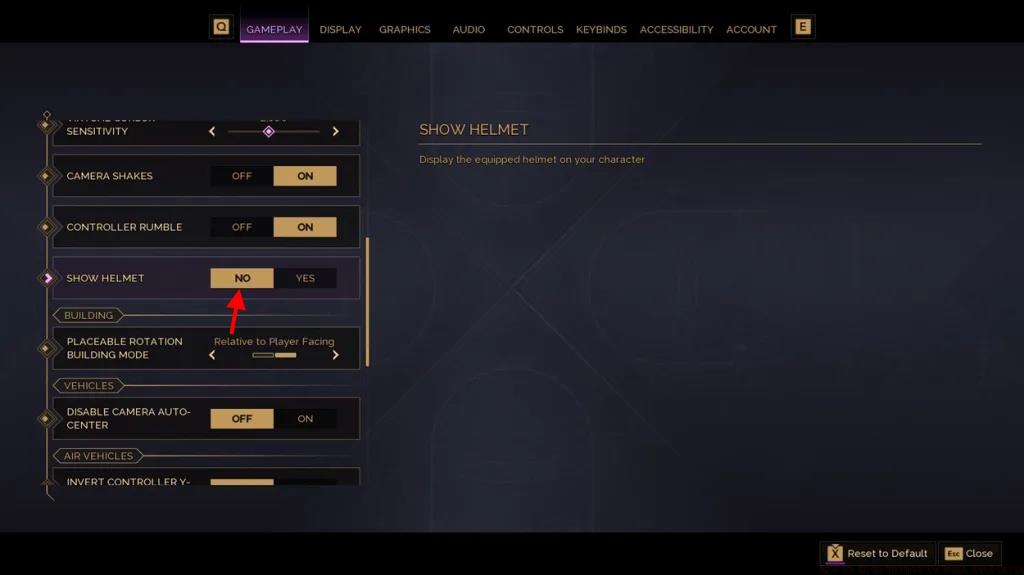
Managing helmet display in Dune Awakening follows an intuitive process that takes less than 30 seconds to complete once you know where to look. The interface is designed for quick accessibility, allowing you to adjust your visual preferences between missions or during gameplay pauses without disrupting your flow.
Step 1: Access the Settings Menu
Launch Dune Awakening and press ESC (PC) or Menu button (console) to open the main menu. Navigate to the Settings option, typically represented by a gear icon. This centralized configuration hub contains all gameplay adjustments and visual preferences.
Step 2: Navigate to Gameplay Tab
Within Settings, select the Gameplay tab from the horizontal navigation menu. Scroll downward through the various options until you locate the “Show Helmet” setting in the Character Display section.
Step 3: Configure Visibility Toggle
Change the Show Helmet toggle from its default YES position to NO. The interface provides immediate visual feedback confirming your selection. No additional confirmation is required – the change applies instantly.
Once configured, simply return to gameplay and observe your character now displays without helmet obstruction while maintaining all equipped gear benefits.
The helmet visibility toggle represents a purely cosmetic adjustment that doesn’t compromise your character’s defensive capabilities. All statistics, armor values, and special abilities associated with your equipped helmet remain fully active regardless of visual display status. This intelligent design separates aesthetics from functionality, allowing fashion and protection to coexist harmoniously.
In multiplayer environments, your helmet visibility setting affects how other players perceive your character. When hidden, your face becomes visible to all players on the server, enhancing social interactions and making your character more recognizable to allies and adversaries alike. This visual distinction can be particularly valuable for clan members or regular squadmates seeking to build distinctive visual identities.
Reversing the setting follows the identical process – simply return to the Gameplay tab and toggle Show Helmet back to YES. The flexibility to adjust this setting at any time means you can adapt your appearance based on current activities, roleplaying scenarios, or simply personal mood.
Seasoned Dune Awakening players often develop situational strategies for helmet display. During intense combat sequences, some prefer visible helmets for increased immersion and tactical awareness. Conversely, during social hubs or roleplaying events, hidden helmets facilitate better character expression and communication.
Avoid These Common Mistakes:
– Don’t assume hidden helmets reduce protection – stats remain unchanged
– Don’t forget the setting affects all helmet types equally
– Don’t overlook the multiplayer visibility implications
– Don’t hesitate to experiment with different settings for various gameplay scenarios
Optimization Techniques:
Create a mental checklist for different activities: combat missions (consider visible), trading posts (consider hidden), exploration (personal preference). The Class Guide provides additional context for how different playstyles might approach helmet visibility decisions.
For players who enjoy deep customization, combining helmet visibility settings with other visual options from the Complete Guide, you can develop a comprehensive aesthetic strategy that enhances both gameplay and roleplaying satisfaction.
Action Checklist
- Access Settings via ESC/menu button and select Gameplay tab
- Scroll to Show Helmet option in Character Display section
- Toggle setting to NO for hidden helmet, YES for visible
- Return to gameplay and verify character appearance matches preference
- Experiment with different settings for combat, social, and roleplaying scenarios
No reproduction without permission:Tsp Game Club » How to Hide Helmet in Dune Awakening Master Dune Awakening helmet visibility with this complete cosmetic customization guide