
TL;DR
- Windows installation significantly improves game compatibility, especially for titles with anti-cheat systems
- Using a microSD card installation preserves SteamOS while adding Windows functionality
- Windows 10 offers better performance stability than Windows 11 on Steam Deck hardware
- Proper driver installation is critical for controller functionality and display optimization
- Regular maintenance ensures optimal performance and prevents common installation issues
The Steam Deck delivers exceptional value as a portable gaming device, combining impressive portability with remarkable affordability and extensive customization potential. However, users frequently encounter significant limitations with the native SteamOS environment. Current data from ProtonDB indicates that approximately 52% of Steam’s extensive game library remains incompatible or unplayable on the default operating system. This compatibility gap primarily stems from SteamOS being built on an Arch Linux foundation, which creates conflicts with many popular games utilizing anti-cheat protection systems.
Valve explicitly supports alternative operating system installations on the Steam Deck, providing comprehensive Windows drivers for Steam Deck through their official channels. While dual-boot functionality isn’t natively supported at this time, the company has confirmed development of tools to simplify multi-OS configurations in future updates. This flexibility transforms the device from a locked ecosystem into a versatile portable computing platform.
Users have two primary approaches for Windows implementation: internal SSD partitioning for dual-boot setups or external microSD card installations. The internal method works optimally with higher-capacity 512GB models but demands technical expertise in drive partitioning. External installations on microSD cards provide greater flexibility, particularly for 64GB Steam Deck owners, allowing seamless switching between operating systems without modifying internal storage structures.
Successful Windows installation requires careful preparation with specific hardware and software components. Ensure you have all necessary items before beginning the process to avoid interruptions.
- Your Steam Deck device – ensure it’s fully charged or connected to power
- A high-speed microSD card with minimum 256GB capacity – Class 10 or UHS-I recommended for optimal performance
- USB microSD card reader – essential for creating bootable media from your computer
- Windows 10/11 Media Creation Tool – available from Microsoft’s official website
- A Windows computer with Rufus application installed – version 3.11 or newer recommended for best compatibility
- Official Windows drivers for Steam Deck – download the complete driver package from Valve’s support page
Storage Selection Tip: For microSD installations, invest in A2-rated cards with high random read/write speeds to ensure smooth Windows operation. Avoid using older, slower cards as they can significantly impact system responsiveness and game loading times.
Driver Preparation: Download all necessary drivers before beginning installation. The essential drivers include audio, Bluetooth, Wi-Fi, and APU graphics drivers. Create a dedicated folder on your computer to organize these files for easy access during the post-installation phase.
Begin by downloading the Windows Media Creation Tool directly from Microsoft’s official website. We strongly recommend selecting Windows 10 over Windows 11 for Steam Deck installations, as Windows 10 demonstrates superior stability, lower resource consumption, and faster game launch times on this specific hardware configuration.

Launch the Media Creation Tool executable and follow the setup prompts. The application will guide you through the download and ISO creation process.


Select “Create installation media for another PC” when prompted by the tool. This option generates a portable ISO file rather than immediately installing Windows on your current system.

Accept the default language, edition, and architecture settings (Windows 10, 64-bit) unless you have specific requirements for different configurations.

Choose “ISO file” as your output format and select an easily accessible location to save the installation file.


Insert your microSD card into the computer using the USB adapter. Ensure the card is properly recognized by your system before proceeding.

Open Rufus and select your microSD card from the device dropdown menu. Click “SELECT” and navigate to your saved Windows ISO file.


Set the partition scheme to “GPT” and target system to “UEFI (non CSM).” Most importantly, change the image option to “Windows To Go” instead of the standard Windows installation.

Select “Windows 10 Pro” when prompted for the edition selection, then begin the writing process. This may take 20-45 minutes depending on your SD card speed and computer performance.

Rufus Configuration Tip: The “Windows To Go” option is crucial for microSD installations as it optimizes Windows for portable operation and prevents boot issues. Standard installation modes may fail to properly detect the Steam Deck hardware during setup.
With your bootable microSD card prepared, insert it into your Steam Deck’s SD card slot. Ensure the device is powered off completely before beginning the boot process.
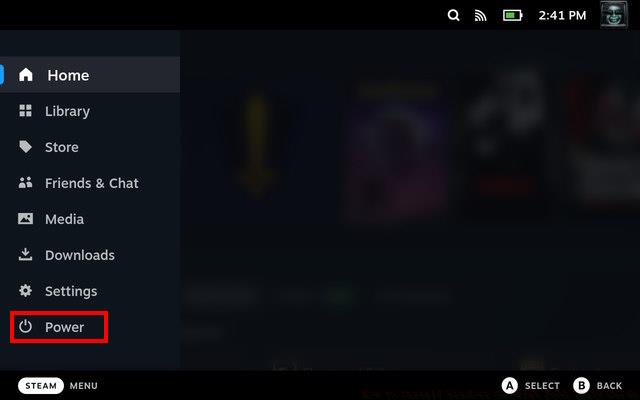
Power on the Steam Deck while holding the Volume Down button to access the bootloader menu. Continue holding the button until the boot selection screen appears.


Select your microSD card from the boot options menu. The system should begin loading the Windows installation environment. The initial setup may take several minutes as hardware detection occurs.

Follow the standard Windows installation prompts. When asked for installation type, choose “Custom” and select the main partition on your microSD card. The installation process typically requires 30-60 minutes depending on card performance.
After Windows setup completes, you’ll immediately notice the display orientation appears rotated. This is normal – the Steam Deck’s native portrait display requires driver-level correction for proper landscape orientation.

Download the complete Windows drivers for Steam Deck package from Valve’s official website. Install the drivers in this specific order for optimal compatibility: APU graphics driver first, followed by audio, Wi-Fi, and Bluetooth drivers.


Driver Installation Note: Restart your Steam Deck after installing each major driver component. This ensures proper hardware detection and prevents conflicts between different system components. The display orientation will automatically correct after installing the APU graphics driver.
After successful Windows installation, several optimizations can significantly enhance your gaming experience. Configure Windows power settings to prioritize performance over battery life when connected to power, while maintaining balanced settings for portable use.
Performance Optimization: Disable unnecessary visual effects and background applications to conserve system resources. The Steam Deck’s limited hardware benefits from a streamlined Windows configuration. Consider using third-party utilities like Chris Titus Tech’s Windows utility for automated optimization.
Controller Configuration: While Steam Deck controls function as basic input devices in Windows, for optimal gaming experience install Steam for Windows and configure controller support through Big Picture mode. This provides full controller functionality and customization options.
Common Issues and Solutions:
- Boot failures: Ensure “Windows To Go” was selected in Rufus and try recreating the bootable media
- Driver conflicts: Install drivers in recommended sequence and restart between installations
- Performance issues: Check microSD card health and consider upgrading to faster A2-rated card
- Audio problems: Reinstall audio drivers and check Windows sound settings
Switching Between Operating Systems: To return to SteamOS, simply shut down Windows, remove the microSD card, and power on the device normally. The system will automatically boot into SteamOS from the internal storage. For Windows access, reinsert the microSD card and use the bootloader menu during startup.
Maintenance Tips: Regularly check for Windows updates and updated Steam Deck drivers from Valve’s website. Monitor microSD card health using tools like H2testw, as frequent read/write operations can reduce card lifespan over time. Consider creating a backup image of your working Windows installation once configured properly.
Action Checklist
- Download Windows 10 Media Creation Tool and create ISO file
- Use Rufus with Windows To Go option to create bootable microSD card
- Access Steam Deck bootloader and install Windows from SD card
- Install Steam Deck drivers in correct sequence with restarts
- Configure Windows settings and install essential gaming applications
No reproduction without permission:Tsp Game Club » How to Install Windows on Steam Deck (Easy Guide) Complete guide to installing Windows on Steam Deck with performance optimization and troubleshooting tips