
Expert strategies and advanced optimizations to dramatically boost Battlefield 6 performance beyond basic settings tweaks
Essential Pre-Game System Preparation
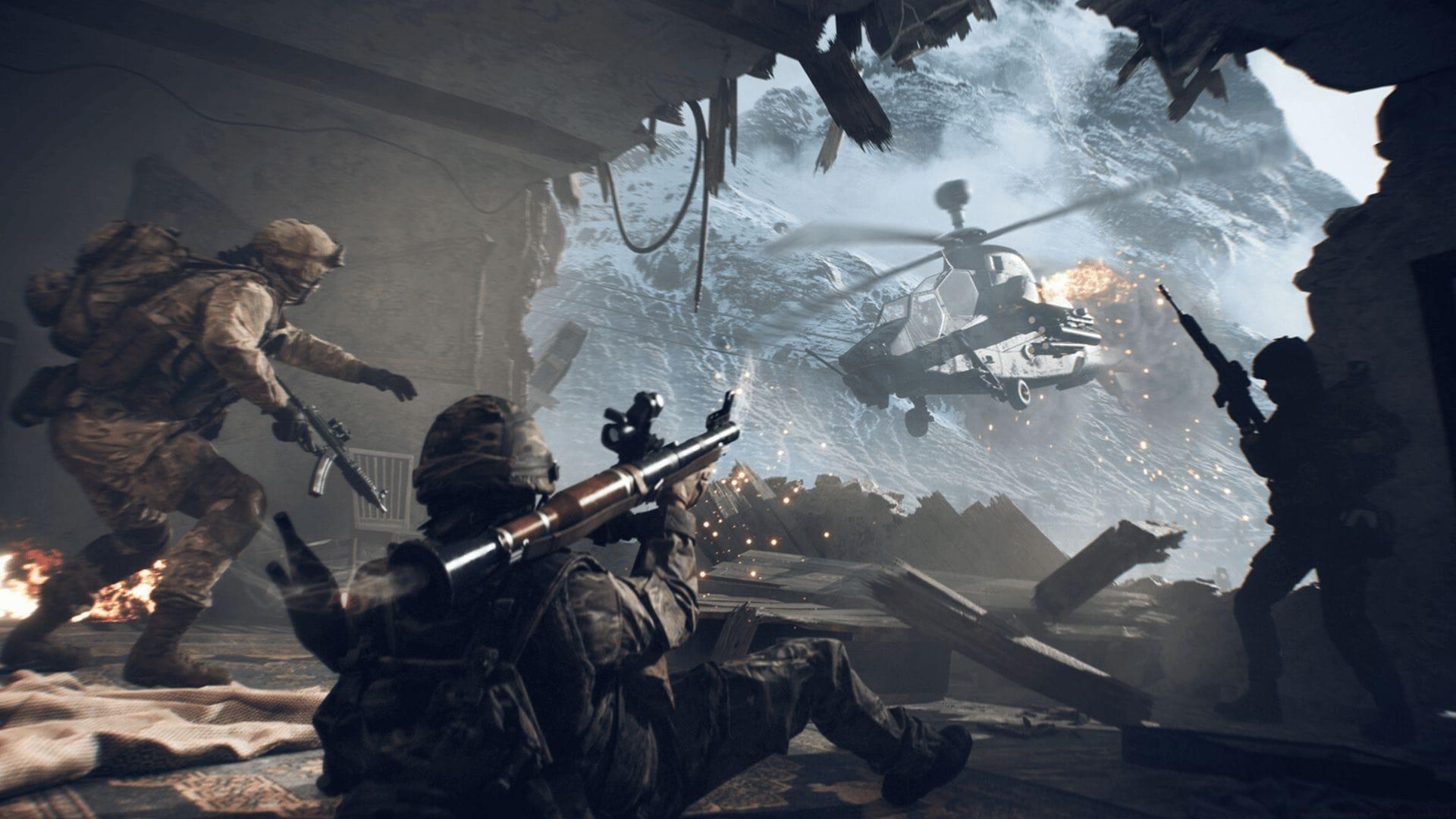
Battlefield 6 represents the pinnacle of modern military shooter demands, pushing both CPU and GPU hardware to their absolute limits. While many players accept default graphical presets, competitive advantage comes from systematic optimization. This guide moves beyond basic suggestions to provide a framework for extracting maximum frames-per-second through layered system tuning.
Looking for Crossword hints & solutions? Check out latest NYT Mini Crossword Answers, LA Times Crossword Answers, and Atlantic Crossword Answers
Driver management requires more than occasional updates. For optimal Battlefield 6 performance, adopt a strategic approach: identify which driver versions perform best with Frostbite engine titles through community benchmarks. NVIDIA’s Game Ready drivers and AMD’s Adrenalin updates often include specific optimizations for new releases. However, avoid immediately installing the absolute latest driver—wait 24-48 hours to check community feedback for stability issues that could harm your experience.
Background process elimination represents the single most impactful free performance upgrade. Modern applications often run hidden processes that continuously consume resources. Before launching the game, execute this systematic cleanup:
Pay particular attention to browser processes, cloud storage sync applications, and RGB lighting controllers, which collectively can consume 10-15% of system resources. Creating a dedicated gaming profile in Task Manager allows you to quickly disable these processes before each session.
Read more: 5 things Battlefield 6 needs to change before official release
Windows Game Mode functions as a system resource traffic controller rather than a simple toggle. When activated, it dynamically reallocates CPU cycles and prioritizes GPU resources toward your active game window. This prevents Windows Update, antivirus scans, and other system maintenance tasks from interrupting gameplay with sudden performance dips.
Advanced users should complement Game Mode with process priority adjustments. Using third-party utilities like Process Lasso, you can permanently set Battlefield 6 to High priority, ensuring it receives preferential treatment from Windows’ scheduler. This combination often yields 5-10% additional FPS stability during intense 128-player battles.
Advanced Graphics Card & System Configuration
Hardware-accelerated GPU scheduling (HAGS) fundamentally changes how your graphics card manages video memory and command buffers. By allowing the GPU to directly schedule its own workload rather than relying on the CPU, this feature reduces latency and can improve minimum FPS—the metric that matters most for smooth gameplay. Implementation varies by GPU generation:
NVIDIA RTX 30-series and newer GPUs typically benefit most from HAGS, while older architectures might see minimal gains. Monitor your performance after enabling—some systems experience slight regressions that require toggling the feature off. For Battlefield 6, the reduction in render queue overhead particularly helps during explosive particle effects and large-scale destruction events.
Thermal throttling represents the silent FPS killer that most players overlook. Modern GPUs and CPUs automatically reduce clock speeds when temperatures exceed safe thresholds, sometimes cutting performance by 30-40% during extended sessions. Implement this three-tier cooling strategy:
Beyond basic maintenance, consider undervolting your GPU—a technique that reduces voltage while maintaining performance, resulting in significantly lower temperatures. Software like MSI Afterburner or AMD WattMan allows you to create stable undervolt profiles that can drop temperatures by 5-10°C without sacrificing FPS. For laptop gamers, investing in a quality cooling pad with elevated design and multiple fans can reduce temperatures by 8-12°C during intense Battlefield 6 matches.
Also read: Battlefield 6 Open Beta receives update to enable DLSS/DLAA
Power management settings frequently undermine gaming performance. Ensure Windows is set to High Performance mode rather than Balanced, and check that your GPU control panel isn’t limiting power consumption. NVIDIA users should access the Control Panel’s Manage 3D Settings section to set Power Management Mode to ‘Prefer Maximum Performance.’ AMD users can achieve similar results through Radeon Software’s Performance tab.
In-Game Optimization Framework
Battlefield 6’s graphical settings menu contains numerous options with varying performance impacts. Adopt a systematic approach by adjusting settings in this priority order: first resolution and upscaling, then shadow quality, followed by post-processing effects, and finally texture details. Resolution scaling provides the most significant FPS boost—dropping from 4K to 1440p can double your frame rate while maintaining excellent visual clarity.
Modern rendering technologies offer performance multipliers without proportional visual sacrifice. If your hardware supports it, enable NVIDIA DLSS or AMD FSR 2.0 in Quality mode. These AI-enhanced upscaling techniques can boost FPS by 30-70% while maintaining near-native image quality. Balance this with render resolution—90-95% scaling often provides noticeable performance gains with minimal visual degradation.
Shadow quality represents the second-most impactful setting. High-quality ray-traced shadows can consume tremendous resources. Consider using the High preset rather than Ultra, or disabling ray-traced shadows entirely for competitive play. Similarly, screen-space reflections and ambient occlusion provide diminishing visual returns at higher settings while significantly impacting performance.
Texture filtering and detail levels have surprisingly modest performance impacts on modern GPUs with sufficient VRAM. If you have 8GB or more of video memory, keep texture quality at High or Ultra—the visual improvement outweighs the minimal FPS cost. However, reduce effects like motion blur, depth of field, and lens flare that provide no competitive advantage while consuming rendering resources.
Network optimization indirectly affects perceived smoothness. High latency or packet loss can create stuttering that mimics low FPS. Use wired Ethernet connections whenever possible, enable QoS on your router to prioritize gaming traffic, and consider using a gaming VPN if you’re connecting to distant servers. Battlefield 6’s netcode performs best with stable, low-latency connections under 50ms.
Pro-Level Performance Monitoring & Troubleshooting
Effective optimization requires measurement. Install monitoring software like MSI Afterburner with RivaTuner Statistics Server to display real-time FPS, GPU/CPU temperatures, usage percentages, and frame times. Frame time consistency—measured in milliseconds—often matters more than average FPS for smooth gameplay. Target frame times below 16.7ms for 60 FPS or 8.3ms for 120 FPS.
Identify hidden bottlenecks by observing which component hits 95-100% usage during gameplay. GPU-bound systems benefit from resolution reductions and render scaling, while CPU-bound systems (common in Battlefield 6’s large-scale battles) require closing background processes, reducing player count in smaller modes, or upgrading to processors with stronger single-core performance.
Common performance killers include: Windows Game Bar recording (disable it entirely), Xbox Game DVR, Discord hardware acceleration, and browser hardware acceleration. Create a batch file that disables these services before gaming sessions. Additionally, ensure your monitor’s refresh rate matches your FPS targets—a 144Hz monitor displaying 90 FPS feels smoother than a 60Hz monitor displaying 120 FPS.
Long-term maintenance involves regular driver updates (but not necessarily every release), quarterly system cleaning, and monitoring for Windows updates that reset optimization settings. Create restoration points before major Windows updates and keep notes of your optimal settings. Consider using optimization presets from reputable community members as starting points for your own tuning journey.
For more articles on Battlefield 6, follow Sportskeeda:
No reproduction without permission:Tsp Game Club » How to maximize FPS in Battlefield 6 Expert strategies and advanced optimizations to dramatically boost Battlefield 6 performance beyond basic settings tweaks