
TL;DR
- Battlefield 6 preload begins October 3 at 8 AM PT with 76 GB total file size
- Selective downloads allow installing only multiplayer or single-player components separately
- PC players can preload via Steam, Epic Games Store, or EA App with identical timing
- Console preloading requires pre-purchase and specific store navigation steps
- Network optimization and storage planning are crucial for smooth launch day experience

The highly anticipated Battlefield 6 marks a significant return to the franchise’s core identity, delivering modern military combat with enhanced destruction mechanics and tactical depth. Preloading ensures you’re ready to deploy immediately when servers go live on October 10.
Mark your calendars: Battlefield 6 preloading commences precisely on October 3 at 8 AM Pacific Time (11 AM Eastern/4 PM British Summer Time). This timing applies uniformly across all platforms, giving every player equal preparation time before the official launch. Unlike some previous EA titles, there’s no early access period—everyone starts simultaneously on release day.
Storage planning is critical for BF6. The complete installation requires approximately 76 GB of available space, but the modular design offers significant flexibility. Here’s the complete breakdown of component sizes:
- Base Game: 48.88 GB (mandatory)
- Multiplayer: 5 GB
- Multiplayer HD (Cutscenes): 423 MB
- Single Player: 15 GB
- Single Player HD (Cutscenes): 7 GB
This componentized approach mirrors modern Call of Duty installations, allowing you to conserve bandwidth and storage by downloading only the content you’ll actually use. For competitive players focusing exclusively on Conquest mode, installing just the base game and multiplayer components saves nearly 22 GB compared to the full installation.
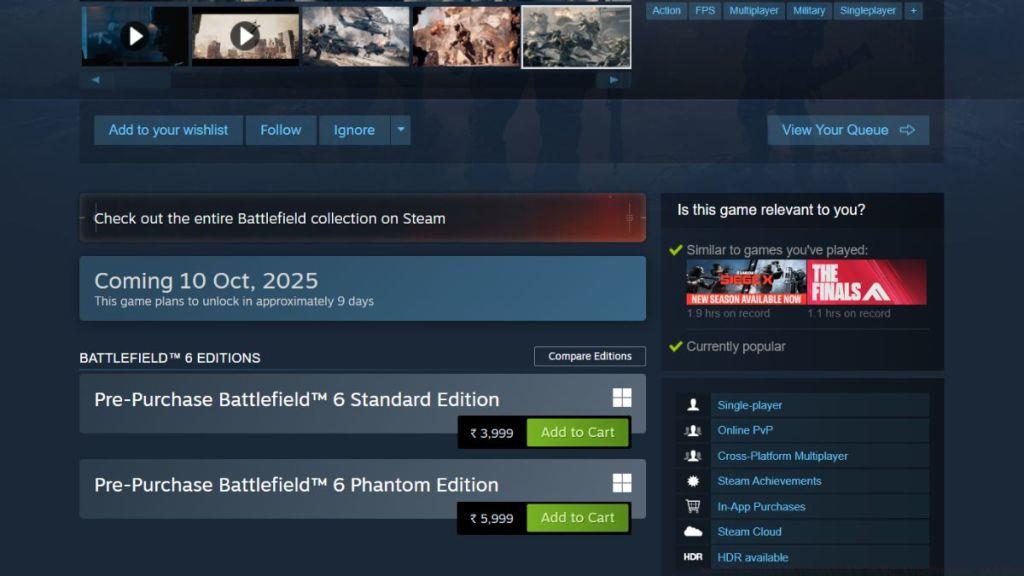
PC gamers have multiple storefront options for acquiring Battlefield 6, each with identical preload timing but slightly different interface navigation. The process requires pre-purchase completion before the download option becomes available.
Follow this comprehensive procedure to initiate your preload:
- Access your preferred platform: Steam, Epic Games Store, or the EA App
- Navigate to the official Battlefield 6 store page using the search function
- Complete the pre-purchase transaction if not already done
- At the designated preload time, locate and select the “Preload” option
- Monitor download progress and verify file integrity upon completion
Pro Tip: Steam users should ensure they have sufficient space on their primary drive, as the platform often requires additional temporary space during installation. Epic Games Store downloads may benefit from pausing and resuming if network issues occur. For optimal performance, consider scheduling your download during off-peak hours when internet congestion is minimized.
Common mistakes include attempting to preload before the October 3 start time or forgetting to pre-purchase. If the preload option doesn’t appear, restart your client and verify your purchase status. For deeper strategic preparation, consult our BF6 Class Selection Guide to plan your loadout while waiting for launch.
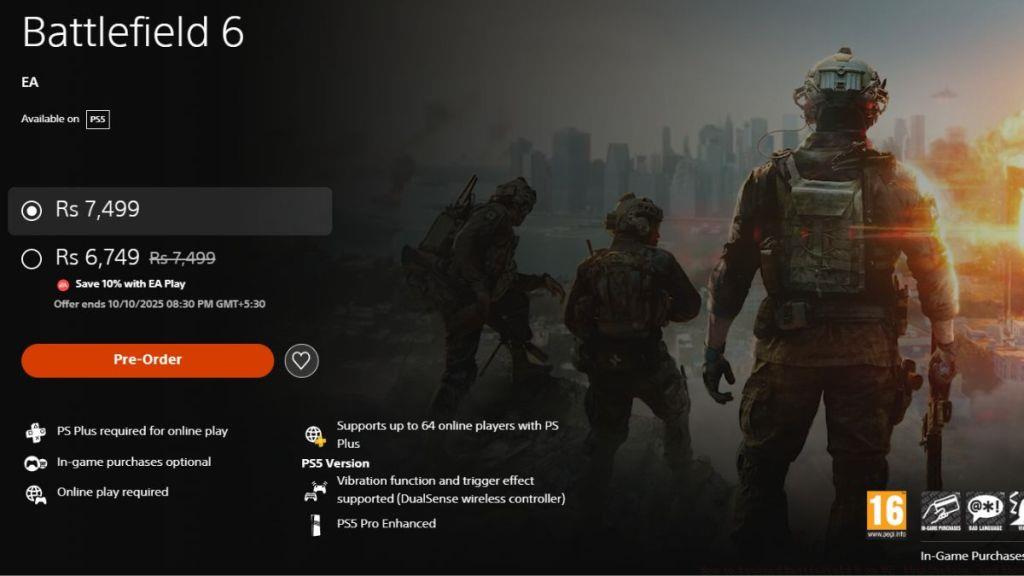
PlayStation 5 owners can prepare for Battlefield 6 through the PlayStation Store interface. The process requires careful navigation through specific menu paths to ensure successful download initiation.
Execute these precise steps for PS5 preloading:
- Open the PlayStation Store and search for “Battlefield 6”
- Complete the pre-purchase process if you haven’t already secured your copy
- Access your Game Library through the main menu or home screen
- Locate Battlefield 6 in your purchased games list
- Select the game and choose the “Download” option when it becomes available
- Track progress through the notifications menu or home screen downloads section
Advanced Strategy: PS5 users should consider enabling rest mode with network connectivity, as this allows background downloads to continue uninterrupted. Ensure your console storage has adequate free space—if necessary, consider moving older games to external storage or deleting unused applications. The PS5’s SSD optimization means installation times are significantly faster than previous generations, but planning your storage allocation beforehand prevents last-minute issues.
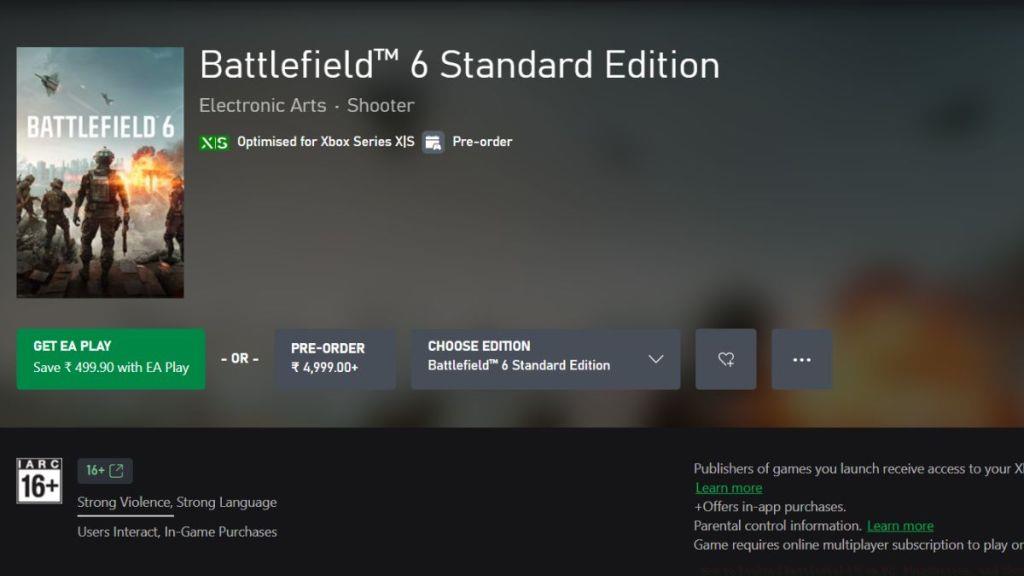
Xbox Series X and S console owners follow a streamlined process through the Microsoft Store ecosystem. The Xbox platform’s unified approach ensures consistency across both current-generation devices.
Implement these Xbox-specific preloading procedures:
- Launch the Xbox Store application from your dashboard or guide menu
- Use the search functionality to find the official Battlefield 6 store page
- Pre-purchase the title if not already completed during earlier promotions
- Once preload begins, select the prominent “preload” option that appears on the game page
- Monitor the download queue through “My games & apps” to ensure completion
Xbox Optimization: Series X owners should note the enhanced version takes full advantage of the hardware, while Series S players receive optimized files for their system capabilities. The Xbox Smart Delivery system automatically provides the correct version for your specific console.
For players interested in maximizing their combat effectiveness from day one, our BF6 Weapons Unlock Guide provides essential information about weapon progression and attachment systems that complement the NATO faction arsenal available at launch.
Beyond the basic download process, strategic preparation significantly enhances your launch day experience. Network optimization can reduce download times by 30-50% depending on your setup and local internet conditions.
Network Optimization Techniques:
- Use wired Ethernet connections instead of WiFi for stability and speed
- Schedule downloads during off-peak hours (typically 1-6 AM local time)
- Close background applications and暂停 other active downloads
- Consider upgrading your router’s QoS settings to prioritize gaming traffic
Storage Management: With Battlefield 6 requiring substantial space, conduct a storage audit beforehand. Delete unused games, move media files to external storage, or consider adding SSD expansion if using a console with available slots.
Launch Day Readiness: Verify your download completion approximately 2 hours before official launch time. This provides a buffer for any last-minute patches or verification processes. The Pax Armata global event that coincides with launch may introduce special Assignments requiring immediate attention, so being ready to play at exactly 8 AM PT on October 10 gives you a strategic advantage.
For comprehensive strategic planning that extends beyond preloading, our Battlefield 6 Complete Guide covers everything from map strategies to squad composition techniques that will maximize your performance during those critical first matches.
Action Checklist
- Verify pre-purchase status and platform account login
- Clear sufficient storage space (minimum 80 GB recommended)
- Set calendar reminder for October 3 preload start time
- Optimize network connection and schedule download timing
- Initiate preload at designated time and monitor completion
- Verify file integrity and prepare for launch day patches
No reproduction without permission:Tsp Game Club » How to Preload Battlefield 6 on PC, PlayStation, and Xbox Complete guide to preloading Battlefield 6 with storage optimization tips and platform-specific instructions