
Expert solutions to fix Mecha BREAK PC launch failures and optimize gameplay performance.
Understanding Mecha BREAK PC Launch Failures
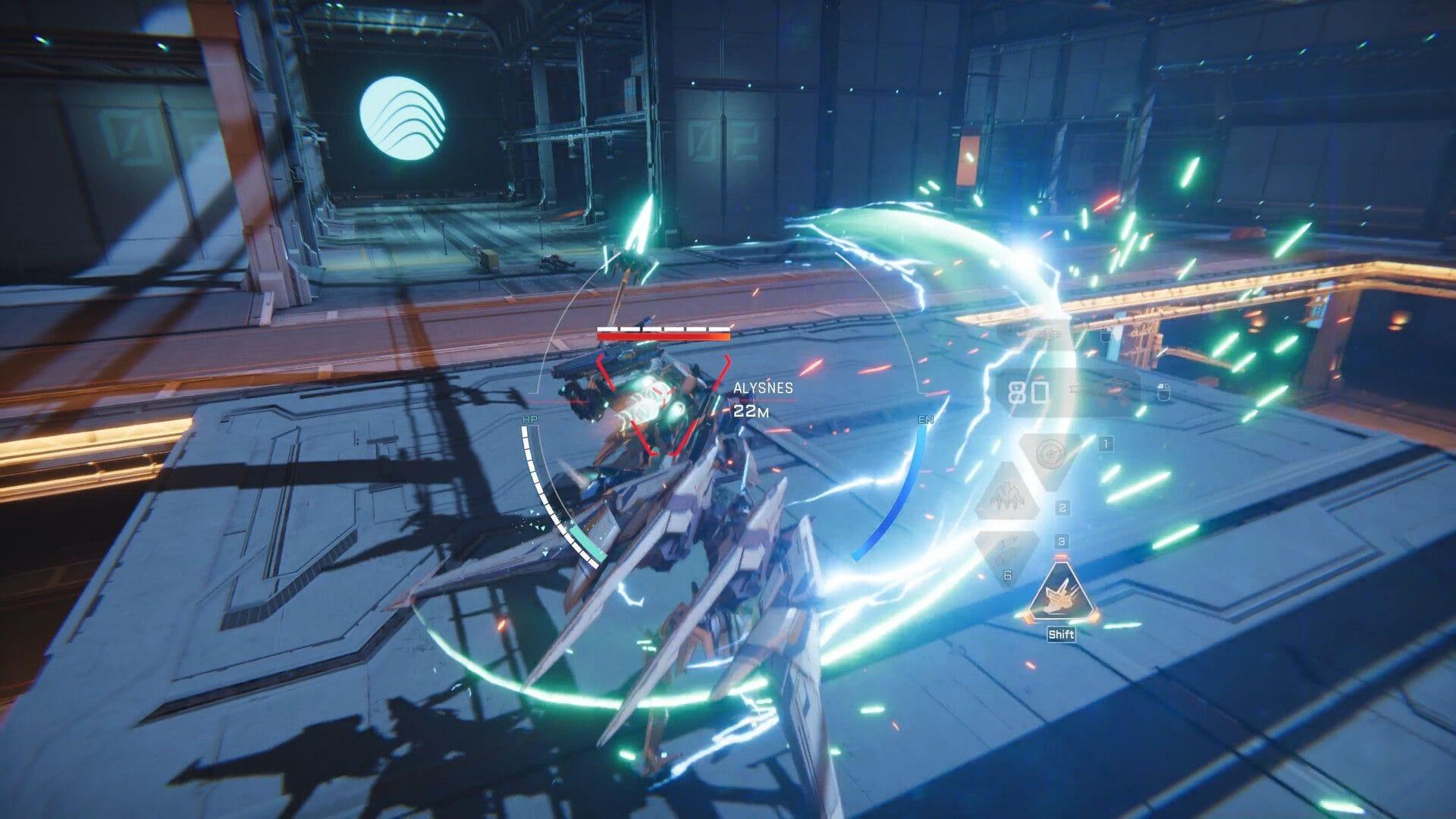
Mecha BREAK not working on PC represents a significant technical hurdle affecting player access to this highly anticipated mecha shooter. These persistent launch failures disrupt the immersive experience players expect from a high-octane combat title, generating considerable community frustration.
Launch failures typically manifest as the game refusing to start, freezing on initial loading screens, or crashing to desktop without error messages. Such issues often stem from system configuration conflicts, network communication errors, or corrupted installation files. Understanding these root causes is essential for applying effective solutions.
Read more: Mecha BREAK system requirements for PC
Many players encounter these problems due to outdated system components or interference from security software. The game’s advanced graphics engine and network features require specific Windows configurations that may conflict with default settings on some PCs. Identifying your specific error pattern—whether it’s a complete failure to launch or intermittent crashes—helps narrow down the appropriate fix.
Core Technical Fixes for Launch Issues
Network connectivity problems frequently cause launch failures in online-centric games like Mecha BREAK. Your system’s DNS cache may contain outdated or incorrect address records that prevent proper communication with game servers. This network handshake failure often presents as infinite loading screens or authentication errors.
To clear these network obstructions, open Command Prompt with administrative rights and execute the DNS flush command. The complete process involves:
This process removes stale DNS entries that might be redirecting your connection to invalid servers. After completing these steps, attempt to launch Mecha BREAK again—many players report immediate success with this method.
Check out: Mecha BREAK crossplay: Everything we know
Permission conflicts represent another common launch barrier. When Mecha BREAK fails to start, try launching the game executable directly with administrator privileges. Right-click the Mecha BREAK shortcut or .exe file, select “Properties,” navigate to the “Compatibility” tab, and check “Run this program as an administrator.” This grants the game necessary system access that might be blocked by User Account Control (UAC) settings.
If these initial solutions prove ineffective, corrupted game files likely cause your launch problems. Modern game clients like Steam and Epic Games Store include built-in verification tools that scan and repair installation issues. Navigate to Mecha BREAK in your library, access properties, and select “Verify integrity of game files” to initiate automatic repair of missing or damaged components.
Advanced Troubleshooting & Performance Optimization
Also read: All Strikers in Mecha BREAK
When standard fixes fail, advanced system configuration often resolves persistent Mecha BREAK launch issues. Begin by updating your graphics drivers—NVIDIA, AMD, and Intel regularly release optimizations for new games. Use manufacturer utilities like GeForce Experience or AMD Adrenalin rather than Windows Update for complete driver packages.
Common mistakes that exacerbate launch problems include:
1. Overlooking background applications: Discord overlays, recording software, and RGB controller utilities frequently conflict with game anti-cheat systems. Disable all non-essential applications before launching.
2. Insufficient system resources: Mecha BREAK may fail to start if other programs consume available RAM. Close browser tabs with multiple videos and streaming services.
3. Outdated Windows components: Ensure your Windows 10 or 11 installation has all major updates, particularly .NET Framework and Visual C++ redistributables that games require.
For advanced players seeking optimal performance, adjust Windows power settings to “High Performance” and ensure your monitor’s refresh rate matches in-game settings. Disable full-screen optimizations through the game executable’s compatibility tab, as this Windows feature sometimes causes full-screen application conflicts.
If crashes occur during specific gameplay moments rather than at launch, monitor your hardware temperatures and utilization. Overheating components or power supply limitations can cause instability. Consider capping your frame rate slightly below your monitor’s maximum to reduce GPU stress during intensive scenes.
Community-Proven Workarounds & Support
Persistent issues may require community-sourced solutions. The Mecha BREAK player community actively shares workarounds on platforms like Reddit, Discord, and Steam forums. Search for specific error codes accompanied by “Mecha BREAK” to find players who solved identical problems.
Official support channels provide direct assistance when all else fails. Contact Amazing Seasun Games through their support portal with detailed information: include your system specifications, exact error messages, and a list of attempted fixes. This information helps developers identify patterns and release targeted patches.
Some players report success with clean boot procedures—starting Windows with minimal drivers and startup programs to isolate conflicts. Others benefit from reinstalling the game on a different drive or creating new Windows user profiles with fresh configurations.
That’s everything you need to know about diagnosing and resolving Mecha BREAK PC launch failures. For more guides and news, stay tuned to Sportskeeda’s esports and gaming section.
Proactive Maintenance Tip: Regularly update your game client and maintain at least 20GB free space on your installation drive. This prevents patching failures and ensures smooth updates when developers release stability improvements.
No reproduction without permission:Tsp Game Club » Mecha BREAK not working on PC: Possible fixes and reasons Expert solutions to fix Mecha BREAK PC launch failures and optimize gameplay performance.