
TL;DR
- Mouse acceleration creates inconsistent cursor movement that most pros avoid for better first-shot accuracy
- CS2 uses raw input by default, eliminating need for legacy launch commands from CS:GO
- Disable ‘Enhance pointer precision’ in Windows for optimal competitive performance
- Use SCOPE.GG analytics to measure accuracy improvements when changing settings
- Personal preference and physical setup constraints may justify acceleration for some players
What is mouse acceleration?
Mouse acceleration dynamically adjusts cursor speed based on your physical mouse movement velocity. This means rapid mouse sweeps cover more screen distance than slow, deliberate movements. Most operating systems enable this feature automatically, which explains why many gamers unknowingly compete with acceleration active.
Pro Tip: Acceleration can be particularly problematic for muscle memory development since your cursor travels different distances depending on movement speed rather than consistent physical distance.
Why do pro-players use or don’t use mouse acceleration in CS2?
Competitive players overwhelmingly reject mouse acceleration due to consistency concerns. The professional consensus strongly favors disabling this feature for predictable aim. However, notable exceptions exist – Turkish star XANTARES maintains elite shooting performance despite using acceleration, demonstrating that individual adaptation can overcome technical disadvantages.
The core issue involves movement predictability. Precise shooting requires consistent crosshair placement, but acceleration introduces variable cursor response that complicates target acquisition. Veterans who’ve experimented long-term report significantly reduced first-bullet accuracy compared to non-accelerated setups.
Acceleration does offer tactical benefits: maintaining low sensitivity for weapon control while enabling rapid map navigation. This dual-speed approach facilitates both precise shooting and efficient movement around the battlefield.
How to toggle on/off the acceleration in CS2?
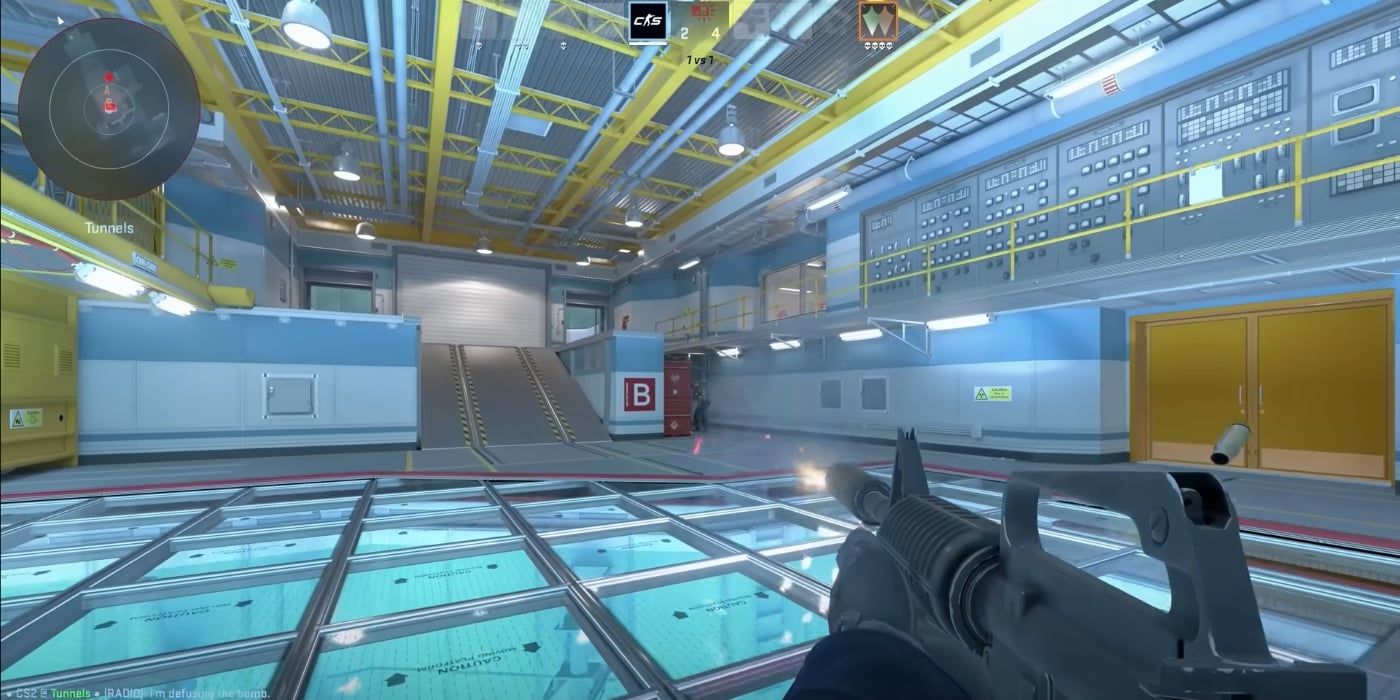
Counter-Strike 2 implements raw mouse input by default (verify with m_rawinput 1 console command), making legacy CS:GO launch parameters like noforcemaccel unnecessary. Configuration now occurs exclusively through Windows settings rather than game commands.
Common Mistake: Many players waste time adjusting deprecated settings instead of focusing on the actual Windows configuration that controls acceleration behavior.
Step-by-Step Windows Configuration:
- Simultaneously press Windows Key + R to open Run dialog
- Enter “main.cpl” (without quotation marks) and press Enter
- Navigate to “Pointer Options” tab in Mouse Properties
- Deselect “Enhance pointer precision” checkbox
- Confirm changes by clicking “Apply” button
How to compare your game with acceleration and without it?
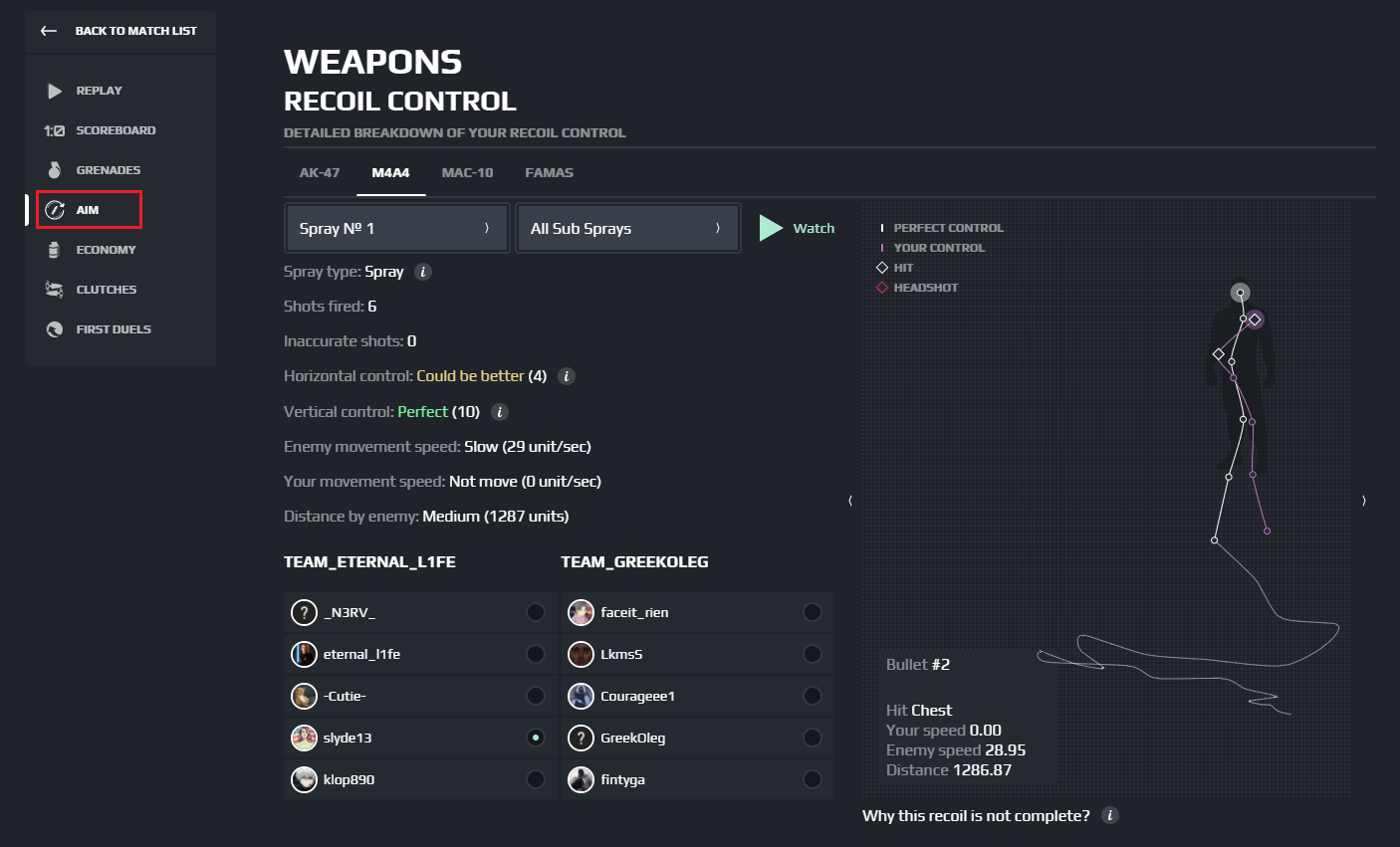
Beyond basic performance metrics (K/D ratio, Average Damage), leverage SCOPE.GG analytical tools for comprehensive assessment. Tracking specific accuracy statistics – particularly first-bullet precision – provides quantitative evidence of improvement or regression in combat effectiveness.
Optimization Tip: Test each configuration for at least 10-15 matches to establish reliable performance baselines before making permanent changes to your setup.
Opinions about mouse acceleration
The gaming community remains divided on mouse acceleration’s utility. Most competitive players consider it detrimental for shooter gameplay, citing adaptation difficulty and consistency issues. However, dedicated practice can overcome these challenges, offering significant benefits for players with limited desk space or extremely low sensitivity preferences.
Advanced Insight: Players transitioning from games like Battlefield 6 may find acceleration more familiar, though CS2’s precision demands typically favor consistency over flexibility.
Educational content demonstrates acceleration’s situational value – sometimes advantageous, sometimes detrimental. Though often based on CS:GO footage, these principles remain applicable to CS2. Ultimately, the decision depends on individual playstyle and physical setup constraints.
Setup Limitation Solution: If desk space restricts full mouse movements, consider acceleration as a tactical compromise rather than permanent solution.
Action Checklist
- Disable ‘Enhance pointer precision’ in Windows Mouse Properties
- Verify raw input with m_rawinput 1 console command
- Test both configurations for 10+ matches using SCOPE.GG analytics
- Compare first-bullet accuracy statistics between setups
- Analyze K/D ratio and engagement performance changes
No reproduction without permission:Tsp Game Club » Mouse acceleration in CS2. Complete guide by SCOPE.GG Master mouse acceleration settings in CS2 for competitive advantage and precision aiming