
TL;DR
- Professional players prioritize FPS over graphics for competitive advantage
- Lower resolutions (4:3) provide thicker models while 16:9 increases field of view
- Critical settings include Global Shadow Quality, Anti-Aliasing, and Texture Filtering
- NVIDIA and AMD require specific driver-level optimizations for best performance
- Monitor your FPS with console commands to validate optimization effectiveness
First-person shooters demand high frame rates for optimal gameplay experience, and Counter-Strike 2 follows this fundamental principle. When your system fails to generate sufficient frames per second, you’ll encounter delayed enemy model rendering, screen stuttering, and overall degraded game responsiveness.
Competitive gaming veterans universally configure shooters with minimal graphical settings, with notable exceptions for Global Shadow Quality, Texture Filtering Mode and Boost Player Contrast, which remain elevated for tactical advantages. The primary objective focuses on extracting peak FPS (frames per second) from your hardware configuration rather than pursuing visual aesthetics.
Regardless of individual skill level, insufficient frame rates create competitive disadvantages where opponents gain measurable advantages in reaction time and target acquisition. This comprehensive guide addresses every critical component for enhancing your frame rate performance in Counter-Strike 2.
CS2’s frame rate performance depends entirely on your computer’s hardware capabilities combined with properly optimized game and graphics configurations.
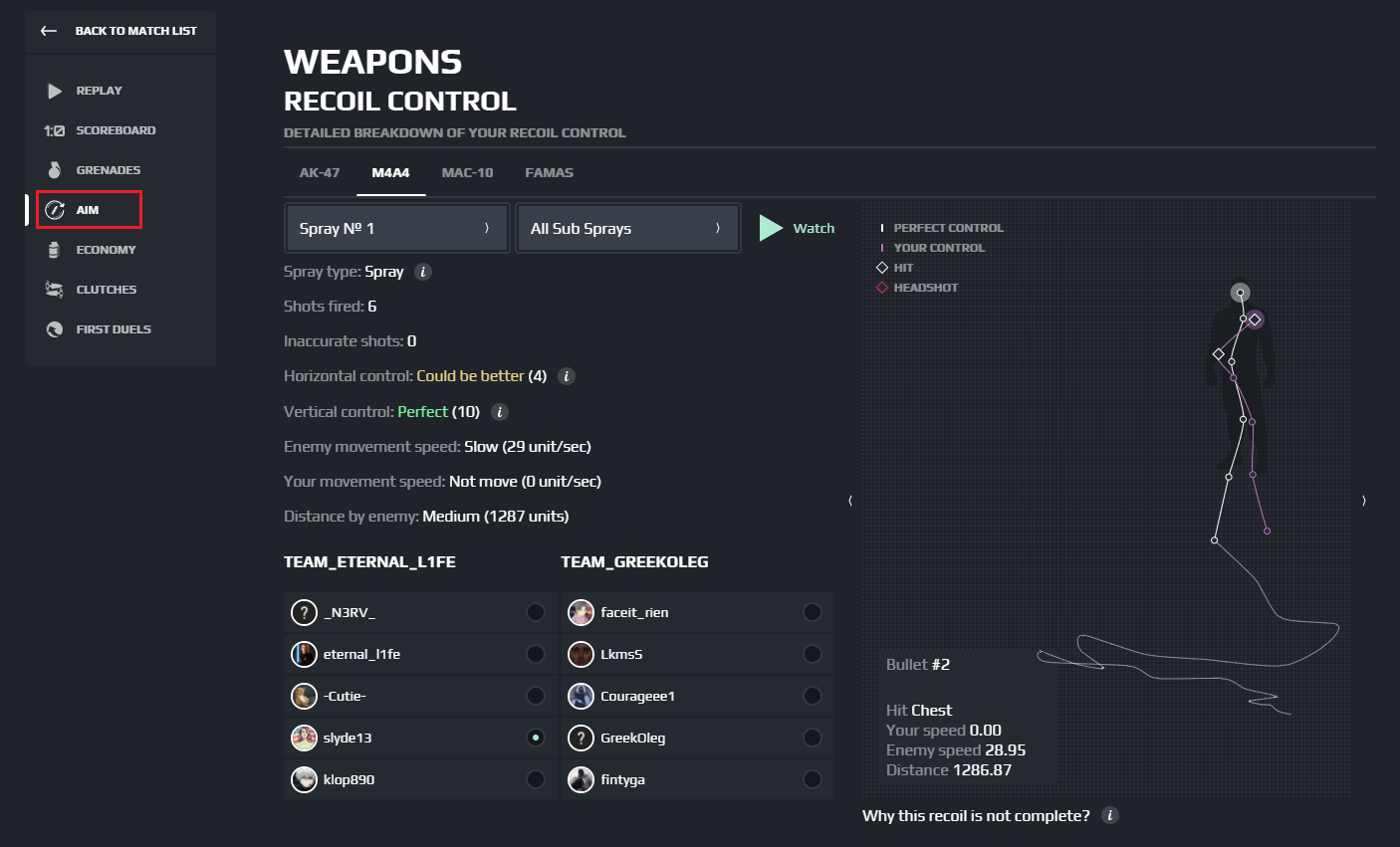
Every competitive player seeks visually acceptable presentation while maintaining maximum possible frame rates. Below you’ll find CS2’s most performance-oriented video configurations with detailed reasoning behind each selection choice.
Video Settings
This section examines Video, Advanced Video, NVIDIA, and Game Settings. Each category demonstrates specific techniques to elevate CS2 frame rates to their highest achievable levels.
Video
Video configuration represents highly individualized preferences, with multiple available options primarily differentiated by screen resolution choices.
Resolution 1 (4:3 | 1280×960):
Character models appear significantly wider and more substantial at this particular resolution setting.
- Main Menu Background Scenery
- Brightness — 100% – 130%
- Aspect Ratio — 4:3
- Scaling Mode — Stretched
- Resolution — 1280×960
- Display Mode — Fullscreen
- Refresh Rate — Maximum (60hz – 144hz or 240hz)
- Laptop Power Savings — Disabled
Resolution 2 (4:3 | 1024×768):
Player models maintain identical proportions to the 1280×960 configuration.
- Main Menu Background Scenery
- Brightness — 100% – 130%
- Aspect Ratio — 4:3
- Scaling Mode — Stretched
- Resolution — 1024×768
- Display Mode — Fullscreen
- Refresh Rate — Maximum (60hz – 144hz or 240hz)
- Laptop Power Savings — Disabled
Resolution 3 (16:9 | 1920×1080):
This resolution configuration expands your FOV (field of view) for enhanced situational awareness.
- Main Menu Background Scenery
- Brightness — 100% – 130%
- Aspect Ratio — 16:9
- Scaling Mode — Native
- Resolution — 1920×1080
- Display Mode — Fullscreen
- Refresh Rate — Maximum (60hz – 144hz or 240hz)
- Laptop Power Savings — Disabled
Determining the ideal brightness configuration presents challenges since every map features distinct lighting conditions requiring specific brightness adjustments.
Advanced Video
Below you’ll find CS2’s most performance-critical advanced video settings with comprehensive explanations for each configuration decision.
- Boost Player Contrast — Enabled
Character models display improved visibility against environmental surfaces, though lower-specification systems may benefit from disabling this feature.
- Wait for Vertical Sync — Disabled
The core purpose involves maximizing frame rates rather than imposing artificial limitations. Consequently, disable this setting.
- Multisampling Anti-Aliasing Mode — 8X MSAA
Based on your computer’s performance capacity, select between 4X MSAA and 8X MSAA alternatives. Failure to enable adequate anti-aliasing results in visible jagged edges throughout the environment and diminished image clarity.
- Global Shadow Quality — Very High
Configure this setting to either High or Very High levels. Players gain tactical benefits through enemy shadow visibility, making this parameter particularly valuable during Ancient map gameplay.
- Model / Texture Detail — Low
This parameter governs texture resolution quality, representing non-critical visual enhancement. Set to Low for frame rate optimization.
- Texture Filtering Mode — Bilinear
Enhances texture visual presentation. Most competitive players utilize Bilinear filtering.
- Shader Detail — Low
Manages lighting and shading effects on environmental surfaces. Configure to Low for frame rate improvement.
- Particle Detail — Low
Adjusts particle effect complexity levels. Set to Low for enhanced game performance.
- Ambient Occlusion — Disabled
Disable this parameter since it performs unnecessary lighting calculations.
- High Dynamic Range — Quality
Configure Quality setting to prevent visual discomfort when transitioning between dark and bright areas.
- FidelityFX Super Resolution — Disabled
- Nvidia Reflex Low Latency — Enabled + Boost
This configuration depends heavily on system specifications since it consumes significant resources. The functionality aims to reduce input latency during gameplay. GeForce 900 series and newer* graphics processors support NVIDIA Reflex Low Latency functionality.
Utilizing this configuration preset enables a significantly optimized gaming experience with excellent frame rates and adequate visual quality. Should you continue experiencing performance stuttering and frame rate instability, consult the Best Settings for Low-End PC Systems section below for additional optimization guidance.
Nvidia Settings for CS2
We’ll explore essential NVIDIA configuration parameters to maximize your CS2 gaming performance potential.
3D Settings:
- Access Taskbar and locate NVIDIA Settings
- Navigate to the NVIDIA Control Panel
- Within the 3D Settings dropdown menu, choose Adjust image settings with a preview
- Select Use the Advanced 3D image settings > Take me there
- Choose Program Settings
- Locate cs2.exe within the Select a program to customise section
- Return to Global Settings
- Configure Image Sharpening to off
- Set Ambient Occlusion to off
- Adjust Anisotropic Filtering to off
- Set Antialiasing – Gamma Correction to off
- Configure Antialiasing – Mode to off
- Set Antialiasing – Transparency to off
- Configure Background Application Max Frame Rate to Off
- Set CUDA – GPUs to All
- Set DSR – Factors to Off
- Configure Low Latency Mode to On
- Set Max Frame Rate to Off
- Set Multi-Frame Sampled AA(MFAA) to Off
- Set Open GL Rendering GPU to On
- Configure Power management mode to Prefer maximum performance
- Set the Preferred refresh rate to the Highest Available
- Set Shader Cache Side to Driver Default
- Set Texture filtering – Anisotropic sample optimisation to On
- Set Texture filtering – Negative LOD bias to Allow
- Set Texture filtering – Quality to High Performance
- Set Texture filtering – Trilinear optimisation to On
- Set Threaded optimisation to On
- Set Triple buffering to Off
- Set Vertical sync to Off
- Click Apply
Display Settings (Color):
- Navigate to the Display section and select Adjust Desktop colour settings
- Scroll downward to locate Digital Vibrance
- Choose the parameter value that matches your preference
Display Settings (Size):
- Proceed to Adjust desktop size and position
- Select your specific Monitor
- Choose Full-screen within the Scaling section
AMD Radeon Settings for CS2
All configuration adjustments utilize AMD Software: Adrenalin Edition. Navigate to Gaming and select cs2.exe. Configure the following parameters to achieve maximum frame rates:
Graphics
- Radeon Super Resolution: Disabled
- AMD Fluid Motion Frames – Manual: Disabled
- Radeon Anti-Lag: Enabled
- Radeon Chill: Disabled
- Radeon Boost: Disabled
- Radeon Image Sharpening: Disabled
- Radeon Enhanced Sync: Disabled
- Wait for Vertical Refresh: Always Off
Advanced
- Anti-Aliasing: Use application settings
- Anti-Aliasing Method: Multisampling
- Morphological Anti-Aliasing: Disabled
- Anisotropic Filtering: Disabled
- Texture Filtering Quality: Performance
- Surface Format Optimization: Enabled
- Tessellation Mode: Optimized
- OpenGL Triple Buffering: Disabled
- 10-Bit Pixel Format: Disabled
Game Settings
This section covers primary configuration parameters that directly influence gameplay performance and competitive effectiveness.
Game
- Max Acceptable Matchmaking Ping: 100
- Max Acceptable Game Traffic Bandwidth: Unrestricted
HUD
- HUD Scale – 0.95
Radar
- Radar Centers The Player – Yes
- Radar is Rotating – Yes
- Toggle Shape With Scoreboard – Yes
- Radar Hud Size – 0.90
- Radar Map Zoom – 0.4
Crosshair
Every competitive player selects crosshair configurations matching their individual preferences. The most straightforward crosshair selection method involves visiting specialized websites, identifying professional players whose configurations appeal to you, and replicating their settings. To implement copied crosshair configurations, follow these procedures:
- Navigate to Game settings
- Select the Crosshair section
- Locate Share or Import (positioned below Crosshair)
- Insert the previously copied configuration code
- Click Import
Follow Recoil
A recent CS2 innovation modifying traditional static crosshair behavior. During weapon discharge, your crosshair dynamically compensates for recoil patterns while firing. The fundamental concept demonstrates bullet trajectory locations, even during recoil compensation.
- Access Game configuration settings
- Choose the Crosshair section
- Activate Follow Recoil
Every weapon within Counter-Strike features unique bullet spread patterns, providing insights regarding effective recoil management techniques across different weapon categories. Veteran players accustomed to static crosshairs may require adjustment periods.
Best Settings for Low-End PC Systems: How to get max FPS
Let’s examine graphical configurations tailored for less powerful computer systems. We’ll attempt to minimize graphical fidelity as extensively as possible to enhance frame rates. You may incrementally increase certain settings if your system demonstrates adequate performance capacity. Below you’ll find optimal CS2 configurations for frame rate improvement.
| Setting | Recommended Value |
|---|---|
| Boost Player Contrast | Enabled |
| Wait for Vertical Sync | Disabled |
| Multisampling Anti-Aliasing Mode | 8X MSAA for high-end PCs, 4X MSAA or 2X MSAA for low-end PCs |
| Global Shadow Quality | Very High or High |
| Model / Texture Detail | Low |
| Texture Filtering Mode | Bilinear |
| Shader Detail | Low |
| Particle Detail | Low |
| Ambient Occlusion | Disabled |
| High Dynamic Range | Quality |
| FidelityFX Super Resolution | Disabled |
| Nvidia Reflex Low Latency | Enabled + Boost (for high-end PCs) |
Within this configuration preset, particular attention should focus on Global Shadow Quality. Shadows within Counter Strike 2 facilitate enemy detection and can reveal opponent positioning before visual confirmation. Therefore, configure this parameter to Medium.
Multisampling Anti-Aliasing Mode represents another critical performance aspect. Experiment with 4X MSAA configuration for improved visual smoothness. Adjust to 2X MSAA if you observe frame rate degradation.
First-person shooters demand high frame rates for optimal performance, and Counter-Strike 2 follows this competitive requirement. When your system struggles to maintain consistent FPS, you’ll experience delayed enemy model rendering, screen stuttering, and compromised gameplay fluidity.
Professional esports athletes consistently prioritize performance over visual fidelity, running shooters on reduced settings with strategic exceptions. Global Shadow Quality, Texture Filtering Mode and Boost Player Contrast represent the key settings where competitive players accept performance costs for tactical advantages. The primary objective remains extracting maximum frames per second from your hardware configuration rather than pursuing cinematic visuals.
Regardless of individual skill level, insufficient frame rates create competitive disadvantages where opponents gain measurable performance edges. This comprehensive guide addresses every critical aspect of FPS enhancement in Counter-Strike 2.
Boosting FPS for a Superior CS2 Experience
Frame rate consistency in CS2 depends on both your hardware capabilities and intelligent graphics configuration management.
CS2 Graphics Settings for Competitive Performance
Every competitive player seeks the ideal balance between visual clarity and maximum FPS output. Below you’ll find CS2’s most effective video configurations accompanied by detailed reasoning for each setting selection.
Video Settings
This section examines Video, Advanced Video, NVIDIA, and Game Settings. Each category provides specific guidance for maximizing FPS potential in Counter-Strike 2.
Video
Video configuration represents highly individualized preferences, with primary variations occurring in display resolution selection.
Resolution 1 (4:3 | 1280×960):
Player models appear significantly wider at this resolution, creating larger target profiles.
- Main Menu Background Scenery
- Brightness — 100% – 130%
- Aspect Ratio — 4:3
- Scaling Mode — Stretched
- Resolution — 1280×960
- Display Mode — Fullscreen
- Refresh Rate — Maximum (60hz – 144hz or 240hz)
- Laptop Power Savings — Disabled
Resolution 2 (4:3 | 1024×768):
Character models maintain identical proportions to the 1280×960 configuration.
- Main Menu Background Scenery
- Brightness — 100% – 130%
- Aspect Ratio — 4:3
- Scaling Mode — Stretched
- Resolution — 1024×768
- Display Mode — Fullscreen
- Refresh Rate — Maximum (60hz – 144hz or 240hz)
- Laptop Power Savings — Disabled
Resolution 3 (16:9 | 1920×1080):
This native resolution expands your FOV (field of view) for enhanced peripheral awareness.
- Main Menu Background Scenery
- Brightness — 100% – 130%
- Aspect Ratio — 16:9
- Scaling Mode — Native
- Resolution — 1920×1080
- Display Mode — Fullscreen
- Refresh Rate — Maximum (60hz – 144hz or 240hz)
- Laptop Power Savings — Disabled
Determining the optimal brightness configuration presents challenges since each map features unique lighting conditions requiring tailored brightness adjustments.
Advanced Video
Below are CS2’s most strategically important advanced settings with detailed explanations for each competitive configuration.
- Boost Player Contrast — Enabled
Character models display enhanced visibility against environmental backgrounds, though lower-specification systems may benefit from disabling this feature for performance gains.
- Wait for Vertical Sync — Disabled
The fundamental goal involves maximizing FPS output rather than implementing artificial limitations. Consequently, disable this setting.
- Multisampling Anti-Aliasing Mode — 8X MSAA
Depending on your system’s capabilities, select between 4X MSAA and 8X MSAA configurations. Without adequate anti-aliasing, you’ll observe jagged edges throughout the environment and reduced image definition.
- Global Shadow Quality — Very High
Configure this setting to either High or Very High. Players gain tactical advantages through enemy shadow detection capabilities, making this parameter particularly valuable on maps like Ancient.
- Model / Texture Detail — Low
This parameter governs texture resolution, representing a non-critical visual element. Set to Low for FPS improvements.
- Texture Filtering Mode — Bilinear
Enhances texture rendering quality. The majority of competitive players utilize Bilinear filtering.
- Shader Detail — Low
Controls lighting and surface shading effects. Configure to Low for FPS enhancement.
- Particle Detail — Low
Adjusts particle effect complexity. Set to Low to improve overall game performance.
- Ambient Occlusion — Disabled
Disable this parameter since it performs unnecessary lighting calculations.
- High Dynamic Range — Quality
We recommend Quality configuration to prevent visual discomfort when transitioning between dark interiors and bright exterior areas.
- FidelityFX Super Resolution — Disabled
- Nvidia Reflex Low Latency — Enabled + Boost
This setting depends heavily on system resources, as it represents a computationally intensive feature. Its purpose involves minimizing input latency during gameplay. NVIDIA Reflex Low Latency mode requires GeForce 900 series or newer graphics processors.
With this configuration preset, you’ll experience a significantly optimized competitive environment with improved FPS stability and acceptable visual quality. If you continue encountering performance stuttering and FPS fluctuations, consult the Best Settings for Low-End PC Systems section below for additional optimization strategies.
NVIDIA Settings for CS2
We’ll explore essential NVIDIA configurations to help you extract maximum performance from CS2.
3D Settings:
- Open Taskbar and find NVIDIA Settings
- Proceed to the NVIDIA Control Panel
- Inside the 3D Settings dropdown, select Adjust image settings with a preview
- Click on Use the Advanced 3D image settings > Take me there
- Select Program Settings
- Find cs2.exe in the Select a program to customise section
- Switch back to Global Settings
- Set Image Sharpening to off
- Set Ambient Occlusion to off
- Set Anisotropic Filtering to off
- Set Antialiasing – Gamma Correction to off
- Set Antialiasing – Mode to off
- Set Antialiasing – Transparency to off
- Set Background Application Max Frame Rate to Off
- Set CUDA – GPUs to All
- Set DSR – Factors to Off
- Set Low Latency Mode to On
- Set Max Frame Rate to Off
- Set Multi-Frame Sampled AA(MFAA) to Off
- Set Open GL Rendering GPU to On
- Set Power management mode to Prefer maximum performance
- Set the Preferred refresh rate to the Highest Available
- Set Shader Cache Side to Driver Default
- Set Texture filtering – Anisotropic sample optimisation to On
- Set Texture filtering – Negative LOD bias to Allow
- Set Texture filtering – Quality to High Performance
- Set Texture filtering – Trilinear optimisation to On
- Set Threaded optimisation to On
- Set Triple buffering to Off
- Set Vertical sync to Off
- Click on Apply
Display Settings (Color):
- Proceed to the Display section and choose Adjust Desktop colour settings
- Scroll down and find Digital Vibrance
- Select the parameter that suits you
Display Settings (Size):
- Proceed to Adjust desktop size and position
- Select your Monitor
- Select Full-screen in Scaling
Game Settings
This section covers the primary configurations that directly influence competitive gameplay performance.
Game
- Max Acceptable Matchmaking Ping: 100
- Max Acceptable Game Traffic Bandwidth: Unrestricted
HUD
- HUD Scale – 0.95
Radar
- Radar Centers The Player – Yes
- Radar is Rotating – Yes
- Toggle Shape With Scoreboard – Yes
- Radar Hud Size – 0.90
- Radar Map Zoom – 0.4
Crosshair
Every competitive player should select a crosshair configuration that matches their visual preferences and playstyle. The most efficient crosshair selection method involves visiting professional player configuration databases, identifying players whose settings align with your preferences, and implementing their crosshair codes. To import a professional crosshair configuration, follow these implementation steps:
- Proceed to Game
- Select Crosshair section
- Locate Share or Import (positioned below Crosshair)
- Insert the configuration code copied from the professional database
- Press Import
Follow Recoil
A revolutionary CS2 feature that transforms static crosshair behavior. During weapon discharge, your sight dynamically compensates for recoil patterns as you fire. The fundamental concept demonstrates bullet trajectory visualization even during sustained automatic fire.
- Go to Game settings
- Select Crosshair section
- Activate Follow Recoil
Every weapon in Counter-Strike features unique spray control patterns, providing strategic insights into recoil management techniques across different firearm categories. Veteran players accustomed to traditional static crosshairs may require adaptation periods to master this advanced feature.
Best Settings for Low-End PC Systems: How to get max FPS
Let’s examine the optimal graphics configuration for systems with limited hardware capabilities. We’ll strategically reduce graphical complexity to the minimum viable level for FPS maximization. You can incrementally increase specific settings if your system demonstrates adequate performance headroom. Here are the definitive CS2 settings for competitive FPS enhancement.
| Setting | Recommended Value |
|---|---|
| Boost Player Contrast | Enabled |
| Wait for Vertical Sync | Disabled |
| Multisampling Anti-Aliasing Mode | 8X MSAA for high-end PCs, 4X MSAA or 2X MSAA for low-end PCs |
| Global Shadow Quality | Very High or High |
| Model / Texture Detail | Low |
| Texture Filtering Mode | Bilinear |
| Shader Detail | Low |
| Particle Detail | Low |
| Ambient Occlusion | Disabled |
| High Dynamic Range | Quality |
| FidelityFX Super Resolution | Disabled |
| Nvidia Reflex Low Latency | Enabled + Boost (for high-end PCs) |
Within this configuration framework, prioritize attention to Global Shadow Quality. Shadow rendering in Counter-Strike 2 enables enemy detection and can reveal opponent positioning before visual confirmation. Therefore, configure this parameter to Medium for optimal performance balance.
Multisampling Anti-Aliasing Mode represents another critical performance factor. Experiment with 4X MSAA configuration for enhanced image smoothness. Transition to 2X MSAA if you observe significant FPS degradation.
FAQ
What are the recommended CS2 graphics settings for better performance?
Consult the CS2 Graphics Settings for Better Performance section for comprehensive graphics configuration recommendations.
How can I boost FPS in CS2 on a low-end PC?
You can enhance FPS performance by systematically reducing graphical settings in CS2. Reference the Best Settings for Low-End PC Systems section for detailed optimization strategies.
Are there specific settings for CS2 on high-end gaming rigs?
High-performance systems benefit from minor configuration adjustments that improve visual quality while maintaining competitive frame rates. The core objective remains FPS optimization rather than graphical fidelity prioritization.
How to Show FPS in CS2
The traditional net_graph 1 command has been deprecated. Current CS2 FPS display commands include: cl_showfps 1 – displays frame rate exclusively; cl_showfps 2 – shows frame rate and ping similar to legacy net_graph functionality; cl_showfps 3 – displays frame rate, ping, and server tick statistics.
Action Checklist
- Configure display resolution to 4:3 aspect ratio for thicker player models
- Adjust advanced video settings prioritizing Global Shadow Quality and Anti-Aliasing
- Optimize NVIDIA or AMD driver settings according to hardware specifications
- Calibrate crosshair and radar settings for competitive advantage
- Monitor FPS using cl_showfps commands to validate optimization effectiveness
- Configure NVIDIA Control Panel 3D settings with Low Latency Mode enabled and Vertical Sync disabled
- Optimize display settings including Digital Vibrance adjustment and full-screen scaling
- Implement competitive game settings including HUD scale 0.95 and optimized radar configuration
- Test FPS performance using cl_showfps commands and adjust settings accordingly
- Monitor system stability and performance metrics during actual gameplay sessions
No reproduction without permission:Tsp Game Club » Best Graphics Settings for MAX FPS in CS2. Ultimate Guide by SCOPE.GG Unlock max FPS and dominate CS2 with pro-level graphics optimizations.