
Comprehensive troubleshooting guide to fix Schedule 1 Failed To Load Custom.dll error with advanced solutions
Understanding the Custom.dll Error
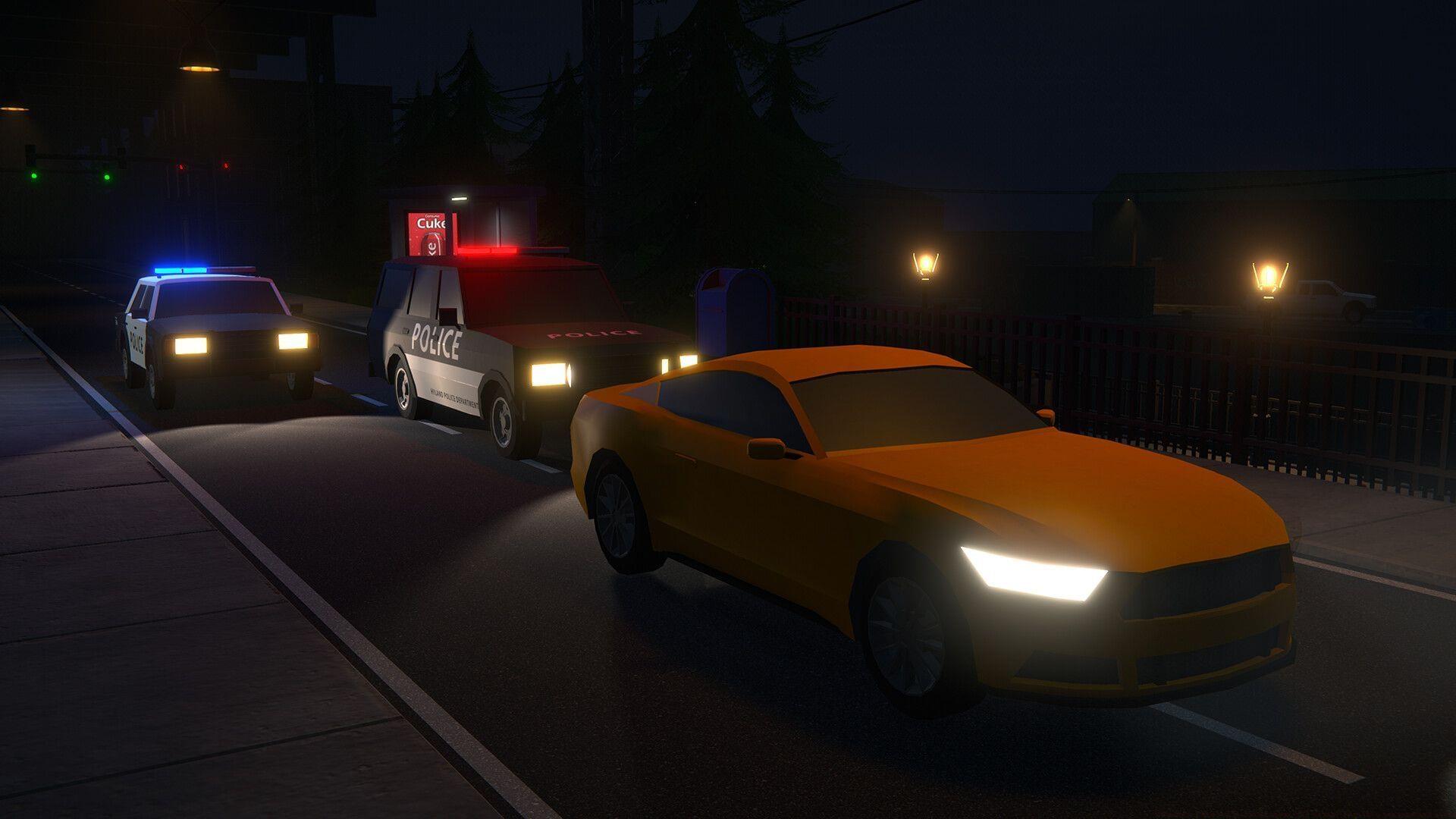
Schedule 1 Failed To Load Custom.dll error represents a critical game initialization failure affecting many players. This technical issue completely blocks game launch functionality, preventing access to your criminal enterprise simulation. The persistent nature of this error creates significant frustration, especially when the root cause remains unidentified.
Fortunately, most instances of this technical problem can be resolved through systematic troubleshooting approaches. The following comprehensive guide provides detailed workarounds and preventative measures to eliminate the Custom.dll loading failure permanently.
File Verification Method
When the Custom.dll error stems from incomplete downloads or installation corruption, Steam’s built-in verification tool offers the most effective solution. This process scans all game components and automatically replaces damaged DLL files with fresh copies from the distribution servers.
To perform comprehensive file verification:
If verification proves insufficient, complete reinstallation becomes necessary. First, uninstall Schedule 1 through Steam, then manually delete any residual files in the installation directory before downloading a fresh copy. This comprehensive approach ensures no corrupted registry entries or configuration files persist.
Pro Tip: Always verify your internet connection stability before reinstalling. Interrupted downloads represent the primary cause of corrupted game files. Consider using wired connections rather than Wi-Fi for large game installations.
Antivirus Solutions
Overprotective security software frequently misidentifies game DLL files as potential threats, resulting in quarantine actions that trigger loading failures. Windows Defender represents the most common culprit, but third-party antivirus programs can produce identical issues.
To restore quarantined DLL files in Windows Defender:
For permanent prevention, configure antivirus exclusions for your Schedule 1 installation directory. Within Windows Security settings, navigate to Virus & threat protection > Manage settings > Add or remove exclusions. Create both folder-level and file-type exceptions to prevent future false positives.
Critical Note: Some antivirus software requires complete temporary disablement during game installation and initial launch. Remember to re-enable protection afterward to maintain system security.
Advanced Troubleshooting
When standard solutions prove ineffective, advanced techniques may resolve persistent Custom.dll errors. Begin by checking for pending Windows updates, as outdated system components frequently cause compatibility conflicts with game files. Additionally, verify your graphics drivers are current, as DirectX dependencies within DLL files can trigger loading failures.
For technically inclined users, manual DLL restoration represents another option. Navigate to the Schedule 1 installation directory, typically located at ‘C:Program Files (x86)SteamsteamappscommonSchedule 1’. Verify the presence of Custom.dll in the main folder. If absent, consult community forums for legitimate file sources or attempt extraction from game backup archives.
If all self-help methods fail, direct developer support becomes your final recourse. Contact TVGS support with detailed error logs, system specifications, and troubleshooting steps already attempted. The development team can provide specialized patches or identify emerging issues affecting multiple users.
Community Insight: Monitor official Schedule 1 Discord channels and subreddits for emerging hotfix announcements. Many DLL-related issues receive rapid developer attention when reported by multiple community members simultaneously.
No reproduction without permission:Tsp Game Club » Schedule 1 Failed To Load Custom.dll error: Possible reasons and fixes Comprehensive troubleshooting guide to fix Schedule 1 Failed To Load Custom.dll error with advanced solutions