
Comprehensive guide to fix Battlefield 2042 persistence data errors with proven troubleshooting methods
Understanding the Persistence Data Error
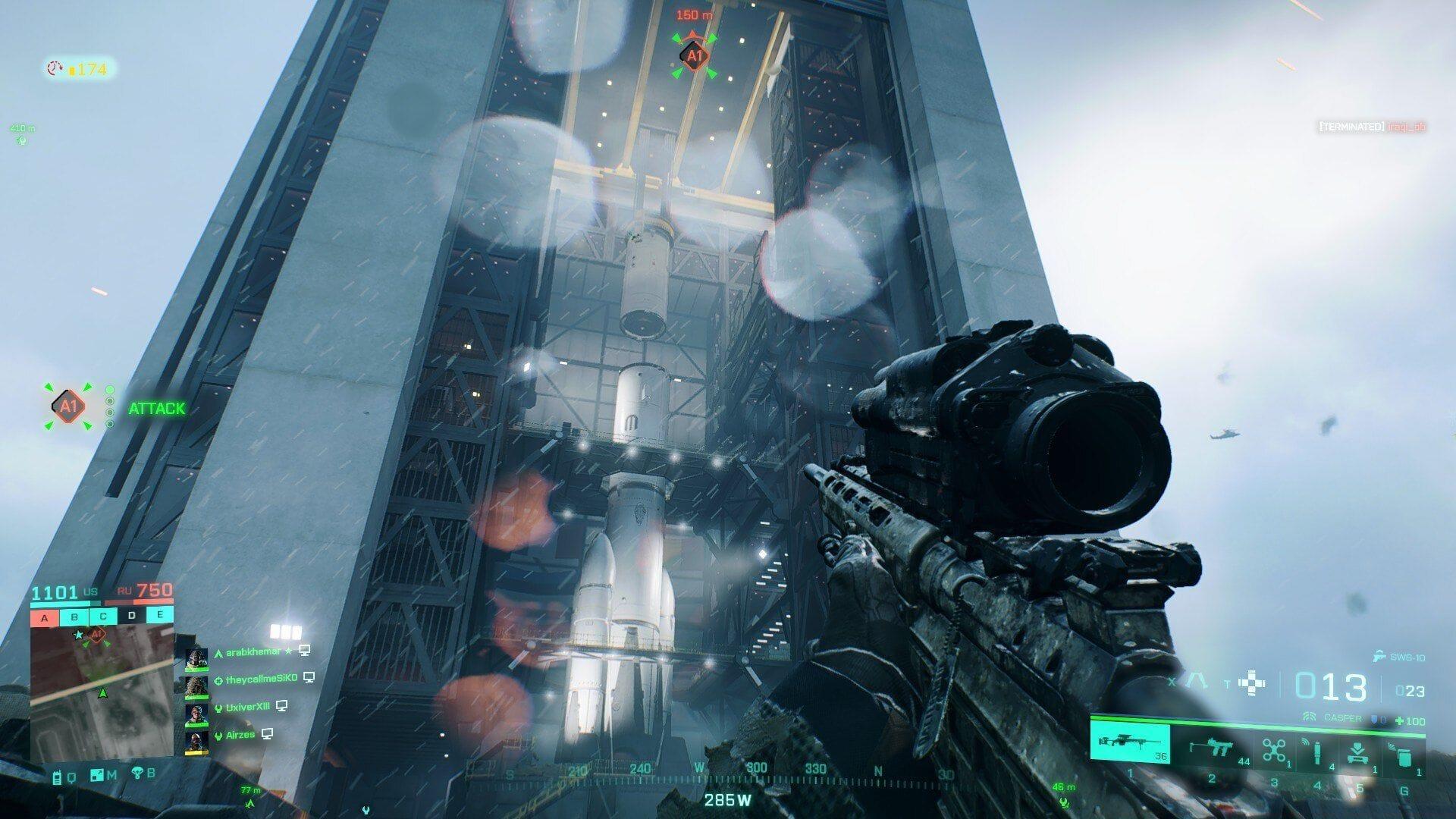
The Battlefield 2042 ‘unable to load persistence data’ error represents a critical connectivity barrier preventing access to online features and progression systems. This technical failure typically stems from three primary sources: EA server outages disrupting authentication, corrupted local game files impairing data synchronization, or network configuration conflicts blocking communication with game servers. Players preparing for Battlefield 6’s release encounter significant obstacles when this error interrupts their progression grinding sessions.
Understanding the technical architecture reveals why persistence data matters – it encompasses player profiles, unlock progress, weapon attachments, and customization options stored both locally and on EA servers. When synchronization fails, the game cannot verify your account state, resulting in connection refusal. Server-side issues often manifest during peak hours or maintenance periods, while client-side problems may indicate deeper system incompatibilities.
Network and Connection Diagnostics
Begin troubleshooting with comprehensive network assessment, examining both connection stability and configuration settings. Evaluate internet quality through speed tests focusing on latency metrics rather than just bandwidth, as Battlefield 2042 requires consistent low-ping connections. Inspect physical cabling for damage or loose connections, and consider switching to wired Ethernet if currently using wireless to eliminate potential interference.
Temporarily disable Windows Firewall to determine if security settings are blocking essential game processes. If this resolves the issue, create specific exceptions for Battlefield 2042 executables rather than leaving protection disabled. Additionally, check router settings for any gaming mode options or QoS configurations that might prioritize game traffic. Many players overlook that antivirus software with active scanning can also interrupt the game’s communication with servers, requiring similar exception rules.
Also read: How to reduce fall damage in Battlefield 6
Game File Verification Process
Corrupted installation files frequently trigger communication failures with game servers, necessitating systematic verification rather than complete reinstallation. Steam’s integrated validation tool efficiently identifies and replaces damaged files while preserving your settings and progress. This approach saves considerable time compared to downloading the entire game again while effectively resolving most file-related persistence errors.
Execute the verification process through these methodical steps:
For non-Steam platforms, similar verification tools exist within EA App and Epic Games launcher settings. The scanning duration varies based on installation size and system performance, typically requiring 5-15 minutes. Always ensure adequate storage space exists for temporary files during repair operations.
Also read: Battlefield 6 crashing on PC error: Possible fixes, reasons
Crossplay Configuration Solutions
Disabling cross-platform functionality presents a proven solution for the persistence data error, as confirmed by extensive community testing on EA forums. Crossplay complications often arise from synchronization mismatches between different platform architectures and their respective network infrastructures. This approach isolates your connection to players on the same platform, potentially resolving authentication conflicts.
Configure crossplay settings across supported platforms using these specific procedures:
PlayStation users can find similar crossplay disable options within system settings under Account Management. Note that disabling crossplay may increase matchmaking times but often resolves persistent connection issues.
Also read: Battlefield 6 DirectX error: Possible fixes and reasons
Advanced Troubleshooting Techniques
When standard solutions prove insufficient, implement advanced network optimization techniques to resolve stubborn persistence errors. Begin with DNS configuration improvements by switching to gaming-optimized DNS servers like Google (8.8.8.8) or Cloudflare (1.1.1.1), which can enhance connection reliability. Clear your DNS cache through command prompt using ‘ipconfig /flushdns’ to eliminate corrupted resolution data.
Configure port forwarding on your router for Battlefield 2042’s required ports (TCP: 5222, 3478-3479, 3659; UDP: 3478-3479, 3659), ensuring unobstructed communication with game servers. Monitor EA’s server status page during troubleshooting to identify widespread outages that might be affecting your region. For PC players, updating network drivers and ensuring Windows gaming mode is enabled can provide additional stability improvements.
Check out our other Battlefield articles:
No reproduction without permission:Tsp Game Club » Battlefield 2042 ‘unable to load persistence data’ error: Possible fixes and reasons Comprehensive guide to fix Battlefield 2042 persistence data errors with proven troubleshooting methods