
TL;DR
- CS2 demos provide multi-perspective match recordings superior to basic screen captures
- Proper file placement and console commands enable flexible demo playback with advanced controls
- Strategic analysis helps identify personal mistakes, enemy patterns, and new grenade techniques
- Professional teams use demo reviews for tactical preparation and performance improvement
- External tools like SCOPE.GG offer 2D replays accessible across all devices
Demo files, commonly referred to as “demos,” represent one of Counter-Strike 2’s most powerful analytical tools, enabling comprehensive review of competitive matches from multiple viewpoints. Unlike standard screen recordings or stream captures that lock you into a single perspective, demo technology provides dynamic observation capabilities, allowing you to track every player’s movements, positioning decisions, and tactical choices throughout the entire match duration.
The fundamental advantage of demo files lies in their ability to recreate the complete match environment. You can freely switch between player perspectives, utilize overhead map views, and employ analytical features like X-ray vision to understand positioning dynamics. This multi-dimensional approach to match review helps players pinpoint critical errors, recognize opponent behavioral patterns, discover advanced techniques, and even detect suspicious gameplay that might indicate cheating.
Begin by acquiring your demo file through either downloading from external sources or recording directly within CS2. Accurately identify the file’s storage location, as this determines your next steps for proper loading and playback initialization.
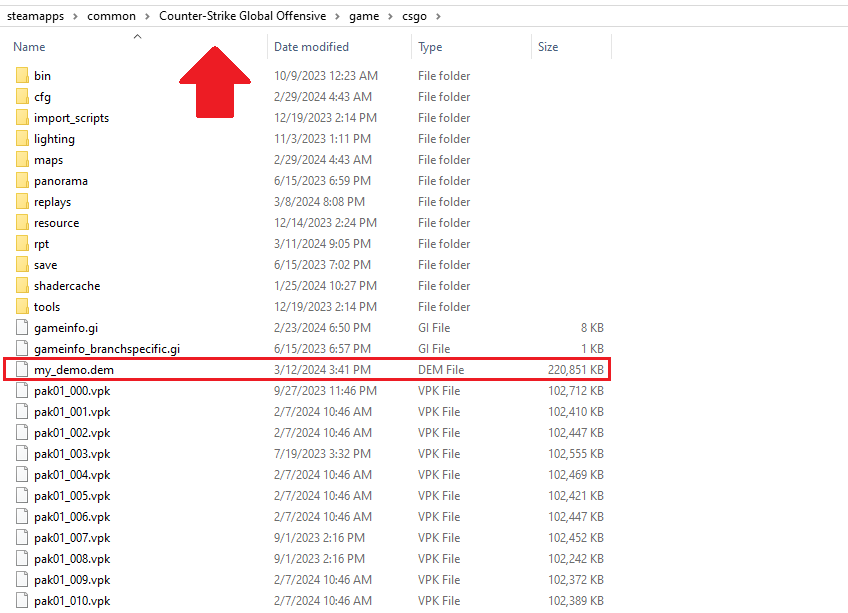
For externally sourced demos, relocate the file to your primary game directory: “SteamsteamappscommonCounter-Strike Global Offensivegamecsgo”. Matchmaking-generated demos automatically save to the dedicated replay folder: “SteamsteamappscommonCounter-Strike Global Offensivegamecsgoreplays”.
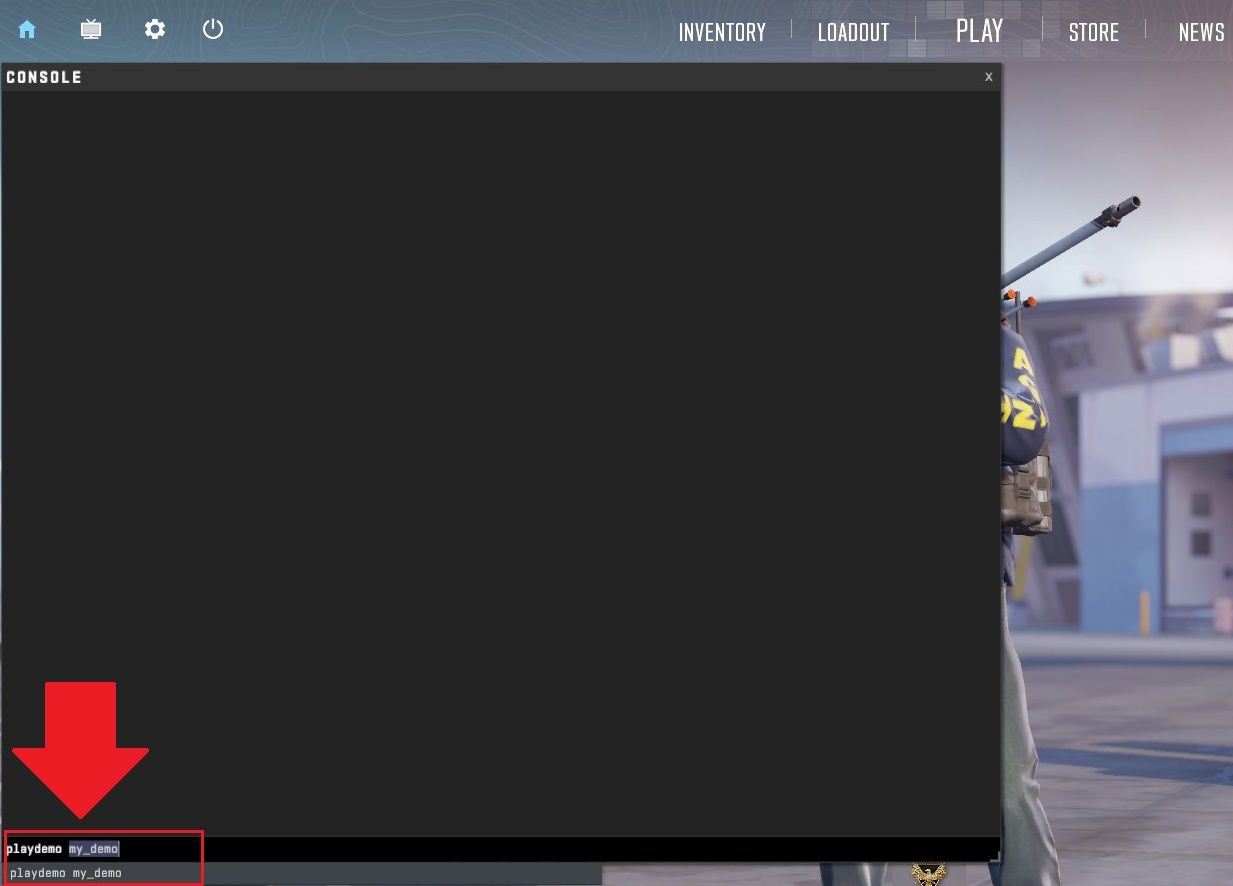
Activate the in-game console and input the command “playdemo demo_name” (excluding quotation marks). The system will initialize the demo file, loading the complete match environment with full functionality for analysis and review.
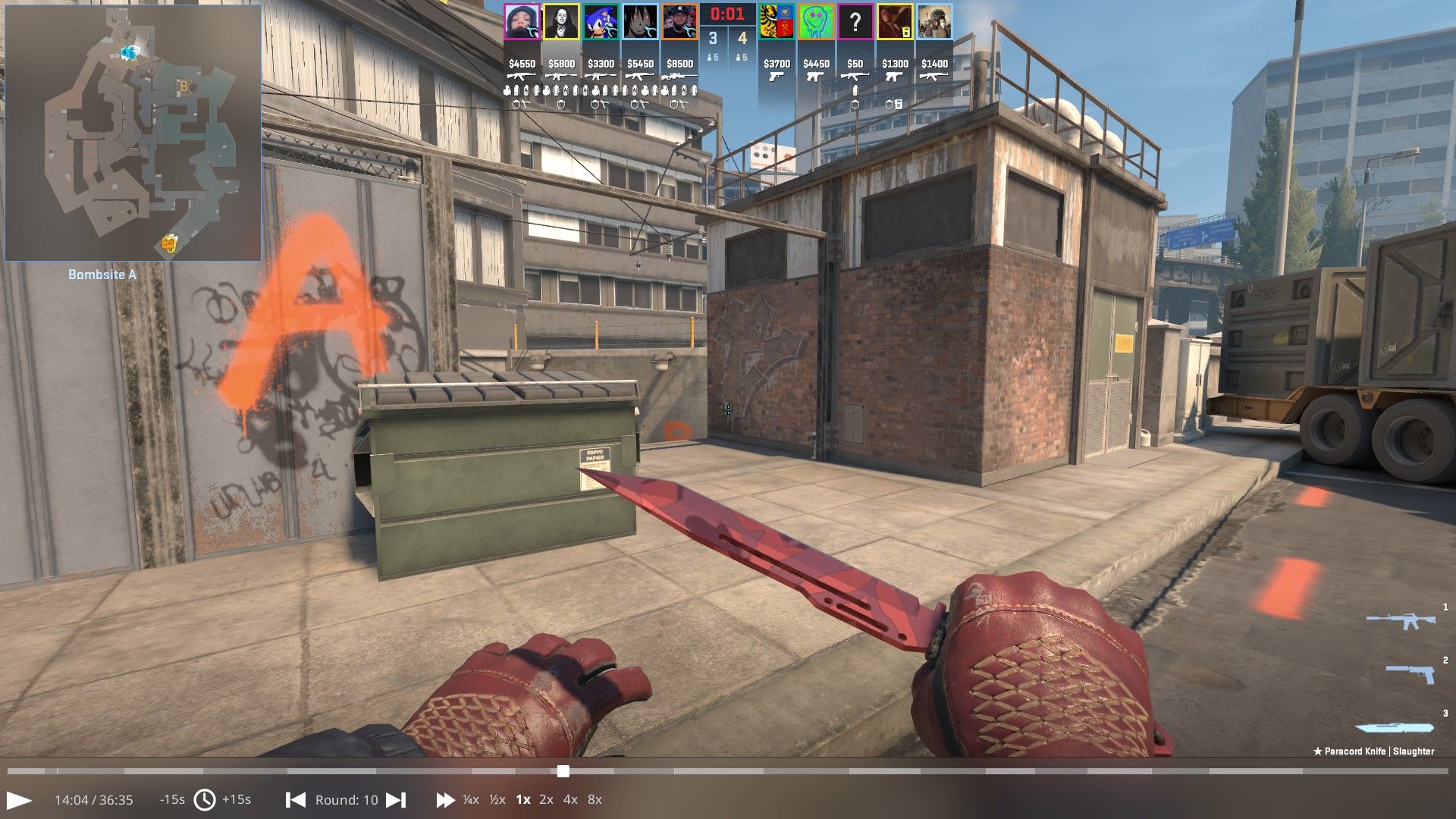
Once loaded, the demo provides comprehensive playback control. You can seamlessly transition between different player perspectives, employ analytical overlays including X-ray vision, activate player tracking features, and adjust playback speed from accelerated review to frame-by-frame analysis for precise tactical examination.
For advanced demonstration management, press Shift+F2 simultaneously to activate the comprehensive playback interface. This control panel provides granular management of demo navigation, perspective selection, and analytical tool activation.
Should the interface fail to appear automatically, manually trigger it by entering “demoui” in the console, enabling manual selection and configuration of your desired demo playback parameters and analytical focus areas.
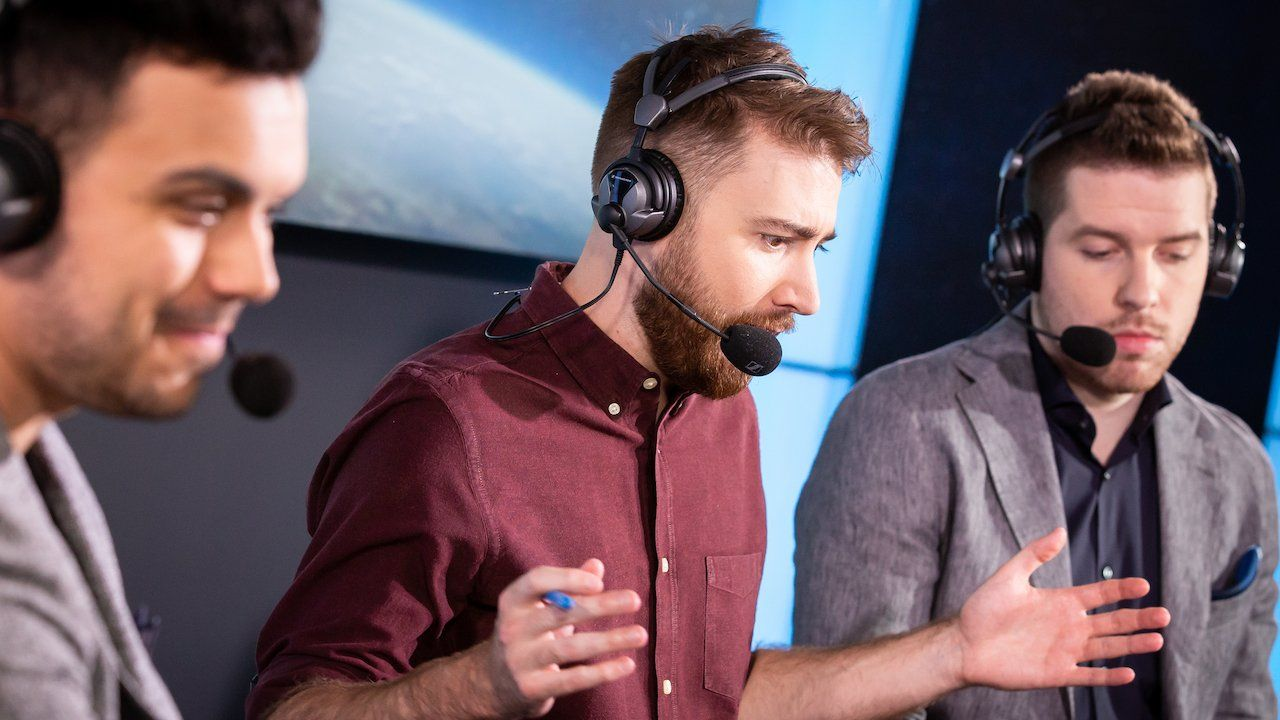
Modern professional Counter-Strike operations would be unimaginable without systematic demo review processes. Currently, nearly every elite team and competitive organization employs dedicated analysts who collaborate with players to scrutinize match replays, identifying tactical errors and decoding opponent strategies. This collaborative analytical approach enables teams to enhance their preparation against specific opponents while simultaneously improving their individual and collective gameplay execution.
The comprehensive nature of match replays provides unparalleled analytical flexibility. You can transition to any player’s perspective on the map and observe their decision-making process, positioning choices, and tactical execution from their first-person viewpoint at any moment during the match. Consider these strategic advantages:
- Analysis of your own mistakes. Are you repeatedly eliminated at identical map positions, or do your strategic plans consistently fail? Return to those critical moments within the demo and analyze them from your opponent’s perspective. Evaluate whether your utility usage achieved intended effects, assess if your movement techniques were sufficient to secure victory in specific engagements.
- Learning enemy strategies by watching CS2 replay. Decode the timing patterns of both teams and individual players, monitor rotational movements across the map, and identify the positions players prioritize. Understanding enemy positioning dynamics significantly enhances your overall comprehension of opponent tendencies on specific maps.
- Search for new grenades on competitive maps. Competitive teams continuously develop innovative grenade techniques that provide tactical advantages for both terrorist and counter-terrorist sides. When smoke placements or flashbang trajectories seem ambiguous during live play, demo review reveals not only the enemy’s initial throwing position but also the precise execution method for replicating effective utility usage.
- Identifying cheaters. This represents the most straightforward method for verifying opponent legitimacy. Within the demo environment, suspicious behavior becomes readily apparent—unusual tracking through obstacles, inconsistent flash reaction timing, or suspicious pre-aiming behavior. A thorough CS2 match overview through demo analysis effectively addresses this concern.
While extensive demo analysis in CS2 provides tremendous value, players often struggle to recognize their own recurring mistakes. External perspectives sometimes miss subtle details that ultimately determined round outcomes. However, where human observation reaches limitations, technological solutions provide enhanced analytical capabilities. To comprehensively evaluate player effectiveness in CS2, consider utilizing specialized services that automatically aggregate comprehensive match statistics. SCOPE.GG CS2 Stats Tool exemplifies this category of analytical enhancement tools.
The SCOPE.GG platform transforms traditional demos into interactive 2D replays, enabling observation of any player across any round from Matchmaking or FACEIT matches without requiring the game client. The 2D replay functionality remains accessible within all your matches through the “My matches” interface. These analytical tools function seamlessly across computer and mobile platforms, facilitating mistake analysis regardless of location or time constraints.
Professional analysts employ structured review methodologies that casual players can adapt. Focus your analysis sessions on specific objectives—don’t attempt to review everything simultaneously. Target particular rounds, specific engagements, or defined tactical scenarios. Compare your decision-making against professional players in similar situations, and always maintain detailed notes tracking patterns you identify across multiple matches.
Action Checklist
- Locate and organize demo files in correct directories based on source
- Master console commands: playdemo for loading, demoui for interface access
- Practice perspective switching and analytical tool usage during playback
- Conduct focused analysis sessions targeting specific rounds or engagements
- Implement systematic note-taking to track identified patterns and mistakes
No reproduction without permission:Tsp Game Club » ▷ How to watch DEMOS in CS2? Demo Viewer in the game. Guide by SCOPE.GG Master CS2 demo analysis with professional techniques to improve gameplay and identify strategies