
Essential troubleshooting guide for Battlefield 6 server queues and connection issues with actionable solutions
Understanding Battlefield 6 Launch Server Queues
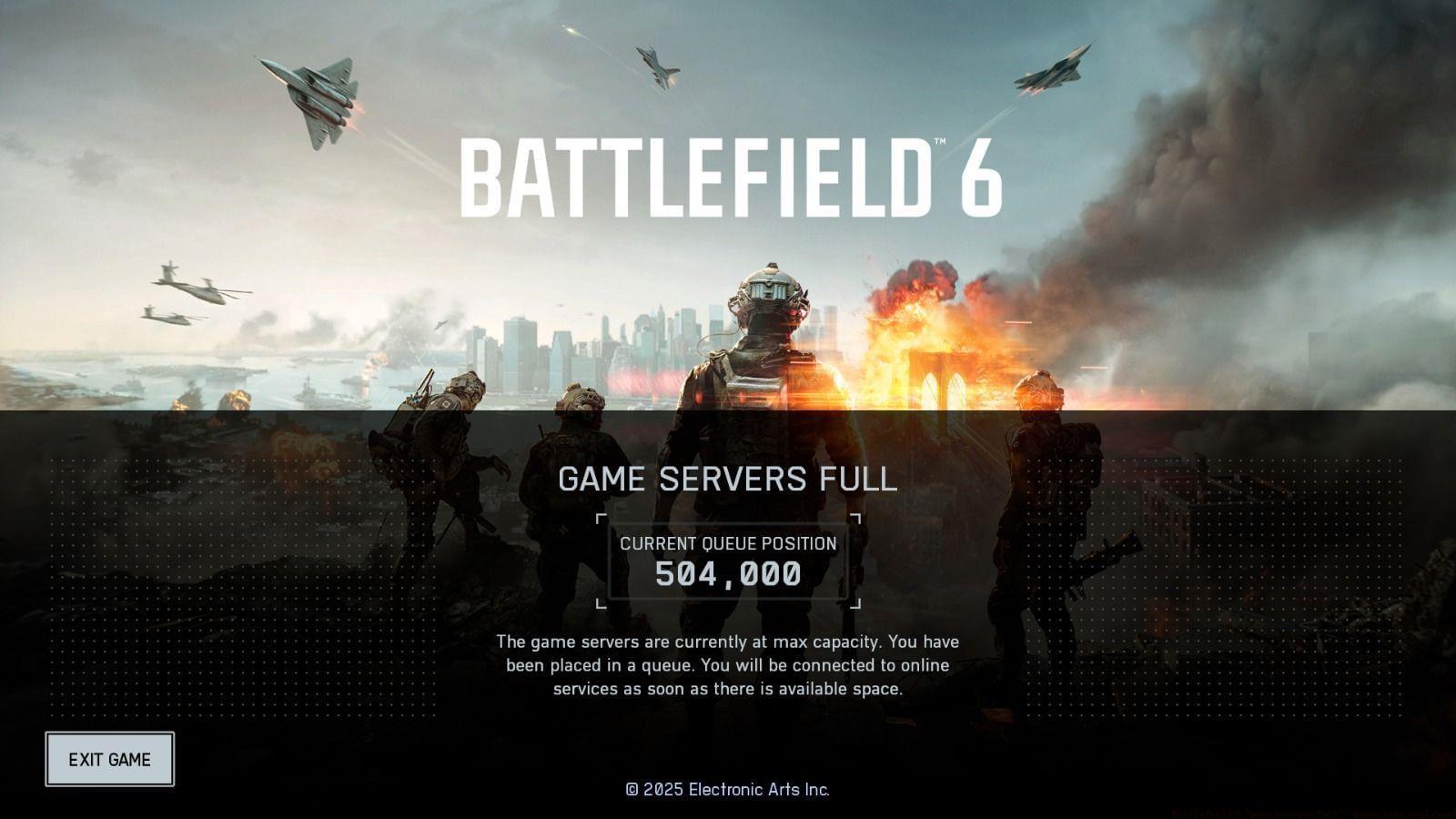
Following the official release of Battlefield 6, many players are encountering “game servers full” notifications when attempting to connect. This situation is completely normal for major game launches and shouldn’t cause alarm. The overwhelming player response since the beta phase has created unprecedented demand, leading to temporary capacity limitations. The development team has implemented queue systems to ensure stable gameplay experiences rather than allowing server crashes that would affect everyone.
Modern game launches typically experience server strain during the initial 24-48 hours as millions of players attempt to access the game simultaneously. The queue mechanism functions as a traffic control system, gradually admitting players to prevent server overload and maintain performance stability for those already connected. This approach prioritizes quality of experience over immediate access for all players.
Steam Platform Login Issues and Solutions
Many Steam platform users have reported specific login complications, primarily the disappearance of the “Play” button despite the game being officially live. This interface glitch stems from Steam’s backend synchronization with game servers and can be resolved through a straightforward procedure.
The development team has confirmed that performing a complete Steam client restart typically resolves this display issue. To ensure a proper reset, users should:
- Fully exit Steam via the system tray icon or task manager
- Wait 30 seconds to ensure all processes terminate
- Relaunch Steam and allow full initialization
- Navigate to your library and check for the restored Play button
If the problem persists after restart, verify your game files through Steam’s properties menu and ensure all pending updates are installed. Some users have reported success by switching Steam download regions or temporarily disabling the Steam overlay feature during initial connection attempts.
Advanced Connection Optimization Strategies
Beyond basic troubleshooting, several optimization techniques can improve your connection reliability and potentially reduce queue times. Begin by ensuring your network configuration supports optimal gaming performance through port forwarding for Battlefield 6’s required ports (3659, 14000-14016 UDP, and 22990-23006 TCP). This reduces NAT restrictions that can complicate server handshaking.
Performance optimization extends to your system configuration as well. Update graphics drivers to the latest stable versions, as outdated drivers can cause unexpected crashes during connection attempts. Verify game file integrity through your platform’s built-in tools, and consider temporarily disabling background applications that may conflict with game connectivity, particularly VPN software or aggressive antivirus firewalls.
For persistent connection issues, monitor your internet connection stability using network monitoring tools. Packet loss or high latency during specific times may indicate regional network congestion rather than game server problems. In these cases, adjusting your play schedule or contacting your ISP about routing optimization may provide better results than repeated game restarts.
Common Mistakes and Proactive Prevention
Many players inadvertently worsen their connection situation through common mistakes during server queues. Repeatedly restarting the game or client resets your queue position, essentially sending you to the back of the line. Instead, remain patient once in queue as the system processes players in orderly fashion.
Preparation before gaming sessions significantly improves success rates. Check official Battlefield social media channels and server status pages before attempting connection to identify known outages or maintenance periods. Ensure your system meets the recommended specifications rather than minimum requirements, as underpowered hardware can create connection instability that mimics server issues.
Create a pre-connection checklist including verifying internet stability, closing bandwidth-intensive applications, and ensuring your gaming platform is fully updated. These proactive measures reduce variables that could complicate your connection attempt and help distinguish between local issues and genuine server problems requiring developer intervention.
No reproduction without permission:Tsp Game Club » Battlefield 6 “game servers full”: Queue time explained Essential troubleshooting guide for Battlefield 6 server queues and connection issues with actionable solutions