
Expert troubleshooting guide for Battlefield RedSec launch issues on Steam with practical solutions and diagnostic tips
Understanding the Battlefield RedSec Launch Problem
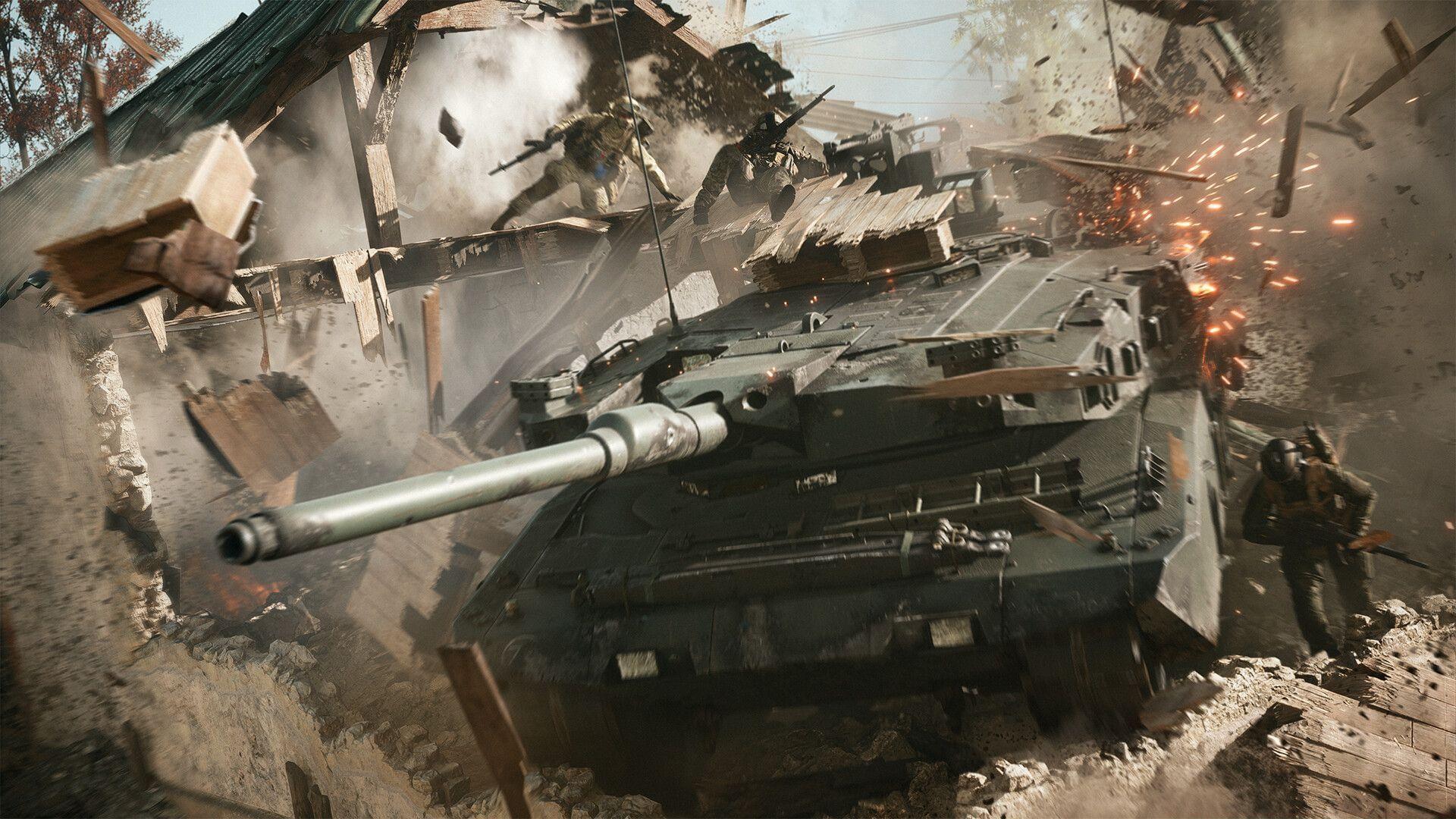
Electronic Arts introduced their latest combat experience, Battlefield RedSec, which became available on October 28, 2025. This free-to-play battle royale expansion integrates as a distinct playlist selection within the primary game interface. Despite developer authorization, numerous players encounter persistent startup failures specifically through the Steam distribution platform.
Launch complications frequently emerge during initial release windows, particularly for large-scale multiplayer titles. The transition from main menu selection to actual gameplay initialization involves multiple verification checkpoints that can encounter interruptions. Understanding whether the obstruction originates from local system configurations or remote server infrastructure represents the foundational step toward resolution.
Immediate Steam Platform Solutions
Initiate comprehensive file assessment utilizing Steam’s integrated validation mechanism. Navigate to your Steam Library interface, perform a secondary click on Battlefield 6, then choose Properties. Access the Installed Files category and activate the Verify integrity of game files function. This automated diagnostic scans your installation directory for discrepancies and automatically retrieves any absent or damaged components.
Related reading: How to fix Battlefield 6 high CPU usage issue
Within the identical Steam Library interface, secondary click Battlefield 6 and select Properties. Proceed to the DLC section and confirm installation completeness for all essential components. Omitted files from this inventory frequently prevent proper game initialization through Steam. Selecting unchecked entries prompts the client to download and integrate necessary assets.
Complete software removal followed by fresh installation should represent your ultimate contingency measure. This comprehensive approach addresses deep-rooted configuration conflicts and registry anomalies that impede successful game launching. Before proceeding, ensure you possess adequate bandwidth and storage capacity for the substantial download requirement.
Additional coverage: All weapons in Battlefield 6
Essential preparatory steps include backing up custom configurations and ensuring stable internet connectivity throughout the download process. Many players overlook the importance of temporarily disabling antivirus software during installation, which can inadvertently quarantine essential game executables. Additionally, verify that your system meets the updated technical specifications for Battlefield RedSec, as requirements may have evolved from the base game.
Advanced Technical Troubleshooting
The Battlefield RedSec startup failure on Steam potentially stems from deployment anomalies requiring developer intervention. Such infrastructure-level complications necessitate official patch deployments for comprehensive resolution. Given the battle royale mode’s recent introduction, transient bugs and performance irregularities may persist temporarily before permanent corrections.
Conversely, the origin might reside client-side concerning absent or compromised game resources. Obsolete hardware drivers similarly generate these errors and block game initialization on computer systems. Beyond graphics drivers, pay particular attention to audio controllers, chipset firmware, and directX redistributables, which often contain dependencies critical for modern game engines.
Advanced troubleshooting should include administrator privilege testing, where you right-click the Steam shortcut and select ‘Run as administrator’. This simple step resolves numerous permission-related launch blockers. Additionally, examine Windows event viewer logs for specific error codes when launch attempts fail—these diagnostic details significantly accelerate support ticket resolution. For players experiencing consistent crashes during specific initialization phases, modifying launch parameters with diagnostic flags like ‘-windowed’ or ‘-safe’ can help isolate the problematic component.
When to Contact Official Support
Acknowledge that these troubleshooting methods represent community solutions rather than guaranteed official corrections. Individual results will vary significantly based on system configurations and specific error conditions. Gamers experiencing persistent difficulties should formally report these concerns through the designated Battlefield support infrastructure to obtain specialized assistance.
When escalating to official channels, prepare detailed documentation including your system specifications, exact error messages, and the specific troubleshooting steps already attempted. This comprehensive information enables support technicians to identify patterns and potentially accelerate solutions for widespread issues. Monitor official Battlefield social media accounts and community forums for acknowledgment of widespread launch problems and estimated resolution timelines.
While awaiting official solutions, consider exploring the game through alternative platforms if available, or temporarily engaging with other Battlefield 6 gameplay modes that remain accessible. Community Discord servers often provide real-time problem-solving collaboration and temporary workarounds developed by experienced players facing similar challenges.
Continue following Sportskeeda for additional updates, comprehensive guides, and breaking news.
No reproduction without permission:Tsp Game Club » Battlefield RedSec not working on Steam: Possible fixes and reasons Expert troubleshooting guide for Battlefield RedSec launch issues on Steam with practical solutions and diagnostic tips