
TL;DR
- Aim for 144+ FPS minimum on 144Hz monitors for competitive advantage
- CS2’s Source 2 engine prioritizes CPU performance over GPU power
- Use both in-game console commands and third-party tools for accurate FPS monitoring
- Optimize both in-game settings and Windows configurations for maximum frame rates
- Proper driver updates and background process management can yield significant performance gains
In the high-stakes environment of tactical shooters, frame rate transcends being merely a technical measurement—it fundamentally shapes your ability to perform under pressure. Within Counter-Strike 2 (CS2), where split-second decisions separate clutch victories from humiliating defeats, every additional frame provides crucial visual information that could determine match outcomes.
Visualize frame rate as your system’s information delivery system. Higher FPS translates to more frequent visual updates, creating smoother motion and reducing visual gaps between enemy movements. While recreational players might dismiss the distinction between 60 and 144 frames per second, seasoned competitors immediately recognize the tangible advantages of elevated frame rates. Suboptimal FPS manifests as delayed input response, inaccurate shot placement, and erratic gameplay—particularly during high-intensity engagements or complex tactical scenarios.
For CS2 dominance, maintaining 144+ FPS becomes essential, particularly when paired with 144Hz or 240Hz displays. The reasoning? Your monitor cycles through refresh cycles at these frequencies, and when your graphics processor fails to match pace, you’ll encounter visual tearing, response delays, and inconsistent performance. Those additional frames deliver more current visual data, enabling faster enemy identification and improved reaction timing.
Furthermore, fluid gameplay results in more consistent weapon recoil patterns, enhanced flick shot accuracy, and overall increased confidence in movement execution. For ambitious competitive gamers or dedicated enthusiasts, frame rate optimization represents an essential gameplay mechanic requiring deliberate attention.
Understanding CS2’s Graphics Architecture
CS2 operates on Valve’s Source 2 engine, representing a substantial upgrade from CS:GO’s original Source framework. This evolution introduces enhanced lighting systems, volumetric smoke rendering, and refined physics calculations, all contributing to superior visual presentation—but simultaneously increasing hardware demands.
The Source 2 architecture demonstrates CPU-intensive characteristics, meaning your central processor shoulders significant computational loads during active gameplay, especially during complex environmental interactions or effect-heavy scenarios. This explains why players equipped with premium graphics cards occasionally encounter performance constraints. Success depends on your entire computing ecosystem operating cohesively rather than relying solely on GPU capability.
Additionally, CS2 exhibits susceptibility to abrupt frame rate deterioration from background applications, software interfaces, or configuration inconsistencies. Fortunately, compared to many contemporary AAA titles, CS2 provides substantial customization flexibility, accessible through both user interface controls and configuration file adjustments.
Comprehending this equilibrium between graphical quality and operational performance represents the foundational step toward extracting maximum frame delivery from your hardware configuration.
Minimum and Recommended System Requirements for CS2
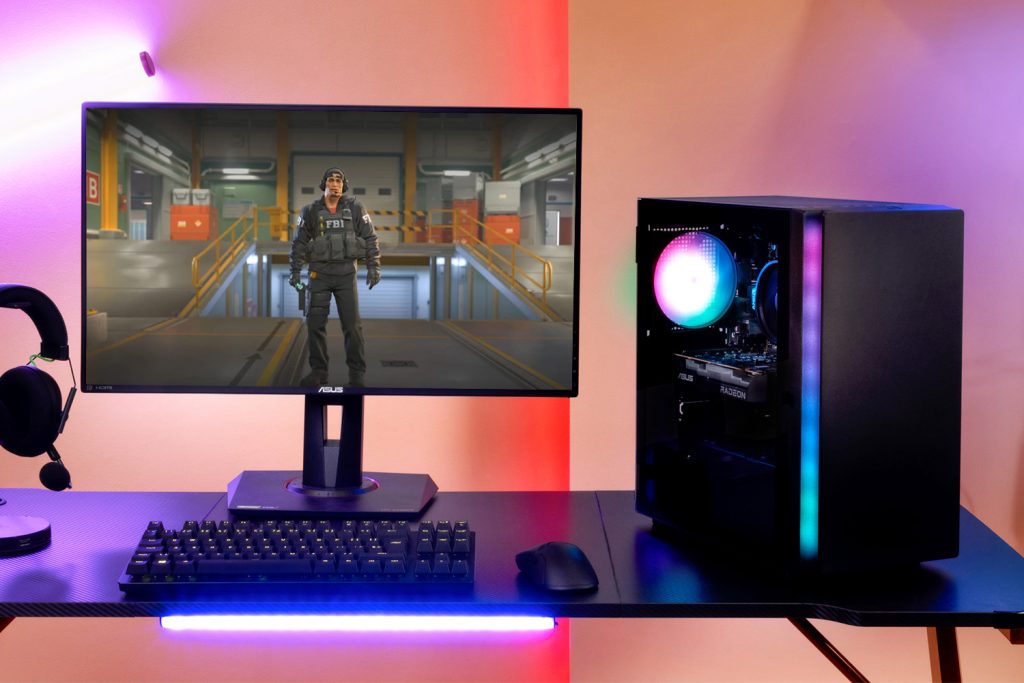
Valve’s Official Specifications
According to Valve’s published guidelines, the minimum system requirements for CS2 appear reasonably accessible:
- OS: Windows 10 64-bit
- Processor: 4 hardware CPU threads – Intel Core i5 750 or higher
- Memory: 8 GB RAM
- Graphics: GPU that is DirectX 11 compatible with 1GB VRAM
- Storage: SSD recommended, 85 GB available space
However, practical experience reveals: “minimum” specifications don’t guarantee playable performance—they merely indicate “the application might initialize.”
The recommended configuration provides more realistic expectations for stable gaming sessions:
- CPU: Intel Core i5-9600K or AMD Ryzen 5 3600
- GPU: NVIDIA GTX 1660 or AMD RX 580
- RAM: 16 GB DDR4
- Storage: SSD, always
Nevertheless, even systems meeting these specifications may struggle to maintain consistent 144 FPS at elevated graphical settings. Authentic performance improvements emerge from systematic settings optimization and hardware bottleneck elimination.
Practical Hardware Recommendations
For genuine performance targeting 144+ FPS at 1080p resolution with medium to high settings, consider these target components:
- CPU: At least a 6-core processor with high single-core speed (e.g., Ryzen 5 5600X or Intel i5-12400F)
- GPU: GTX 1660 Super or superior (RTX 3060 Ti recommended)
- RAM: 16GB of DDR4 (preferably 3200MHz or higher)
- Storage: NVMe SSD for rapid level loading and seamless asset streaming
Why emphasize processor and memory resources? Because CS2’s computational architecture delegates substantial processing to your CPU, particularly artificial intelligence routines, collision detection, and smoke effect processing. High-speed memory facilitates more efficient data transfer to your processor, minimizing latency during critical 1v1 engagements.
Laptop users may find these specifications challenging. However, subsequent sections address software-based performance enhancement strategies requiring no hardware investment.
How to Check Your Current FPS in CS2
Utilizing the In-Game Console
Before implementing any performance modifications, establishing your performance baseline proves essential. The most straightforward method for monitoring frame rates involves accessing the developer console.
- Navigate to CS2 configuration menus.
- Activate the Developer Console (~) within “Game Settings.”
- Activate the
~key during active gameplay. - Enter
cl_showfps 1ornet_graph 1.
This activates a real-time frame counter, enabling precise system performance assessment. cl_showfps provides fundamental readouts, while net_graph delivers comprehensive data including network latency, server variance, and update frequency—valuable for diagnosing performance fluctuations.
You can additionally configure a toggle keybind for FPS display:
bind "F10" "toggle cl_showfps 1 0"
This approach permits FPS counter activation or deactivation without repeated console access.
Third-Party Performance Analysis Tools
While integrated console functionality suffices for basic monitoring, dedicated competitors and system tuners frequently employ specialized monitoring applications for detailed performance visualization:
- MSI Afterburner: Provides GPU, CPU, FPS, and thermal monitoring overlays.
- NVIDIA GeForce Experience: If utilizing ShadowPlay functionality, enables FPS overlay through settings configuration.
- Razer Cortex: Not only enhances performance through background task management but incorporates frame rate tracking capabilities.
These specialized tools prove particularly beneficial when evaluating the impact of specific optimizations or hardware upgrades.
Pro Tip: When testing optimization effectiveness, conduct measurements before and after implementation, comparing graphical data rather than relying on subjective impressions.
Optimizing In-Game Settings for Maximum FPS
Video Configuration Breakdown
CS2 incorporates numerous advanced visual effects, but do atmospheric lighting and volumetric smoke justify performance degradation during crucial match moments? Likely not. These represent the optimal in-game configurations for prioritizing performance excellence:
Critical Video Adjustments:
- Resolution: 1920×1080 or reduced for maximum frame rates
- Display Mode: Fullscreen (optimal for performance)
- Multisampling Anti-Aliasing Mode: OFF or 2x
- Global Shadow Quality: Low
- Model / Texture Detail: Medium or Low
- Effect Detail: Low
- Shader Detail: Low
- Boost Player Contrast: ON
- Multicore Rendering: ON
- Ambient Occlusion: OFF
- FidelityFX Super Resolution: Utilize Performance or Balanced modes
Each individual adjustment can deliver 5-20 FPS improvements, contingent upon your specific hardware configuration. Deactivating Anti-Aliasing and Ambient Occlusion specifically can produce substantial performance enhancements.
Audio and Supplementary System Configurations
Sound configuration won’t directly influence frame rates significantly, but disabling 3D audio processing or functionalities like HRTF on entry-level systems can reclaim valuable processor cycles.
Additionally, ensure to:
- Deactivate integrated overlays (Steam, Discord, NVIDIA)
- Configure CS2 for High Priority within Task Manager
- Disable V-Sync unless experiencing severe visual tearing
Every minor optimization accumulates. Additional frames distributed across various settings rapidly transform choppy 90 FPS into fluid 144+ FPS performance.
Windows Optimization Strategies for CS2
Game Mode and GPU Scheduling Configurations
Windows 10/11 incorporates features specifically engineered for gaming—though not all contribute positively. These represent the recommended configurations:
- Enable Game Mode:
- Navigate to Settings > Gaming > Game Mode
- Activate this feature—it restricts background operations during gaming sessions
- Enable Hardware-Accelerated GPU Scheduling:
- Navigate to Settings > System > Display > Graphics Settings
- Activate for marginally reduced input latency
While performance gains remain modest (2-5 FPS), these configurations help stabilize performance, particularly on mid-range hardware configurations.
GPU Tweaks for Enhanced CS2 Performance
NVIDIA Control Panel Optimizations
NVIDIA graphics card users access powerful performance adjustments within the NVIDIA Control Panel interface. These configurations directly influence rendering behavior, and even minor modifications can yield noticeable FPS improvements.
Initiate by right-clicking your desktop and launching the NVIDIA Control Panel. Proceed to “Manage 3D Settings” and select the “Program Settings” tab to implement CS2-specific configurations.
These represent the most impactful adjustments:
- Power Management Mode: Configure to “Prefer Maximum Performance”. This guarantees your graphics processor maintains peak clock frequencies during gameplay rather than reducing speeds for power conservation.
- Texture Filtering – Quality: Switch to “High Performance”. This marginally reduces image quality, but the frame rate enhancement justifies this compromise.
- Low Latency Mode: Set to “On” or “Ultra”. This minimizes input delay, critically important for reaction-based games like CS2.
- Vertical Sync (V-Sync): Maintain deactivated to prevent input delay and enhance frame rates.
- Threaded Optimization: Activate to enable CPU utilization of multiple cores more efficiently, essential for CS2’s computational architecture.
Following these modifications, select “Apply.” You might not observe dramatic raw FPS increases, but your system will demonstrate improved consistency—reducing stuttering and enhancing 1% and 0.1% low performance metrics (which impact gameplay fluidity).
AMD Radeon Software Configurations
AMD graphics users possess comparable control capabilities through the Radeon Software suite.
Launch AMD Adrenalin software, navigate to “Gaming”, and designate CS2 from your gaming library (or manually add the application).
Recommended optimizations include:
- Radeon Anti-Lag: Activate. This represents AMD’s equivalent to NVIDIA’s Low Latency Mode and assists in reducing input latency.
- Radeon Chill: Maintain deactivated for maximum frame rates.
- Radeon Boost: Consider experimentation, though it dynamically reduces resolution during movement, potentially affecting visual clarity.
- Texture Filtering Quality: Configure to Performance.
- Tessellation Mode: Override and set to Off or 8x to decrease graphics processor workload.
Additionally, verify Enhanced Sync remains deactivated if already disabling V-Sync. Enhanced Sync can cause irregular frame delivery on certain system configurations.
In competitive first-person shooters, frame rate isn’t merely a visual enhancement—it’s a fundamental gameplay component that directly influences your competitive capability. Within Counter-Strike 2 (CS2), where split-second decisions determine match outcomes, maintaining high FPS provides tangible mechanical advantages.
Consider FPS as your display’s information refresh capability. Elevated frame counts translate to smoother visual feedback and reduced input delay. While recreational players might overlook disparities between 60 FPS and 144 FPS, serious competitors immediately perceive the difference. Suboptimal frame rates introduce input latency, inaccurate targeting, and disruptive stuttering—particularly during high-intensity combat scenarios or complex visual situations.
For CS2, sustaining 144+ FPS becomes crucial, particularly when utilizing 144Hz or 240Hz displays. Why this emphasis? Because your monitor updates at these frequencies, and if your graphics hardware cannot match this pace, you’ll encounter screen tearing, delayed responses, and performance inconsistencies. Additional frames deliver more current visual data, enabling quicker enemy identification and faster reaction execution.
Furthermore, fluid gameplay correlates with predictable weapon recoil patterns, improved flick shot accuracy, and overall movement confidence enhancement. For emerging professional gamers or dedicated enthusiasts, FPS represents an actual gameplay parameter requiring systematic optimization.
Why FPS Matters in Competitive Play
The competitive advantage of high frame rates extends beyond mere visual smoothness. At 144 FPS, your input latency decreases to approximately 7ms compared to 16ms at 60 FPS—a critical difference when reaction times measure in milliseconds. Professional players consistently prioritize performance over visual fidelity, understanding that each additional frame provides more opportunities to react to enemy movements and execute precise shots.
Source 2 Engine Characteristics
CS2 operates on the Source 2 engine, representing a substantial upgrade from CS:GO’s original Source engine. It incorporates enhanced lighting systems, volumetric smoke effects, and improved physics simulations, all contributing to superior visual quality—but simultaneously increasing hardware demands.
The Source 2 architecture demonstrates CPU-intensive behavior, meaning your processor shoulders significant workload during matches, especially with multiple moving elements or complex effects. This explains why even gamers with premium graphics cards occasionally experience performance constraints. The solution involves your entire system operating cohesively rather than focusing exclusively on GPU capabilities.
Additionally, CS2 exhibits notorious susceptibility to abrupt FPS deterioration from background applications, software overlays, or inconsistent configuration settings. Fortunately, unlike certain AAA titles, CS2 provides substantial customization options, accessible through both interface menus and configuration files or launch parameters.
Comprehending this equilibrium between graphical quality and operational performance constitutes the initial phase in extracting maximum frame rates from your hardware configuration.
Official Specifications vs Reality
According to Valve’s documentation, the minimum system requirements for CS2 appear reasonably modest theoretically:
- OS: Windows 10 64-bit
- Processor: 4 hardware CPU threads – Intel Core i5 750 or higher
- Memory: 8 GB RAM
- Graphics: GPU that is DirectX 11 compatible with 1GB VRAM
- Storage: SSD recommended, 85 GB available space
However, practical reality reveals: “minimum” doesn’t equate to playable—it signifies “potential successful launch.”
The recommended specifications provide more realistic expectations for consistent gameplay:
- CPU: Intel Core i5-9600K or AMD Ryzen 5 3600
- GPU: NVIDIA GTX 1660 or AMD RX 580
- RAM: 16 GB DDR4
- Storage: SSD, always
Nevertheless, even when meeting these specifications, achieving consistent 144 FPS at elevated settings remains challenging. Authentic performance improvements emerge from optimizing configurations and eliminating system constraints.
What You Really Need for Smooth Gameplay
Practically speaking, to maintain 144+ FPS at 1080p utilizing medium to high settings, you should target:
- CPU: At least a 6-core processor with high single-core speed (e.g., Ryzen 5 5600X or Intel i5-12400F)
- GPU: GTX 1660 Super or superior (RTX 3060 Ti recommended)
- RAM: 16GB of DDR4 (preferably 3200MHz or higher)
- Storage: NVMe SSD for rapid loading sequences and seamless asset streaming
Why such concentrated emphasis on CPU and memory resources? Because CS2’s engine delegates substantial processing to your CPU, particularly artificial intelligence calculations, hit registration, and smoke effect processing. High-speed RAM facilitates quicker data delivery to your processor, minimizing delays during critical 1v1 scenarios.
If you’re utilizing laptop hardware, these specifications might prove unrealistic. However, don’t concern yourself—subsequent sections address methods for enhancing FPS without hardware replacement.
Video Configuration Breakdown
CS2 contains numerous visually impressive features, but do you genuinely require advanced lighting effects and volumetric smoke when experiencing frame rate deterioration mid-match? Probably unnecessary. These represent optimal in-game configurations prioritizing performance:
Video Settings to Adjust:
- Resolution: 1920×1080 or reduced for maximum FPS
- Display Mode: Fullscreen (optimal for performance)
- Multisampling Anti-Aliasing Mode: DISABLED or 2x
- Global Shadow Quality: Low
- Model / Texture Detail: Medium or Low
- Effect Detail: Low
- Shader Detail: Low
- Boost Player Contrast: ENABLED
- Multicore Rendering: ENABLED
- Ambient Occlusion: DISABLED
- FidelityFX Super Resolution: Utilize Performance or Balanced mode
Each individual configuration modification can provide 5-20 FPS enhancement, contingent upon your specific hardware configuration. Deactivating Anti-Aliasing and Ambient Occlusion, specifically, can generate substantial performance differences.
Audio and Other Non-Essential Settings
Sound processing won’t substantially influence FPS directly, but disabling 3D audio processing or functionalities like HRTF on budget-oriented systems can reclaim minimal CPU resources.
Additionally, ensure you:
- Disable in-game overlays (Steam, Discord, NVIDIA)
- Configure CS2 for High Priority within Task Manager
- Deactivate V-Sync unless experiencing severe screen distortion
Each minor adjustment accumulates progressively. Several frames distributed across various settings rapidly transform into the distinction between unstable 90 FPS and fluid 144+ FPS.
Game Mode and GPU Scheduling
Windows 10/11 incorporates functionalities designed for gaming enthusiasts—though not all deliver beneficial outcomes. These represent recommended configurations:
- Enable Game Mode:
- Navigate to Settings > Gaming > Game Mode
- Activate this feature—it constrains background operations during gaming sessions
- Enable Hardware-Accelerated GPU Scheduling:
- Proceed to Settings > System > Display > Graphics Settings
- Activate for marginally decreased latency
Although performance improvements remain modest (2-5 FPS), these configurations contribute to performance stabilization, particularly on intermediate-range systems.
Background Process Management
Your central processing unit continuously handles multiple tasks simultaneously—even during active gameplay. Given CS2’s substantial CPU dependency, it becomes essential to minimize background applications consuming valuable computational power.
Follow this systematic approach:
- Launch Task Manager (Ctrl + Shift + Esc).
- Within the Processes section, organize by CPU utilization.
- Terminate non-essential programs like web browsers, communication platforms (unless utilizing voice functionality), game launchers, and background updating services.
Beyond manual termination procedures, contemplate disabling automatic startup applications:
- Access Task Manager > Startup.
- Deactivate programs unnecessary for immediate system initialization. This decreases the quantity of services operating in the background during gaming activities.
Furthermore, refrain from operating concurrent monitoring or optimization utilities simultaneously. If you’re running MSI Afterburner, Razer Cortex, and NVIDIA Experience simultaneously, potential conflicts may arise or they might utilize CPU capacity required for CS2 operation.
NVIDIA Optimization Guide
For NVIDIA graphics card users, accessibility exists to potent performance adjustments concealed within the NVIDIA Control Panel interface. These parameters directly affect how your graphics hardware manages rendering processes, and even minor modifications here can produce observable FPS improvements within CS2.
Commence by right-clicking your desktop surface and initiating the NVIDIA Control Panel. Proceed to “Manage 3D Settings” and select the “Program Settings” tab to implement changes specifically targeting CS2.
These represent the most impactful configurations to modify:
- Power Management Mode: Configure this parameter to “Prefer Maximum Performance”. This guarantees your GPU maintains peak clock frequencies during gameplay, rather than reducing speeds for power conservation.
- Texture Filtering – Quality: Modify this setting to “High Performance”. This marginally reduces image quality, but the resulting FPS enhancement justifies this trade-off.
- Low Latency Mode: Set this parameter to “Enabled” or “Ultra”. This reduces input delay, which proves critical for titles like CS2 where reaction speed determines success.
- Vertical Sync (V-Sync): Maintain this setting deactivated to prevent input latency and increase FPS.
- Threaded Optimization: Activate this functionality to permit CPU utilization of multiple cores more effectively, which remains essential for CS2’s engine architecture.
Following these modifications, select “Apply.” You might not witness dramatic raw FPS increases, but your system will operate more consistently—diminishing stuttering and enhancing 1% and 0.1% minimums (which influence smoothness).
AMD Performance Settings
AMD system users aren’t excluded from optimization opportunities. The Radeon Software collection provides comparable controls for refining your GPU performance.
Launch the AMD Adrenalin application, navigate to “Gaming”, and choose CS2 from your game inventory (or include manually).
Recommended adjustments incorporate:
- Radeon Anti-Lag: Activate this feature. This represents AMD’s equivalent to NVIDIA’s Low Latency Mode and assists in reducing input delay.
- Radeon Chill: Maintain this setting DEACTIVATED for maximum FPS attainment.
- Radeon Boost: You may experiment with this functionality, but it dynamically reduces resolution during movement sequences, potentially affecting visual clarity.
- Texture Filtering Quality: Establish to Performance.
- Tessellation Mode: Override and configure to Disabled or 8x to decrease GPU workload.
Additionally, verify Enhanced Sync remains deactivated if you’re already disabling V-Sync functionality. Enhanced Sync can generate inconsistent frame delivery on certain system configurations.
Launch Options Configuration
Launch parameters represent commands incorporated into CS2 that modify how the game functions from initialization. You can input them within Steam by right-selecting CS2 > Properties > General > Launch Options.
This represents a recommended configuration sequence to experiment with:
-high -novid -tickrate 128 -threads 4 -nojoy +cl_forcepreload 1 -freq 144
These command functions:
-high: Initializes the game utilizing high CPU priority configuration.-novid: Bypasses introductory video sequences for accelerated loading.-tickrate 128: Prepares your game environment for 128-tick servers (employed in FACEIT platforms, etc.).-threads 4: Directs CS2 regarding CPU thread quantity utilization (modify according to your processor specifications).-nojoy: Deactivates joystick compatibility to liberate system resources.+cl_forcepreload 1: Preloads map data to minimize lag occurrences during gameplay.-freq 144: Establishes your display refresh frequency (utilize your monitor’s specific value).
These commands facilitate accelerated loading, smoother performance, and diminished input latency. However, they cannot transform inadequate hardware into premium gaming systems—they perform optimally when combined with additional optimization techniques.
Safe Overclocking Practices
If you’re committed to extracting maximum capability from your hardware components, overclocking can provide competitive advantages. However, it represents a dual-natured solution—implemented incorrectly, it can generate system instability or potential hardware impairment. The critical approach involves proceeding methodically and systematically.
Initiate with your central processing unit. Overclocking involves elevating your processor’s operating frequency beyond manufacturer default parameters. This can result in enhanced gameplay fluidity, particularly in CPU-constrained titles like CS2. Most contemporary Intel and AMD processors demonstrate capacity for moderate frequency increases, especially models featuring “K” or “X” designations (e.g., Intel i5-12600K or Ryzen 5 5600X).
Utilize your motherboard’s BIOS interface or software applications like:
- Intel Extreme Tuning Utility (XTU)
- AMD Ryzen Master
Begin with minimal increments (e.g., +100 MHz), and validate stability utilizing Cinebench or Prime95. Observe thermal characteristics using HWMonitor or Core Temp. If temperatures consistently exceed 85°C during active gameplay, reduce settings accordingly.
Regarding graphics processing unit optimization, tools like MSI Afterburner enable secure overclocking procedures. The methodology remains comparable:
- Elevate core frequency by 50 MHz.
- Validate stability employing 3DMark, Unigine Heaven, or simply CS2 itself.
- Gradually increase until system failures/visual artifacts manifest.
- Revert to preceding stable configuration.
Additionally, ensure you increase the power limitation adjustment within Afterburner to allow additional capacity, but avoid voltage modifications unless possessing advanced expertise. GPU overclocking typically yields 5–15 FPS enhancement within CS2 contingent upon your specific graphics card model.
Hardware Upgrade Recommendations
If optimization techniques and software modifications prove insufficient, and your frame rates continue experiencing instability, perhaps the moment arrives for hardware investment. Fortunately, CS2 doesn’t represent hardware-intensive software—you don’t require premium components for optimal performance.
Some exceptional cost-effective GPU options delivering solid CS2 performance:
- NVIDIA GTX 1660 Super – Superior 1080p graphics solution for competitive CS2 with consistent 144+ FPS utilizing reduced settings.
- AMD RX 6600 – Provides comparable performance to 1660 Super but incorporates modern architecture and enhanced power efficiency.
- NVIDIA RTX 3060 – Future-proofs your system for additional contemporary games while preserving elevated FPS within CS2.
These hardware selections span $150–$300 pricing ranges and offer excellent equilibrium between expenditure and capability. CS2 demonstrates CPU-dependency in numerous instances, therefore unless your GPU qualifies as obsolete, upgrading your processor might generate superior performance improvements.
Latency Reduction Techniques
Frame rate remains crucial, but network delay equally impacts performance. Nothing disrupts accurate targeting like rubber-banding effects or packet loss occurrences. While CS2 incorporates competent network programming, you still require stable, low-latency connectivity to maintain competitive positioning.
Implement these connectivity optimization strategies:
- Utilize wired Ethernet connectivity rather than wireless alternatives.
- Transition to accelerated and more reliable DNS configurations, such as:
- Google DNS:
8.8.8.8and8.8.4.4 - Cloudflare DNS:
1.1.1.1and1.0.0.1
- Google DNS:
- Within Windows environment:
- Navigate to Network and Internet > Change Adapter Options
- Right-select your network connection > Properties > IPv4 > Employ specified DNS servers
- Deactivate background downloading applications like Steam, Epic Games Launcher, Windows Update functionality, etc.
To evaluate your network latency and packet loss statistics:
- Employ
net_graph 1within CS2 to monitor real-time network performance metrics. - Ping established CS2 servers manually utilizing Command Prompt:
ping 8.8.8.8 -t
Maintain your network latency below 50ms and packet loss at 0%. Any measurements exceeding these parameters will degrade your gaming experience, irrespective of your achieved FPS levels.
Autoexec.cfg Implementation
For comprehensive CS2 performance refinement, understanding configuration files—specifically, the autoexec.cfg file. This represents a customized script executing automatically during game initialization, implementing your personalized configurations consistently.
Follow this implementation procedure:
- Access your CS2 installation directory: steamappscommonCounter-Strike Global Offensivegamecsgocfg
- Generate a new document titled
autoexec.cfgif non-existent. - Incorporate custom directives like:
fps_max 300
cl_showfps 1
cl_forcepreload 1
rate 786432
cl_interp 0
cl_interp_ratio 1
Include +exec autoexec.cfg within your launch parameters to guarantee execution.
This enables control over FPS limitations, interpolation parameters, network transmission rates, and additional low-level performance settings without repetitive menu navigation.
Best Config Settings for Competitive Players
For professional gameplay scenarios, you desire visual clarity, minimal visual interference, and peak performance. These represent typical professional configurations:
- Reduced graphical configurations to eliminate non-essential visual effects.
- Crosshair and interface modifications for enhanced target visibility.
- Audio parameter adjustments calibrated for footstep detection rather than environmental atmosphere.
- Binding scripts for rapid purchasing sequences, grenade deployment, and jump-throw automation.
CS2 supports customized key assignments and command aliasing, permitting automation of multiple directives. For example, you can assign jump-throw functionality to individual keys utilizing this syntax:
alias "+jumpthrow" "+jump;-attack"
alias "-jumpthrow" "-jump"
bind "alt" "+jumpthrow"
Simply avoid excessive complexity. Implement only necessary functionality. The objective centers on simplicity and consistency.
When building or upgrading your CS2 gaming rig, strategic hardware investments can dramatically improve your competitive performance without requiring a complete system overhaul. The most impactful upgrades target specific bottlenecks that affect Source 2 engine performance, particularly memory bandwidth and storage speed limitations that impact real-time asset loading during intense firefights.
For CS2, 16GB at 3200MHz or faster represents the current performance sweet spot. Many players overlook the critical step of enabling XMP in their BIOS settings, which is essential for running your RAM at its advertised speed rather than default conservative frequencies. The performance differential between basic 2133MHz memory and optimized 3200MHz configurations typically translates to 5–15 FPS improvements in CS2, particularly during smoke-heavy engagements and multi-player encounters where the engine processes numerous simultaneous calculations.
Beyond RAM optimization, several other hardware components deliver significant returns for competitive gaming:
- NVMe SSD – Accelerates map loading times by 30-60% and ensures smoother asset streaming during rapid scene transitions.
- Modern PSU – Provides stable power delivery for GPU overclocks and sustained performance during extended gaming sessions.
- 240Hz monitor – Fully leverages high frame rate output for reduced motion blur and quicker target acquisition.
A common mistake among competitive players is overspending on flagship GPUs while neglecting foundational components that actually create performance bottlenecks in CS2’s CPU-intensive engine architecture.
You don’t need to exhaust your budget, but several calculated upgrades can substantially extend your PC’s gaming viability and transform CS2 into a consistently fluid experience. Professional esports athletes prioritize component balance over raw specifications, understanding that CS2’s performance characteristics differ significantly from other AAA titles.
While FPS optimization receives most of the attention, network latency represents an equally critical performance factor that many players neglect. Nothing disrupts a perfectly executed headshot like rubber-banding effects or sudden packet loss spikes. Although CS2 features improved netcode compared to its predecessor, you still require a stable, low-ping connection to maintain competitive consistency across matches.
Here’s a comprehensive approach to optimizing your gaming connection:
- Use a wired Ethernet connection instead of Wi-Fi – this single change can reduce latency by 15-25ms in typical home networking environments.
- Transition to faster, more reliable DNS servers, such as:
- Google DNS:
8.8.8.8and8.8.4.4 - Cloudflare DNS:
1.1.1.1and1.0.0.1
- Google DNS:
- In Windows:
- Navigate to Network and Internet > Change Adapter Options
- Right-click your active connection > Properties > IPv4 > Use the following DNS server addresses.
- Disable background downloading applications including Steam, Epic Games Launcher, and Windows Update during competitive sessions.
To accurately assess your connection quality:
- Utilize
net_graph 1within CS2 to monitor real-time network statistics including choke, loss, and server var. - Manually ping popular CS2 servers using Command Prompt with continuous testing:
ping 8.8.8.8 -t
Maintain your ping below 50ms and target zero packet loss for optimal competitive conditions. Any degradation beyond these thresholds will compromise your gaming experience regardless of how high your FPS measurements appear.
Beyond basic settings adjustments, competitive CS2 players can implement several advanced system optimizations to further reduce latency and improve frame consistency. These techniques require slightly more technical proficiency but deliver measurable improvements in high-stakes competitive scenarios.
Your router configuration plays a pivotal role in connection stability. Implement these router-level optimizations:
- Enable QoS (Quality of Service) for gaming devices within your router administration panel. This prioritizes game traffic over streaming services or background downloads.
- Deploy Cat6 Ethernet cables for enhanced signal integrity and reduced electromagnetic interference in dense networking environments.
- Deactivate Wi-Fi adapters when utilizing wired connections to prevent potential driver conflicts or resource allocation issues.
- Regularly restart your router to clear memory leaks and cache corruption that accumulate during extended operation periods.
For households with multiple heavy network users, consider investing in a dedicated gaming router or isolated access point to segregate your competitive gaming traffic from other household internet activities.
Advanced players should also consider creating custom autoexec.cfg files containing optimized network rates and interpolation settings:
rate 786432
cl_interp 0
cl_interp_ratio 1
Configuration file optimization allows for precise control over client-side prediction parameters and data transmission frequencies. Professional configurations typically include:
- FPS cap management to prevent GPU overutilization during less demanding scenes.
Remember that consistent performance consistently outperforms fluctuating high FPS measurements. Target smooth frame delivery rather than chasing maximum frame rate numbers that may introduce instability during critical gameplay moments.
Action Checklist
- Establish performance baseline using cl_showfps 1 or net_graph 1 commands
- Configure in-game video settings for maximum performance (Low shadows, disabled AA, etc.)
- Optimize Windows Game Mode and GPU scheduling settings
- Adjust NVIDIA/AMD control panel settings for optimal performance
- Update graphics drivers to latest stable versions
- Enable developer console and configure FPS monitoring using cl_showfps 1 or net_graph 1 commands
- Adjust in-game video settings to performance-optimized configurations
- Configure Windows Game Mode and Hardware-Accelerated GPU Scheduling
- Optimize NVIDIA/AMD control panel settings for maximum performance
- Implement launch options and create autoexec.cfg file for persistent settings
- Benchmark performance before and after optimizations
- Enable XMP in BIOS to ensure RAM operates at advertised speeds
- Configure wired Ethernet connection and optimize DNS settings
- Monitor network performance using net_graph 1 during matches
- Implement router QoS settings and disable background downloads
- Create and test autoexec.cfg file with optimized network parameters
No reproduction without permission:Tsp Game Club » CS2 FPS Boost Guide: Hardware and Software Tweaks