
TL;DR
- Prioritize Low/Medium texture and Bilinear filtering for maximum FPS gains
- Disable motion blur and keep shaders on Low to reduce visual distractions
- Use 110-130% brightness and Boost Player Contrast for optimal enemy visibility
- Configure shadow quality based on gameplay needs – Low for pure performance, Medium for enemy detection balance
- Match MSAA settings to your GPU capabilities: Off for budget, 2x for balanced, 4x+ for high-end systems
In the high-stakes environment of Counter-Strike 2, every frame and millisecond determines match outcomes. Competitive gaming demands that graphics optimization extends beyond visual appeal to directly impact your reaction time and competitive edge.
CS2 operates as a tactical shooter where spotting opponents fractions of a second earlier can secure victory. While ultra settings create cinematic visuals, they often introduce performance penalties that hinder gameplay responsiveness.
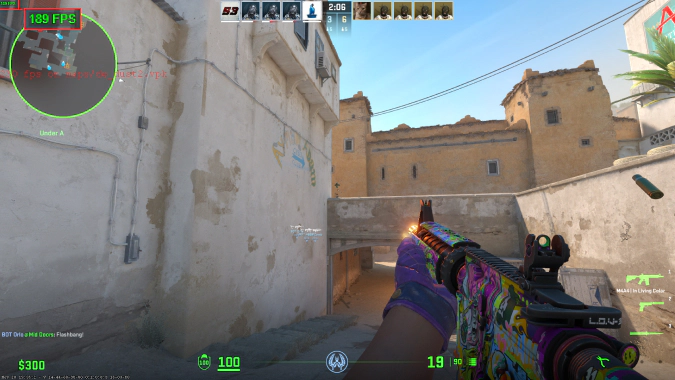
The core challenge involves finding equilibrium between frame rate stability and visual information retention. Some configurations dramatically reduce performance while offering minimal gameplay benefits, whereas others significantly enhance visibility without substantial FPS costs.
Consider operating CS2 on mid-range hardware. You might decrease shadow quality (minimal impact on enemy detection) while maintaining sufficient texture detail to prevent environmental blurring. Similarly, specific post-processing effects create visual polish but can obscure critical details during rapid combat sequences.
Texture Quality and Filtering Optimization
Texture resolution governs surface detail representation for walls, character models, and weapon finishes. While high-resolution textures enhance visual polish, they consume significant VRAM resources, potentially degrading performance on entry-level and mid-tier graphics cards.
Strategic approach involves:
- Reduced texture configurations liberate video memory, enabling smoother gameplay particularly during intensive combat scenarios.
- Moderate settings provide acceptable compromise between performance maintenance and visual clarity preservation.
- Elevated/Very High configurations suit exclusively premium systems where frame rates consistently exceed 200 FPS.
Regarding texture filtering, which sharpens angled surfaces, configuring Bilinear or Trilinear typically delivers adequate visibility without significant performance degradation. Anisotropic filtering (AF) enhances visual precision but imposes greater GPU utilization—maintain 2x or 4x maximum for mid-range configurations.
For uncompromised performance targeting, maintain texture quality at Low or Medium, combined with texture filtering at Bilinear.
Shader and Shadow Performance Impact
These represent two of the most resource-intensive configurations in CS2. They significantly influence both frame rate consistency and environmental visibility.
Shader systems manage visual enhancements including lighting effects, water reflections, and luminous materials. While visually impressive, these elements don’t contribute to combat effectiveness. Preserve shader detail at Low or Medium—you’ll maintain clear enemy identification without unnecessary visual effects.
Shadow configurations carry greater gameplay implications. Shadows can indicate enemy positioning before they enter direct line of sight—particularly around corners or behind obstacles.
However, shadow settings demonstrate performance variance:
- Basic shadows provide fundamental shadow representation while optimizing performance efficiency.
- Advanced shadows generate directional and refined shadowing, offering superior visual quality and enhanced environmental cues at the expense of frame rate stability.
Most professional competitors utilize Low or Medium shadow configurations to preserve enemy movement detection while avoiding performance deterioration.
Multisampling Anti-Aliasing Mode (MSAA)
MSAA technology smoothens jagged edges, creating cleaner model appearances and reduced visual strain. While this enhances visual comfort, it frequently imposes noticeable FPS penalties—particularly on mid-tier or budget-oriented graphics processing units.
Configuration options:
- Deactivated: Maximum performance optimization, visible edge artifacts
- 2x MSAA: Minimal performance impact, subtle edge refinement
- 4x MSAA: Substantial visual enhancement, increased graphics processor demand
- 8x MSAA: Excessive unless operating premium-tier GPU hardware.
For typical players, 2x MSAA delivers optimal balance. If constrained by hardware limitations, disable completely for peak performance.
Global Shadow Quality
This parameter defines shadow detail representation throughout map environments. Reduced settings produce block-like or pixelated shadows, while elevated configurations generate more realistic shadow rendering.
As previously discussed, certain players contend that Medium provides superior combination of enemy-revealing shadows and frame rate preservation. However, Low typically receives preference for purely performance-oriented system configurations.
Eliminate Very High unless your computer system consistently achieves 300+ FPS performance.
Brightness and Contrast Calibration
Maintaining clear enemy identification transforms competitive outcomes, especially within darker map sections or concealed positions. Among the most straightforward methods for visibility improvement involves calibrating brightness and contrast parameters—not exclusively in-game, but through monitor display or graphics driver software configurations.
Game Environment Adjustments:
- Configure Brightness to 110-130% contingent upon your display hardware specifications.
- Activate Boost Player Contrast (recently introduced CS2 functionality) to improve enemy model differentiation from environmental backgrounds.
Display Calibration Procedures:
- Enhance contrast parameters and minimize excessively warm color temperature settings.
- Prevent automatic brightness adjustment or adaptive contrast functionality.
Your objective should encompass: distinct visibility across both illuminated and shadowed areas, without image quality dilution.
Color Mode and Digital Vibrance Settings
CS2 permits color mode selection, influencing saturation intensity and visual vibrancy.
Color Mode Selection:
- Computer Monitor: Delivers superior contrast performance and represents the preferred selection for most competitive participants.
- Television: May over-saturate visual presentation, reducing clarity precision.
Digital Vibrance (within NVIDIA Control Panel interface) amplifies color saturation intensity. This enhancement causes enemy models to “stand out” more prominently, particularly when contrasted against neutral or subdued map texturing.
Recommended configuration parameters:
- Establish Digital Vibrance at 70-80% within NVIDIA/AMD configuration settings.
- Maintain Computer Monitor color mode for optimal clarity maintenance.
Vibrant environmental rendering facilitates enemy differentiation from surroundings. Exercise moderation to prevent visual fatigue development.
Pro-Level Enemy Detection Strategies
This domain represents where elite competitors demonstrate ingenuity. While prohibited from utilizing unauthorized modifications, you can maximize legitimate visibility through contrast amplification, vibrance parameter adjustment, and intelligent shadow utilization.
Visibility enhancement techniques:
- Disable Motion Blur (permanent recommendation).
- Preserve Model/Texture Detail at Medium—sufficient detail for clear enemy identification, without performance compromise.
- Activate Boost Player Contrast within video configuration menus.
- Adjust display settings for sharpness optimization and gamma correction (beneficial within darker map segments).
Proper visibility configurations provide competitive advantage in detecting emerging targets or players attempting environmental camouflage. When your configuration emphasizes enemy prominence, you’ve secured half the duel victory.
Low-End PC Configuration Guide
When operating CS2 on hardware-constrained systems, competitive gameplay remains achievable through intelligent configuration management.
Presenting verified configuration for entry-level hardware:
- Resolution: 1280×960 (4:3 aspect ratio)
- Display Mode: Fullscreen operation
- Texture Detail: Reduced configuration
- Effect Detail: Minimal settings
- Shader Detail: Basic configuration
- Anti-Aliasing: Complete deactivation
- Multicore Rendering: Enabled functionality
- Shadow Quality: Fundamental settings
- Boost Player Contrast: Activated parameter
This configuration maximizes frame rate stability while preserving enemy visibility. While visual aesthetics won’t achieve premium standards, gameplay will maintain fluidity—providing enhanced clutch round potential.
How to Improve Performance Without Upgrading Hardware
Not all participants possess resources for graphics card enhancement. Fortunately, additional FPS extraction remains possible through intelligent software utilization and system maintenance:
- Update Graphics Drivers consistently (NVIDIA/AMD platforms).
- Deactivate Windows visual enhancements: Navigate to System > Advanced System Settings > Performance Settings > Adjust for best performance.
- Configure CS2’s process priority to High within Task Manager interface.
- Terminate background applications including Chrome browsers, Discord overlay functionality, or Steam browser operations.
- Utilize optimization tools like CCleaner for system cleanup and startup application management.
- Execute disk defragmentation procedures for HDD storage (if not utilizing SSD technology).
These complimentary procedures frequently yield noticeable FPS improvements without financial expenditure.
For comprehensive system optimization, explore our Complete Guide to Battlefield 6 system optimization for additional performance enhancement techniques.
| Setting | Common Pro Choice |
|---|---|
| Resolution | 1280×960 (4:3) |
| Texture Detail | Low or Medium |
| Effect Detail | Low |
| Shader Detail | Low |
| Anti-Aliasing | Off or 2x MSAA |
| Multicore Rendering | Enabled |
| Shadow Quality | Low or Medium |
| Display Mode | Fullscreen |
| Brightness | 110-130% |
| Digital Vibrance (NVIDIA) | 70-80% |
Understanding proper Weapons Unlock strategies can further enhance your competitive gameplay experience.
In the high-stakes environment of Counter-Strike 2, every visual setting becomes a strategic decision that directly impacts your gameplay effectiveness. Unlike single-player titles where graphical splendor enhances immersion, CS2 demands a utilitarian approach where every frame and millisecond contributes to competitive success or failure.
CS2 operates as a precision tactical shooter where detecting opponents fractions of a second sooner can determine match outcomes. Graphics configurations either amplify your target acquisition capabilities or introduce visual obstacles that hinder performance.
Performance vs Visual Fidelity
The fundamental optimization principle involves finding the optimal equilibrium between frame rate consistency and visual clarity. Certain configurations dramatically impact performance without providing meaningful gameplay benefits, while others enhance target visibility without significant FPS costs.
Consider operating CS2 on a mid-tier gaming system. You could reduce shadow complexity (minimal impact on enemy detection) while maintaining adequate texture resolution so environments and opponent models remain distinguishable rather than becoming indistinct blurs.
This is where technical knowledge becomes essential. You need to maximize frame rates while preserving critical visual information. We’ll demonstrate precisely how to achieve this balance.
Minimum vs Recommended Specs
Before exploring specific configuration adjustments, establish whether your computer hardware can process CS2 efficiently. Valve provides both baseline and optimal specification guidelines that determine expected gameplay experience quality.
Minimum Requirements:
- OS: Windows 10 (64-bit)
- Processor: Intel Core i5-2500K or AMD FX-6300
- Memory: 8 GB RAM
- Graphics: GTX 1050 Ti or AMD equivalent
- DirectX: Version 11
Recommended Requirements:
- OS: Windows 10/11 (64-bit)
- Processor: Intel Core i5-6600K or Ryzen 5 1600
- Memory: 16 GB RAM
- Graphics: NVIDIA GTX 1660 or AMD RX 590
- DirectX: Version 11 or 12
If your system aligns with minimum specifications, concentrate exclusively on frame rate maximization. Users with recommended or superior hardware configurations can incorporate additional visual quality while maintaining smooth performance.
Importance of GPU and CPU in FPS Games
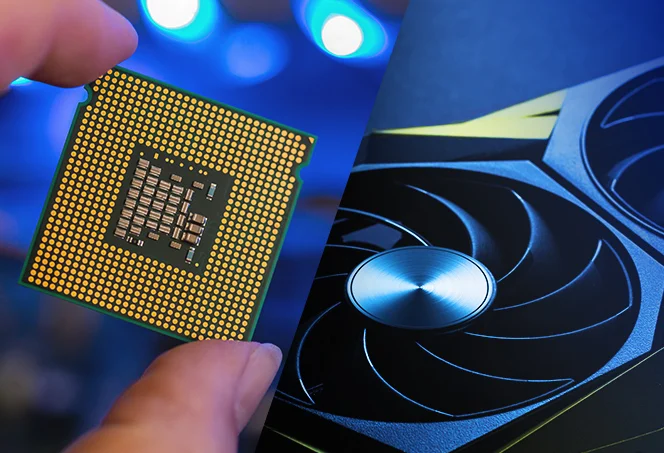
CS2 utilizes Valve’s Source 2 engine technology, which presents increased computational demands compared to the legacy Source engine powering CS:GO. This translates to elevated processing workloads for both your central processor and graphics card.
For consistent high frame rates (144+), particularly in competitive scenarios, both processing components must operate harmoniously. A powerful GPU facilitates higher display resolutions and refined texture presentation, but if your CPU cannot maintain processing pace, you’ll encounter performance degradation.
The essential insight? Even with competent graphics hardware, a constrained CPU will compromise your frame rates. This explains why configuration adjustments frequently prove more impactful than relying solely on hardware capabilities.
Resolution and Aspect Ratio Strategy
Your initial configuration decision involves selecting display resolution and aspect ratio parameters. These settings directly influence both rendering performance and in-game visual field coverage.
Common Pro Resolutions:
- 1280×960 (4:3 stretched)
- 1280×1024 (5:4)
- 1920×1080 (16:9)
Reducing resolution values increases frame rates, but simultaneously decreases image sharpness. Many professional competitors utilize 4:3 stretched configurations because they cause enemy character models to appear broader, theoretically improving targeting accuracy. However, this approach marginally restricts peripheral vision compared to 16:9 formats.
Configuration Recommendations:
- For maximum FPS objectives: Select 1280×960 or potentially 1024×768.
- For optimal visibility and clarity: Maintain 1920×1080 resolution.
- For competitive targeting advantages: Experiment with 4:3 stretched to enlarge target profiles.
Display Mode Optimization
Consistently select Fullscreen mode. This guarantees CS2 receives prioritized access to your system’s computational resources. Windowed and borderless windowed display modes offer convenience benefits but introduce input latency and frame rate instability due to background process interference.
Fullscreen Performance Advantages:
- Reduced input delay
- Enhanced frame rate stability
- Prioritized graphics processing allocation
This represents one of the simplest modifications delivering substantial performance improvements.
Refresh Rate and V-Sync Settings
Refresh Rate Configuration:
Your monitor’s refresh rate specification determines maximum displayable frames per second. 144Hz or 240Hz monitors enable significantly smoother gameplay experiences compared to 60Hz displays.
Ensure your in-game refresh rate setting corresponds with your monitor’s native capability:
- 60Hz monitor → Limit FPS to 60 (or 75 if supported)
- 144Hz monitor → Cap FPS at 144
- 240Hz monitor → Target 240+ FPS when possible
V-Sync Configuration:
Deactivate V-Sync. While eliminating screen tearing artifacts, this technology introduces input latency, which proves detrimental in competitive gaming environments. You’ll achieve better results tolerating occasional visual tearing rather than sacrificing crucial input responsiveness milliseconds.
Texture Quality and Filtering
Texture resolution parameters determine surface detail quality within the game environment—including walls, character models, and weapon appearances. While high-resolution textures enhance visual polish, they simultaneously demand increased video memory allocation, potentially degrading performance on entry-level and mid-range graphics hardware.
Configuration approach methodology:
- Reduced texture settings conserve VRAM resources, enabling smoother gameplay performance, particularly during intensive combat sequences.
- Intermediate configurations provide reasonable compromise between performance metrics and visual clarity.
- Elevated/Very High settings remain viable exclusively for premium systems where frame rates already exceed 200 FPS consistently.
Regarding texture filtering technology, which enhances surface sharpness at oblique viewing angles, configuring Bilinear or Trilinear filtering typically delivers adequate visibility without substantial performance penalties. Anisotropic filtering (AF) improves visual definition but imposes higher graphics processing loads—maintain 2x or 4x maximum settings if operating mid-tier hardware.
If pursuing pure performance optimization, maintain texture quality at Low or Medium levels, and texture filtering at Bilinear for optimal results.
Shader and Shadow Optimization
These represent two of the most computationally intensive configuration categories within CS2. They can substantially influence both frame rate performance and target visibility capabilities.
Shader technology manages visual effects including lighting simulations, water reflections, and emissive materials. While aesthetically impressive, these effects contribute minimally to combat effectiveness. Maintain shader complexity at Low or Medium levels—you’ll maintain enemy visibility adequately without additional rendering overhead.
Shadow configurations carry greater gameplay implications. Shadows can indicate enemy positioning before visual contact occurs—particularly around architectural corners or behind environmental obstacles.
However, shadow implementation varies significantly:
- Basic shadow settings provide fundamental shadow representation while minimizing performance impact.
Enhanced shadow quality provides directional and softened shadow effects, which enhance visual realism and provide additional tactical information but reduce frame rates.
Most professional competitors employ Low or Medium shadow configurations to preserve enemy movement visibility without compromising performance stability.
Multisampling Anti-Aliasing Mode (MSAA)
MSAA technology smoothens geometric edges, creating cleaner model appearances that reduce visual strain. While providing visual comfort benefits, this technology carries noticeable frame rate costs—particularly on intermediate or entry-level graphics hardware.
Configuration options:
- Disabled: Maximum performance, geometric aliasing visible
- 2x MSAA: Minimal performance impact, moderate edge smoothing
- 4x MSAA: Substantial visual improvement, elevated GPU utilization
- 8x MSAA: Excessive performance requirements unless operating premium graphics hardware.
For typical users, 2x MSAA delivers optimal balance. If operating constrained hardware resources, deactivate this feature for peak performance.
Global Shadow Quality
This parameter defines shadow detail consistency throughout the game environment. Reduced settings produce blocky or pixelated shadow representations, while elevated settings generate more realistic shadow effects.
As previously mentioned, some players contend that Medium shadow quality provides the ideal combination of tactical information and performance. However, Low configurations typically receive preference for purely performance-oriented setups.
Avoid Very High settings unless your system consistently achieves 300+ FPS without difficulty.
Brightness and Contrast Calibration
Maintaining clear enemy visibility represents a critical gameplay enhancement, particularly within darker environmental sections or concealed positions. Among the most straightforward visibility improvement methods involves adjusting brightness and contrast parameters—not exclusively within game settings, but also through monitor calibration and GPU software adjustments.
In-Game Configuration Parameters:
- Configure Brightness to 110-130% based on your specific display characteristics.
- Activate Boost Player Contrast (a recent CS2 feature introduction) to enhance enemy model differentiation from environmental backgrounds.
Monitor Calibration Procedures:
- Increase contrast values and reduce excessively warm color temperature settings.
- Deactivate automatic brightness adjustment or adaptive contrast functionality.
Your calibration objective should achieve: distinct visibility across both illuminated and shadowed areas, without producing washed-out image quality.
Color Mode and Digital Vibrance
CS2 permits selection between color rendering modes, which affect saturation intensity and visual vibrancy.
Color Mode Selection Options:
- Computer Monitor: Provides superior contrast performance and represents the preferred selection for most competitive players.
- Television Mode: Can produce excessive color saturation, diminishing visual clarity.
Digital Vibrance technology (within NVIDIA Control Panel) enhances color saturation levels. This causes enemies to appear more prominent, particularly when contrasted against neutral or subdued environmental textures.
Recommended configuration parameters:
- Configure Digital Vibrance to 70-80% within NVIDIA/AMD configuration panels.
- Select Computer Monitor color mode for optimal clarity.
Vibrant environmental presentation facilitates easier enemy differentiation from surroundings. Exercise moderation to prevent potential visual discomfort.
Enemy Detection Optimization
This represents where professional competitors demonstrate technical creativity. While prohibited from utilizing unauthorized modifications or unfair advantages, you can maximize legitimate visibility through contrast enhancement, vibrance adjustments, and intelligent shadow configuration.
Visibility enhancement strategies:
- Deactivate Motion Blur (consistently).
- Maintain Model/Texture Detail at Medium level—sufficient detail for clear enemy identification, without excessive performance demands.
- Enable Boost Player Contrast within video configuration menus.
- Adjust monitor configuration parameters for enhanced sharpness and gamma correction (beneficial in shadowed map regions).
Appropriate visibility configurations provide tactical advantages when identifying emerging targets or opponents attempting environmental camouflage. If your setup enhances enemy prominence, you’ve achieved significant competitive positioning.
NVIDIA Performance Settings
For NVIDIA hardware users, the Control Panel interface provides performance enhancement capabilities beyond standard in-game configuration options.
Essential NVIDIA Configuration Adjustments:
- Low Latency Mode: Configure to Ultra setting for minimized input delay.
- Power Management Mode: Set to Prefer Maximum Performance.
- Texture Filtering – Quality: Configure to High Performance.
- Vertical Synchronization: Deactivated.
- G-Sync Technology: Optional configuration—beneficial for screen tearing reduction, but potentially introducing input latency.
Additionally, activate Digital Vibrance (as previously detailed) to improve opponent visibility.
Utilize NVIDIA Reflex Technology: This functionality integrates directly within CS2 and should remain enabled for reduced system latency—critical for competitive gameplay performance.
AMD Optimization Configurations
AMD hardware users can similarly enhance frame rates and reduce input delay through specific configuration modifications.
Critical AMD Configuration Parameters:
- Radeon Anti-Lag: Activate this feature.
- Radeon Chill: Deactivate for maximum frame rate performance.
- Texture Filtering Quality: Configure to Performance setting.
- Surface Format Optimization: Enable this functionality.
- Wait for Vertical Refresh: Consistently deactivated.
Employ Color Temperature and Saturation parameters within AMD’s control interface to replicate NVIDIA’s digital vibrance visibility enhancement. This will improve target identification without performance degradation.
FPS and Net Graph Setup
Monitoring frame rate performance in real-time enables understanding of which configurations influence gameplay and where performance degradation originates.
Activate FPS Counter within CS2:
- Access developer console (press
~key) - Input
cl_showfps 1command — displays current frame rate in upper screen corner.
For comprehensive performance diagnostics, utilize the Net Graph functionality:
- Input
net_graph 1command within the console interface.This visualization presents:
- Real-time frame rate monitoring
- Network latency measurement
- Packet loss percentage tracking
- Server tickrate verification
Comprehending this performance data proves essential when diagnosing lag occurrences or frame rate instability. If your network latency remains stable but frame rates decline during smoke deployments or explosive effects, your graphics hardware might experience processing overload.
System Resource Analysis
Occasionally, performance limitation sources remain non-obvious. Is your central processor operating at maximum capacity? Is your system memory utilization excessive? Are background applications consuming computational resources?
Performance Bottleneck Identification Methodology:
- Utilize Task Manager utility (
Ctrl + Shift + Esckey combination) to verify CPU/GPU/RAM utilization metrics. - Employ MSI Afterburner or HWMonitor applications for detailed hardware performance monitoring.
- Terminate non-essential background processes before initializing CS2.
Understanding your system’s performance limitations enables targeted configuration adjustments rather than speculative setting modifications.
Common Pro Configurations
Curious about configuration selections among elite CS2 professionals? Revealing insight: Premium visual settings receive minimal utilization. Most competitive experts optimize for frame rate consistency and target visibility, not aesthetic presentation quality.
This illustrates typical professional competitor configurations:
Setting Common Pro Choice Resolution 1280×960 (4:3) Texture Detail Low or Medium Effect Detail Low Shader Detail Low Anti-Aliasing Off or 2x MSAA Multicore Rendering Enabled Shadow Quality Low or Medium Display Mode Fullscreen Brightness 110-130% Digital Vibrance (NVIDIA) 70-80% Configuration Effectiveness Rationale:
- 4:3 stretched configuration causes targets to appear broader.
- Reduced configuration complexity minimizes visual distractions and interface clutter.
- Elevated frame rates ensure improved crosshair movement fluidity and shooting precision.
Key Takeaways from Pro Settings
- Performance Prioritization > Graphical Quality: CS2 emphasizes rapid reaction capabilities, not visual sophistication.
- Visual Clarity Importance > Decorative Effects: Enhance enemy prominence, reduce shadow complexity and unnecessary lighting effects.
- Customization Significance: Professional competitors dedicate substantial time refining configurations for specific hardware and map characteristics.
If pursuing serious competitive advancement, adopting these configuration frameworks provides substantial foundation.
Performance Optimization Tools and Techniques
FPS Booster Applications
Professional gamers often leverage specialized optimization software to extract maximum performance from their systems. These applications work by temporarily suspending non-essential Windows services and applications that typically consume valuable CPU cycles and memory bandwidth during gameplay sessions.
- Razer Cortex: This utility automatically identifies and terminates background processes that aren’t critical to your gaming experience, potentially freeing up significant system resources.
- MSI Afterburner: Beyond monitoring capabilities, this tool enables controlled GPU overclocking for users comfortable with advanced hardware tuning techniques.
- Game Booster by IObit: Optimizes PC performance by cleaning RAM and pausing background services.
These tools won’t work miracles, but when combined with the right in-game settings, they can give you an extra 10–20 FPS—enough to go from choppy to playable.
Advanced Config File Tweaks
There are also in-game
.cfgfile tweaks and console commands that optimize performance. Some useful ones include:cl_forcepreload 1– Loads map resources before the match to prevent stutters.fps_max 300– Caps FPS to keep it stable.mat_queue_mode 2– Forces multicore rendering to improve performance.
You can create an
autoexec.cfgfile in your CS2 config directory and paste these commands in to load them automatically every time the game starts.These tweaks are 100% safe, VAC-secure, and commonly used by pro players to get a consistent FPS boost.
Driver Maintenance Best Practices
One of the simplest and most often overlooked ways to boost performance is keeping your system drivers up to date. Your GPU manufacturer (NVIDIA or AMD) regularly releases driver updates specifically optimized for games like CS2.
- Visit the official NVIDIA/AMD website.
- Download the latest Game Ready or Adrenalin driver.
- Install using a clean installation option to remove previous versions.
An updated driver can sometimes deliver a 5–10% performance increase or fix stuttering issues caused by older software.
Background Process Management
You might be surprised how many background apps drain your system resources while you’re trying to game. Apps like Chrome, Discord overlays, Spotify, and even Windows Update can eat up CPU and RAM.
To manage background tasks:
- Press
Ctrl + Shift + Escto open Task Manager. - Go to the Startup tab.
- Disable all non-essential startup apps.
- Before gaming, close apps like browsers, video editors, or streaming services.
Also, enable Game Mode in Windows and disable Xbox Game Bar—both of which can interfere with CS2’s performance depending on your system.
The goal is to free up every bit of power for the game so your system doesn’t lag when it matters most.
System Health Maintenance for Competitive Gaming
Regular Driver Updates
Maintaining current graphics drivers represents one of the most impactful yet frequently neglected performance optimization strategies. Modern GPU manufacturers consistently release performance-optimized drivers specifically tailored for competitive titles like CS2, often addressing stability issues and performance optimizations discovered through extensive testing.
Advanced Driver Management Techniques:
- Schedule monthly driver checks using NVIDIA GeForce Experience or AMD Software: Adrenalin Edition.
- Create system restore points before major driver updates to enable quick rollback if compatibility issues arise.
- Utilize DDU (Display Driver Uninstaller) for thorough cleaning before fresh installations.
Professional esports organizations typically maintain dedicated IT staff who systematically test and validate new driver releases before deployment to player systems.
- Conduct weekly system audits using Windows Task Manager to identify resource-intensive applications.
- Implement automated gaming profiles using tools like Razer Cortex that instantly configure your system for optimal gaming conditions.
- Establish pre-gaming checklists to systematically close known resource-intensive applications like web browsers with multiple tabs, video streaming services, and file transfer applications.
- Configure Windows Power Plans to prioritize performance over energy efficiency during gaming sessions.
- Use CS2’s built-in net_graph command for real-time frame time analysis and network performance monitoring.
For comprehensive system analysis, combine MSI Afterburner for GPU metrics with HWMonitor for comprehensive system temperature and utilization tracking.
- Configure texture quality to Low/Medium and filtering to Bilinear for immediate FPS improvement
- Set shader detail to Low and disable motion blur permanently
- Calibrate brightness to 110-130% and enable Boost Player Contrast
- Implement appropriate shadow quality based on your gameplay priorities
- Apply NVIDIA/AMD control panel optimizations for latency reduction
- Configure digital vibrance settings and monitor calibration for optimal visibility
- Configure display resolution to 1280×960 (4:3 stretched) for target width enhancement and performance optimization
- Set display mode to Fullscreen and deactivate V-Sync completely
- Configure NVIDIA/AMD control panel settings for reduced latency and improved visibility
- Optimize texture, shader, and shadow settings for maximum FPS
- Implement launch options for system resource optimization and performance consistency
- Activate FPS counter and net graph for performance monitoring
- Download and configure FPS booster application (Razer Cortex or IObit)
- Create and implement autoexec.cfg with performance commands
- Update graphics drivers using clean installation method
- Systematically disable non-essential startup applications
- Configure Windows Game Mode and disable Xbox Game Bar
Smart Background Task Control
Modern gaming systems often suffer from ‘digital clutter’—countless background applications and services that gradually accumulate over time, silently consuming precious system resources that should be dedicated to gameplay performance.
Comprehensive Performance Optimization Protocol:
Critical Mistake to Avoid: Many competitive gamers overlook the cumulative impact of minor background processes. While individually insignificant, collectively they can consume 15-25% of available CPU resources, directly impacting frame timing consistency and input responsiveness.
Performance Monitoring Tools
Implementing robust performance monitoring represents the foundation of systematic optimization. Professional players typically run multiple monitoring solutions simultaneously to cross-verify performance data and identify subtle system bottlenecks.
Recommended Monitoring Stack:
Advanced optimization involves understanding the relationship between frame times and perceived smoothness. Consistently low frame times (below 6.9ms for 144Hz) delivers the competitive edge necessary for high-level play.
Action Checklist
No reproduction without permission:Tsp Game Club » Best CS2 Graphics Settings for FPS and Visibility