
TL;DR
- Graphics card settings provide the biggest FPS boost when properly configured
- Windows optimization can add 50-100 FPS by eliminating background resource hogs
- Smart resolution choices balance performance with visual clarity for competitive play
- Multicore rendering is the only CS:GO setting that consistently improves performance
- Balanced settings prevent visual degradation while maintaining high frame rates
Performance Optimization Fundamentals
Your CS:GO frame rate depends on two primary configuration categories: in-game visual settings and external system optimizations. External factors include graphics driver configurations, operating system performance settings, background applications, and hardware-specific tuning options that collectively determine your system’s gaming capabilities. While in-game adjustments focus primarily on graphical parameters, external optimizations address the underlying system performance that supports your gaming experience.
Many competitive players instinctively minimize all graphical settings, assuming this guarantees maximum FPS. However, this approach often creates diminishing returns – you might gain only 20-30 additional frames while sacrificing critical visual clarity that helps spot distant enemies or subtle movement cues. The optimal strategy involves understanding which settings significantly impact performance versus those that provide visual benefits with minimal FPS cost.
Graphics Card Configuration Mastery
Your graphics processing unit (GPU) represents the most critical component for achieving stable high frame rates in CS:GO. Properly configuring your video adapter settings can yield substantial performance improvements that directly translate to smoother gameplay and more responsive controls.
Begin by identifying your GPU manufacturer, as this determines the specific optimization pathway. Most CS:GO competitors utilize either NVIDIA or AMD graphics cards, though the fundamental principles apply across hardware vendors.
NVIDIA Graphics Card Optimization
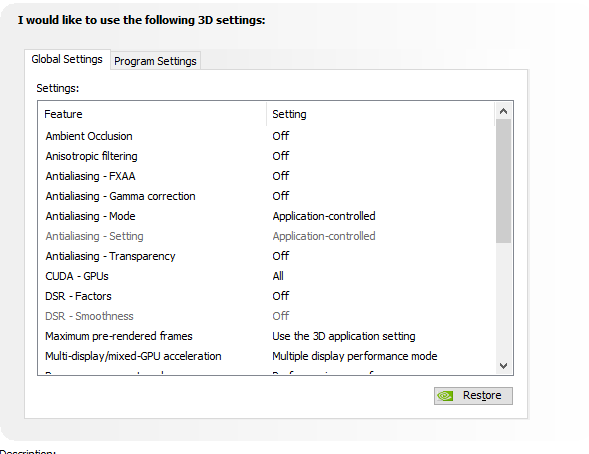
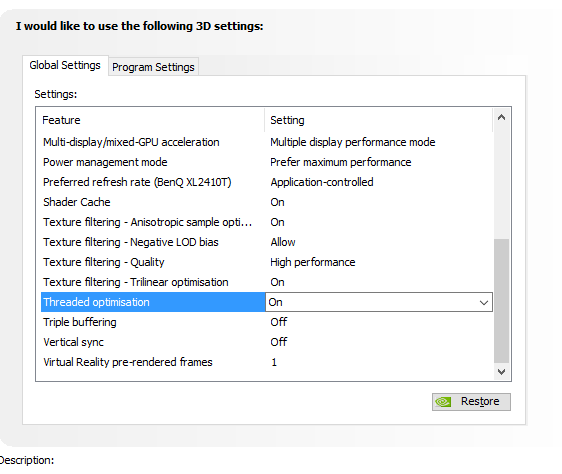
Access the NVIDIA Control Panel by right-clicking your desktop and selecting “Manage 3D Settings” from the menu. You can apply settings globally to all applications or create a specific profile for CS:GO.exe. Global configurations work well for dedicated gaming systems, while application-specific profiles benefit multi-purpose computers where different software may require varied settings.
When optimizing NVIDIA settings for competitive gaming, prioritize raw performance over visual enhancements. Disable resource-intensive features like ambient occlusion, anisotropic filtering, and vertical sync while enabling performance-oriented options like threaded optimization and setting power management to “Prefer Maximum Performance.”
AMD Radeon Graphics Configuration
The optimization process for AMD graphics cards follows similar principles to NVIDIA configurations. Right-click your desktop, open “AMD Radeon Settings,” navigate to the Gaming tab, and select CS:GO from your game library. Configure the following options for optimal performance:
- Anti-aliasing Mode: Use application settings
- Anti-aliasing Method: Multisampling
- Morphological Filtering: Off
- Anisotropic Filtering Mode: Use application settings
- Texture Filtering Quality: Performance
- Surface Format Optimization: Off
- Wait for Vertical Refresh: Off
- OpenGL Triple Buffering: Off
- Shader Cache: If CS:GO is installed on SSD – On, otherwise – Off
- Tessellation Mode: Use application settings
- Frame Rate Target Control: Disabled
Windows System Performance Tuning
Operating system optimization frequently delivers dramatic FPS improvements – expect 50-100 additional frames if you’re currently around 150 FPS. However, effective OS tuning requires understanding which system settings actually impact gaming performance versus those that merely appear relevant.
Start by removing unnecessary background applications that consume system resources without providing gaming value. The Xbox Game Bar represents a common performance drain that many players overlook. We strongly recommend disabling or uninstalling any non-essential software that runs automatically. Navigate to “Apps & features” in Windows Settings to review and remove resource-hogging applications.
Many competitors overlook the critical high performance power plan setting. Some mistakenly select high quality modes believing they enhance visual fidelity, when in reality these settings often reduce gaming performance. Configure this by accessing System Properties, selecting the Advanced tab, clicking Performance Settings, and choosing “Adjust for best performance.” Enable font smoothing within these settings to maintain text readability without significant performance cost.
Power plan configuration represents another essential optimization layer. Simply navigate to Power Options in Control Panel and select the High Performance plan. This ensures your system prioritizes performance over power conservation during gaming sessions.
Startup program management completes the system optimization trifecta. Press Ctrl+Shift+Esc to open Task Manager, select the Startup tab, and disable any non-essential applications. The optimal approach involves minimizing startup programs and launching them manually only when needed.
CS:GO In-Game Settings Optimization
While external optimizations provide substantial benefits, CS:GO’s internal settings directly determine your final frame rate, especially on lower-specification systems. Understanding which parameters most significantly impact performance enables targeted optimizations that preserve visual quality where possible.
Display resolution selection dramatically affects performance – higher resolutions demand significantly more GPU resources. The performance difference between resolutions can exceed 100% with identical quality settings. While low resolutions benefit budget systems, extreme reductions like 640×480 create unacceptable visual degradation that hinders gameplay. For moderate systems, 1024×768 strikes an excellent balance between performance and visibility, as demonstrated by professional players like XANTARES who compete successfully at this resolution.
Configuring video options follows a straightforward principle: minimize most settings while preserving multicore rendering, which uniquely enhances performance on modern multi-core processors.
For comprehensive gaming optimization strategies beyond CS:GO, check out our Complete Guide to system-wide gaming performance.
If you’re looking to enhance your overall FPS performance across different games, our Weapons Unlock guide includes additional performance tips. Advanced players should also review our Class Guide for additional competitive gaming insights.
Action Checklist
- Configure GPU control panel settings for maximum performance
- Remove unnecessary background applications and disable startup programs
- Set Windows power plan to High Performance mode
- Optimize CS:GO video settings while keeping multicore rendering enabled
- Test different resolutions to find optimal balance of performance and visibility
No reproduction without permission:Tsp Game Club » CS:GO settings and how they affect your FPS. Guide by SCOPE.GG Expert guide to optimize CS:GO FPS through GPU settings, system tweaks, and smart in-game configurations