
Complete guide to disable motion blur in Vampire: The Masquerade Bloodlines 2 with performance optimization tips
Understanding Motion Blur in Bloodlines 2
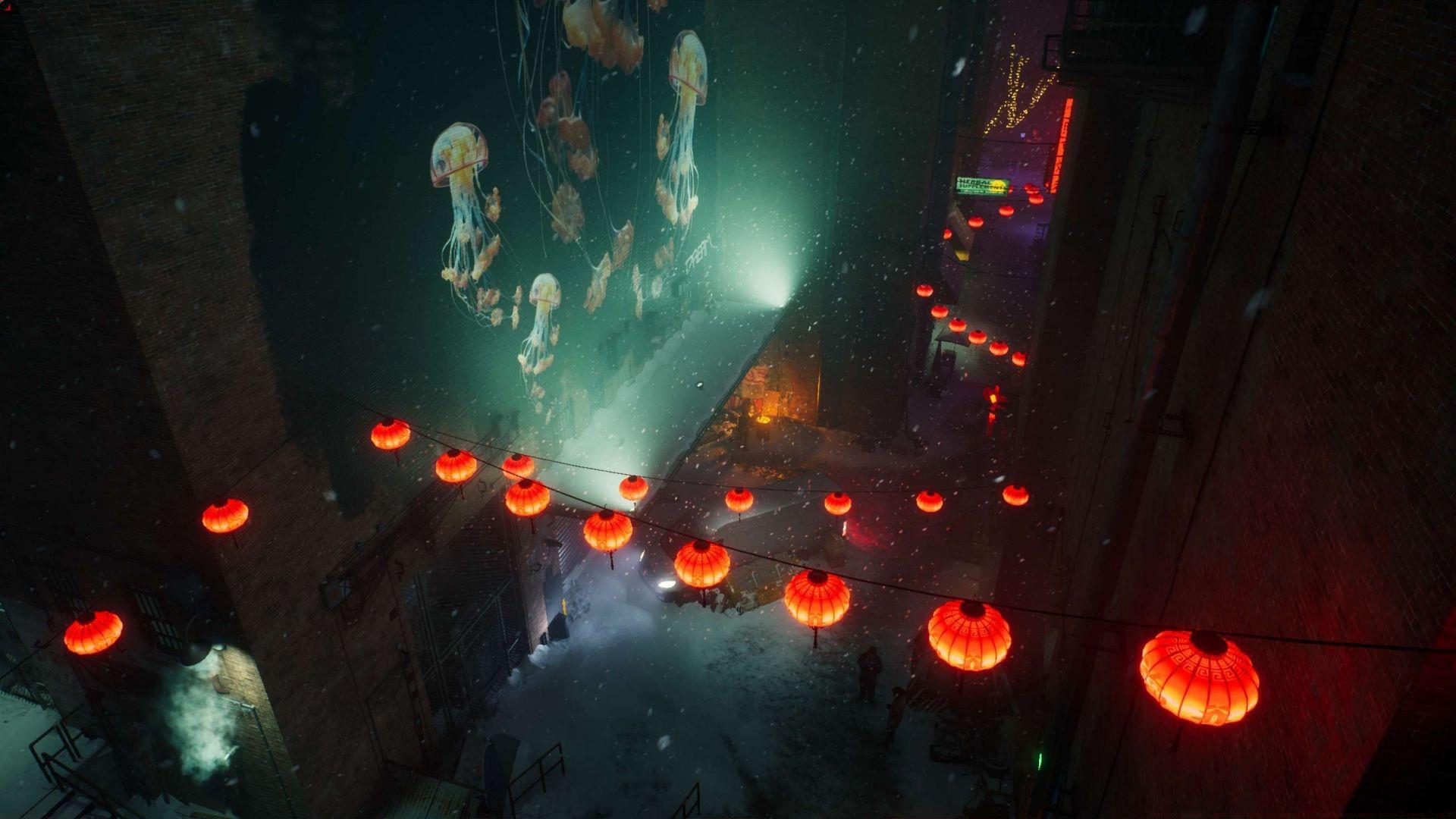
The motion blur implementation in Vampire The Masquerade Bloodlines 2 creates a cinematic atmosphere that divides player opinions significantly. While this visual effect enhances immersion for some by simulating realistic camera movements, many gamers experience gameplay disadvantages when rapid character movements generate screen blurring during critical combat encounters or exploration sequences. Understanding this visual feature’s impact helps players make informed decisions about their preferred gaming experience.
Motion blur technology in modern gaming serves multiple purposes beyond aesthetic appeal. It can mask lower frame rates, reduce screen tearing artifacts, and create a more film-like presentation. However, in fast-paced action sequences common to vampire combat scenarios, excessive motion blur may compromise targeting precision and spatial awareness. Players sensitive to motion effects often report reduced gameplay performance and increased eye strain during extended sessions.
Step-by-Step Configuration Guide
Fortunately, players have complete control over motion blur settings through direct configuration file editing. This comprehensive guide provides the exact steps to modify your game’s visual presentation according to personal preference.
Configuration File Access Procedure:
- Initiate the Windows Run dialog by simultaneously pressing the ‘Windows key + R’ keyboard combination
- Input the directory command %localappdata% exactly as specified to access local application data
- Navigate through the directory path: Bloodlines2SteamSavedConfigWindowsEngine.ini
- Right-click the Engine.ini file and select ‘Open with’ choosing a text editor like Notepad++ or standard Notepad
Configuration Modification Steps:
- Scroll to locate or create the [SystemSettings] section within the configuration file
- Insert the following console commands on separate lines to completely disable motion blur effects:
r.MotionBlur.Max=0
r.MotionBlurQuality=0 - Save the modified file and ensure it retains the .ini extension format
- Launch Vampire: The Masquerade Bloodlines 2 to experience the improved visual clarity
Advanced Optimization Strategies
Beyond basic motion blur disabling, several additional configuration tweaks can enhance your Bloodlines 2 gaming experience. These optimizations balance visual quality with performance requirements.
Performance Enhancement Commands:
- r.Tonemapper.GrainQuantization=0 – Reduces film grain effects
- r.Tonemapper.Quality=0 – Adjusts tonemapper quality settings
- r.SceneColorFringe.Max=0 – Eliminates chromatic aberration
- r.DefaultFeature.AntiAliasing=2 – Controls anti-aliasing method
Visual Quality Preservation:
While disabling certain effects improves performance, consider maintaining texture quality and shadow details for immersive environmental storytelling. The urban environments of Bloodlines 2 contain intricate details that contribute significantly to the game’s atmospheric quality. Balance performance adjustments with visual preservation to maintain the intended gaming experience while eliminating problematic effects.
Common Issues and Troubleshooting
Players may encounter several common obstacles when modifying game configuration files. Understanding these potential issues ensures a smooth customization process.
File Access and Permissions:
- If unable to locate the Engine.ini file, verify game installation integrity through Steam
- Administrator privileges may be required to save modified configuration files
- Create a backup copy of the original Engine.ini before implementing changes
Configuration Validation:
- Ensure commands are placed under the correct [SystemSettings] section header
- Verify there are no duplicate commands creating conflicts
- Check for typographical errors in console command syntax
- Confirm file encoding remains as ANSI or UTF-8 without BOM
If modifications don’t take effect, restart the game completely and verify the file save time stamp. Some settings may require a full game restart rather than just reloading a save game.
No reproduction without permission:Tsp Game Club » How to disable motion blur in Vampire The Masquerade Bloodlines 2 on PC Complete guide to disable motion blur in Vampire: The Masquerade Bloodlines 2 with performance optimization tips