
TL;DR
- CS2 config files store all game settings in customizable text documents for easy sharing and optimization
- Configs control graphics, audio, mouse sensitivity, key bindings, and crosshair settings for competitive advantage
- Autoexec configurations automatically load your preferred settings every time you launch the game
- Professional player configs provide valuable insights but require personal adaptation and testing
- Proper command syntax and file placement are critical for configuration functionality
Configuration files, commonly referred to as configs, serve as the backbone of your CS2 gaming experience, allowing comprehensive personalization of every aspect from visual presentation to mechanical performance. These text-based files function as centralized repositories where you can consolidate, modify, and distribute your preferred game parameters with precision and consistency.
A CS2 config file systematically organizes and preserves your game’s operational parameters within a designated directory of the installation files. This approach enables you to aggregate all personalized configurations into a single, manageable location rather than scattering settings across multiple system registries or user interfaces.
The following critical game elements can be meticulously customized through strategic CS2 config implementation:
- Graphics and video rendering options
- Audio parameters and sound effect prioritization
- Mouse sensitivity, acceleration, and raw input configurations
- Keyboard bindings and macro assignments
- Crosshair appearance, behavior, and situational variations
Beyond individual customization, config files facilitate seamless settings sharing among teammates and community members. The practice of adopting professional player configurations has gained significant popularity, as it allows you to incorporate refined parameter optimizations developed through thousands of hours of competitive play. However, successful integration requires understanding the underlying principles rather than blind implementation.
By default, your CS2 configuration files reside in the following standardized directory location:
C:Program Files (x86)SteamsteamappscommonCounter-Strike Global Offensivegamecsgocfg
You can alternatively navigate to the configuration directory through Steam’s interface. Launch Steam and access your Library, then right-click CS2 and choose Properties. Within the ensuing dialog, select “Installed Files” followed by “Browse“. This action opens a file explorer where you must sequentially open the primary game folder, then locate the “cfg” subdirectory where all configuration assets are stored.
For advanced users, additional access methods include creating desktop shortcuts to the cfg folder or utilizing Steam console commands for rapid directory navigation. These alternative approaches significantly streamline the configuration management workflow for frequent adjustments.
Establishing a custom CS2 configuration requires minimal technical expertise when following this structured methodology:
- Generate a new text document using any text editing application, with Notepad++ recommended for its syntax highlighting capabilities.
- Implement configuration commands: Systematically incorporate the console directives required to establish your desired gaming environment parameters.
- Preserve the document: Assign your file a descriptive identifier. Crucially, the filename must terminate with the .cfg extension to ensure proper game recognition and execution.
Following the creation of your configuration file, you must position it within the same directory housing other operational configs. Alternatively, duplicate an existing configuration file and reassign its name. After accessing the current config, implement necessary modifications, or employ it as a foundational template for subsequent configuration development.
Within the text document, you can incorporate any console commands essential for optimizing your CS2 experience. Each distinct command must occupy its own line within the file structure. For optimal configuration performance and reliability, appending a “;” symbol after each directive is strongly recommended to prevent parsing errors and ensure consistent execution.
Common configuration mistakes include improper command syntax, conflicting parameters, and missing critical performance directives. Always validate your config by testing in offline matches before deploying in competitive environments.
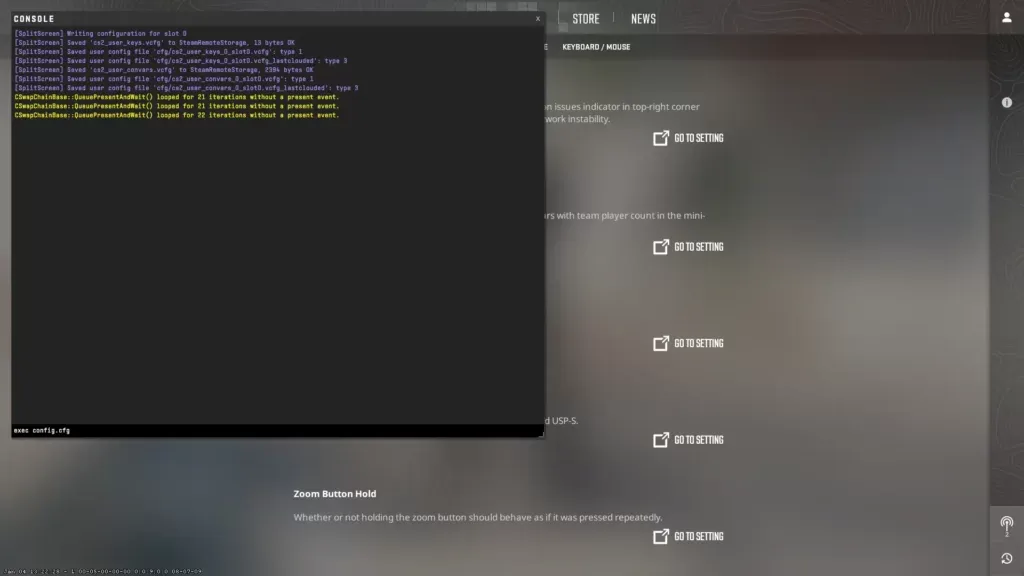
After positioning your config within the designated folder (SteamsteamappscommonCounter-Strike Global Offensivegamecsgocfg), you must execute it to activate the contained settings within the game environment, accomplished through the developer console interface. Initially, verify console activation status by navigating to the “Enable developer console” parameter and setting it to “Yes“.
Then proceed with these sequential activation steps:
- Activate the console interface by depressing the ~ key, typically located adjacent to the numerical 1 key on standard QWERTY keyboards.
- Input exec file name.cfg and execute by pressing Enter, ensuring the filename precisely matches your configuration document.
Configuration activation typically requires 15-30 seconds depending on the complexity of implemented commands and system performance characteristics.
To streamline your gaming workflow, establish an autoexec configuration that automatically implements your preferences upon each game launch without manual console intervention. Implement this automated system through the following configuration protocol:
- Generate a new autoexec.cfg document: Validate filename accuracy meticulously, as incorrect nomenclature will prevent automatic loading.
- Integrate your preferred parameters: Input the desired console commands and operational settings.
- Preserve the file within the target directory: C:Program Files (x86)SteamsteamappscommonCounter-Strike Global Offensivegamecsgocfg
- Configure initialization parameters: Right-click Counter-Strike 2 within your Steam library, select “Properties“
- Append +exec autoexec.cfg to the launch options field on the General configuration tab.
- The autoexec configuration will now systematically execute designated commands during each game initialization sequence.
Advanced optimization techniques include implementing conditional commands that adjust settings based on map characteristics or game mode detection for maximum competitive advantage.
Novice CS2 participants frequently attempt to emulate the parameter configurations of established professional competitors, as these settings represent refined optimizations developed through extensive competitive experience. However, professional configurations present inherent limitations, as elite players tailor these parameters specifically to their individual playstyles, hardware specifications, and situational requirements.
For optimal results, experiment with configurations from multiple professional sources rather than committing to a single player’s setup. There’s no necessity to preserve identical configurations across sessions; instead, selectively extract the specific parameters that align with your personal preferences from each competitor’s configuration portfolio.
You can locate professional player configurations through organizational websites and dedicated esports resources. Numerous specialized platforms aggregate professional player settings and their corresponding configuration files. Simply acquire the file, transfer it to the “cfg” directory, then implement within the game environment via console using the directive: exec filename.cfg.
NAVI players config files:
iM
jL
b1t
w0nderful
Aleksib
Config of professional players:
Zywoo
NiKo
ropz
Twistzz
frozen
dev1ce
Competitive players continuously refine their parameter configurations seeking performance enhancements. Consequently, professional configs undergo frequent modifications, and we’ve compiled current player configurations available at the time of this guide’s publication.
Remember that merely implementing a professional player’s configuration won’t instantly transform you into an elite competitor. Following the adoption of an esports professional’s settings, avoid immediately joining competitive matches. Initially, practice against AI opponents, evaluate the new configurations thoroughly, and make necessary personal adjustments. Only through this systematic approach will professional configuration utilization yield tangible benefits to your gameplay progression.
We anticipate that after reviewing this comprehensive resource, you’ve developed enhanced understanding of CS2 configuration systems and that this knowledge will facilitate measurable game improvement. We extend our best wishes for your competitive success and continued development within the CS2 ecosystem.
Action Checklist
- Navigate to your CS2 cfg directory using either the default file path or Steam library method
- Create or duplicate a configuration file with .cfg extension
- Implement preferred console commands with proper syntax and line separation
- Enable developer console in game settings if not already activated
- Test configuration in offline matches before competitive play
- Establish autoexec.cfg for automatic settings loading
- Evaluate and refine settings based on performance metrics
No reproduction without permission:Tsp Game Club » How to set up a config in CS2 Master CS2 config files to optimize performance, customize controls, and implement pro player settings effectively